Your Android keyboard is not a minor privacy setting. It sees searches, private messages, work notes, addresses, passwords before the password field hides them, and all the ordinary fragments that make a phone personal. Android Police has just put Gboard under the spotlight again, while Google’s own documentation explains federated learning, local personalization and optional voice data contribution. The useful answer is not panic. It is a checklist.

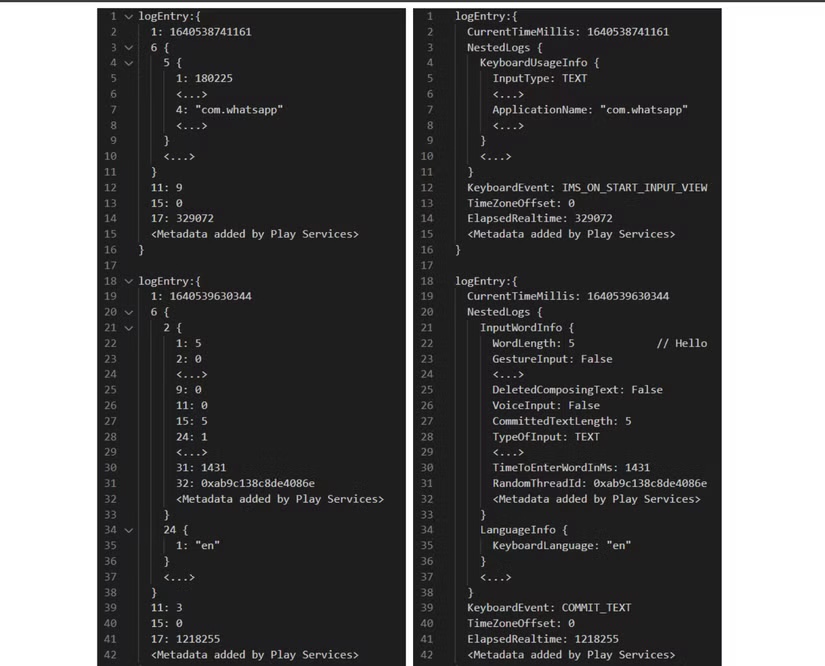
The practical issue is that Gboard is a connected keyboard, not a silent system component. It offers glide typing, emoji and GIF search, voice typing, handwriting, multilingual suggestions and Google Translate while you type. Those features are useful, but they increase the data surface around the keyboard. Google says federated learning does not send the text you type or speak to Google, but it can send what the device has learned so the company can combine it with learning from other users. That distinction matters: it is better than uploading raw text, but it still deserves a deliberate setting choice.
If you are already cleaning up your Android setup, put the keyboard next to notification, backup and social app checks. Related AndroidLab coverage: our guide to Android controls for aggressive Instagram and Facebook design patterns. The logic is the same: reduce opaque defaults and keep the settings you can actually verify.
What to check first in Gboard
Open Settings on your Android phone, then go to System, Languages and input, On-screen keyboard, Gboard and Privacy. On Samsung Galaxy phones and some heavily customized Android builds, the path may be slightly different, but the target is the same: Gboard’s privacy preferences.
The first switch to inspect is Personalize for you. Google describes it as a way to improve typing and voice recognition for you, with learned data stored on the device. If you type technical terms, names, mixed languages or repeated phrases, this can be genuinely useful. If you prefer a less adaptive keyboard, turn it off. This is not a moral exam; it is a trade-off between convenience and data minimization.
The second switch is Improve for everyone. Google’s help page says federated learning is on by default and runs while the phone is charging, connected to Wi-Fi and not in use. AndroidLab’s recommendation is simple: if you do not intentionally want to contribute to model improvement, disable it. You keep the keyboard, but remove one automatic contribution path.
Then use Delete learned words and data when it makes sense: before selling a phone, handing it to someone else, changing your main Google account or fixing suggestions that have become too personal. It will not erase every trace of your Android history, but it does clear Gboard’s learned data on the device.
Permissions, voice typing and online features
Gboard’s privacy is not only inside the Gboard Privacy screen. Check app permissions too: microphone for voice typing, contacts if suggestions use them, and the online features tied to search, GIFs or translation. Android does not always expose every keyboard behavior as a clean toggle, which is exactly why a “smart keyboard” should be treated as a sensitive app, not as furniture.
Voice typing needs its own pass. Google says users can choose to donate speech snippets to improve speech models through conventional learning. Those snippets may be up to 15 seconds long, or up to 25 seconds when there is silence or unrecognized audio, and Google says it will not keep them beyond 18 months. If you do not want to contribute audio, make sure the improvement setting is off.
The official app listing is here: Gboard on the Google Play Store. Do not use random APK mirrors to replace or downgrade a keyboard. A keyboard from an untrusted source is a very efficient way to turn a privacy concern into a security incident.
What actually changes
For most Android users, the real question is not “Gboard or no Gboard”. It is “Gboard with which settings?”. If you want maximum isolation, you can look at offline or open-source keyboards, knowing that you may lose integrated translation, stronger suggestions and polished voice typing. If you stay with Gboard, the baseline is clear: disable model contribution if you do not need it, clear learned data when appropriate, and keep unnecessary permissions tight.
Power users should add one more habit: re-check Gboard after major Android updates, phone migrations and factory resets. Google apps change menu labels and defaults over time. The point is not memorizing one exact path forever; the point is knowing which privacy levers must exist and checking them again when the system changes.
In brief
- Gboard is useful, but it is still a connected Android keyboard that deserves a privacy check.
- Review Personalize for you and Improve for everyone under Gboard’s Privacy settings.
- Google says federated learning does not upload raw typed or spoken text, but it can send learned model updates.
- Use Delete learned words and data before selling, sharing or reconfiguring a phone.
- Install keyboards only from official sources: keyboard apps are too sensitive for casual sideloading.