Samsung has started rolling out a new Good Lock Home Up update in South Korea, and this one is worth treating as more than another cosmetic tweak. The useful question is not just “what is new?”, but whether your Galaxy is eligible, where the official update should appear, and which settings are worth trying before you turn your Home screen into a control panel with a personality problem.
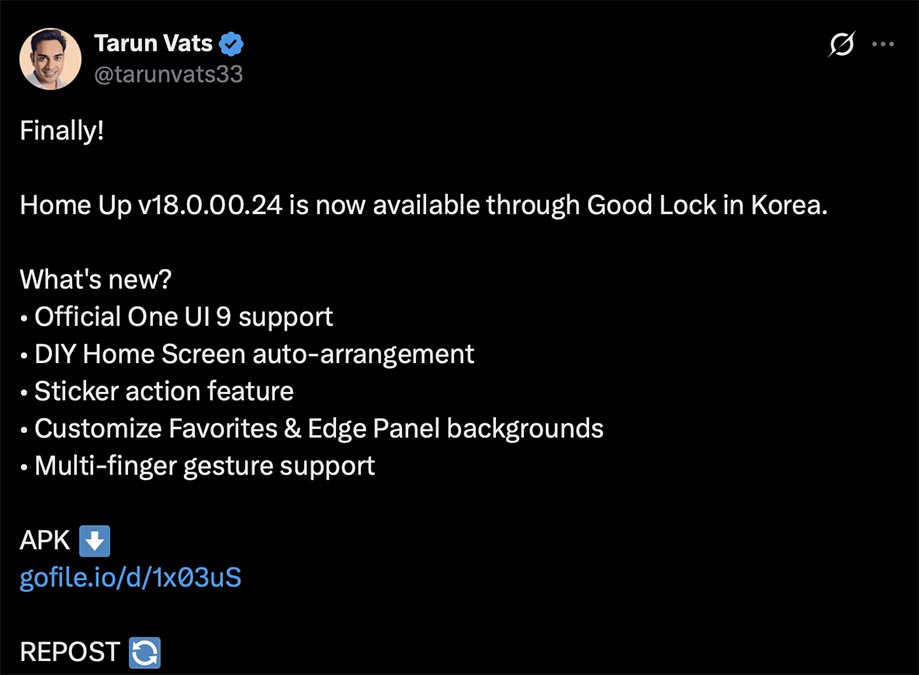
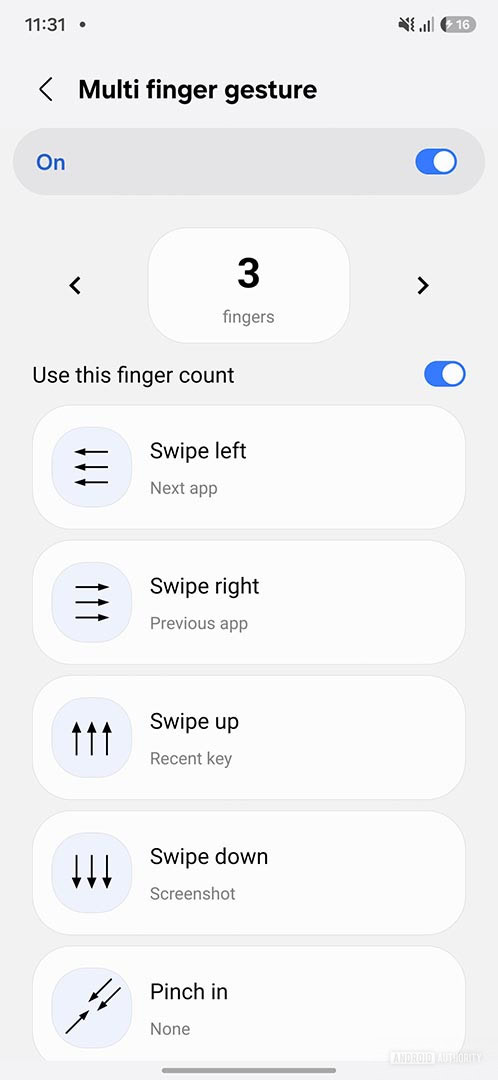
The reported version is 18.0.00.24, with official support for One UI 9 based on Android 17. Android Authority and SamMobile both point to the same core changes: multi-finger gestures, custom backgrounds for the Edge panel and dock, a DIY home screen auto-arrange feature, Sticker Action and user-feedback improvements. The practical reading is simple: this is a useful update, but right now it should be treated as a regional rollout, not as something every Galaxy owner can already enable.
Check these requirements first
Before hunting through menus or downloading random packages, start with the boring checks. First, confirm your One UI version. The new Home Up release is aimed at One UI 9 devices, so phones still on One UI 8 or earlier may not see the same package yet. Second, remember the rollout has been reported in South Korea first, so availability in other regions can lag behind. Third, use Good Lock from the Galaxy Store, because that is Samsung’s official channel for these customization modules.
The official place to check is the Galaxy Store listing for Good Lock: Good Lock on Galaxy Store. If Home Up does not show the new version yet, waiting for the official rollout is the cleaner option. Sideloading only makes sense if you know exactly where the APK comes from, what you are installing, and how to remove it if the launcher starts behaving badly.
How to check Home Up on a Galaxy phone
Open Galaxy Store, search for Good Lock, update it if an update is available, then open Good Lock and go to the Home Up module. Inside Home Up, check the module version and look for the new sections related to multi-finger gestures, dock customization and Edge panel backgrounds. If they are missing, that is not automatically a bug. It may simply mean the rollout has not reached your model, account or region yet.
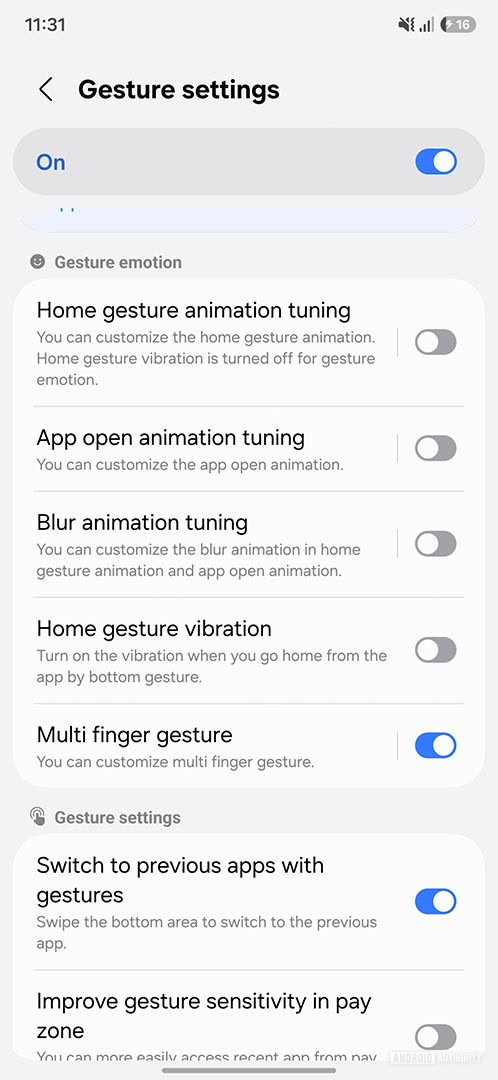
Once the feature is available, start with two-finger or three-finger gestures before using more complex combinations. SamMobile says the update supports two-, three-, four- and five-finger gestures, with up to 27 available actions. That can be useful for screenshots, Home navigation, shortcuts and quick actions. In real use, though, more fingers also mean more chances of accidental triggers, especially on large screens, thick cases or while the on-screen keyboard is open.
Settings worth testing carefully
The first setting to tune is gesture sensitivity. Too high, and you may get false positives; too low, and the feature feels broken. Enable vibration or the glow effect at first so you can see when the phone is detecting the gesture. Once you understand the behavior, decide whether those signals are still useful or just visual noise.
Next, disable custom gestures while the keyboard is active, at least during the first few days. It is one of those settings that sounds minor until you accidentally close an app or trigger a screenshot while typing. Also test full-screen support only in apps where it actually helps. Games, streaming apps and maps already use their own gestures, so adding another layer can be clever for five minutes and annoying for the rest of the week.
Edge panel and dock customization
The other practical change is custom background support for the Edge panel and Favorites panel, which is Samsung’s home screen dock. The update reportedly adds blur, shadow effects, horizontal and vertical padding, corner radius controls, preset images and preset colors. The risk here is not technical; it is usability. Samsung gives you a lot of knobs, but not every combination makes the launcher easier to use.
If the Edge panel is meant to launch apps quickly, contrast and spacing matter more than visual flair. Pick a background that keeps icons readable, avoid shrinking padding too aggressively, and test the result in both light and dark mode. If you find icons more slowly after two days, the customization has lost to the actual job. Very elegant, very useless: the classic settings-panel trap.
What actually changes
Home Up is moving from “Samsung enthusiast toy” toward a real interface automation layer. Multi-finger gestures can reduce repeated taps, while dock and Edge panel customization can make dense Home screens easier to scan. The limits are still the usual Good Lock limits: regional availability, One UI version requirements and some willingness to experiment. This is lab-grade customization, not a universal Galaxy guarantee yet.
Common problems and quick fixes
If Home Up does not update, check Galaxy Store first, then your One UI version and Samsung account region. If gestures do not trigger, adjust sensitivity in small steps and test outside the keyboard. If gestures conflict with full-screen apps, keep them on the Home screen or disable full-screen behavior. If the Edge panel becomes harder to read, remove busy backgrounds and return to solid colors with stronger contrast.
In brief
- The new Home Up release is reported as version 18.0.00.24 and starts in South Korea.
- You need a compatible Galaxy device on One UI 9, with Galaxy Store as the official update channel.
- Multi-finger gestures can use two, three, four or five fingers and map to 27 actions.
- Edge panel and dock customization now includes backgrounds, blur, padding and corner radius controls.
- Waiting for the official rollout is safer than chasing random APK mirrors.