Xreal XBX, also described by The Verge as the A01 Plus, lands at $299 with a very straightforward promise: turn a phone, handheld console or computer into a wearable virtual display without paying full headset money. The practical catch is just as straightforward: on Android, these glasses are only as good as the USB-C video chain behind them. They do not perform magic. They display a video signal.
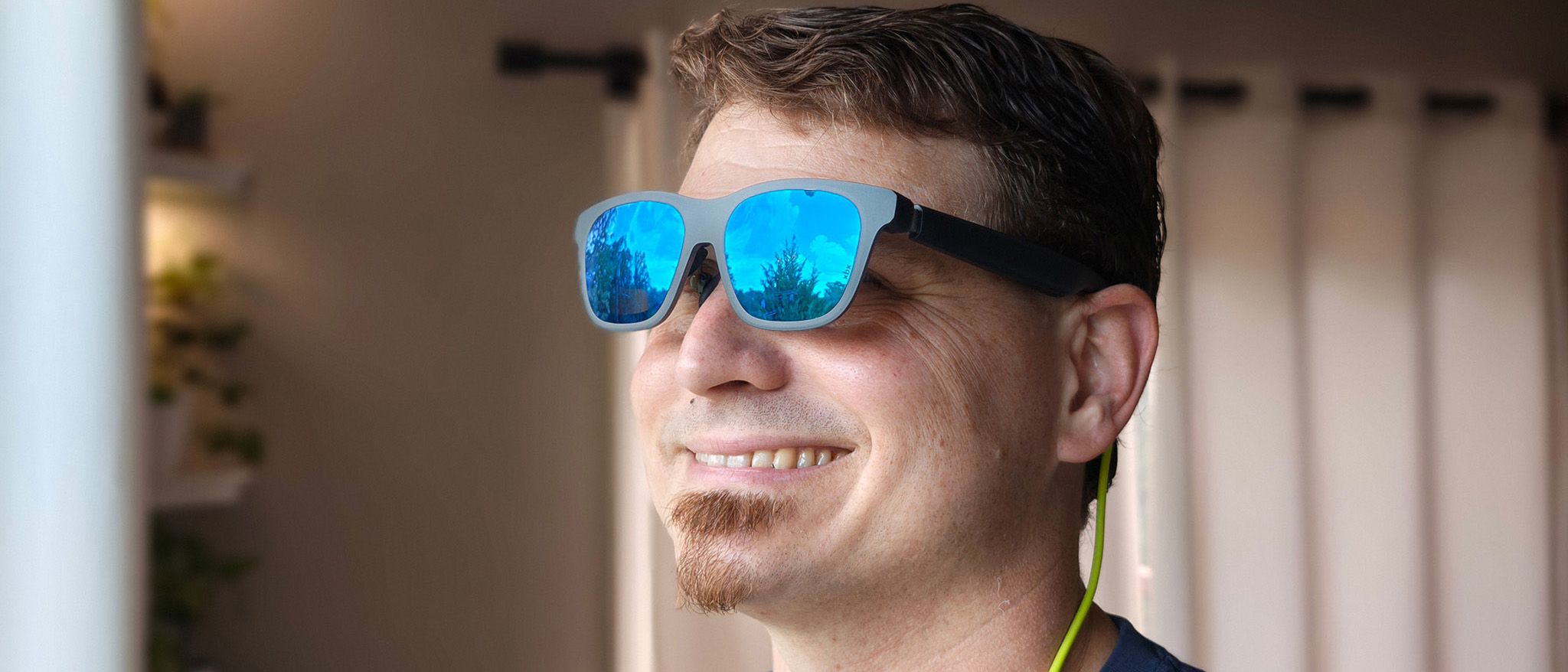
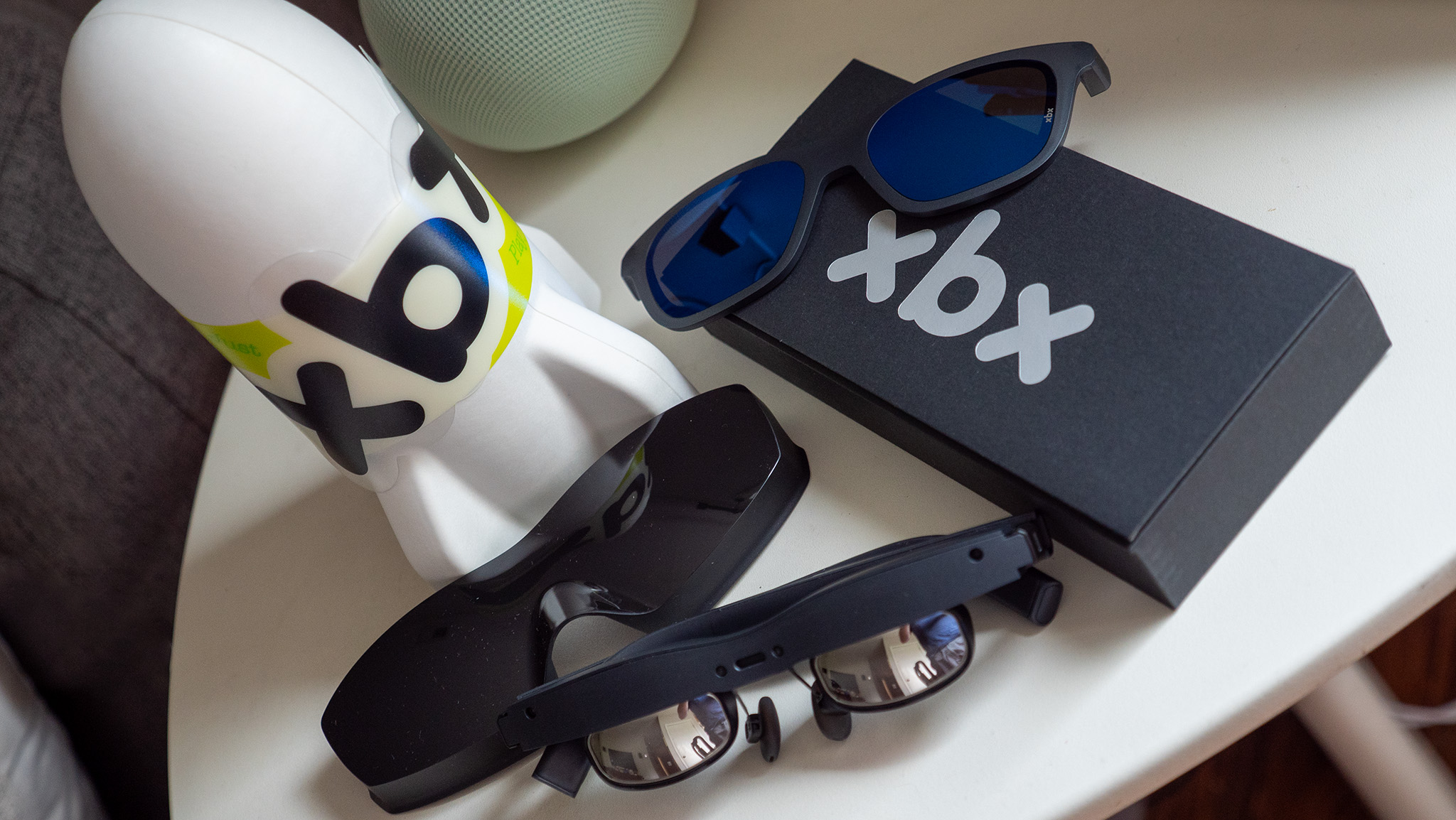
Android Central highlights 1080p micro-OLED panels at 120Hz, a 62g weight, a 50-degree field of view and strong brightness; The Verge calls the lower-cost approach sensible, while also noting trade-offs such as no volume control from the glasses, more limited stabilization than pricier models and the possible need for prescription inserts. That is exactly the kind of product that can feel great or annoying depending on the Android device you plug in. AndroidLab version: check first, buy later. The brochure can wait.
Related: we recently looked at how smart glasses are getting complicated on the privacy side too, with Ray-Ban Meta privacy LED checks. This guide is about a different problem: not always-ready cameras and AI, but video output, power, audio and comfort.
Requirement one: USB-C video output
Xreal XBX connects over USB-C, but having a USB-C port is not enough. Your phone needs DisplayPort Alt Mode or another form of video output over USB-C. Some flagship Android phones support it, many mid-range phones do not, and spec sheets often hide the detail in one tiny line. If the phone cannot export video, the glasses become a stylish accessory for consuming expectations.
Before buying, check three places: the manufacturer’s official specs, the device manual and recent reports from users with the exact same model. On Samsung Galaxy devices, DeX support or wired USB-C display output is a useful sign; on other brands, search specifically for “USB-C video out”, “DisplayPort over USB-C” or “external display”. Android tablets can be better candidates than phones because they usually have larger batteries and interfaces that make more sense on an external screen.
Quick compatibility checklist
- Open your phone’s spec sheet and look for USB-C video output, DisplayPort or desktop mode.
- If you use Samsung, check whether the model supports wired DeX or USB-C mirroring.
- Make sure the case does not prevent the connector from seating fully. It sounds trivial, until USB decides to become a ceremony.
- Test first with a monitor or USB-C/HDMI adapter you already have: if the phone does not output video there, it will not output video to the glasses either.
- Plan on separate Bluetooth or USB-C earbuds if you need loud audio: The Verge describes the built-in audio as decent, not powerful.
What to expect on Android
When the phone supports video output, Xreal XBX should behave like an external display. In mirroring mode you see the phone screen in front of your eyes; with desktop mode, where available, apps, browsers and video become easier to manage. The catch is that Android does not expose one universal external-display behavior. Samsung, Motorola, Google, OnePlus and others handle it differently.
For video and cloud gaming, the key requirement is stability: a firmly seated cable, enough battery, manageable brightness and an app that does not block external output through DRM. For light productivity, text clarity matters more. Android Central praises the comfort, panels and weight; The Verge warns that sharpness can also depend on IPD and corrective lenses. If you already wear prescription glasses, check insert costs and availability before discovering that your giant virtual monitor looks like it was rendered with wet chalk.
What actually changes
The interesting part is not only the price. A pair of $299 USB-C display glasses makes this category more accessible after years of hovering between gaming accessory and trade-show gadget. For Android, they can be useful while traveling, on a couch, on a train or with a compatible tablet, but they do not automatically replace a monitor and they do not turn every phone into a desktop workstation. The real difference is the source device.
The practical rule is simple: treat them as a wearable USB-C monitor, not as a standalone headset. If your Android device has video output, decent battery life and maybe a desktop mode, the product makes sense. If your phone does not support video out, if you need loud built-in audio or if you want advanced control over the virtual screen, stop before the checkout page.
Common problems and fixes
- Black screen: the phone probably lacks USB-C video output, or the connector is not fully seated.
- Low audio: use separate earbuds or adjust volume on the source device, because controls on the glasses are limited.
- Blurry text: check IPD, fit on your nose and whether you need prescription inserts.
- Fast battery drain: the glasses draw power from the phone; long sessions need planning, not optimism.
- Video app not showing: some apps may restrict external display output because of DRM.
In brief
- Xreal XBX/A01 Plus is a pair of $299 smart display glasses, not a standalone headset.
- On Android, you need a phone or tablet with USB-C video out.
- Before buying, test your device with a monitor or USB-C/HDMI adapter.
- The strengths are weight, price and panels; the limits are audio, controls and dependence on the source device.
- Best fit: users who already know their device is compatible. Risky fit: anyone hoping USB-C automatically means video.