Chrome 150 for Android is adding a small but useful navigation change: the three-dot menu now includes a dedicated Back button next to Forward. It is not the kind of feature that needs a keynote, but it matters when Android’s system back gesture is awkward, when you are using the phone one-handed, or when a page traps focus in ways that make browser navigation less predictable.
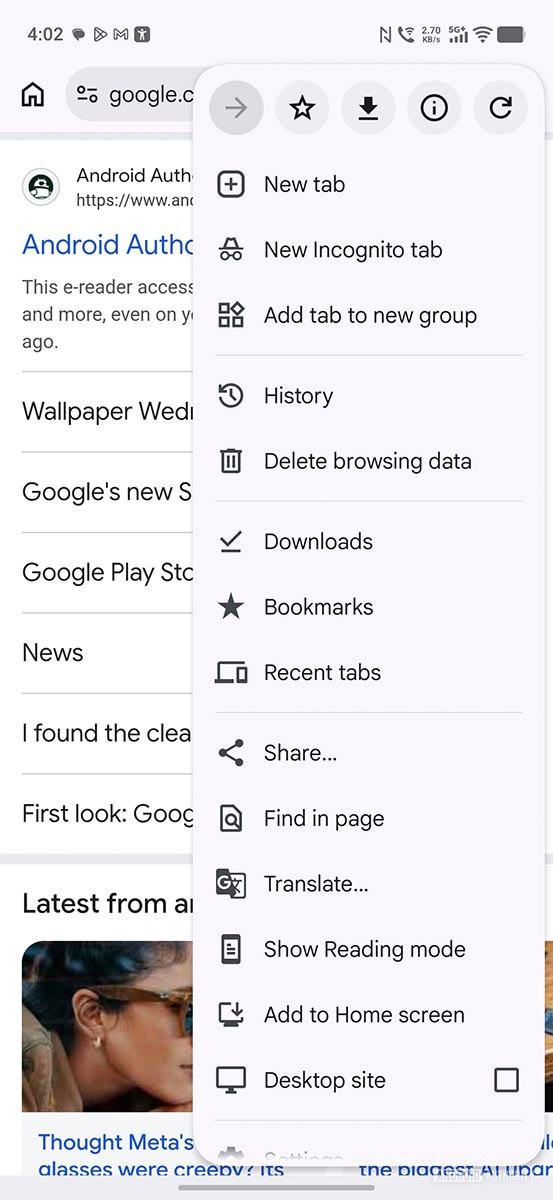
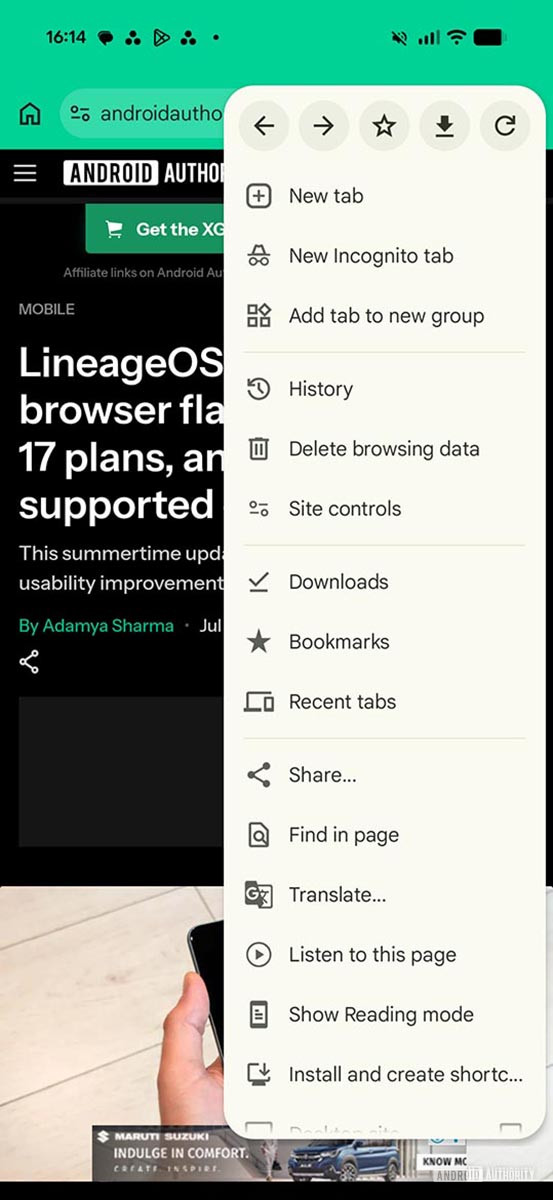
The change was reported by 9to5Google and also covered by Android Authority and SamMobile. It arrives with Chrome 150 for Android, together with a new “Site controls” entry and a renamed “Install and create shortcut” option replacing “Add to Home screen.” The practical catch is typical Google rollout behavior: updating the app does not always mean every UI change appears immediately, because some switches can still be server-side.
Chrome is available from the official Google Play Store. On many Android phones it is preinstalled, but the actual version still depends on Play Store rollout, stable or beta channel, device policies and Google’s own staged distribution. The same pattern shows up in other recent Google app updates: new feature, gradual availability, and a few checks before blaming the phone.
How to check for the new Back button
- Open the Play Store and search for Chrome, or use the official link above.
- Install any available update, then reopen Chrome.
- Open a webpage and navigate to a second page in the same tab.
- Tap the three-dot menu in the top-right corner.
- Look at the top row of the menu: with Chrome 150, Back and Forward should appear side by side.
If the button is missing, check the version first. Open Chrome settings and look for the “About Chrome” page when available, or use Android’s app info screen to read the installed version. If you are still below 150, the update has not reached the device yet. If Chrome is already on 150 but the button is not there, a staged server-side rollout is the most likely explanation.
What “Site controls” is for
The second relevant change is the new Site controls item. This is where Chrome is moving page-specific settings and permissions. It is the first place to check when a website asks for location, camera, microphone, notifications or similar access.
The workflow is straightforward: open the site, tap the three-dot menu, enter “Site controls,” and review which permissions are active. If a website keeps sending useless notifications, location does not work, or a web app cannot access the camera, this panel should be checked before clearing every cache, reinstalling Chrome or treating the whole phone as guilty by association.
Shortcuts and web apps: what to verify
The old “Add to Home screen” label is now Install and create shortcut. The wording matters because Android users often mix up a simple home screen shortcut with an installable web app. If a site supports a Progressive Web App, Chrome may offer something closer to an app experience; otherwise, it simply creates a shortcut.
After using the new option, run three checks: see whether the icon opens in a standalone window or in a normal Chrome tab, check whether it appears in the installed apps list, and try removing it from the home screen. If only the icon disappears, it was likely a shortcut. If Android offers an uninstall flow, it was probably installed as a web app.
Common problems and quick fixes
If Chrome will not update, check free storage, the Google account used in the Play Store and the network connection. If the Play Store is stuck on “pending,” clear the Play Store cache first, not Chrome’s. The update channel is the problem in that case. If the new menu appears on one phone but not another, compare Chrome version, stable or beta channel and Google account: staged rollouts do not always hit devices at the same time.
Avoid random APKs just to chase the new button. Chrome holds credentials, sessions and browsing data; a navigation shortcut is not worth turning the phone into a malware testing rig. Use the Play Store or an official Chrome channel such as Chrome Beta if you know why you need it.
What actually changes
The new button does not make Chrome faster or more powerful, but it makes navigation clearer. Android’s system back action can close keyboards, panels, apps or pages depending on context. A browser-level Back command reduces ambiguity when you want to return to the previous page without leaving the browsing flow. It is a small interface change, but in daily use that can matter more than louder features.
In brief
- Chrome 150 is adding a Back button to the Android three-dot menu.
- The feature may not appear immediately after updating because rollout can be staged.
- “Site controls” is the new place to review page permissions and settings.
- “Install and create shortcut” replaces “Add to Home screen” and better separates shortcuts from web apps.
- Update Chrome through the Play Store or official channels, not random APK mirrors.