The TCL NXTPAPER 11 Plus is useful as a lab case because it does not try to be yet another “good enough” Android tablet. It puts the display first: a matte surface, reading modes and fewer reflections. The fresh hook is Android Authority’s July 12, 2026 review, supported by Android Central’s July 10 piece on the NXTPAPER 70 Pro phone. The practical question is broader: before buying or setting up an NXTPAPER device, you should know what the screen actually changes, where the limits are and which Android settings deserve a check.
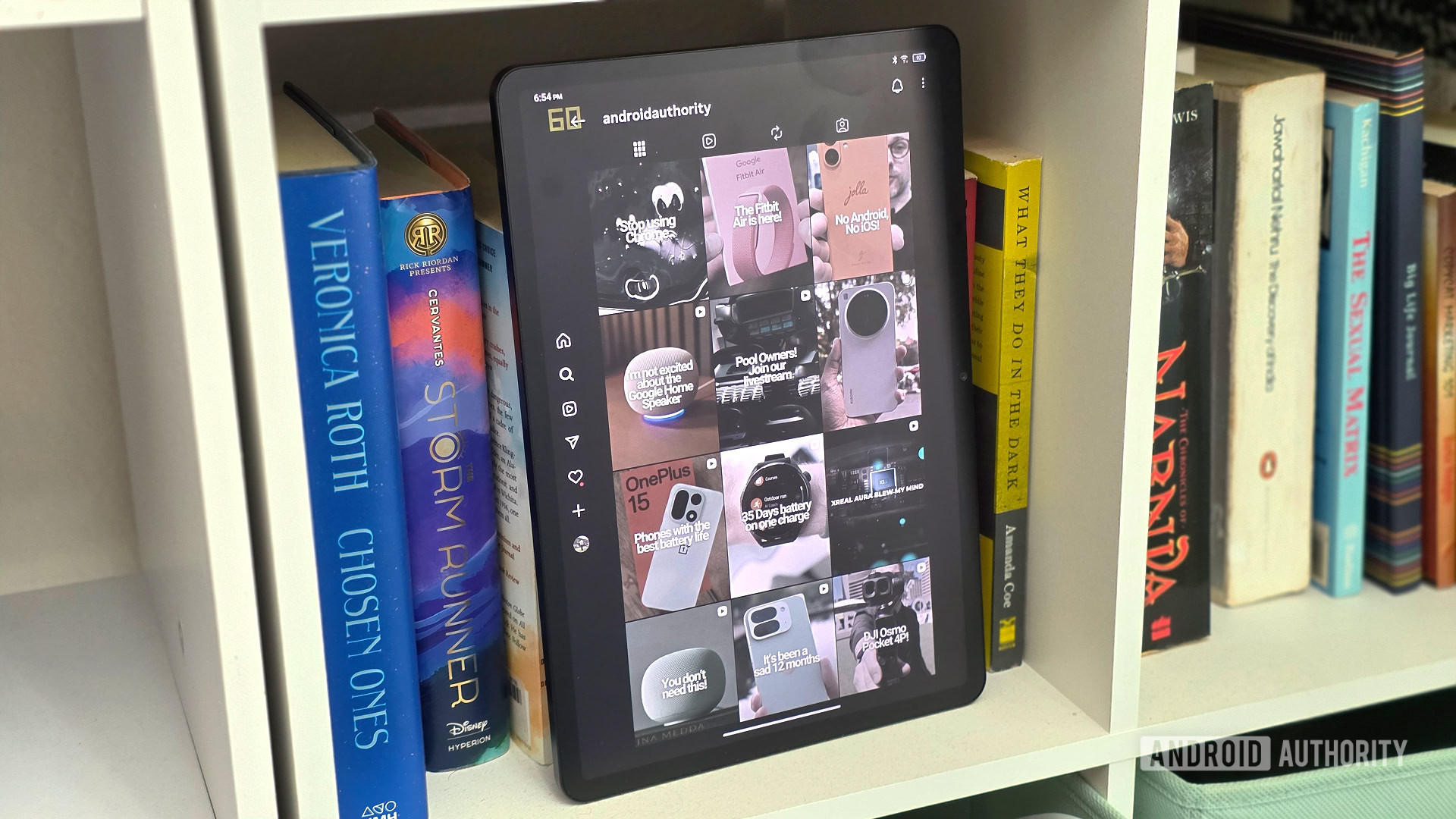
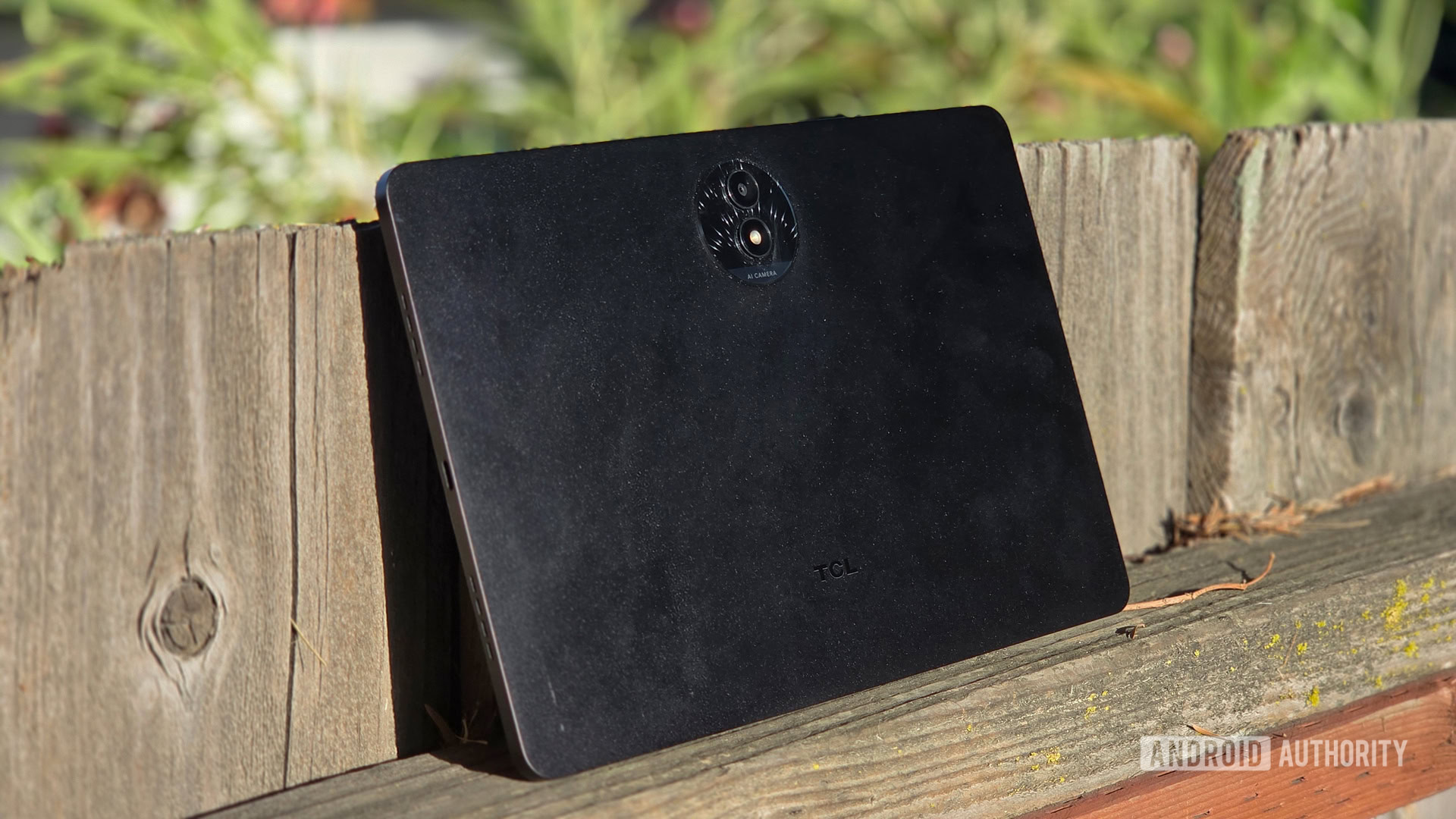
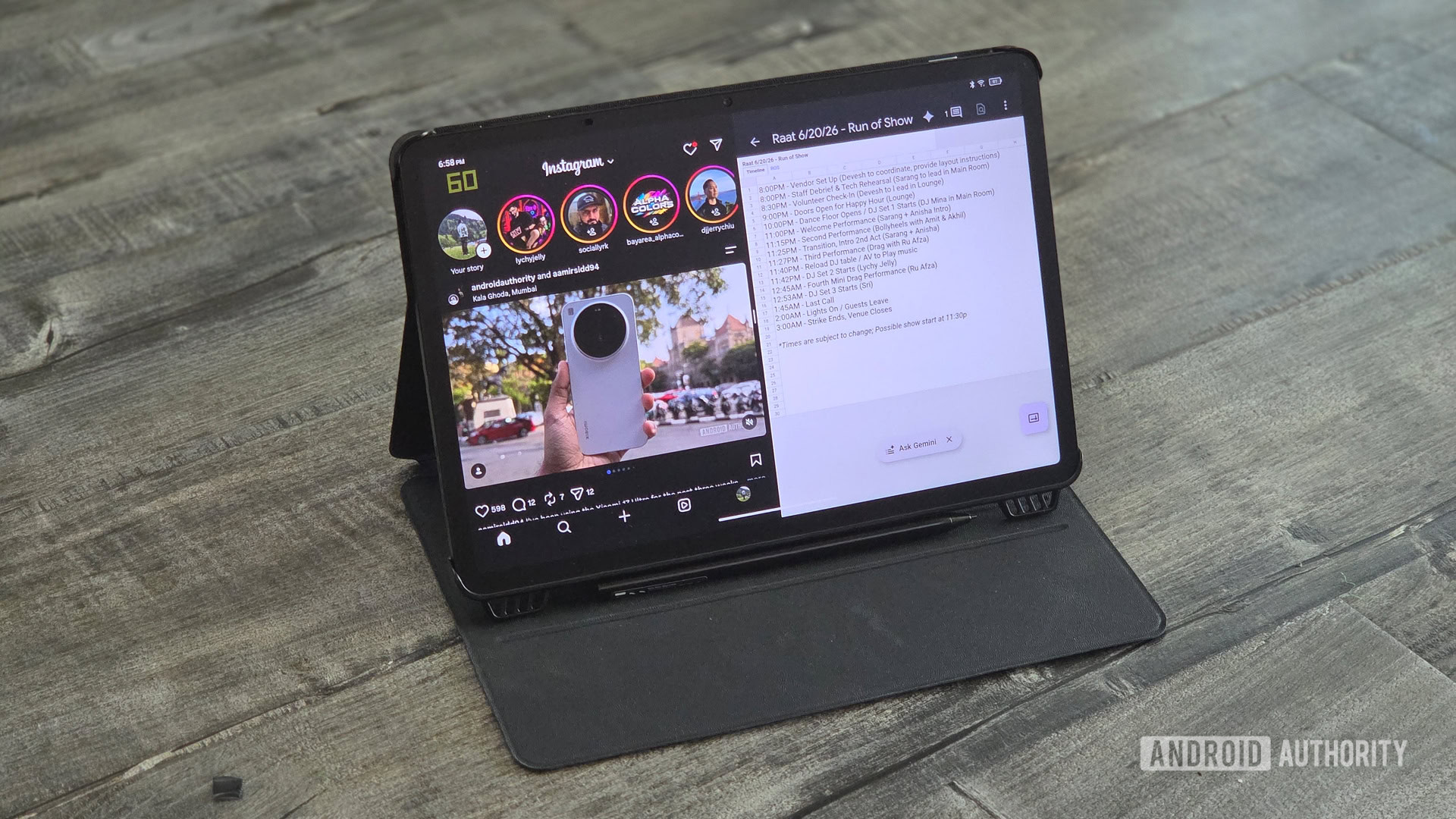
NXTPAPER is not a pure e-reader and should not be treated like one. TCL lists an 11.5-inch IPS LCD panel for the NXTPAPER 11 Plus, with 2,200 x 1,440 resolution, a 3:2 aspect ratio, 120Hz refresh rate and NXTPAPER 4.0 with a nano-etched matte surface. Android Central describes the NXTPAPER 70 Pro phone as using a 6.9-inch 120Hz display with a textured matte finish and multiple display modes. In plain English: these are normal Android devices with apps, browsers, video and notifications, but with a less glossy and more adjustable screen experience.
First check: light, viewing angle and real brightness
The matte surface is the most interesting part, but it needs a practical test. It can reduce glare and fingerprints, which helps on a desk near a window, in a classroom, on a train or while reading outside. The trade-off is that a diffused matte layer can make the image look less bright or less contrasty from an angle, as Android Authority notes. Test the screen under indoor light, near a window and outdoors, then tilt it as you would in real use. If you always need maximum brightness, the anti-glare advantage may cost you battery life.
Reading modes: what to use and when
TCL’s official page describes Regular mode for full-color use, Ink Paper mode for a more monochrome reading feel and Color Paper mode for warmer tones. Do not treat them as a demo trick. Assign them to real jobs: Ink Paper for long PDFs, Color Paper for articles and comics, Regular mode for video, photos and apps where color matters. If the device has a customizable NXTPAPER key, map single press, double press and long press to screen modes or reading apps instead of leaving the key on decorative shortcuts.
Compatibility: Android apps, stylus and storage
The advantage over a classic e-reader is obvious: Play Store apps, a full browser, Google services, cloud files, notes and streaming are still there. The downside is that Android remains Android: notifications, background apps and a busy launcher can quickly turn a reading tablet into a distraction panel. A cleaner setup means creating a dedicated home screen for reading, notes and documents, turning off non-essential notifications and checking whether the stylus is included, as Android Authority notes for the NXTPAPER 11 Plus, or sold through a separate bundle. Also check storage: if there is no microSD slot, offline PDFs, apps and media need planning.
What actually changes
The value of NXTPAPER is not a magic “good for your eyes” claim. The technical value is more specific: fewer reflections, fewer fingerprints and display profiles that make reading and note-taking more comfortable. For students, PDF readers, note-takers and people who use Android in bright environments, that can matter. For gaming, serious photo editing or watching movies with other people around the screen, a good OLED or traditional LCD may still be the better choice.
AndroidLab buying checklist
- Check whether the model is a tablet or a phone: size, weight and battery behavior change a lot.
- Verify refresh rate, claimed brightness and off-axis display behavior.
- Try Regular, Ink Paper and Color Paper modes with real content, not only the store demo.
- Check Android updates and security patch promises: Android Authority points out unclear software support for the tablet.
- Confirm stylus, case, charger, expandable storage and availability in your region.
- If you will use it outside, read our related guide to Android phones in summer heat: high brightness, sun and charging are not a gentle combination.
Quick problems and fixes
If the screen looks dim, check auto brightness and the active display mode first: a paper mode can be great indoors but weak in strong sunlight. If colors look wrong, return to Regular mode before blaming the panel. If reading feels distracting, use a separate Android home screen and disable badges and notifications. If the stylus does not behave as expected, check battery, pairing and model compatibility: NXTPAPER is a product family, not a promise that every device behaves identically.
In brief
- NXTPAPER is an Android display approach with a matte surface and reading modes, not a direct e-ink replacement.
- The TCL NXTPAPER 11 Plus is a fresh example of a budget Android tablet with a matte display.
- The main benefit is reading, note-taking, documents and use in bright environments.
- Before buying, check updates, stylus support, storage, brightness and display modes.
- The practical verdict: strong if you want a more readable Android device, less ideal if you need top color accuracy or high performance.