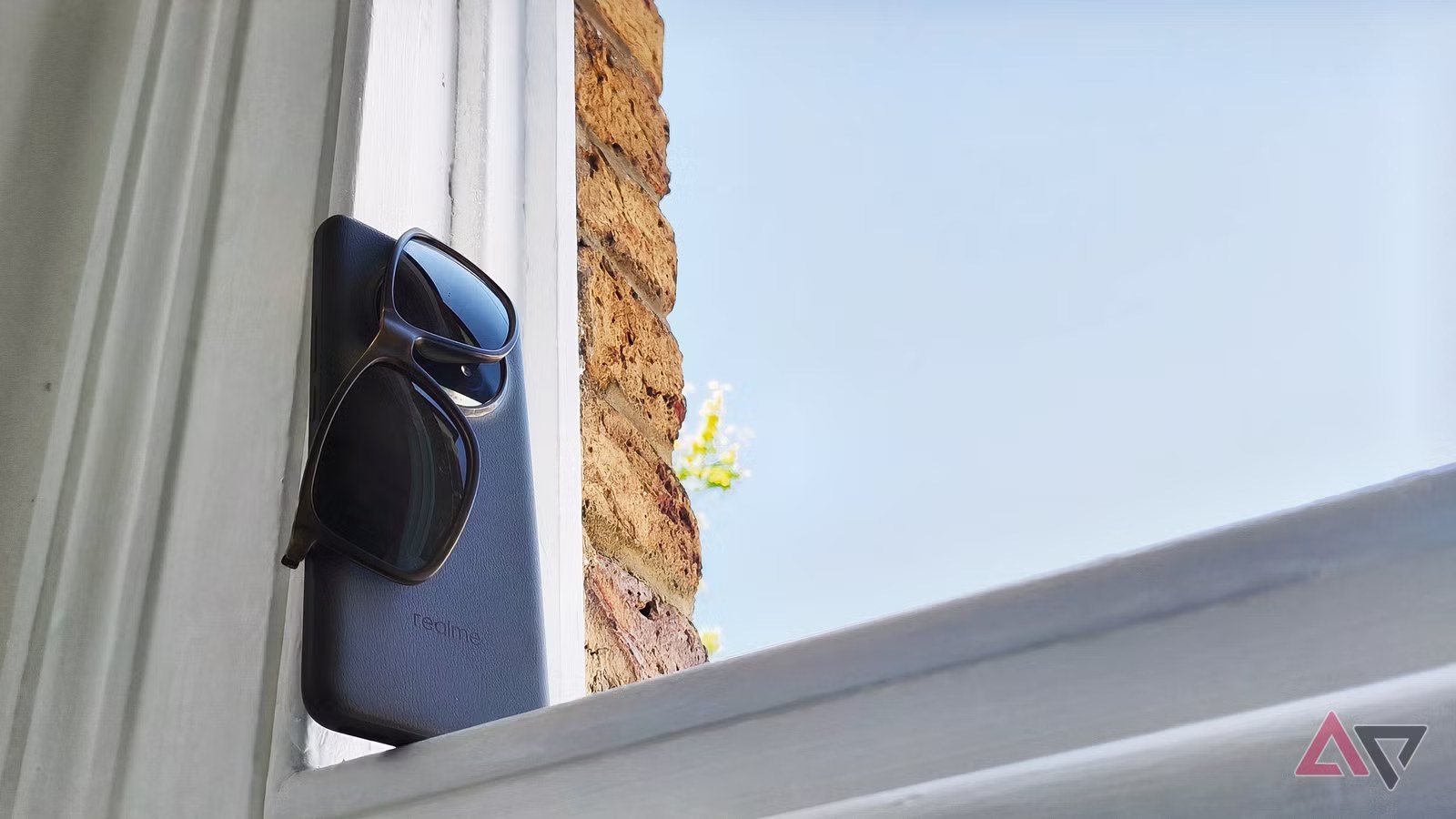
Heat is not just uncomfortable for the person holding the phone. For an Android device, it can trigger throttling, slower charging, camera shutdowns, protective warnings and long-term battery stress. Android Police recently framed the problem from a very practical summer-use angle, while Google’s Pixel support page and Samsung’s Galaxy temperature guidance point to the same operational reality: when the phone gets too hot, the system may limit features to protect the hardware.
This is not a panic guide. It is a practical checklist for understanding when a hot Android phone is behaving normally under load, and when you should stop charging, navigation, hotspot use or gaming before the battery becomes a chemistry lesson nobody asked for.
When heat becomes a real problem
An Android phone can get warm during GPS navigation, video calls, video recording, games, 5G hotspot use, fast charging or a large restore from backup. Heat alone is not the issue. The trouble starts when several loads stack up: summer weather, a parked car, maximum brightness, a thick case, weak mobile signal and fast charging can turn a phone into a tiny server room with no cooling.
The warning signs are usually clear: charging slows down or stops, brightness drops automatically, the camera closes, apps stutter, a temperature message appears, or the device becomes uncomfortable to hold. At that point Android and the manufacturer’s firmware are already intervening. Pushing through because “it should work anyway” is not a great maintenance strategy.
Quick checks: what to do first
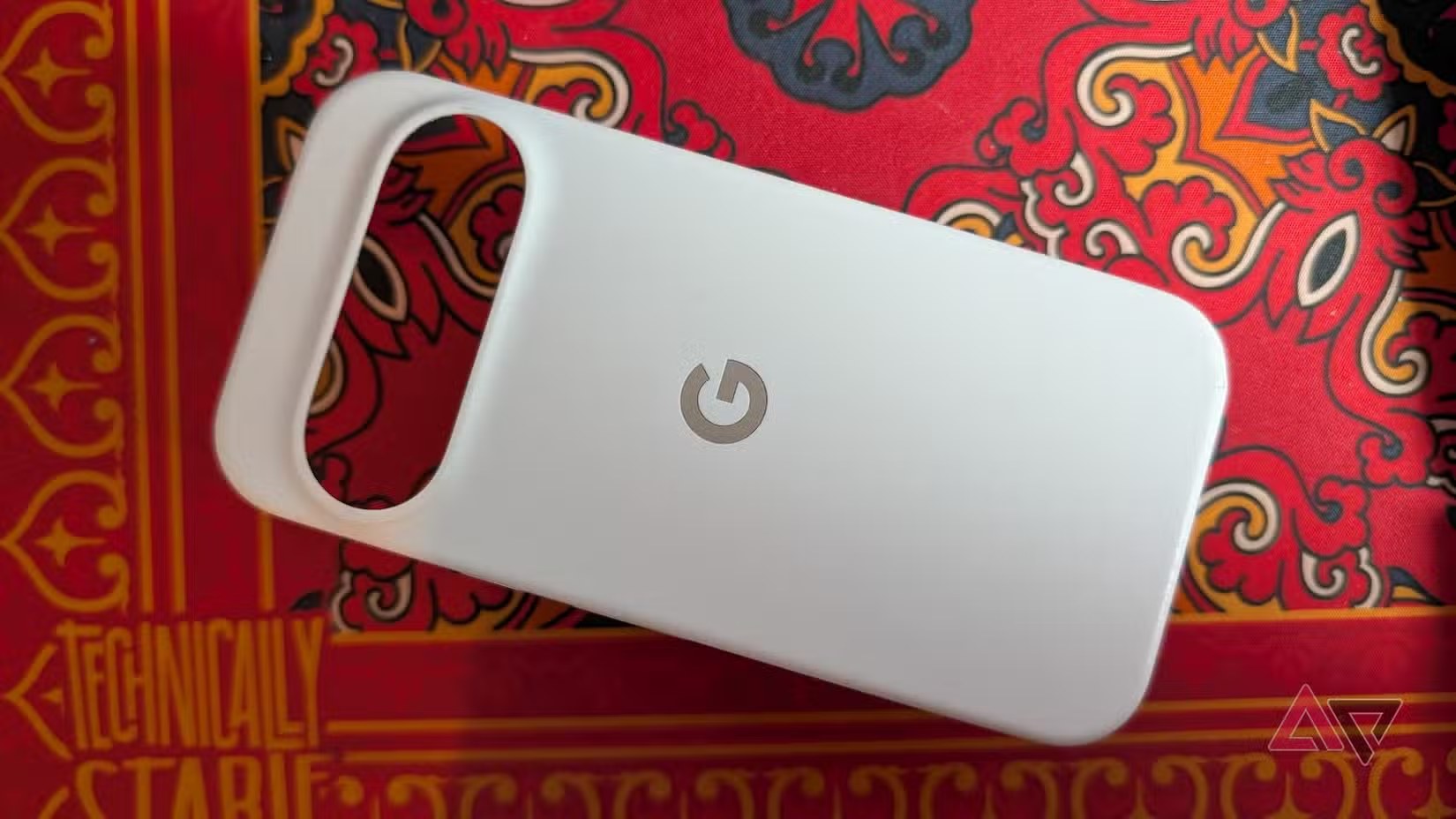
If the phone is hot, remove load before doing anything else. Unplug the charger, close games, the camera, hotspot and navigation apps if they are not essential. Move the phone into shade, remove a thick case and let it cool with the screen off for a few minutes. Do not put it in a freezer, fridge or directly in front of very cold air: thermal shock and condensation are not troubleshooting tools.
The second check is connectivity. In weak-signal areas, the modem works harder and uses more power. If you are stationary and mobile data is not needed, switch to Wi-Fi. If the phone is constantly searching for coverage, airplane mode for a few minutes can help it cool down. If the problem often happens in the car, the AndroidLab guide to Android Auto and Gemini voice controls is also relevant: display, navigation, Bluetooth, USB and assistant replies can stack up quickly.
Charging is the sensitive moment
Fast charging is useful, but it is exactly the thing to watch when the phone is already warm. If possible, use a slower charger or disable fast charging in the manufacturer’s settings when that option exists. Do not charge in direct sunlight, on a dashboard, under a pillow or inside a closed bag. Many batteries are harmed more by daily handling than by a dramatic hardware fault.
On Pixel and Galaxy phones, thermal protections may reduce or pause charging when conditions are not right. If that happens once on a very hot day, it is not automatically a defect. If it happens regularly indoors, with a good charger and a cool phone, change the test: try another cable, inspect the USB-C port, check system updates and consider diagnostics or support.
Apps, battery and background work
After the phone cools down, open battery settings and look for unusual app usage. You do not need to obsess over every percentage point. Look for obvious patterns: a social app, VPN, game, camera app or cloud service staying active for hours. If the heat started after an update, a couple of charging cycles can be normal while indexing and sync settle down, but the phone should not become unusable.
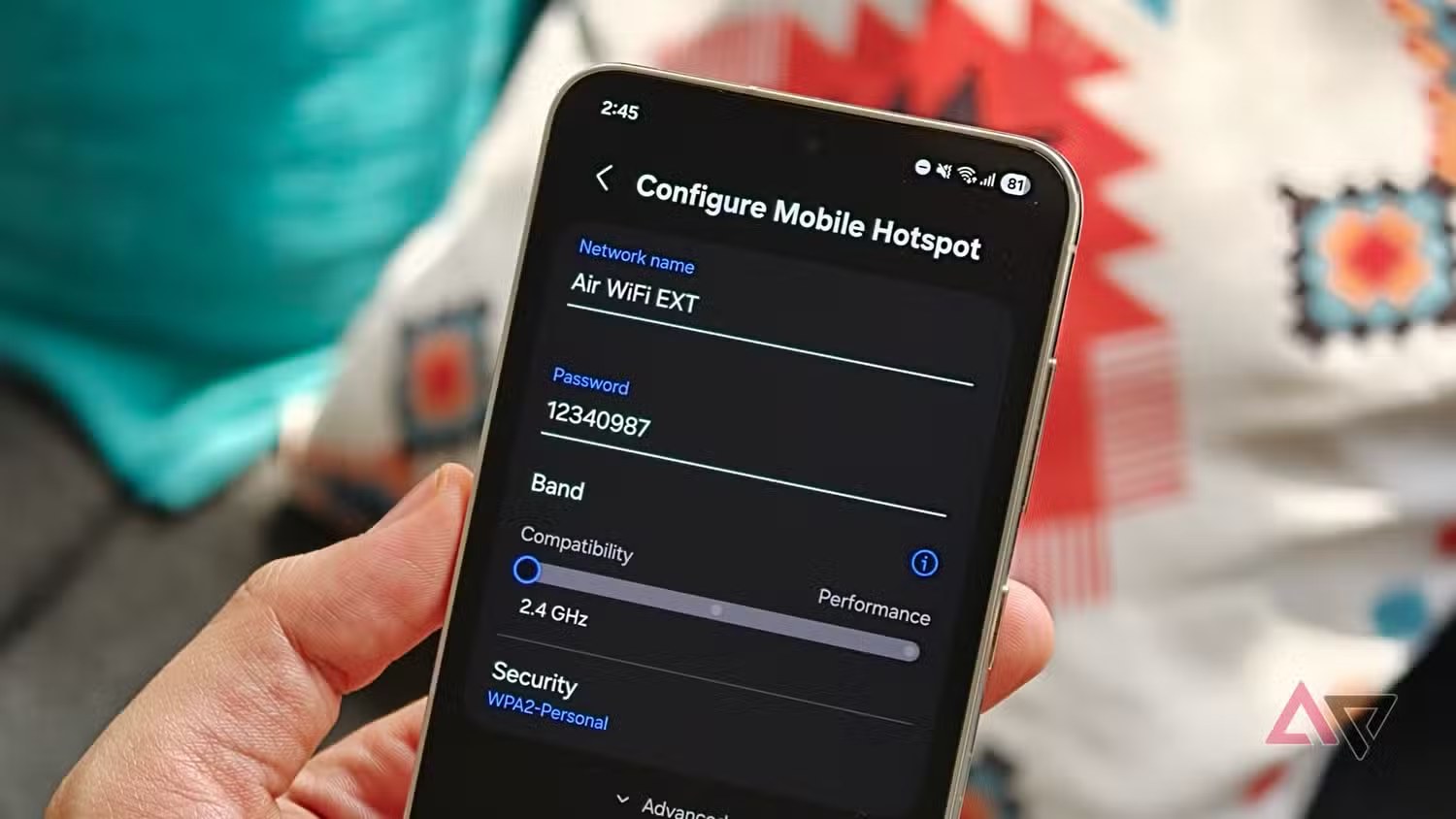
Also check location, Bluetooth, hotspot, photo backups and offline downloads. They are useful features, but in summer they are real loads. The Lab method is simple: reduce variables first, then turn them back on one by one. If everything is normal without hotspot or without a specific app, that is a stronger clue than ten random forum rituals.
Compatibility and practical limits
These checks apply to most modern Android phones, but menu names vary across Pixel, Samsung Galaxy, Motorola, Xiaomi, Nothing and other brands. Thermal protection is handled by firmware, so two phones may react differently to the same situation. Battery age matters too: a device with years of cycles behind it will handle heat, fast charging and power spikes less gracefully.
There is no single magic temperature that users can rely on across every model. The practical rule is less exciting and more useful: if Android limits features, if charging stops, or if the phone is uncomfortable to hold, reduce load and let it cool. If the same behavior repeats in normal indoor conditions, with the case removed and apps checked, do not dismiss it as summer heat: the cause may be the battery, a cable, the USB-C port or a software bug.
What really changes
The practical point is that overheating should not be treated as one mysterious fault. It is usually the result of competing loads. Modern phones can protect themselves, but protection starts after the situation has already become bad enough. Android users can prevent most cases with a few habits: avoid charging in direct sun, do not combine hotspot and GPS when the battery is already hot, remove heavy cases during critical moments and actually read battery settings before reinstalling apps at random.
In short
- Direct sun and fast charging are the first combination to avoid.
- If Android reduces brightness, performance or charging, thermal protection is already active.
- Hotspot, GPS, video, games and weak signal can stack up and heat the device quickly.
- Remove the case when the phone is already hot, especially while charging.
- If the issue continues indoors, check battery usage, cable, USB-C port, unusual apps and updates.