Phone Link is not a flashy new Android feature, but XDA’s July 11, 2026 piece is a useful reminder: if you work from a Windows PC, picking up your Android phone for every notification, photo or quick file transfer is often just bad workflow design. The AndroidLab angle is practical. Phone Link is useful only when it becomes a controlled bridge, not another noisy panel inside Windows.
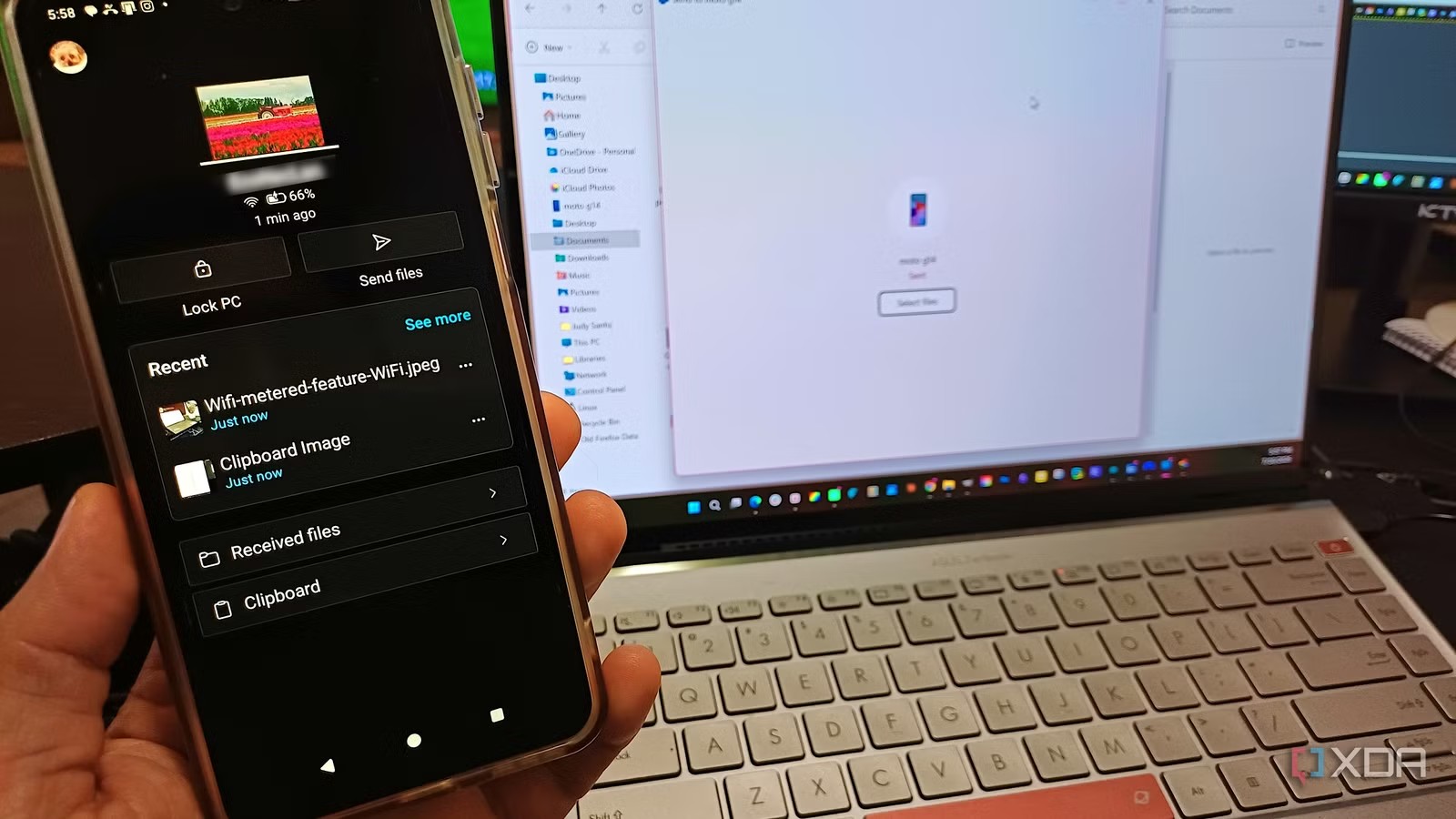
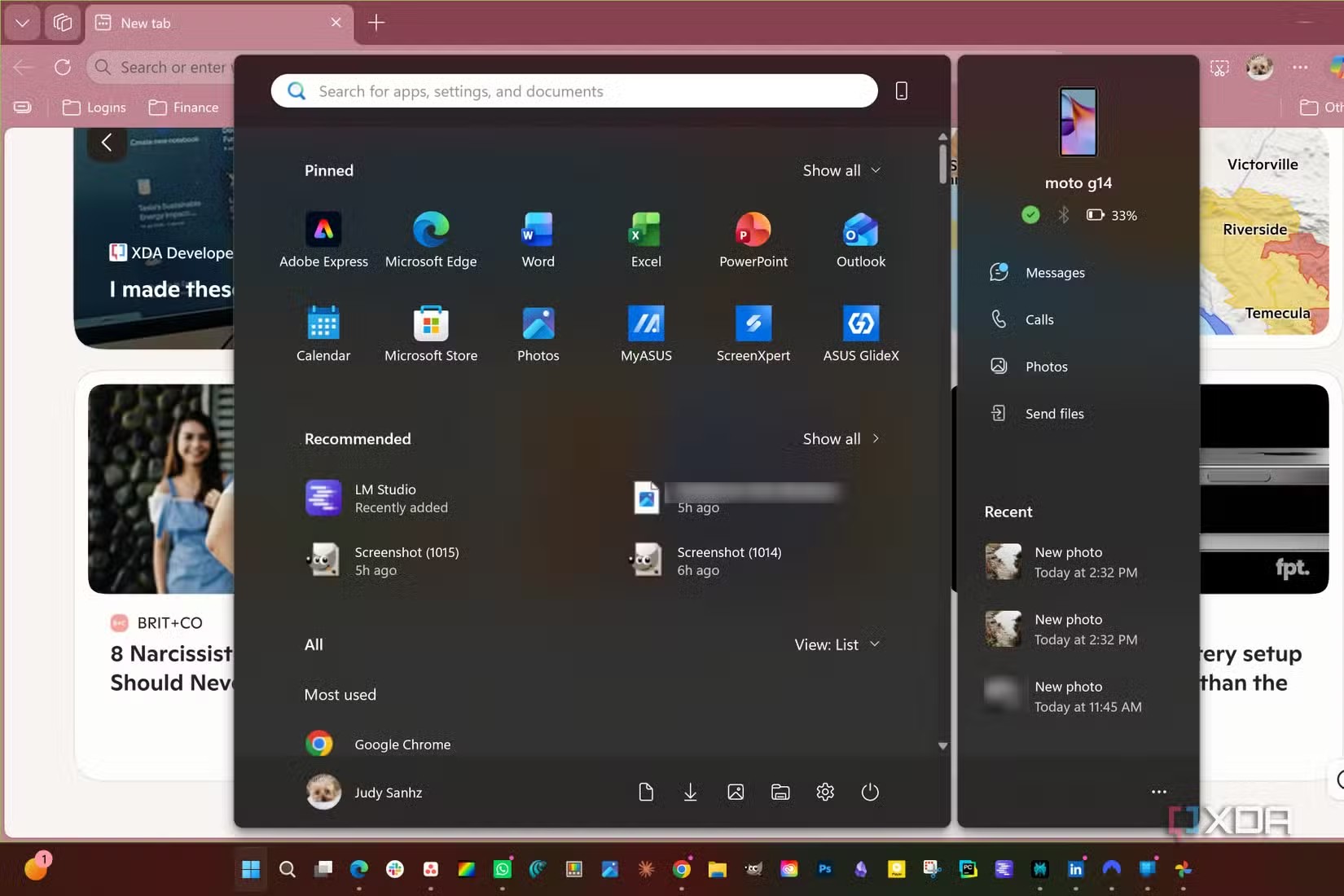
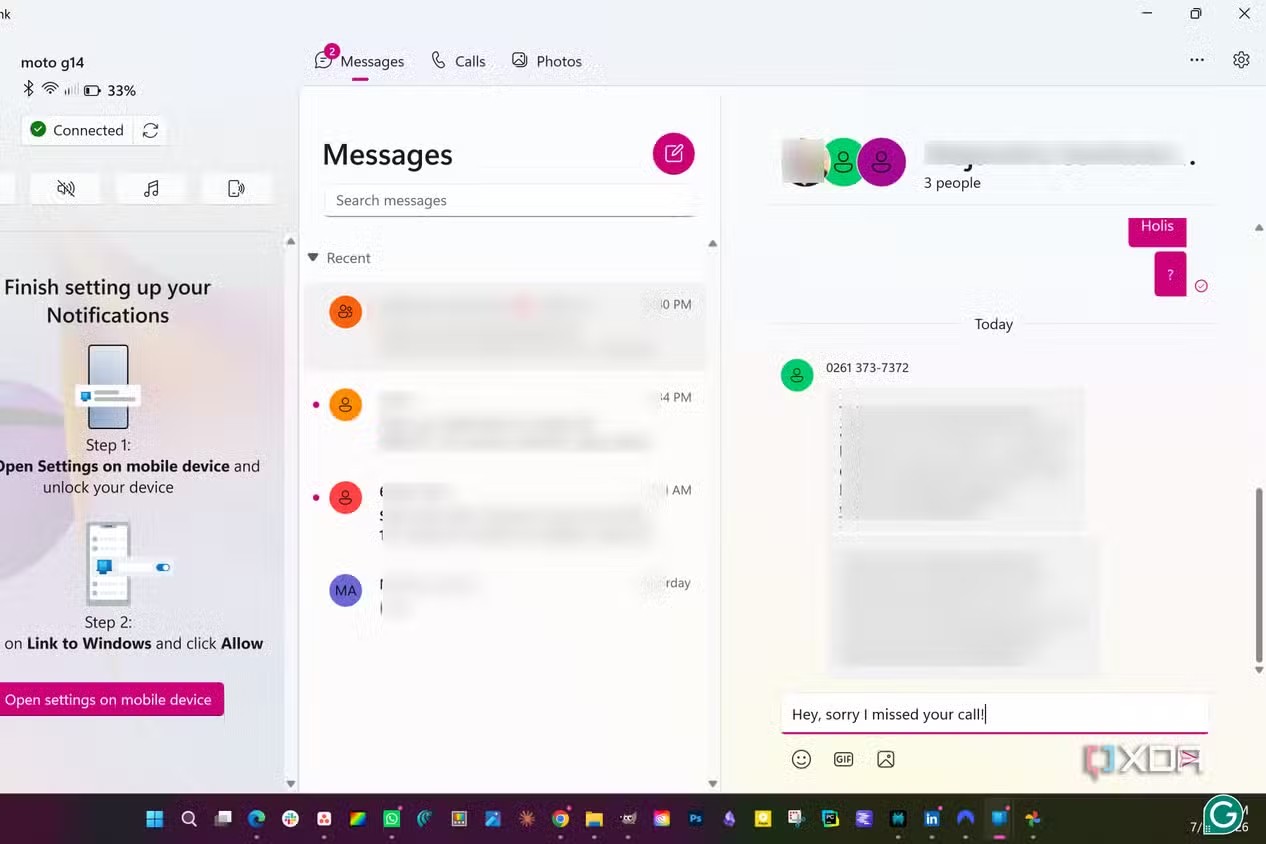
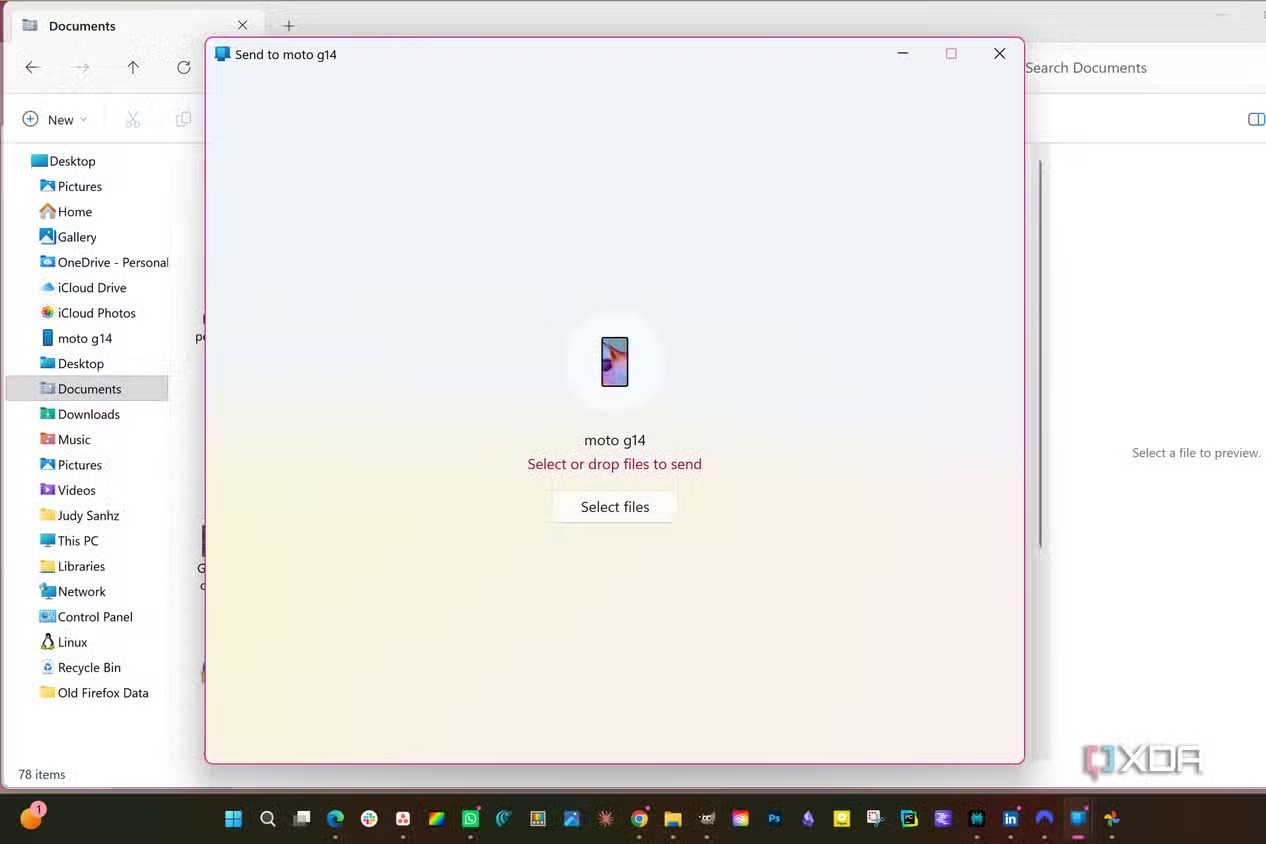
Microsoft describes Phone Link as the connection between a Windows PC and an Android device for messages, recent photos, calls, notifications and, on compatible phones, apps, phone screen, cross-device copy and paste, and file drag and drop. That compatibility note matters. The experience is not identical on every Android phone. Samsung, HONOR, OPPO, ASUS, vivo and some devices with Link to Windows preinstalled often get more features than generic Android phones using only the Play Store app.
Requirements to check first
Before you start rescanning QR codes like Windows has invented a small office ritual, check the basics. You need a PC running Windows 10 with the October 2022 Update or later, or Windows 11. Microsoft recommends the latest Windows 11 build for the best experience. Your phone and PC should be nearby, turned on and connected to the same Wi-Fi network. On Android, you need Link to Windows from the Google Play Store, unless it is already built into your phone by the manufacturer.
The second check is the account. Phone Link behaves best when the Android app and the Windows PC use the same Microsoft account. If pairing gets stuck, sign out from Link to Windows, remove the device from Phone Link on the PC, and pair it again from scratch. It is boring, but it is still better than the classic “uninstall, reinstall, complain, repeat” diagnostic loop.
Quick setup procedure
- Open Phone Link from the Windows Start menu and choose Android.
- Open Link to Windows on your phone, sign in with the same Microsoft account and grant only the permissions you actually need.
- Scan the QR code shown on the PC, or use the manual code if the camera flow fails.
- Check which sections are enabled: messages, photos, calls, notifications, apps and files.
- Disable noisy notifications immediately: busy group chats, shopping apps, social apps and anything that should not enter your work surface.
The goal is not to sync everything. The goal is to reduce attention breaks. Start with three useful pieces: phone battery and connection status in Windows, recent photos so you stop emailing images to yourself, and messages or calls only if you genuinely need them while working.
Files, photos and real limits
The most interesting feature, when available, is file transfer. XDA describes a very normal use case: dragging a screenshot from File Explorer into Phone Link and receiving it on the Android phone without email, personal chats or a cloud folder used as a temporary junk drawer. On paper, that is the right flow: fewer duplicate copies, fewer intermediate accounts, less “where did I send that?” archaeology.
There is a technical catch. Full file transfer, phone screen, Android apps on the PC and cross-device copy and paste are not guaranteed on every phone. The Link to Windows Play Store listing explicitly says that some features require compatible devices, especially Microsoft Duo, Samsung and HONOR models, and in some cases Android 11 or later. If your phone only shows notifications and photos, you may not have configured it badly. Your device may simply not support the full set.
Common problems and fixes
Connection drops: make sure the PC and phone are on the same Wi-Fi network, avoid isolated guest networks, and temporarily disable aggressive VPN setups for testing. If Phone Link asks you to scan the QR code several times in the same afternoon, as in XDA’s example, note your phone model, Android version and app version. The cause may be compatibility, battery restrictions or network behavior.
Duplicate or invasive notifications: open Phone Link settings on Windows and limit which apps can appear. On Android, also check notification permissions for Link to Windows. Turning everything on is fine for five minutes of testing. After that, it becomes Microsoft-flavored noise.
Calls are missing: Microsoft says calls require Bluetooth on the PC. If the feature does not appear or keeps failing, check Bluetooth pairing, microphone, audio output and call permissions on the phone.
Work profiles and managed devices: Microsoft’s documentation says Phone Link does not currently support multiple Android profiles or work/school accounts in the same way as a personal setup. If your device is managed by an employer, MDM policy or a strict work profile, lower your expectations before blaming Android.
What actually changes
Phone Link becomes useful when you stop treating it as a Windows novelty and configure it as a small productivity runbook. For anyone using Android and Windows every day, the value is avoiding small phone interruptions: checking battery, grabbing a photo, replying to a message, moving a quick file. The operational cost is also clear: more permissions, more cross-device synchronization and more reliance on a Microsoft account. Think twice before enabling it on a shared or poorly controlled PC.
Related: if you are preparing a phone reset, device switch or local file cleanup, AndroidLab has a practical guide to Android Documents backup, SMS and RCS checks before a reset. Phone Link can help with everyday movement between devices, but it does not replace a real backup. Sending files to yourself in a chat is not architecture, even when it feels productive.
In brief
- Phone Link connects Android and Windows for messages, photos, calls, notifications and some advanced features.
- You need an updated Windows 10 PC or Windows 11, the same Wi-Fi network and Link to Windows on Android.
- Advanced features such as Android apps on PC and file transfer depend on the phone model.
- Before using it seriously, limit notifications and permissions instead of syncing everything blindly.
- If pairing keeps failing, check network, battery restrictions, Microsoft account state and device compatibility.
Sources
- XDA Developers — I stopped treating my Android phone like a second device after using Phone Link (July 11, 2026)
- Microsoft Support — Phone Link requirements and setup (checked July 11, 2026)
- Google Play — Link to Windows (checked July 11, 2026)