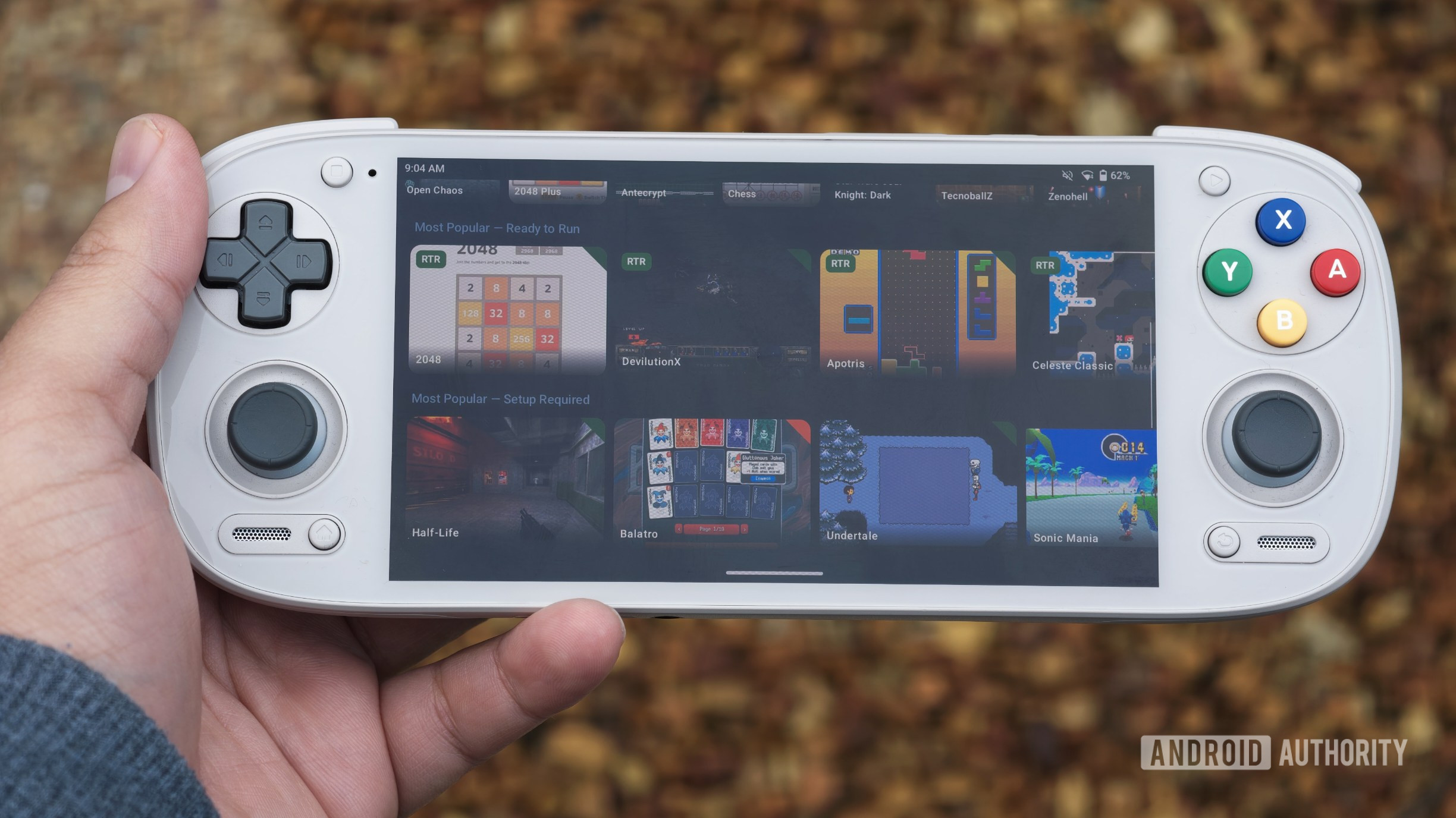
An Android handheld does not have to stop at the Play Store catalogue. Starboard, an independent project that has only recently drawn Android attention, brings part of the PortMaster games catalogue to ARM64 devices. It does not rebuild those titles as Android apps; it runs them inside a Linux environment bundled with the app. That distinction matters: it is an exciting route into community ports and retro gaming, but it also means selective compatibility, an off-store install, and a few rough edges.
The useful mental model is a experimental Linux runtime, not a universal emulator and not a shortcut for acquiring commercial games. The project is explicit: many ports work, some are only partly playable, and others will never work because Android and their original Linux targets differ architecturally. For a Retroid, AYN, Mangmi, or a phone with a controller, though, this is worth a measured test rather than the traditional “install everything and see what catches fire” workflow.
Before installing: requirements and three limits to accept
The project’s stated target is an Android device with an ARM64 / arm64-v8a CPU. Modern gaming handhelds are the primary use case; phones and tablets are supported, but may cause trouble with particular ports. Root is not required. Free storage, a sound Wi-Fi connection, and a little time for the first launch are required, because Starboard downloads its Linux environment once.
The second limit is distribution: Starboard is not on Google Play. Use the project’s official GitHub Releases page, or Obtainium pointed at the official repository. Avoid APK mirrors and links passed around in chats: direct installation has no upside if the source chain is abandoned. If Android asks to allow installs from unknown apps, grant that only to the browser or file manager handling the official download, then revoke it when it is no longer needed.
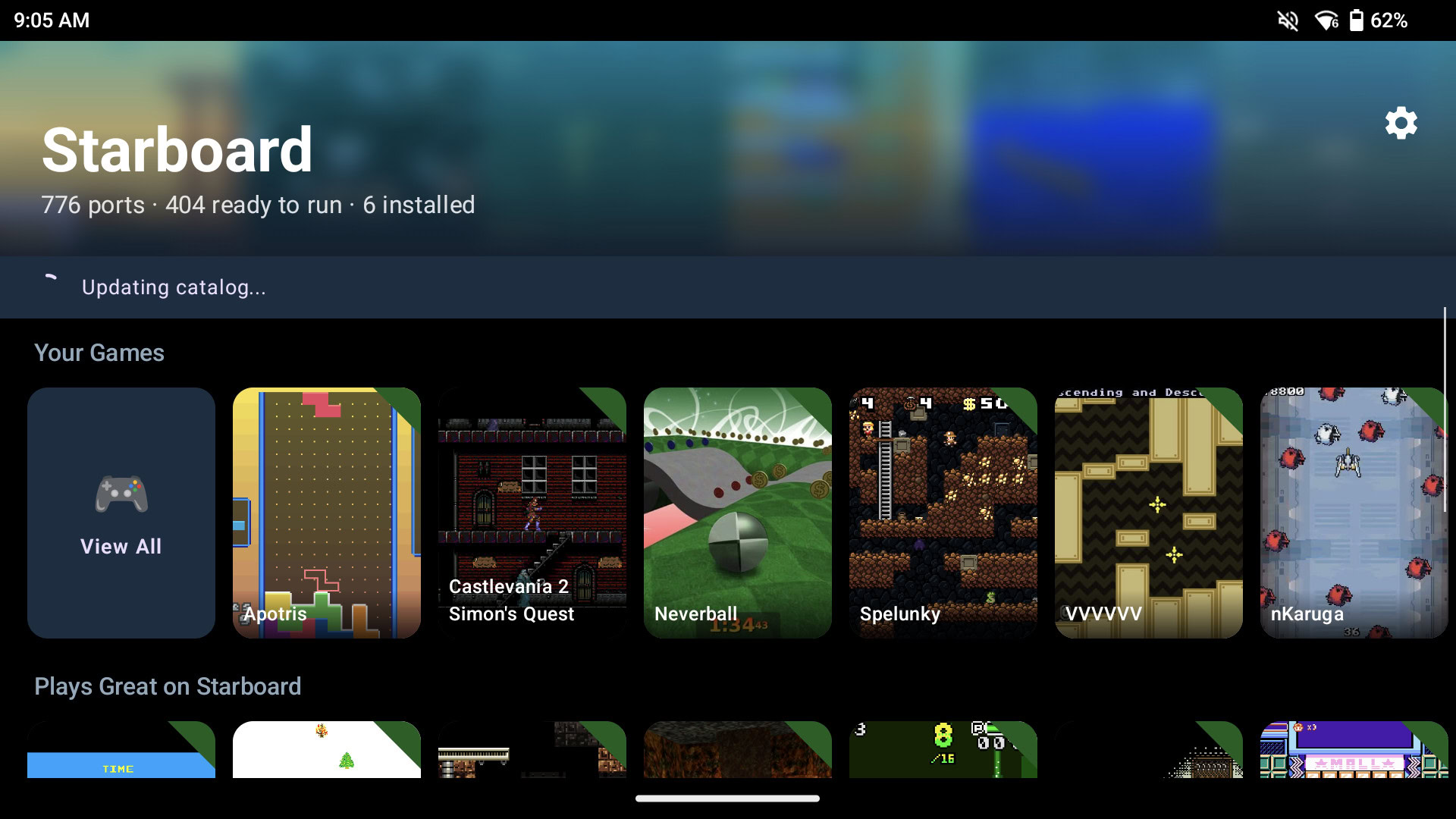
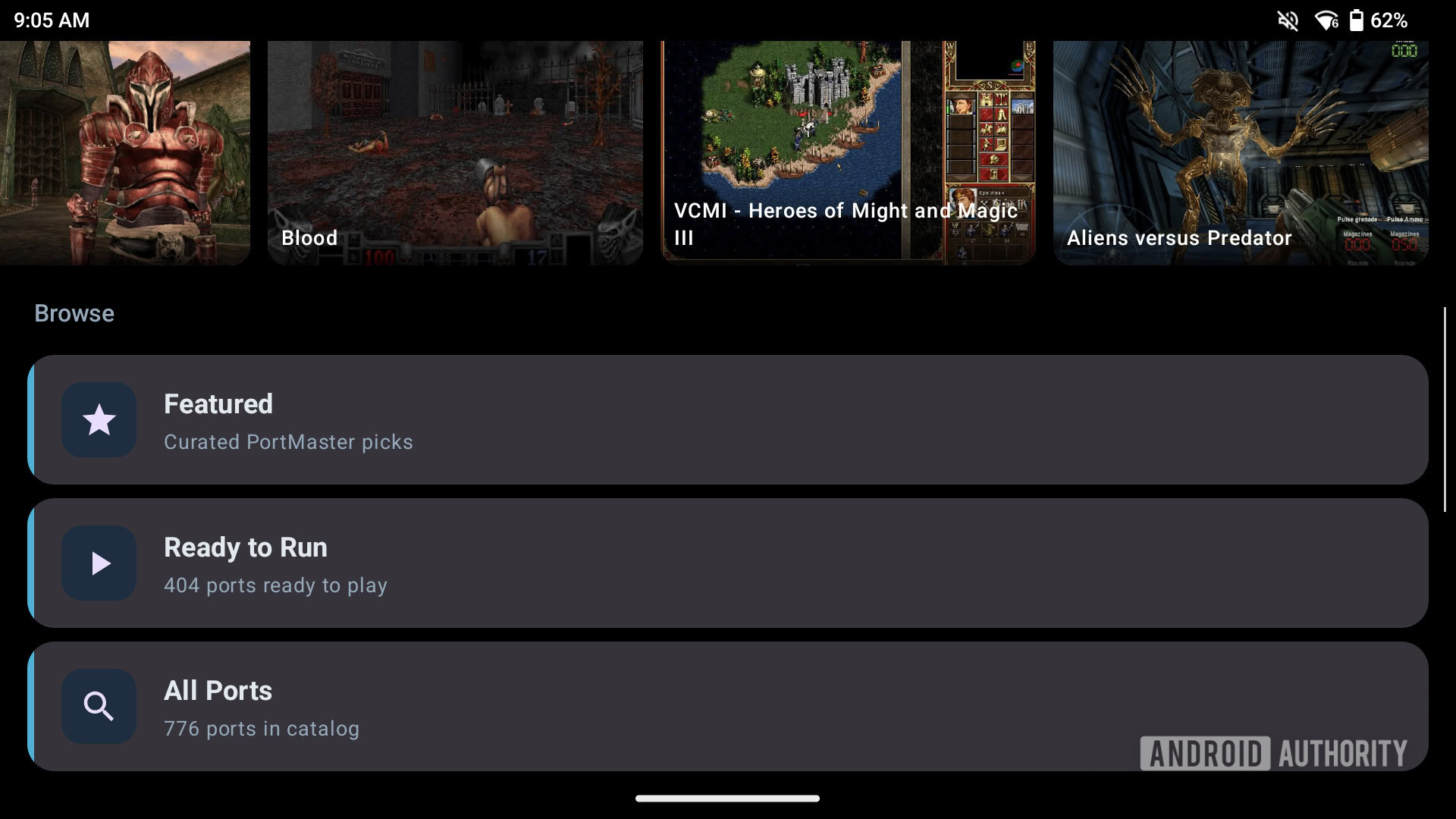
Third, not everything in the catalogue is ready for a one-tap install. Starboard separates “ready to run” ports from “setup required” ports, which need legally owned game data or extra preparation. Do not look for opaque bundles to “unlock” a title. Apart from the legal issue, it is the easiest way to turn a technical test into a pile of files with no trustworthy origin.
A controlled installation runbook
- Check the device first: confirm in the manufacturer’s specifications that the handheld is ARM64. On a phone, treat Starboard as a compatibility experiment rather than a performance promise.
- Download from the project only: open the official GitHub release or add
https://github.com/get-starboard/starboardto Obtainium. The first public release is v0.22.0; there is no reason to chase undocumented builds. - Grant install permission narrowly: allow only the app opening the official APK to install it. Afterwards, return to Android settings and revoke that permission if you do not regularly sideload apps.
- Launch with Wi-Fi and battery available: let the Linux runtime download finish without force-closing the app. The project site says this takes several minutes on a good connection; initial loading is not necessarily a freeze.
- Start with a known-ready port: choose a “ready to run” entry, check the official compatibility list, then test controls, audio, and exit behaviour before adding a larger library.
Controllers, GPU mode, and microSD: where caution wins
Physical controls are the natural fit on a handheld; on a phone or tablet, Starboard provides a virtual gamepad. Before blaming a port, make sure Android sees the controller and that the button mapping is correct in the app’s side menu. That menu also exits games and exposes performance metrics. A title that launches but runs badly is not a successful compatibility result.
The tempting setting is acceleration: Starboard offers a per-port GPU switch, which its own project describes as highly experimental. Try it only after a normal launch works. If there is a black screen, missing graphics, a crash, or unstable input, turn it off and compare the result with the compatibility list. There is no universal fix because each port carries different Linux dependencies.
You can place the library on microSD, but that is effectively a whole-library choice. Make it before filling internal storage: migrating a library and runtime halfway through is not a good place to rely on optimism. A slow or unreliable card can also make installation and loading look like an application problem when it is not.
What actually changes
Starboard is compelling because it reveals a less closed Android: an app without root can host a Linux environment and run ports built for other handhelds. It is also a technical reality check. Compatibility is not magic. The project is unofficial in relation to PortMaster, its app source code is not yet public, and its own documentation says not every game can be brought across. Where a proper native Android version exists, that will usually remain the cleaner route. For a different Android gaming stack, see our GameNative and frame-generation guide.
In brief
- Starboard runs many PortMaster ports on Android through a Linux environment, without root.
- It is best suited to ARM64 handhelds; phones and tablets are possible but less predictable.
- Install from official GitHub or Obtainium, never from APK mirrors.
- Begin with ready-to-run games and check per-port compatibility.
- Experimental GPU mode and microSD are tools, not settings to enable blindly.