Gemini in Android Auto is useful as long as it behaves like a copilot, not when every voice command turns into a small lecture. The practical point from the latest foreign coverage is straightforward: before blaming the phone, the USB cable or the car, check the settings that control voice replies, notifications and automatic startup.
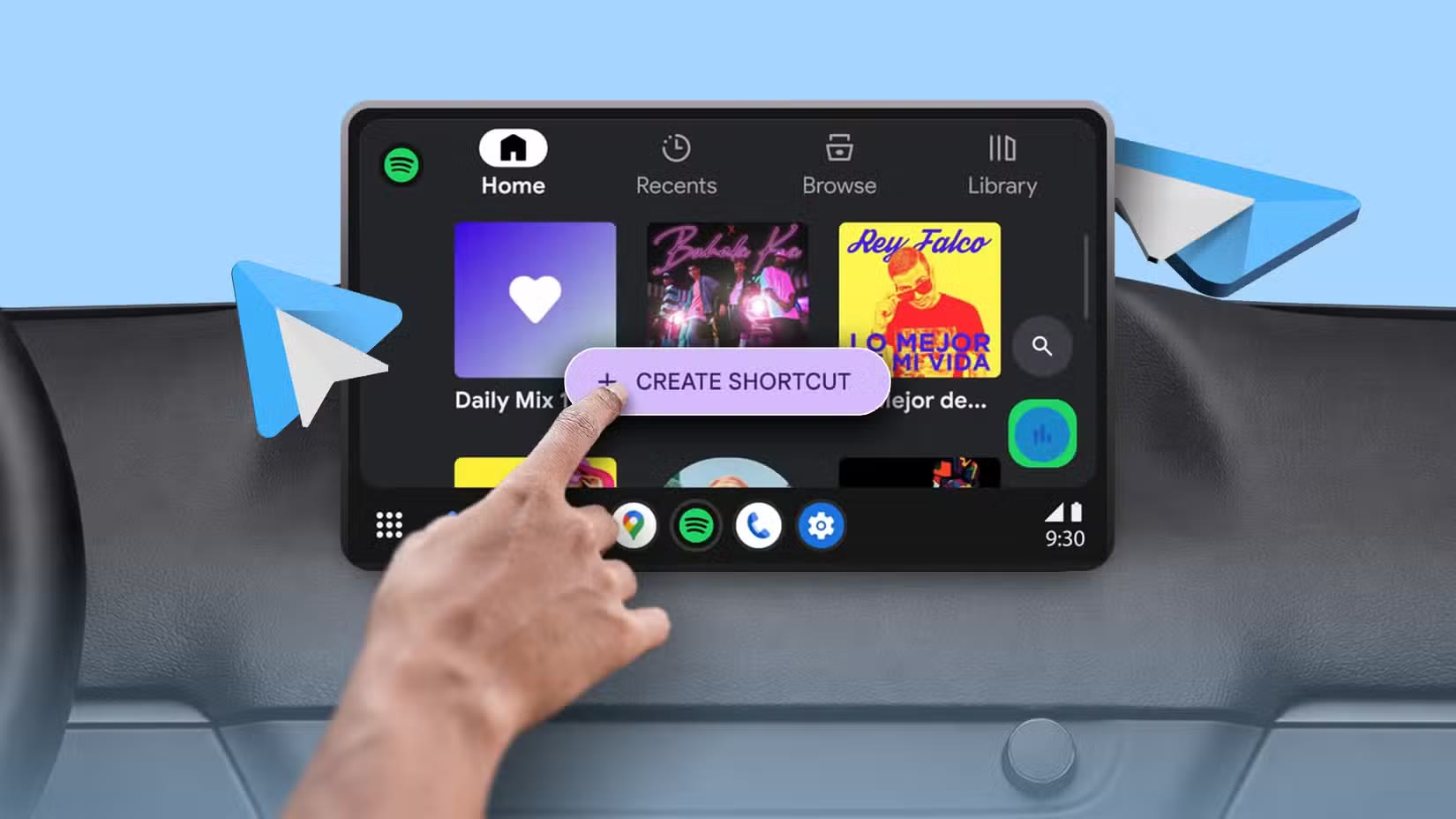
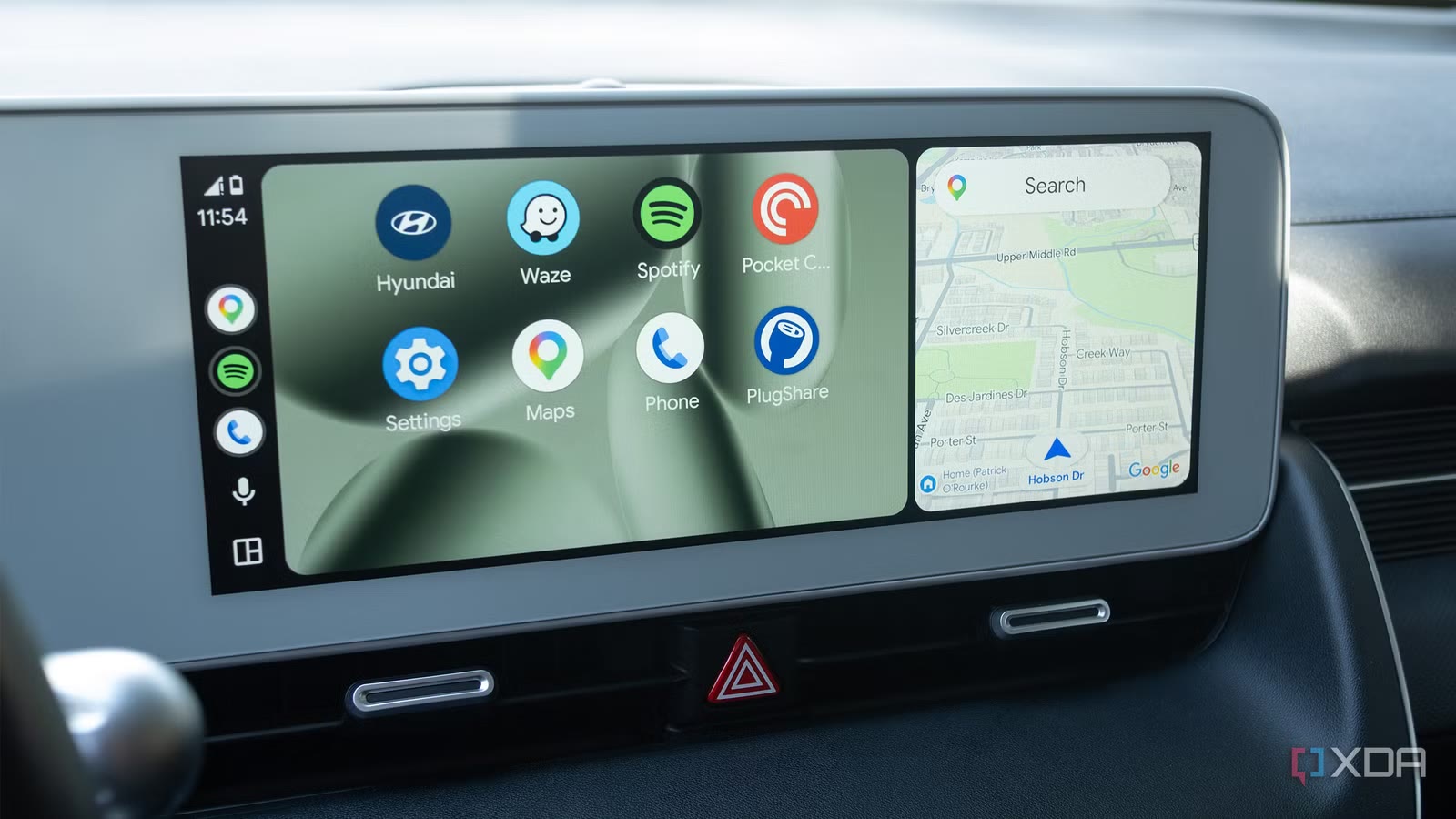
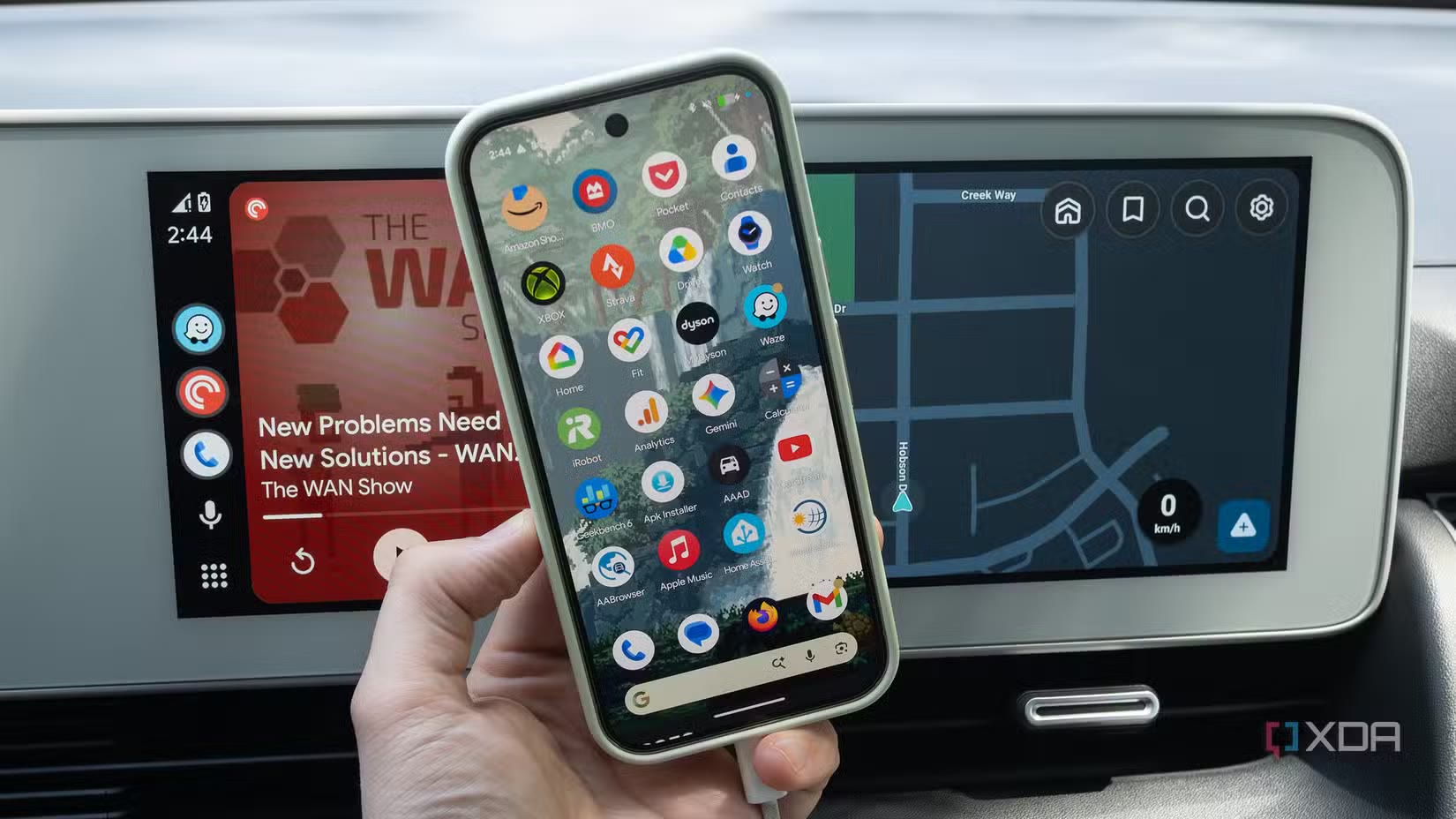
Android Police frames the everyday annoyance clearly: Gemini is more capable than the old Google Assistant, but it can also have more to say. XDA, meanwhile, published a fresh checklist of Android Auto settings worth changing on a new phone. Put together, they make a useful runbook: reduce cabin noise without disabling the assistant when you actually need it.
Start on the phone with Android Auto settings and look for entries related to Google Assistant or Gemini. The exact wording can vary by app version, server-side rollout and car model, so do not expect every screen to match perfectly. Look for voice replies, spoken notifications, proactive suggestions and audio confirmations. If Gemini is too talkative, disable non-essential suggestions first: it is the least disruptive change and often removes the unnecessary chatter.
Quick Procedure
- Update Android Auto from the Google Play Store, then restart the phone before testing in the car.
- Connect the phone and open Android Auto settings from the car display or from the phone.
- Review message notification settings: previews, sounds, automatic readout and conversations shown on the dashboard.
- Reduce assistant voice replies if the option is available, then test a short command such as “navigate home” or “call”.
- Turn off automatic music startup if every connection launches a playlist by ambush. Spotify is fine; surprise Spotify while driving is less fine.
- If you use wireless Android Auto, also check battery saver rules and background permissions for the Google app, Maps and your main music app.
Compatibility and Limits
The big limitation is rollout. Android Auto is not just one app: it depends on the Android version, the Google app, Play Services, the car firmware and account-side feature flags. That is why two identical phones may not show the same toggle on the same day. Google’s official help pages also point back to the basics: a compatible phone, a supported car or head unit, a proper USB cable for wired use, or wireless support when the vehicle provides it.
If the setting you need is missing, do not rush into a full reinstall. First update Android Auto, the Google app, Google Maps and Play Services. Then clear only the cache for Android Auto and the Google app, not random app data: wiping data may reset preferences, paired cars and permissions. Reinstalling is the last step, not the sacred ritual of tired troubleshooting.
What Actually Changes
The real issue is not just “Gemini talks too much” as a forum joke. An in-car assistant has a different job from an assistant on a phone in your hand: every unnecessary second of audio adds cognitive load. A clean Android Auto with Gemini setup should keep navigation, calls and essential commands available while reducing suggestions, spoken notifications and distracting automations.
For anyone who changes phones often or uses more than one car, Android Auto should be treated like a small workstation profile: safety and predictability first, convenience second. If Gemini is still intrusive after the checks, write down the Android Auto version, Google app version, car model and connection type. Those four details are what you need to tell whether you are seeing a local preference problem, a rollout bug or a head-unit limitation.
Related: AndroidLab already covered checks for Android Auto lag, heat and cable problems. The same rule applies here: isolate first, reset later. Doing it backward is just digital folklore with extra steps.
In Brief
- Fresh sources point to a practical problem: Gemini is more capable, but it can be too verbose in the car.
- Check notifications, voice replies, suggestions and automatic media startup first.
- Available toggles may vary by rollout, account, Google app, Play Services and car firmware.
- Update Android Auto from the official channel and do not chase missing toggles through random APKs.
- If the issue remains, collect version numbers and car details before resetting or reinstalling.