When Android Auto starts lagging, the noisy fix is to reinstall everything and hope the dashboard behaves. It is rarely the smartest first move. If the slowdown appears after a few minutes of navigation, music and charging, the real culprit is often a very physical mix of heat, cable quality, battery management, cache and background apps.
The fresh hook is Android Police’s practical list of tweaks for reducing Android Auto lag and overheating. The AndroidLab angle is to turn that into a repeatable checklist: isolate the symptom, change one variable at a time, then decide whether the problem is the phone, the connection, the car unit or a specific app. Less drama, more signal.
Start by identifying the kind of lag
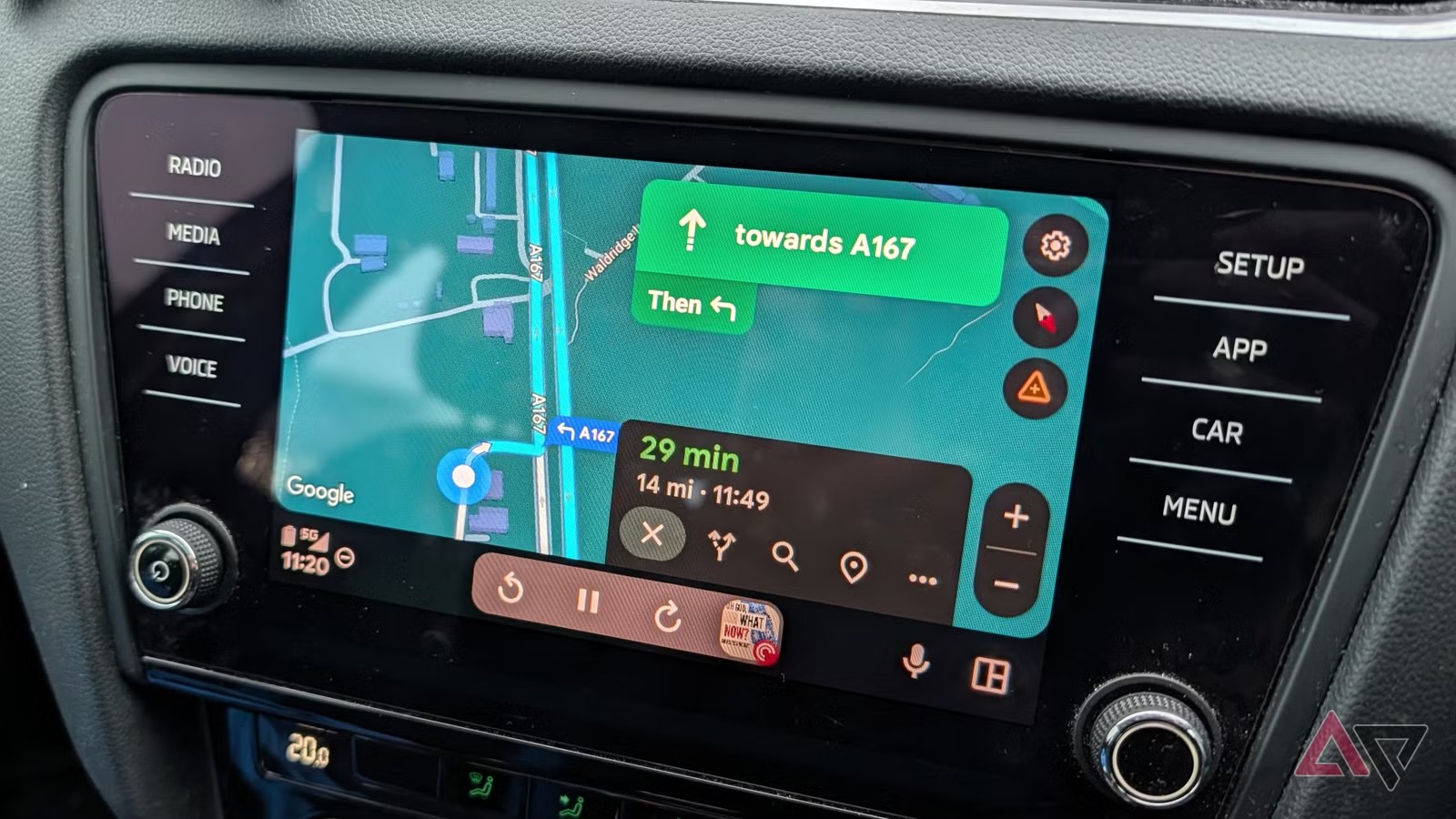
Separate three cases first. If the car display is slow but the phone remains smooth, look at the cable, USB port, wireless link and infotainment unit. If the phone gets hot, dims, charges slowly or closes apps, thermal throttling and battery rules become the main suspects. If only Maps, Spotify, WhatsApp or another app is slow, do not blame the whole Android Auto stack too early.
Google’s own Android Auto help pages point back to the basics: a compatible phone, a compatible car or stereo, correct setup and, depending on your configuration, a reliable USB data cable or wireless support. That sounds dull because it is, but many intermittent car problems come from cables that charge the phone while handling data badly.
A 10-minute troubleshooting checklist
- Try a wired connection even if you normally use wireless Android Auto. If lag disappears, the issue is likely wireless stability, heat, battery handling or interference rather than Android Auto itself.
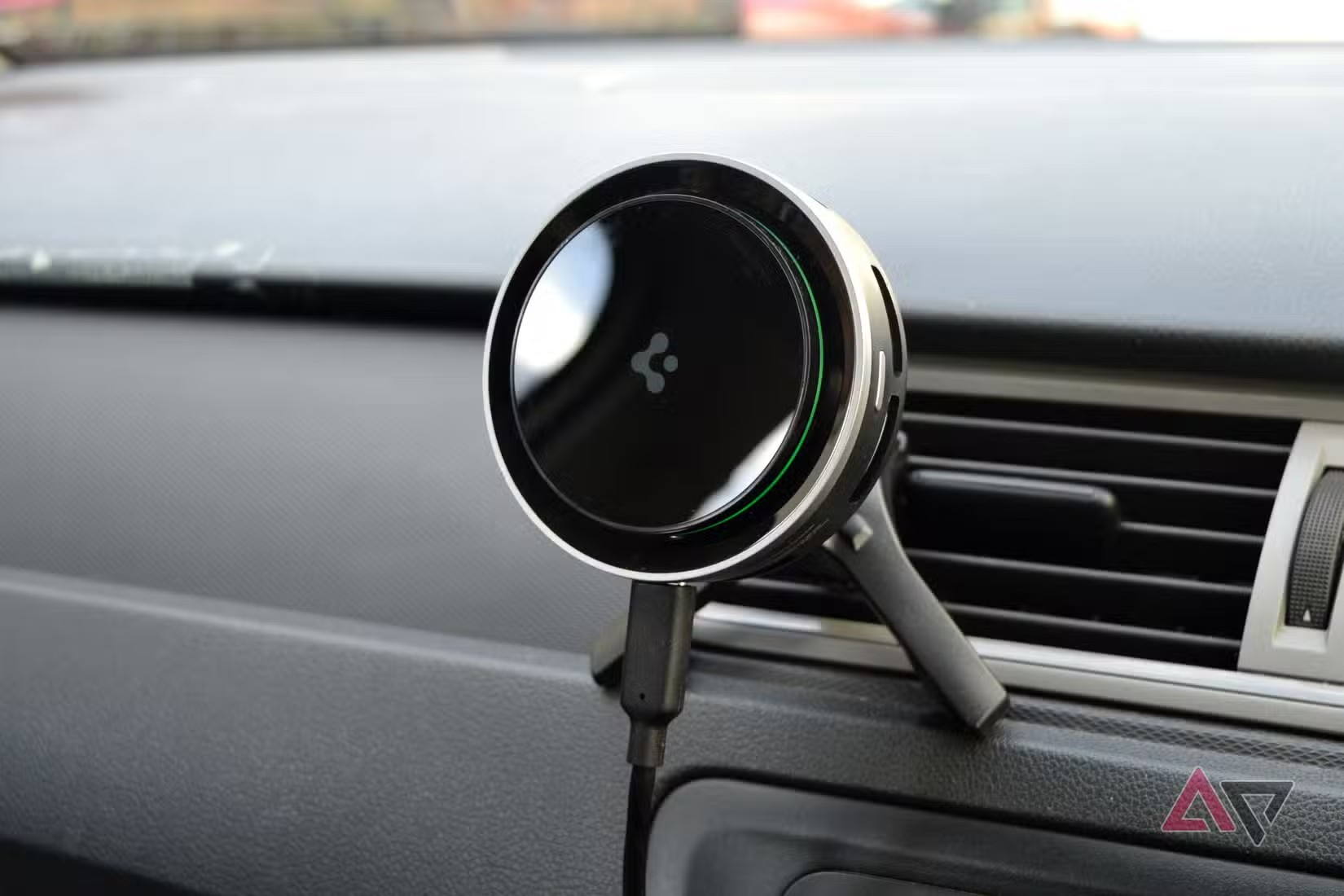
- Use a short, recent cable rated for data. Avoid extensions, USB hubs and mystery adapters: in a car, they usually add uncertainty rather than convenience.
- Move the phone away from direct sunlight and give it airflow. A phone under the windshield, charging and running Maps is a fanless device doing several jobs at once.
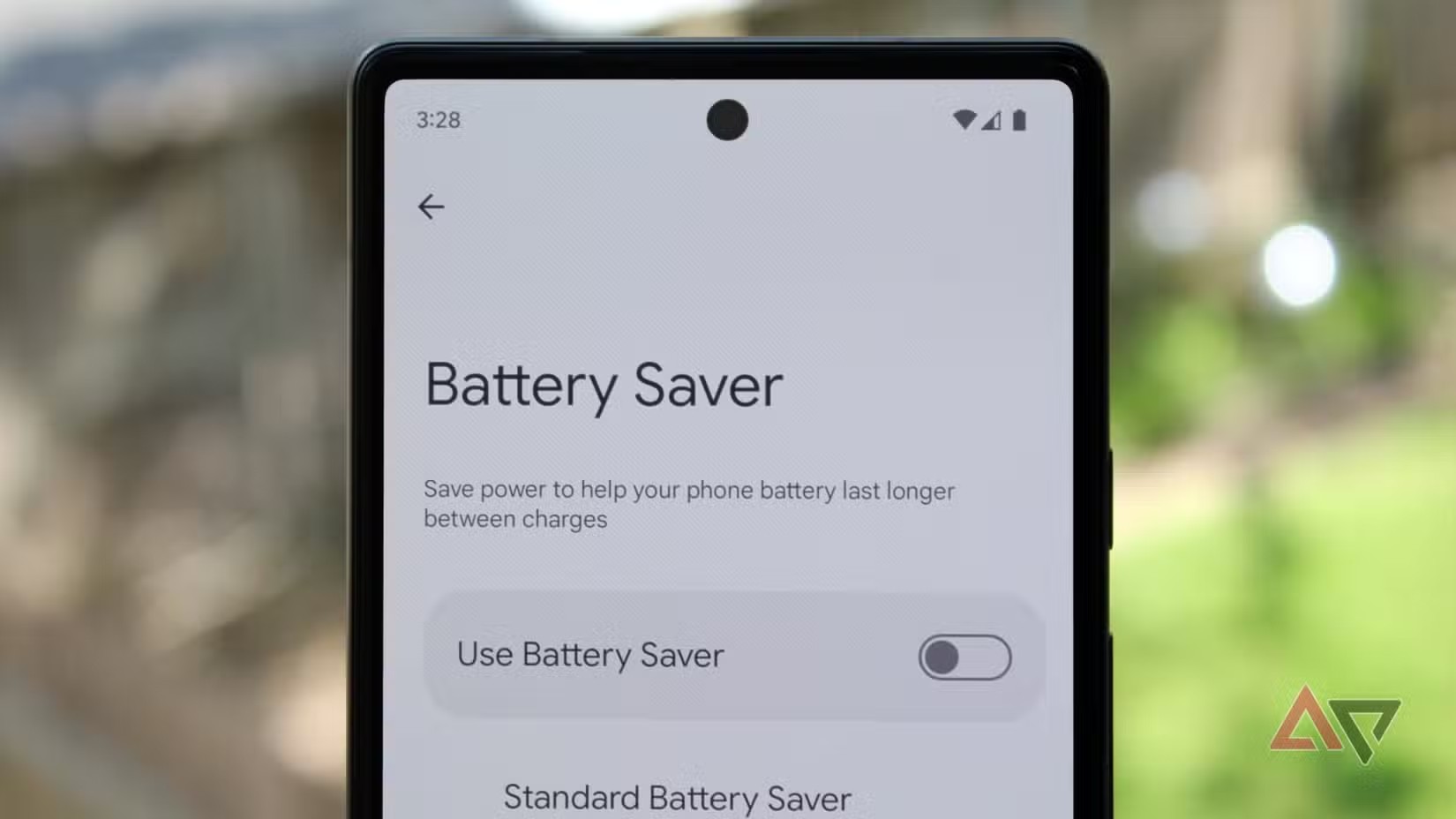
- Temporarily disable Battery Saver and aggressive optimization for Android Auto, Maps, Spotify and your phone app. On some devices, that is the difference between instant controls and delayed taps.
- Clear the cache for Android Auto and the affected apps: Settings, Apps, Android Auto, Storage, Clear cache. Avoid “clear data” as a first step because it can remove pairings and setup state.
- Restart both the phone and the car unit, then repeat the same test with the same route, app and connection type.
Settings worth checking
Make sure Android Auto is updated through its official Google Play listing where available for your device. Also update Google Maps, the Google app, Play Services and your music apps. Android Auto is the surface, but the delay often comes from one of the connected parts.
If you use wireless Android Auto, check Bluetooth and Wi-Fi only after ruling out the simpler causes. Re-pairing the car can help, but it is more useful once cable, heat and battery limits have been tested. AndroidLab has related coverage on wireless Android Auto battery drain and Google Maps offline checks, plus a guide to odd routes, tolls and highway settings in Android Auto.
What actually changes
The useful shift is not memorizing five tricks. It is treating Android Auto lag as a system problem, not as a single moody app. The most suspicious combination is wireless plus charging plus heat; the easiest variable to eliminate is the cable. Resetting everything too early creates more unknowns. Testing one variable at a time tells you whether to replace the cable, move the phone, relax battery rules or wait for an update.
When it is not your fault
Some cases have limited user-side fixes: infotainment firmware bugs, old car software, a recent Android update, wireless dongle incompatibility or a broken app release. If the problem remains, collect the phone model, Android version, Android Auto version, car or head-unit model and connection type before asking for help. Boring data is the difference between troubleshooting and ritual.
In brief
- If Android Auto lags, check cable, heat, cache and battery rules before resetting everything.
- The fastest diagnostic test is switching from wireless to wired USB.
- Heat, charging, navigation and music together can slow down even recent phones.
- Use official update channels for Android Auto and related apps, not random APK downloads.
- If the issue persists, collect version numbers and car details before contacting support.