Mobile data is one of those Android problems that looks boring until a phone burns through a monthly plan in the background. Android Police has just resurfaced a practical angle with a fresh guide on keeping a data plan under control; the useful part is not one magic switch, but the habit of treating mobile data as a budget with meters, warnings and per-app rules.
That matters more in 2026 because Android phones are doing more work silently: cloud photo sync, messaging backups, AI features, app updates, streaming previews, maps, wearables and companion apps. A generous plan hides the problem. A smaller plan, roaming package or family line exposes it immediately. The AndroidLab reading is simple: if the phone can measure it, warn about it and restrict it, leaving everything on automatic is not convenience. It is blind trust with a monthly bill attached.
Start with Android’s own data usage screen
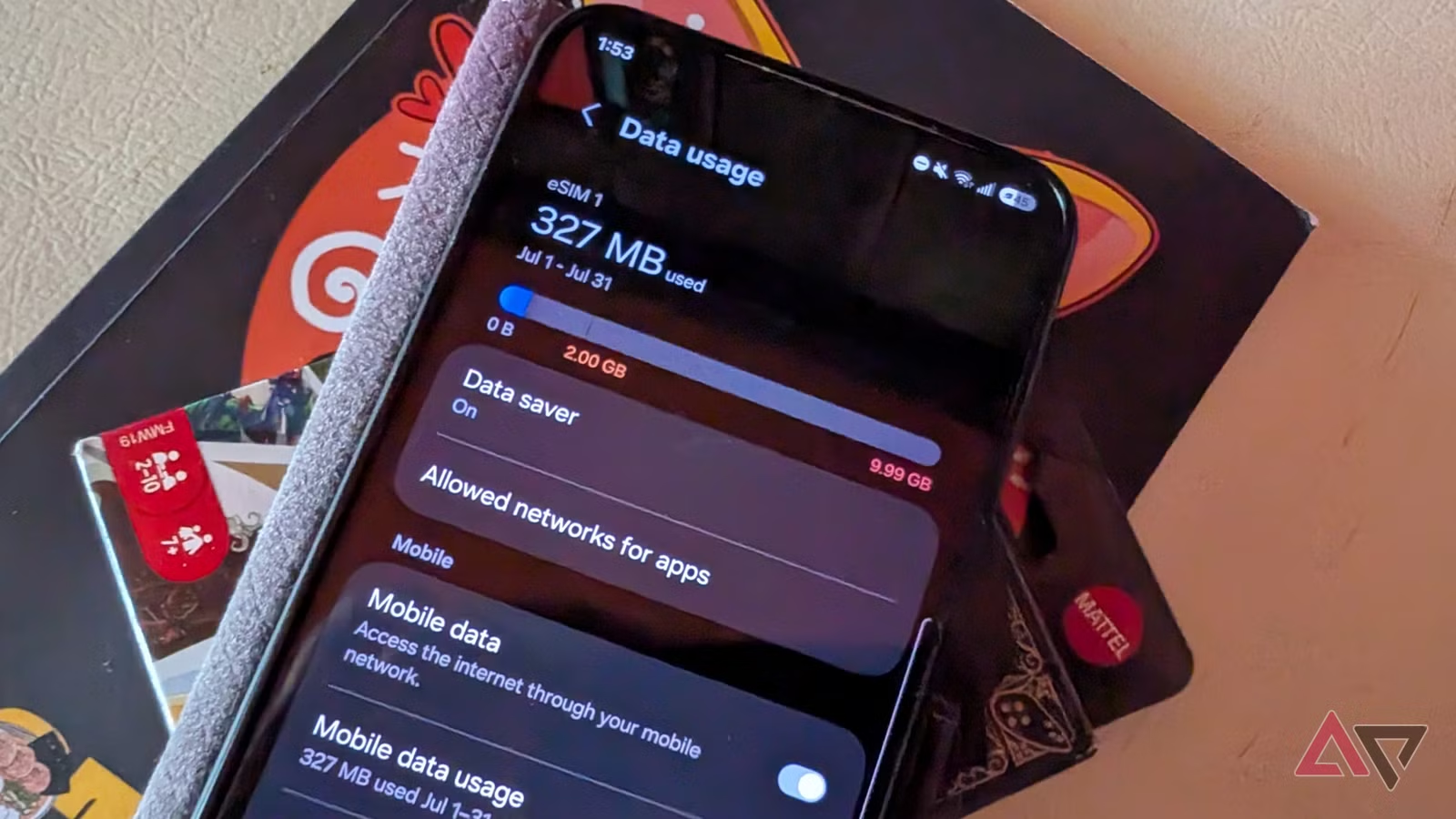
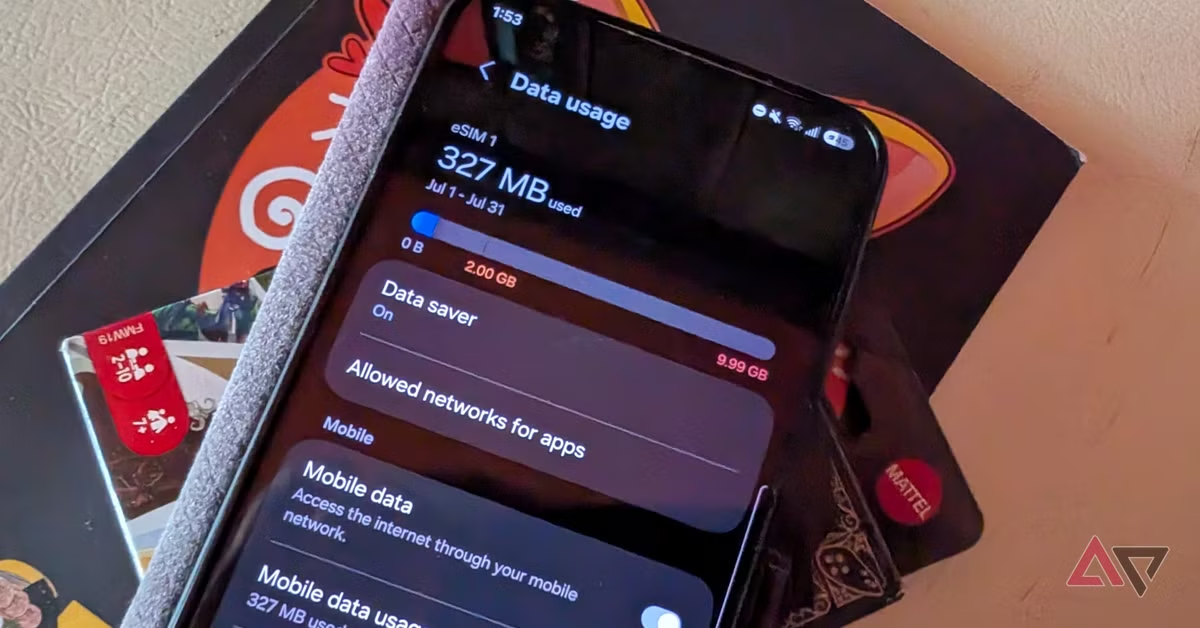
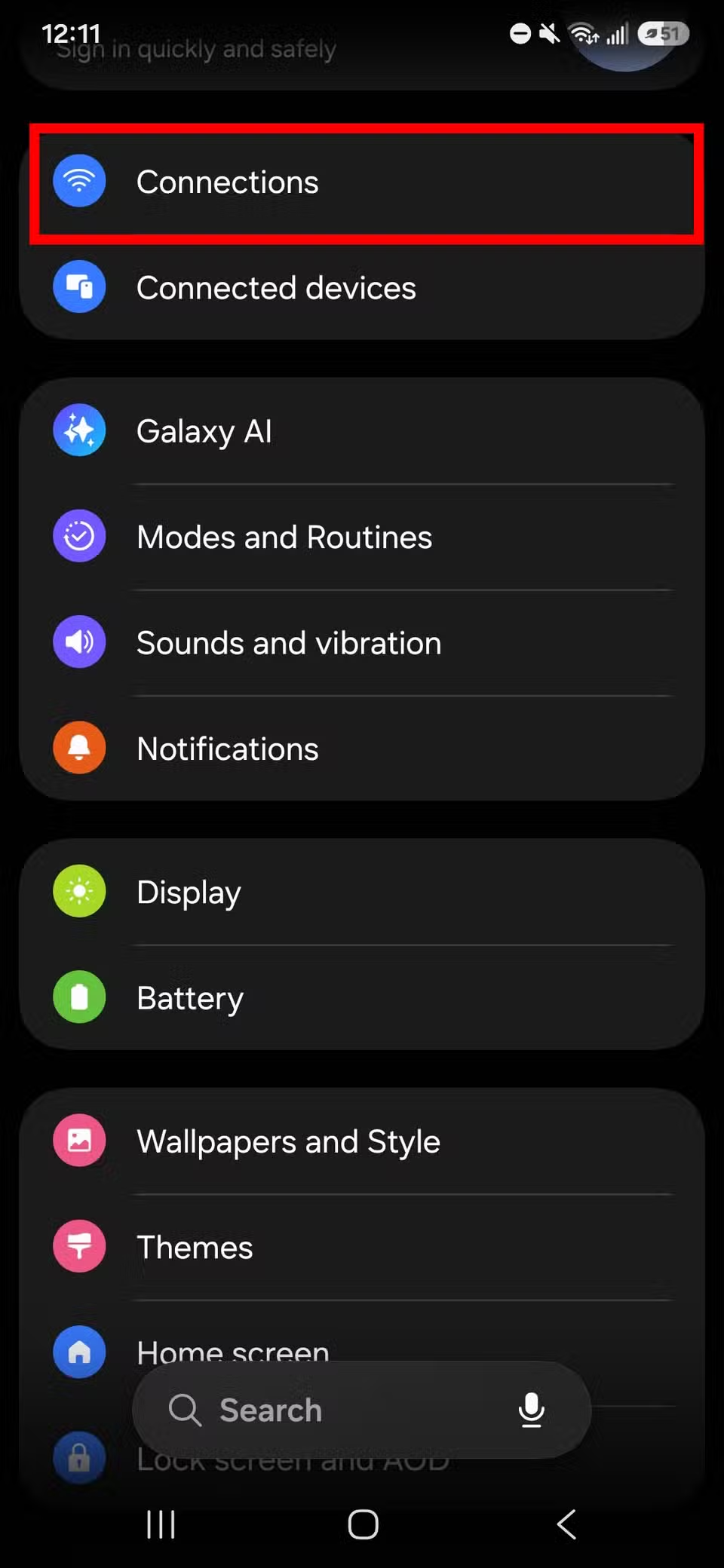
Google’s Pixel help page describes the basic control point: Android can show how much mobile data the phone has used, break it down by app and let you set a data warning or limit. On most recent Android phones the path is close to Settings > Network & internet > SIMs > App data usage, although Samsung, Motorola and other manufacturers may move the labels around slightly.
The important check is the billing cycle. If Android is counting from the wrong day, the graph may look reassuring while your carrier’s counter is already angry. Set the cycle to match your plan, then look at the top apps. Video, social networks and cloud storage are obvious suspects, but the real surprises are often browsers, messaging apps, launchers, keyboards, podcast apps and companion apps that sync when you are not actively using them.
Use warnings before hard limits
A hard mobile data limit can save money, but it can also break navigation, messaging, banking alerts or work apps at the worst possible moment. For most users the first step should be a warning at roughly 70-80% of the monthly allowance. That gives you time to react without turning the phone into an offline brick halfway through a trip.
If the plan is very small, prepaid, used by a child, or used while roaming, a hard limit makes more sense. In that case, test the essentials before relying on it: maps, authenticator apps, messaging, calls over data, banking notifications and any app used for travel. The phone saving a few gigabytes is not a victory if it blocks the one service you actually needed.
Data Saver is useful, but it is not a privacy mode
Android’s Data Saver reduces background mobile data for many apps. Google Play’s help documentation also makes the trade-off clear: when Data Saver is active and Wi-Fi is not available, Play Store behavior can be affected unless you explicitly allow background data for it. That is the pattern to remember: Data Saver is a traffic control feature, not a security wall and not a guarantee that every app will behave perfectly.
Use it as a default brake, then create exceptions only for apps that genuinely need background connectivity. Messaging, calendar, authenticator, banking, maps and wearable companion apps may deserve exceptions. Random shopping apps, games, social feeds and video services usually do not. If an app complains, do not immediately disable Data Saver globally; check whether that single app needs unrestricted data.
What actually changes
The practical change is that data management moves from panic to maintenance. Instead of discovering the problem from the carrier, you let Android show the leak early, then you decide which apps are allowed to work in the background on mobile data. It is not glamorous, and that is exactly why it works: meters, warnings and per-app restrictions beat another round of “maybe the operator is stealing my gigabytes” drama.
For power users, the best routine is monthly and boring: reset the cycle correctly, check the top five apps, review Data Saver exceptions and disable automatic downloads on mobile data inside heavy apps. For normal users, even one pass through the data usage screen is enough to expose the worst offenders.
Quick Android data checklist
- Match Android’s data cycle to your carrier billing cycle.
- Set a warning before setting a hard limit.
- Check app-by-app usage, not just the total number.
- Turn on Data Saver when using a small, prepaid or roaming plan.
- Allow unrestricted data only for apps that truly need background access.
- Disable automatic downloads, autoplay and cloud sync on mobile data inside heavy apps.
- Recheck after one week; the first graph tells you the suspects, the second tells you whether the fix worked.
In brief
- A fresh Android Police guide highlights simple habits for keeping mobile data under control.
- Google documents Android’s built-in data usage graph, warnings, limits and Data Saver behavior.
- The safest setup is warning first, hard limit only when the plan or roaming cost justifies it.
- Data Saver is useful, but per-app exceptions need review instead of being granted automatically.
- Android Police – The 5 simple tweaks that kept my data plan under control for more than half a decade (published July 11, 2026, 12:30 UTC)
- Google Pixel Phone Help – Reduce & manage mobile data usage (checked July 11, 2026)
- Google Play Help – Turn on background data (checked July 11, 2026)