Google Drive is getting more “intelligent” search features, but the practical problem has not changed: when you need a PDF, an invoice, or a document shared months ago, waiting for AI to guess your intent can be slower than writing a better query. Android Police flagged the issue with Google Drive’s newer search experience: AI can help, but filters and old-fashioned search discipline still find files faster. The AndroidLab angle is simple: less magic, more repeatable troubleshooting.
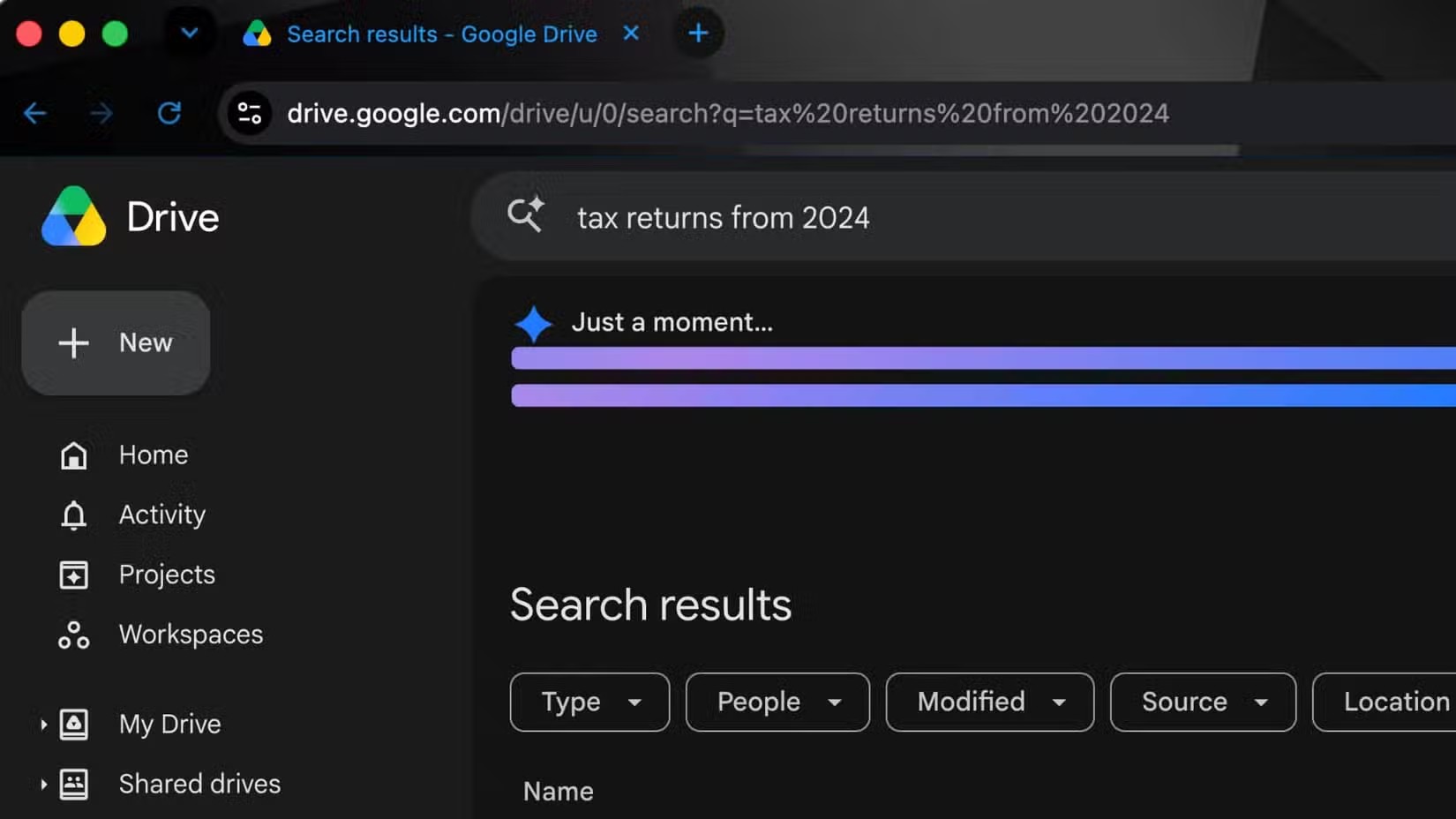
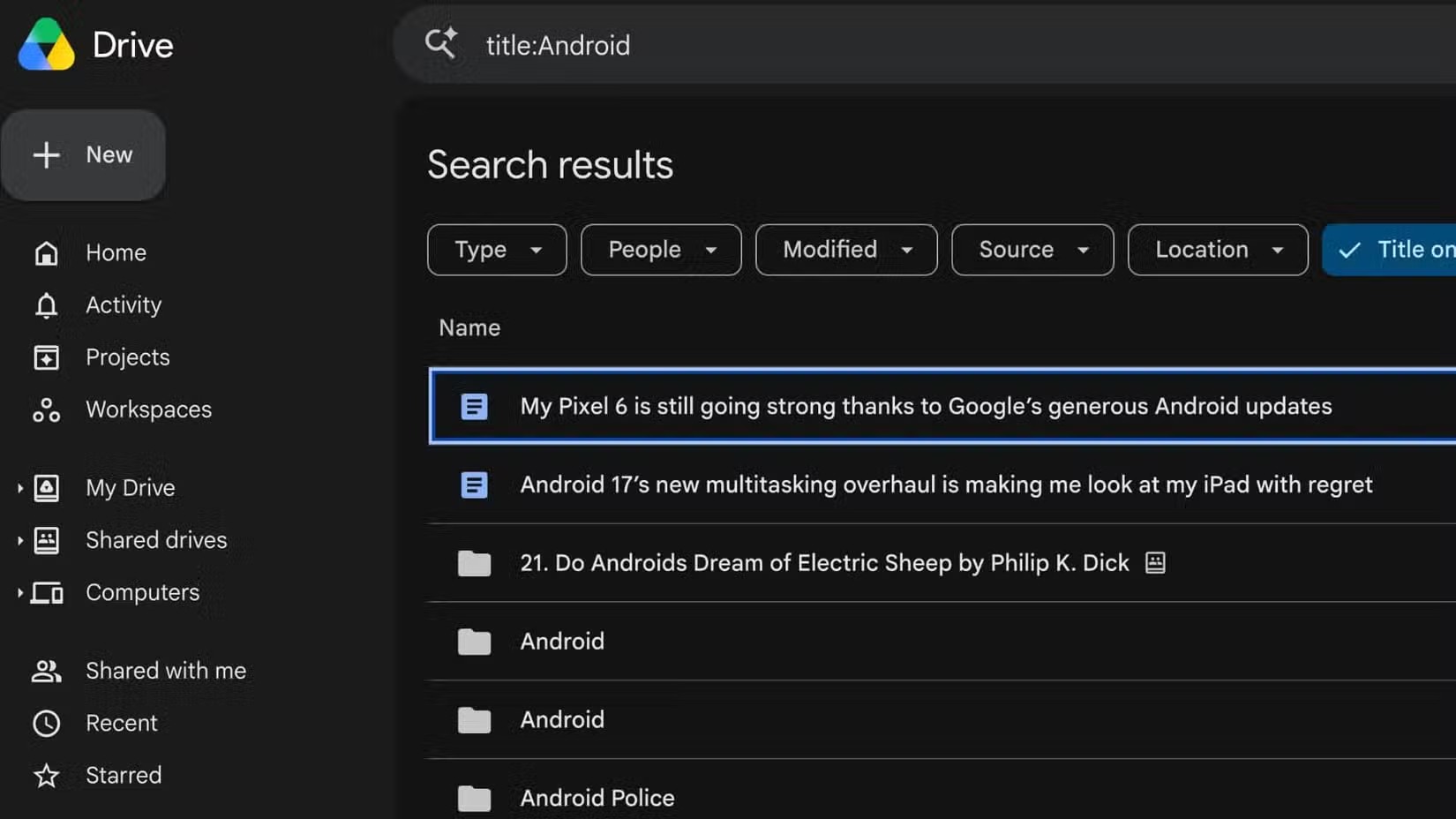
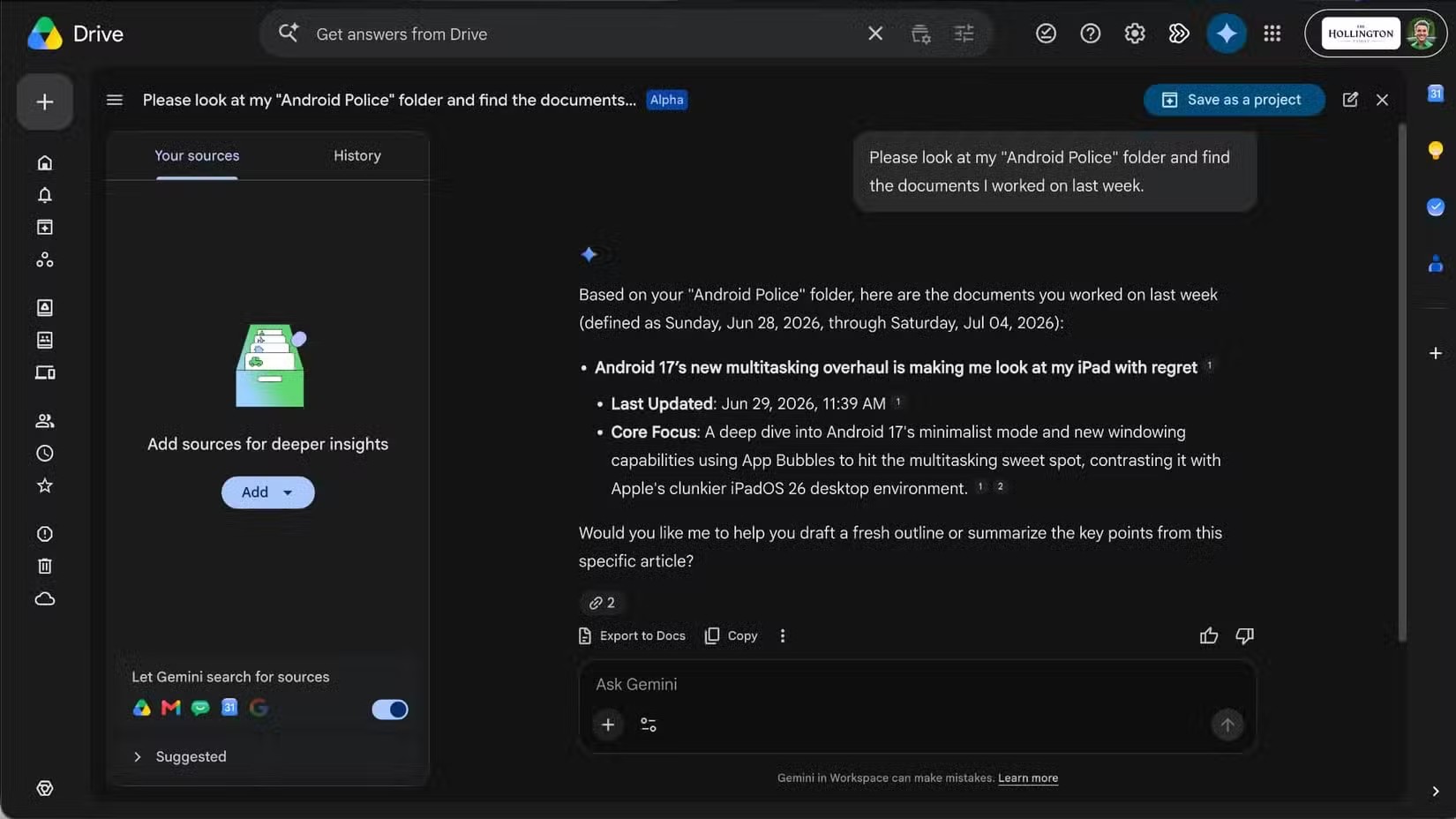
Google’s own Drive help page confirms that search can be narrowed by file owner, type, words in the title, date, folder, shared status, and trash. On Android, those controls are not always exposed as clearly as they are on the web, but the logic still matters. If you use Drive on your phone for work documents, scans, exported files, PDFs, or shared folders, the difference between “search everything” and “search properly” is the difference between finding a file and losing twenty minutes. Related: AndroidLab has already covered phone-to-PC file workflows in the Phone Link for Android and Windows guide.
Requirements and compatibility
You need an active Google account, the Google Drive app from the Play Store, and preferably a stable connection. Search also works in a browser, but this guide focuses on Android: phones, tablets, small screens, virtual keyboards, and shared folders that often become digital storage rooms with no labels on the shelves.
The AI side can vary by account, region, Google Workspace plan, server-side rollout, and Gemini availability. Do not assume that two phones running the same app version will expose the exact same interface. This is Android in 2026: part app update, part server switch, part menu archaeology.
Fast workflow: find a file without relying only on AI
- Open Google Drive on Android and tap the search bar.
- Start with the most specific term you remember: invoice number, client name, project code, acronym, or rare word inside the document.
- Use visible filters when available: file type, owner, modified date, or location.
- If you remember the format, add terms such as PDF, spreadsheet, presentation, or image instead of searching for a vague phrase.
- Check Shared with me if the file is not yours: many “missing” documents are simply outside My Drive.
- Open Trash before repeating the same search ten times with increasing spiritual damage.
The point is not to memorize a terminal-grade query language, although nobody here would faint at the idea. The point is narrowing the search field. A query like Rossi contract PDF is more useful than “contract”; searching inside the likely folder is cleaner than querying all of Drive; filtering by date avoids old copies with similar names. Drive is an indexer, not an oracle.
Search habits worth using
When you are on the web, or when the Android interface accepts a more precise query, Google Drive can be searched with tighter criteria. Google’s help page points to owner, type, date, and text-based search options. In practice, try these habits:
- search for an exact part of the file name when you remember it;
- combine a title keyword with the content type, such as invoice PDF or report spreadsheet;
- filter by owner if the document came from a colleague or a work account;
- use modified date when you know the file changed recently;
- open the likely folder first, then search inside it instead of querying the whole Drive.
On Android, be careful with scans and photos. Drive can help when text is indexed properly, but a crooked receipt photo with terrible lighting and a file name like IMG_20260712_184455 is still a weak starting point. For important documents, rename files immediately with date, subject, and type: 2026-07 domain invoice beats any poetic AI layer.
Common problems and fixes
If Drive returns old or irrelevant results, check context first: correct account, correct folder, file not in Trash, and document not removed by the owner. On phones with multiple Google accounts, a lot of chaos comes from searching the personal account when the file lives in the work account, or the other way around. It sounds basic until the clock has eaten a quarter of an hour.
If search feels slow, update Google Drive from the Play Store, close and reopen the app, check the connection, and try the same query from a browser. If the file appears on the web but not on Android, the issue is likely app cache, app behavior, or a rollout mismatch. Start gently: clear the app cache, restart, then consider signing out and back in. Reinstalling everything is the last screwdriver, not the first one.
If you work with shared files, also check permissions and ownership. A document can appear in search and still fail to open because the owner revoked access, moved it into a restricted folder, or changed organization policy. Search finds the index; authorization decides whether you can actually read the file. AI tends to describe this softly. Infrastructure just says no.
What really changes
The interesting part is not that Google Drive is trying to become smarter. That is the direction of every Google app now. The real change is that file search on Android is becoming a hybrid: part AI, part metadata, permissions, and indexing. If you only know the magic search box, you are stuck when it fails. If you know filters, folders, account context, and sane file names, you have a much more reliable fallback.
The practical conclusion is not glamorous, but it works: do not wait for Drive to guess everything. Use readable file names, keep folders sane, check the active account, and learn a few search filters. Gemini and AI search can be accelerators, not an excuse to turn cloud storage into a green-painted junk drawer.
AndroidLab checklist
- Google Drive updated from the official Play Store.
- Correct Google account selected in the app.
- Search inside the most likely folder before searching globally.
- Use type, owner, and date filters when available.
- Check Shared with me and Trash before declaring a file missing.
- Name important files with date, subject, and type.
In brief
- Android Police reported on July 12, 2026 that Drive’s newer AI search does not always replace classic search methods.
- Google’s Drive help page documents useful ways to narrow search results.
- On Android, start with account, folder, file type, owner, and date.
- Gemini can help, but rollout and permissions can change what you see.
- For important files, good naming is still the best preventive automation.