Android Authority’s fresh Pixel and Home Assistant piece lands on a practical point: an Android phone is not just another remote control for a connected home. With the right setup, it can become an operational node made of presence, sensors, shortcuts, notifications and quick actions. The interesting question is not whether you can install one more smart home app. The real question is when Home Assistant on Android is worth the jump from Google Home, SmartThings or a manufacturer-specific app.
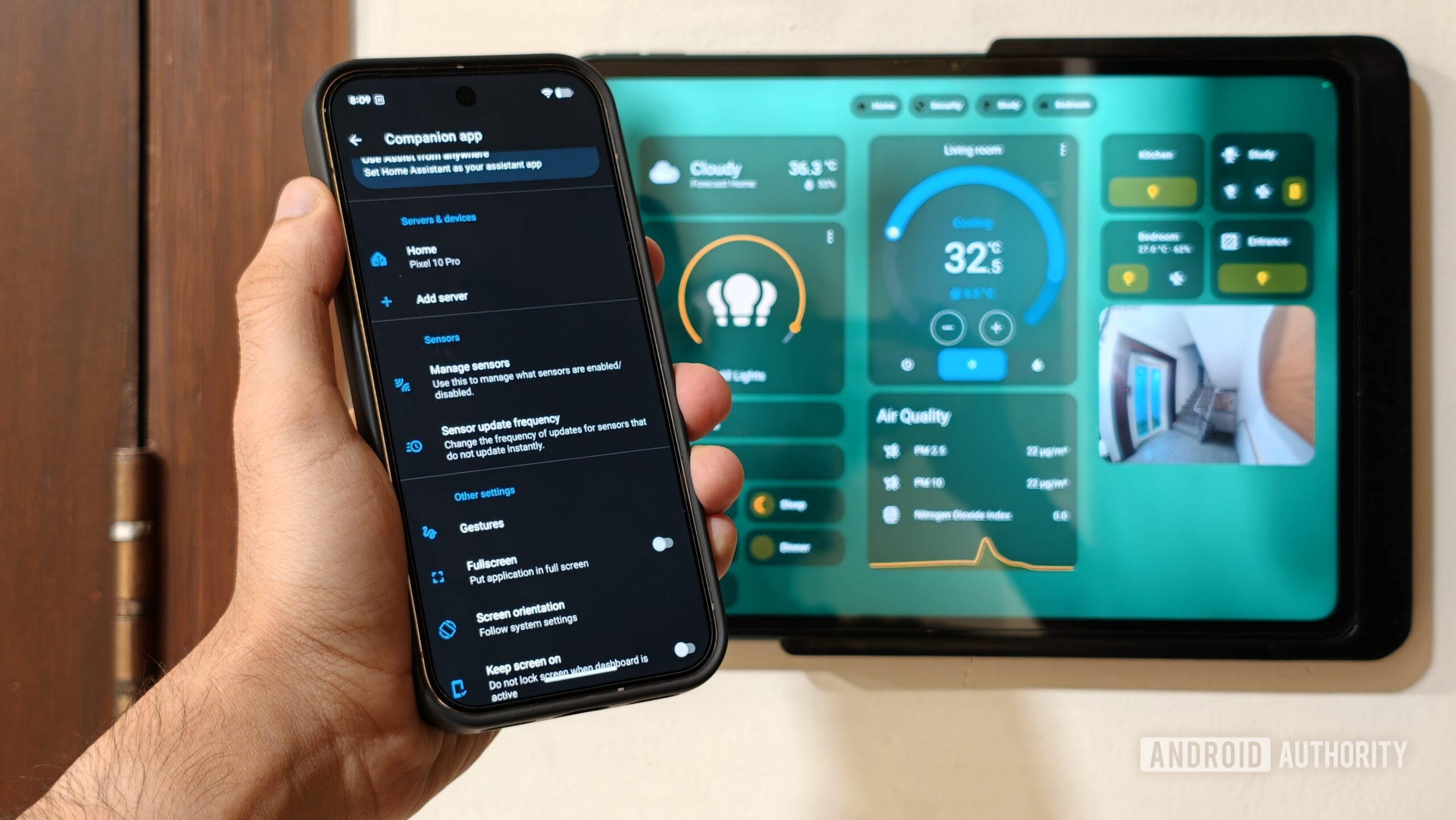
The official base is the Home Assistant Companion app for Android. It is available on the Google Play Store, connects to an existing Home Assistant instance and can expose phone data such as battery state, network status, location, notifications and quick controls. It does not replace the server; it extends it. That distinction matters, because without a stable Home Assistant setup behind it, the phone remains another nice-looking panel for switching lights on and off.
First check: server and remote access
Home Assistant makes sense when it runs on an always-on device: Home Assistant Green, Raspberry Pi, mini PC, NAS or virtual machine. Before tuning Android dashboards and tiles, check three basics: the server is updated, the Companion app can reach it on your local Wi-Fi, and remote access is configured deliberately. Exposing your smart home to the internet without a plan is not a lab setup; it is future regret with nicer icons.
The easiest route is Home Assistant Cloud/Nabu Casa. The more hands-on route is a reverse proxy with HTTPS, reliable DNS, strong authentication and regular backups. Either way, Android permissions, background battery limits and manufacturer restrictions matter. If Android freezes the app to save a tiny amount of power, presence-based automations can quickly become unreliable.
Android sensors: useful, but choose carefully
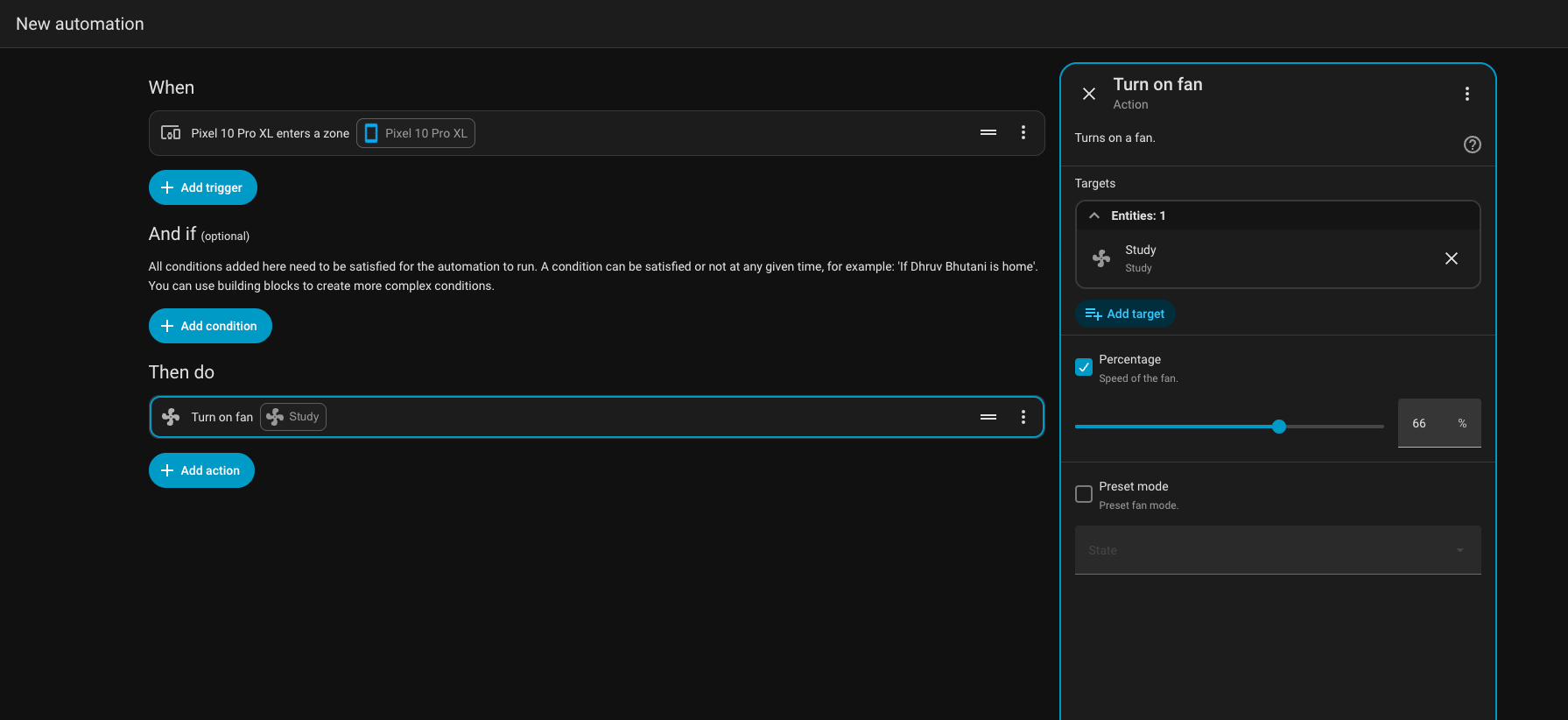
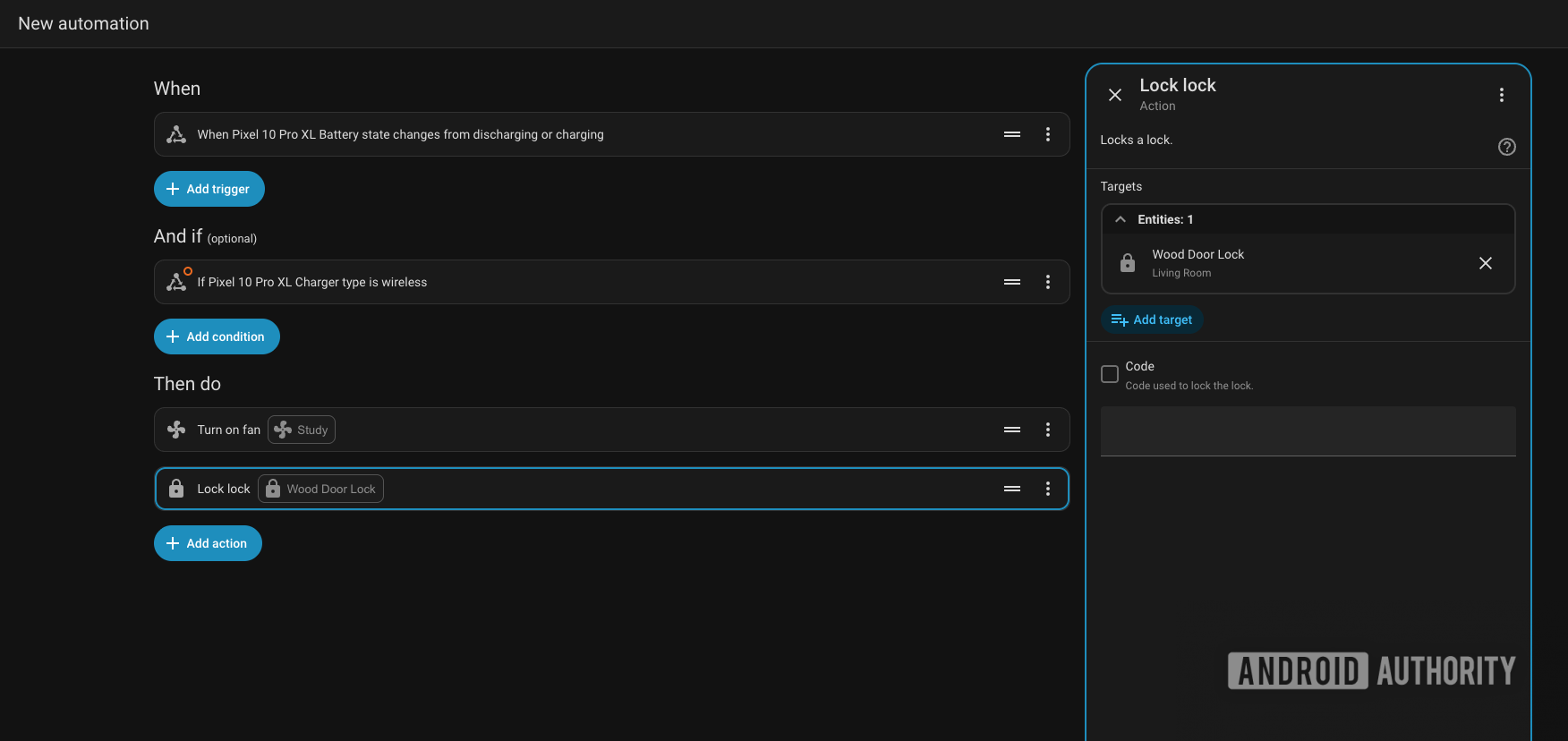
According to the official documentation, the Companion app can expose many sensors and create mobile_app entities inside Home Assistant. The practical value is in choosing the right ones. Battery, charging state, Wi-Fi network and location are useful signals for everyday automations: lowering heating when you leave, turning off forgotten lights, changing home mode when the phone joins your Wi-Fi, or sending smarter alerts.
You do not need to enable everything. More sensors mean more noise, more logs, more fragile automations and more personal data inside the system. The AndroidLab method is intentionally boring: start with a few sensors, give entities readable names, test each automation for a few days, then add complexity. A smart home that sends useless notifications every ten minutes is just a call center with light bulbs.
Shortcuts, tiles and widgets: where Android beats a remote
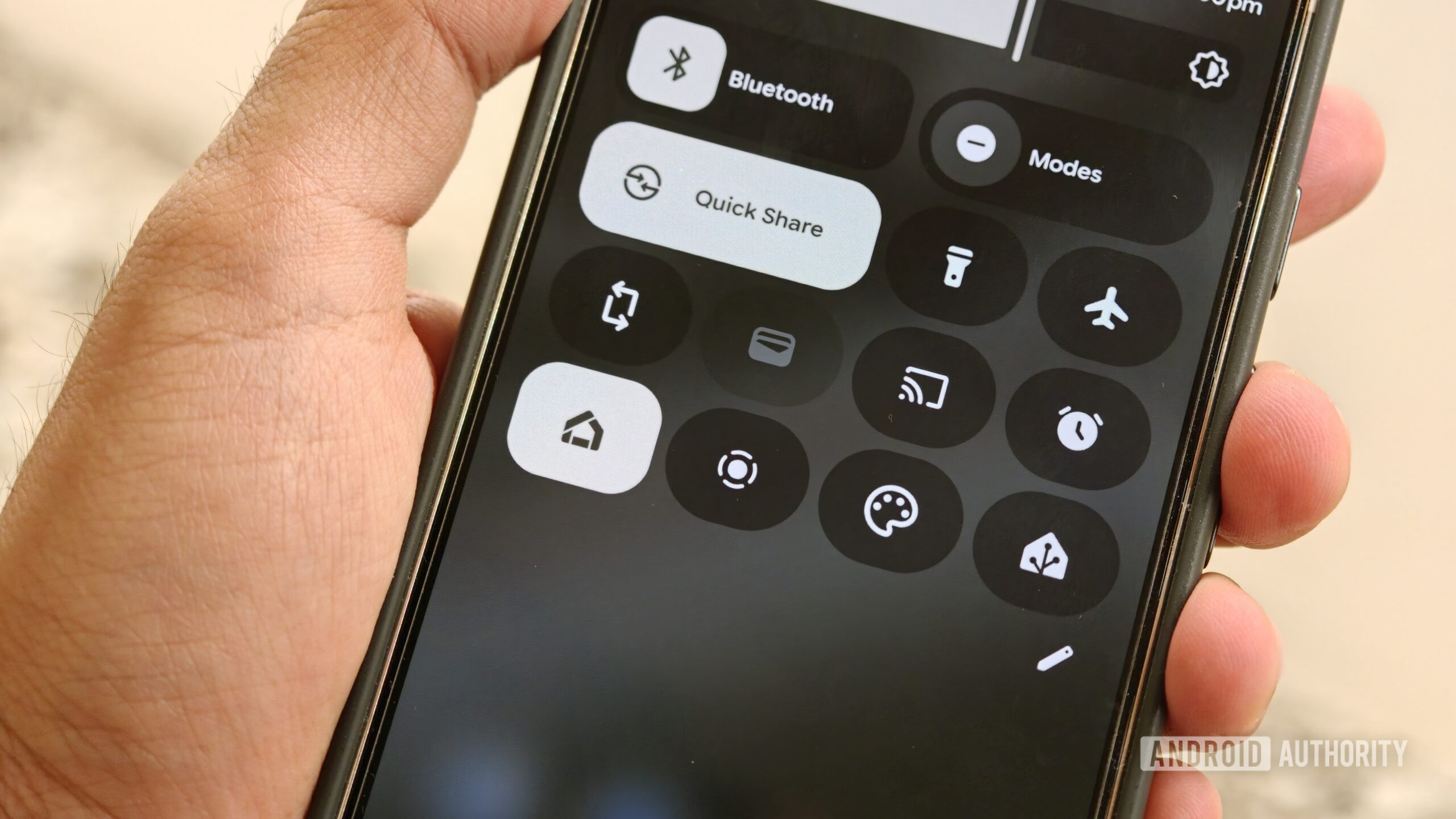
The most concrete advantage on Pixel phones and modern Android devices is integration where the phone already lives: Quick Settings, widgets, shortcuts and notifications. A tile for the gate, a shortcut to turn everything off, a widget for common scenes or an actionable doorbell notification can be faster than voice control. More importantly, they do not force you to talk to an assistant when you only need to do one thing.
To configure them, open the Home Assistant app, make sure your instance is properly registered, then add the Android controls supported by your launcher and Android version. On Pixel this is usually straightforward. On other devices, custom launchers, aggressive battery management or hidden permissions may interfere. If a control does not appear, check app updates, login status, available entities and background restrictions before blaming Home Assistant.
What actually changes
The difference from classic smart home apps is not the interface. It is the operating model: local and composable automations, the phone as a source of context, and different services inside one rule system. For some users it will be too much; Google Home is simpler if all you want is to control a couple of lights. For Android power users, Home Assistant Companion is compelling because it turns the phone into a peripheral of the home system, not an isolated remote.
There is a limit worth stating clearly: Home Assistant requires maintenance. Updates, backups, entity names, permissions, remote access and security do not manage themselves by magic. If you only want “it just works,” a more closed ecosystem may be better. If you want to understand and control the connected home, a Pixel can become a strong control surface, provided the engine underneath is configured properly.
Quick checklist
- Install the official Home Assistant app from Google Play, not a random APK mirror.
- Confirm your Home Assistant instance works on the local network before setting up remote access.
- Enable only the Android sensors you actually need for automations.
- Check location, notification and background activity permissions.
- Use tiles, widgets and shortcuts for frequent actions, not as home-screen decoration.
- Create backups before changing many automations at once.
Related: if your setup still revolves around Google’s ecosystem, AndroidLab has a practical guide to Google Home Speaker setup checks before returning it.
In brief
- Home Assistant on Android is most useful when you already have a stable Home Assistant server.
- The Companion app turns the phone into a source of sensors, notifications and quick controls.
- The most useful signals are battery, network, location, Quick Settings, widgets and actionable notifications.
- Privacy only improves if remote access, permissions and exposed data are configured properly.
- Google Home is simpler; Home Assistant offers deeper control for users willing to maintain the system.