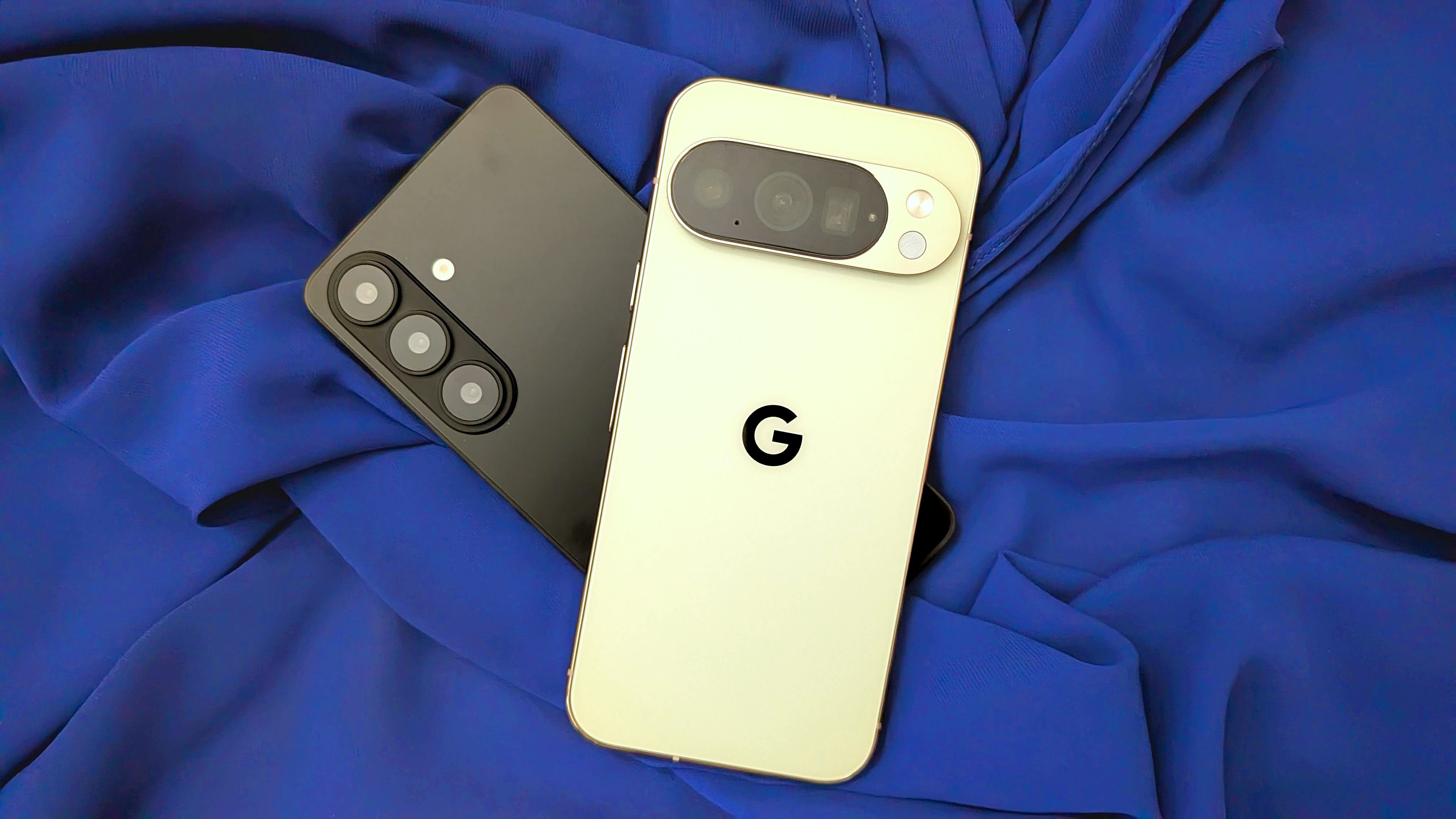
Android Central’s July 11 piece puts a very practical Samsung feature back on the table: the Samsung Edge Panel. It is the small handle on the side of many Galaxy phones that opens a floating panel with apps, tools and shortcuts over almost any screen. On a Galaxy it can work like a compact taskbar; on Pixel phones, Google still does not offer a comparable built-in side panel.
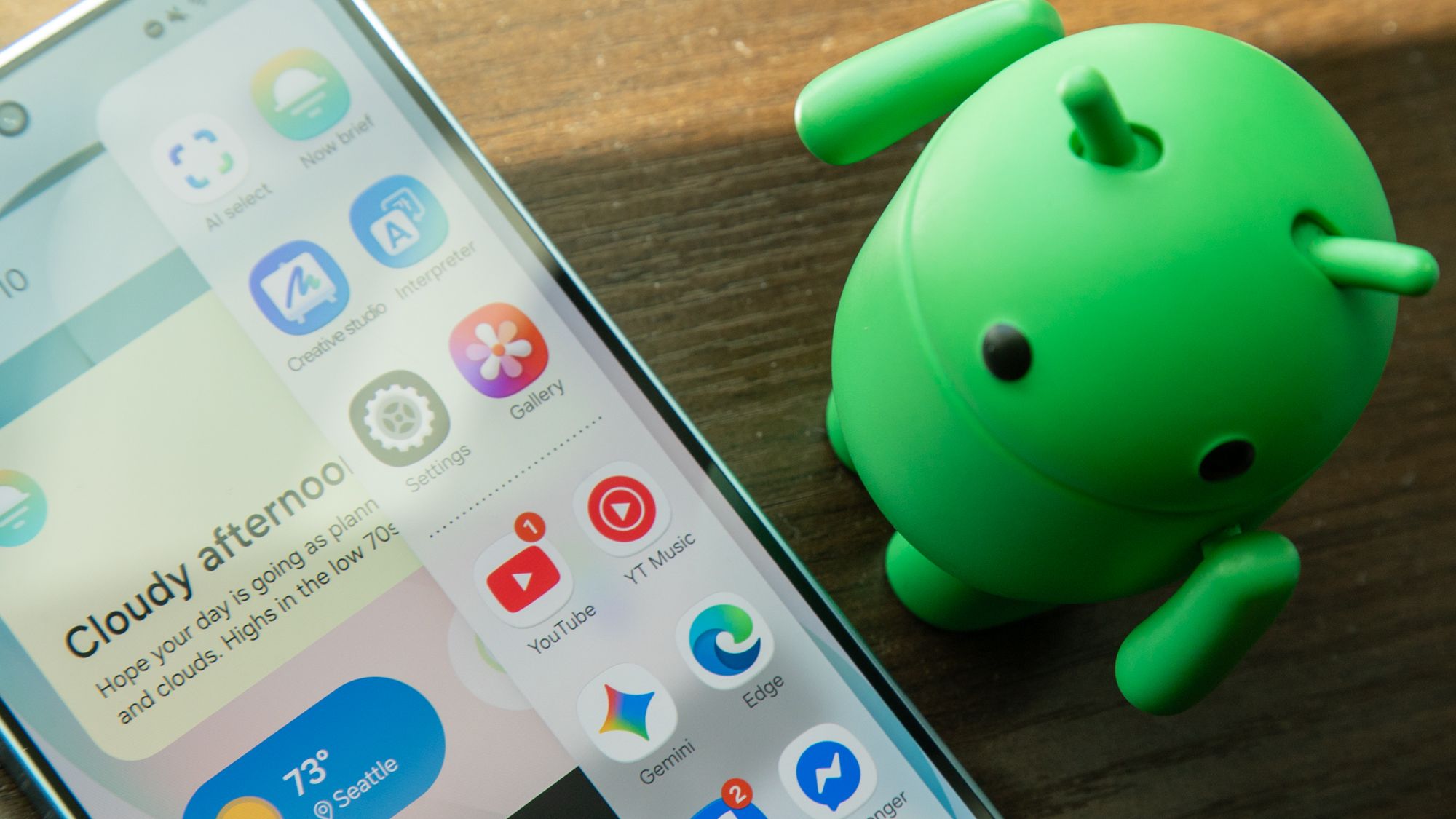
This is not a feature to enable blindly. A side panel can be useful, but it can also become another drawer full of icons you never touch. The useful version is boring and disciplined: keep only the apps you actually open while doing something else, then use the panel for faster multitasking instead of treating it as a decorative One UI badge.
The basic requirement is a Samsung Galaxy phone running a One UI build that includes Edge Panels. The exact wording can change by region and software version, but the usual path is Settings > Display > Edge panels. If search finds the setting faster, use search. Heroic menu archaeology is not a productivity strategy.
How to enable and clean up Edge Panel
- Open Settings and search for “Edge panels” if it is not visible under Display.
- Enable the feature and start with the Apps panel.
- Remove filler shortcuts. Keep only messaging, notes, browser, calendar, file manager or tools you really use.
- Move the handle to the side that fits your grip. If you trigger it by accident, adjust the handle before blaming your fingers.
- Tune handle size, transparency and position so it stays reachable without covering buttons or page content.
The feature becomes much more useful when you use it for multitasking. On many Galaxy phones you can drag an app from the panel to one side of the screen to start split screen, or open it in a floating window when your model and One UI version support it. That is where the side panel stops being cosmetic and becomes a real workflow tool: chat plus browser, notes plus video, calendar plus email.
Good Lock and Home Up: when they are worth it
Android Central also points to extra customization through Good Lock and the Home Up module, which can expose deeper control over panels, layouts and appearance. Use the official Good Lock page on Galaxy Store. Avoid random APK mirrors unless your idea of device maintenance includes unnecessary chaos.
Good Lock availability depends on country, device and software support. If you cannot find it in Galaxy Store, the likely reason is compatibility or regional rollout, not a hidden setting you missed. Before installing extra modules, ask the dull but useful question: does the stock panel already solve your problem? If all you need is quick access to a handful of apps, the built-in feature is often enough.
What actually changes
For Galaxy users, Edge Panel matters because it solves one specific annoyance: opening recurring tools without returning to the home screen. It does not replace a well-organized launcher, and it should not become a second app drawer. It works best on large phones and foldables, where reaching across the display is more expensive. On smaller phones, the handle must be configured carefully or it becomes more intrusive than helpful.
The main limit is compatibility. Not every app behaves well in split screen or floating windows, and advanced options vary by One UI release. If Edge Panel disappears after an update, check Display settings, power saving mode, third-party launchers and accessibility tweaks before disabling the whole thing in frustration. Cases with raised edges and aggressive gesture navigation can also make the handle harder to use.
If you are tuning a Galaxy interface, our related guide on showing network speed in the One UI status bar follows the same principle: small, controlled changes beat turning the phone into an aircraft cockpit.
Quick checklist
- Check One UI first: search for Edge Panels before installing anything else.
- Keep it short: 6-10 useful shortcuts beat a long icon dump.
- Test multitasking: drag apps from the panel and verify split screen or floating window behavior.
- Use official Good Lock: install it from Galaxy Store only when available for your device and region.
- Review after a week: remove panels and shortcuts you never use.
In short
- Edge Panel is most useful for recurring apps, multitasking and large Galaxy phones.
- Pixel phones still lack an equivalent built-in side panel.
- Good Lock and Home Up can expand customization, but they are not required for basic use.
- Device, region and One UI version can change which options are available.