Editorial update – 17 July 2026. The July 12 reports describe Microsoft's direction for deeper Windows 11 and Android integration; they do not mean every announced UX change is live for every PC. The Microsoft requirements page and official Link to Windows listing remain the practical compatibility references.
What to check before acting
- Separate confirmed product documentation from reports, previews and leaks.
- Check device, account, region, firmware and app version before assuming the feature is available.
- Use official update and download channels, and keep a reversible backup before changing data or integrations.
Microsoft is reportedly testing a deeper Android phone layer inside Windows 11, and the practical question is not whether the idea is convenient. It is. The real question is how much of your phone you want permanently visible from your PC.
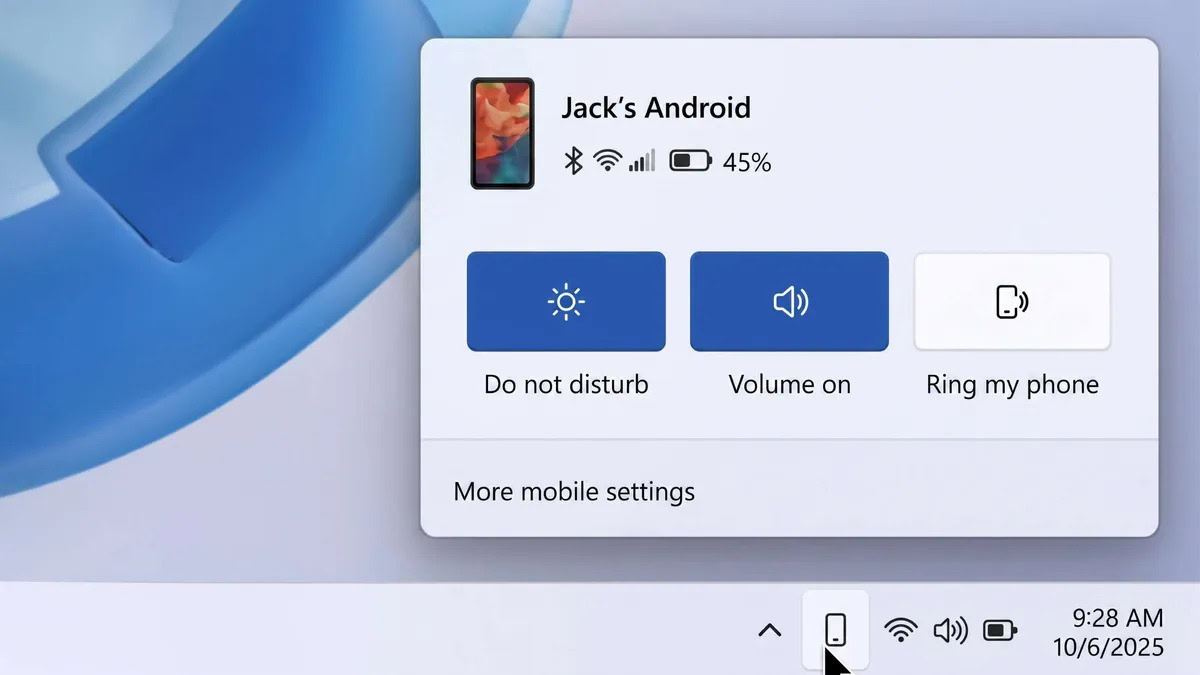
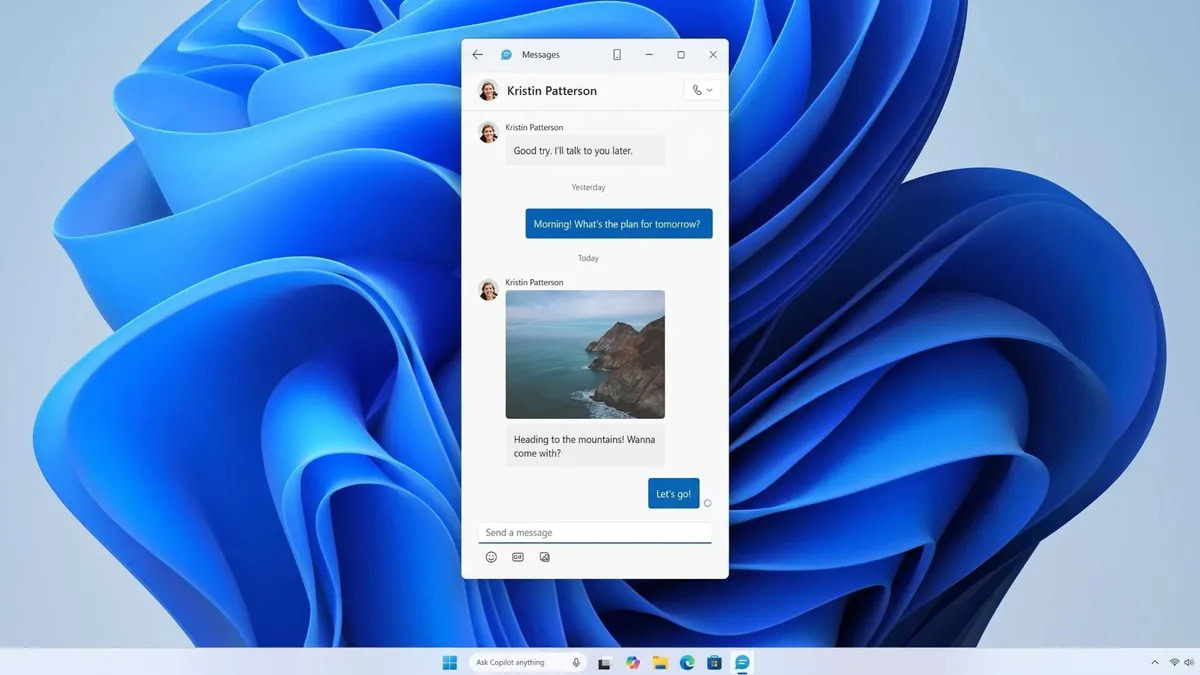
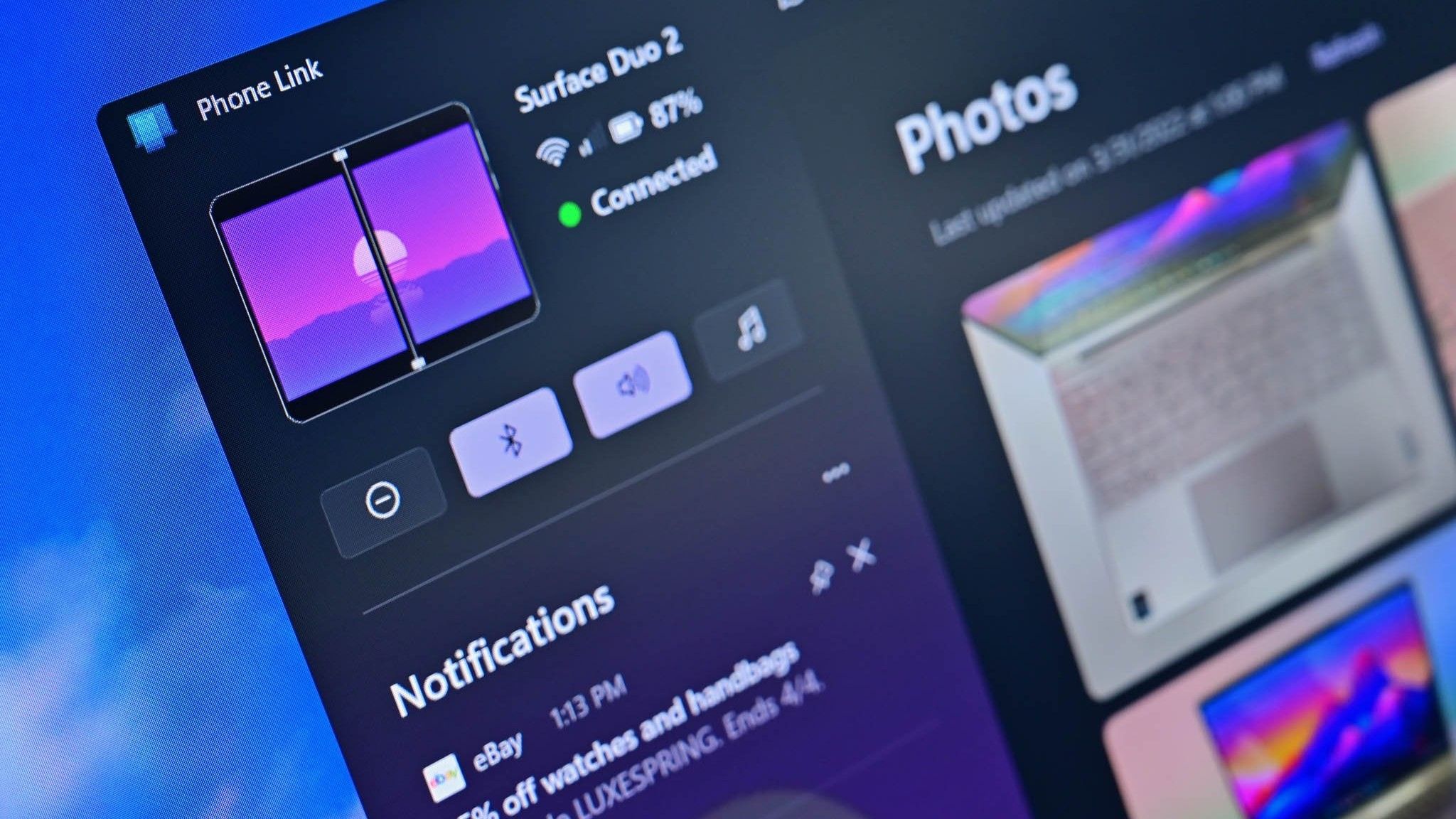
According to Windows Central, Microsoft is exploring several Phone Link upgrades that would make Android integration feel less like a separate app and more like part of Windows itself. Android Authority picked up the same report, highlighting a taskbar phone flyout, richer Start menu activity, clipboard history sync, a standalone Messages app and faster file transfer by dragging content to a phone icon.
None of this is a public rollout yet. The reported features are being prototyped internally, and Windows Insider feedback will probably shape what actually ships. Still, the direction is clear: Microsoft wants your Android phone to behave more like a native Windows companion, not a second device you occasionally open through Phone Link.
That can be useful, especially if you already work between a Windows laptop and an Android phone every day. It can also become another quiet permission layer that people enable once and forget for years. That is where the Lab part matters, because convenience features age badly when nobody remembers what was connected to what.
What Microsoft is reportedly changing
The current Phone Link setup already lets many Android users see notifications, photos, messages and calls on a Windows PC. Some Samsung, HONOR, OPPO, ASUS and Surface Duo devices also get deeper app and screen features through Link to Windows. The new report points to a more native Windows 11 experience around those same ideas.
The most visible change would be a dedicated smartphone flyout in the taskbar. When the phone is connected, Windows could show a phone icon in the system tray. Clicking it would open a small panel with phone status and quick controls such as do not disturb, vibrate mode and find phone. Drag-and-drop file sharing to the phone icon is also reportedly being tested.
Microsoft is also said to be improving the Phone Companion area in Start. Instead of opening Phone Link just to inspect recent activity, users could scroll through phone events directly from Start and hover over an item to see more detail, such as a full message or photo preview.
The more sensitive part is clipboard history. Today, Phone Link can sync clipboard content between phone and PC in limited form. The reported change would go further by syncing the Windows clipboard history, not just the last copied item. That is powerful, but it is also exactly the kind of feature that deserves a slow, suspicious look before being left on by default.
A standalone Windows Messages app is also reportedly in development. The idea is to sync SMS conversations from the phone and make messaging feel like a normal Start menu app. Useful, yes. But if your PC is shared, managed by work, or sometimes unlocked in front of other people, this is not just a cosmetic improvement.
Requirements to check first
For now, the official baseline remains Microsoft’s existing Phone Link and Link to Windows setup. You need a Windows PC with Phone Link, an Android phone with the Link to Windows app or built-in integration, the same Microsoft account, a working Bluetooth or network connection depending on the feature, and the relevant Android permissions enabled.
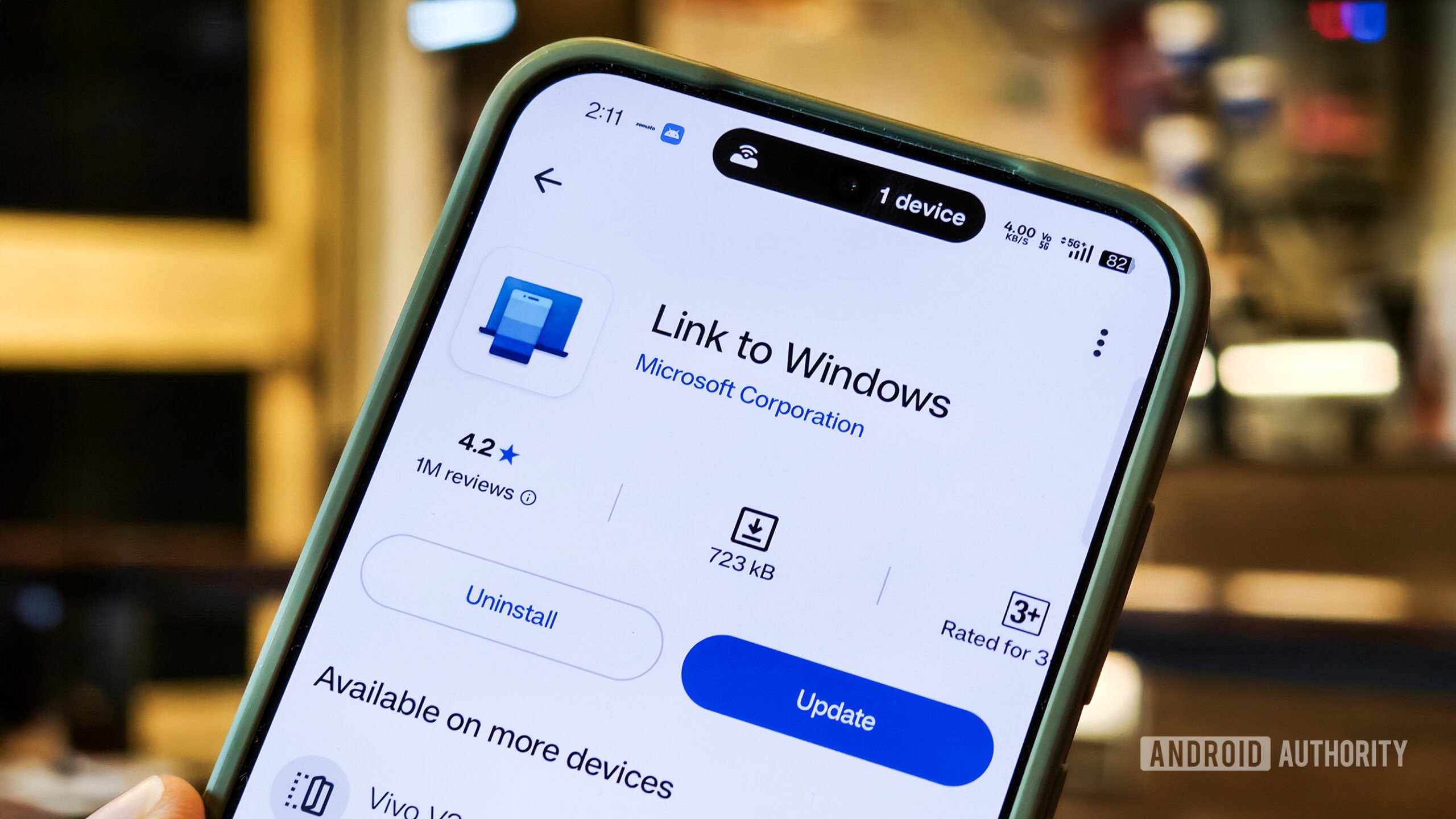
The official Android app is Link to Windows on Google Play. If your device already includes Link to Windows in system settings, use the built-in entry point instead of hunting for APK files. Side-loading a connector app that bridges messages, calls and files is a perfect way to turn convenience into self-inflicted incident response.
Before enabling deeper integration, check these basics:
- Use a private Windows account, not a shared family or office profile.
- Make sure Windows Hello, a PIN or a strong password is active on the PC.
- Review which Android permissions Link to Windows has: notifications, contacts, SMS, phone, photos and nearby devices matter most.
- Decide whether clipboard sync is genuinely useful, especially if you copy passwords, recovery codes, client data or private notes.
- Check whether your Android phone is personal, work-managed or protected by a company profile.
- Disable message and notification mirroring if the PC is often visible during calls, meetings or screen sharing.
None of those checks are exotic. They are the boring part that prevents the shiny part from becoming a slow leak.
Privacy checks for clipboard, messages and notifications
The taskbar flyout sounds harmless because it mostly exposes phone state and quick toggles. Clipboard history and messages are different. If Microsoft ships synced clipboard history, the question will not be “does it work?” but “what exactly is kept, where is it visible, and how do I clear it?”
On Windows, clipboard history can contain more than casual text. Users copy one-time codes, addresses, API tokens, bank references, snippets from private chats and work material. Syncing that history across devices may save time, but it also expands the number of places where sensitive fragments can appear.
Messages deserve the same discipline. SMS is still used for banks, carriers, delivery services and account recovery, even though it should not be treated as a strong security channel. If a future Windows Messages app becomes pinnable and always one click away from Start, it should be protected by the same lock-screen habits you apply to the phone itself.
Notification mirroring is another area where comfort can outrun judgement. Android notifications often include message previews, calendar details, payment alerts and app names that reveal enough even without opening the phone. On a personal desktop this may be fine. On a laptop used for presentations, remote support or screen recording, it is a different story.
What changes in practice
The real change is that Android-to-Windows integration may stop feeling optional. Today, Phone Link is an app you open intentionally. If Microsoft places phone status, messages, file sharing and clipboard history throughout the Windows 11 shell, many users will treat the phone as part of the PC environment by default.
That is good for people who live in both ecosystems and want less friction. It is less good for anyone who keeps phone and computer separated for privacy, work boundaries or simple mental hygiene. Microsoft’s challenge is to make the feature discoverable without making it sticky in the wrong way.
For Android users, the best approach is boring and effective: enable only the parts you actually use. File transfer and photo access may be worth it. Full notification mirroring may not. Clipboard history sync is powerful, but it should be opt-in with a visible off switch and clear deletion behavior. If Microsoft hides those controls three settings pages deep, that will be the problem, not the concept itself.
There is also a compatibility point. Microsoft’s best Phone Link features have historically worked better on selected Android partners, especially Samsung Galaxy phones with deeper Link to Windows support. If these Windows 11 changes arrive, do not assume every Android phone will get the same experience on day one.
Related AndroidLab coverage: Phone Link Android and Windows guide: files, photos and notifications without chaos.
In short
- Microsoft is reportedly prototyping deeper Android phone integration across Windows 11.
- The rumored features include a taskbar phone flyout, richer Start activity, clipboard history sync and a standalone Messages app.
- The features are not guaranteed to ship exactly as described, so treat this as a direction of travel, not a finished changelog.
- Before enabling deeper sync, review Android permissions, Windows account security, notification previews and clipboard behavior.
- The official Android app is Link to Windows on Google Play; avoid unofficial APKs for this kind of connector.
Sources
- Android Authority – published July 12, 2026, 17:45 UTC
- Windows Central – published July 12, 2026, 11:00 UTC
- Microsoft Support – Phone Link requirements and setup, checked July 12, 2026
- Google Play – Link to Windows app, checked July 12, 2026