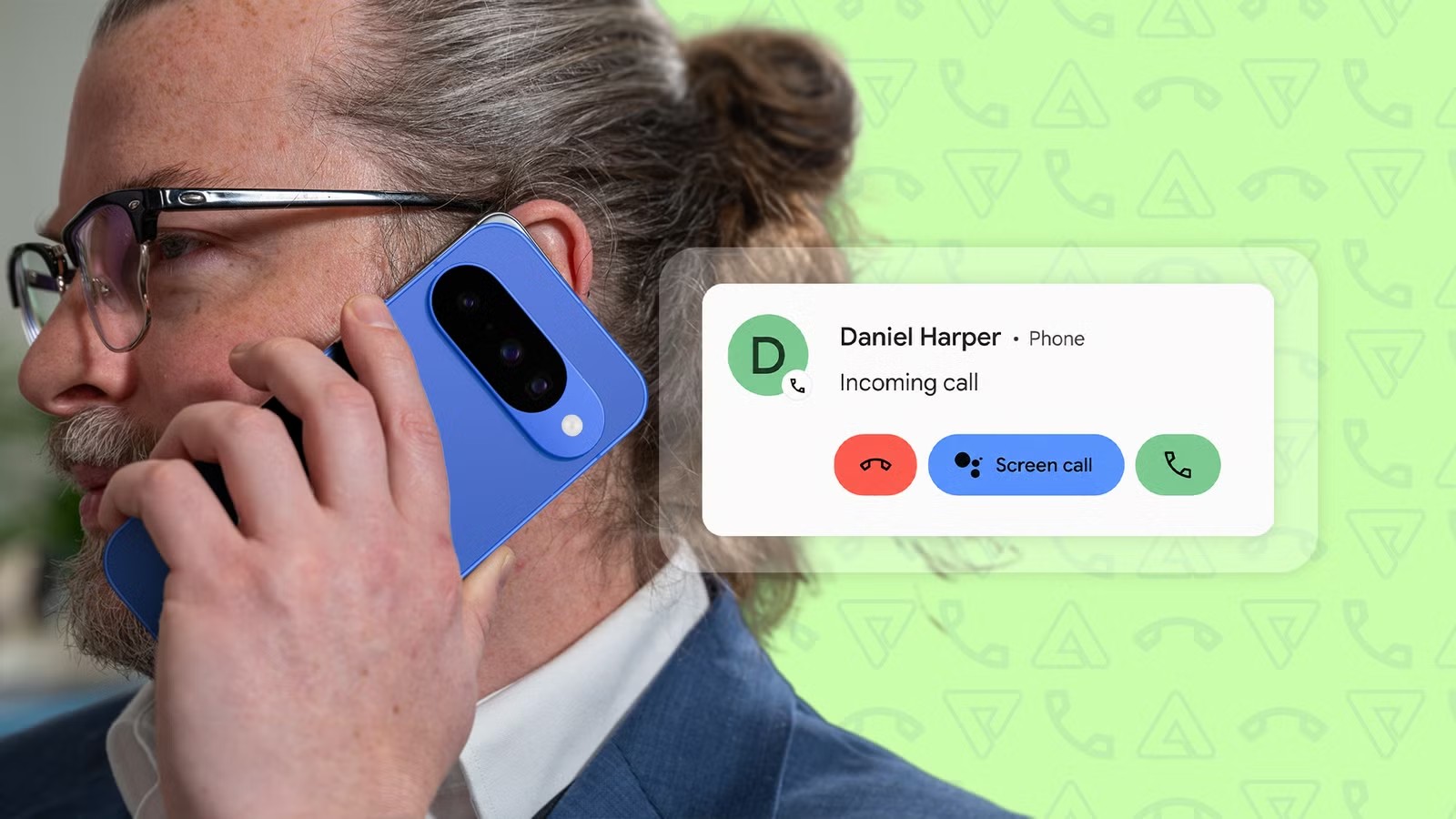
If a Pixel starts showing missed calls without ringing, the easy explanation is bad coverage or a phone that simply misbehaved. Sometimes that is true. But the case reported by Android Police on July 12, 2026 points to a more useful troubleshooting path: incoming call notifications, Adaptive Battery, Do Not Disturb, Call Screen and spam protection can all sit between the network and the ringtone you expect to hear.
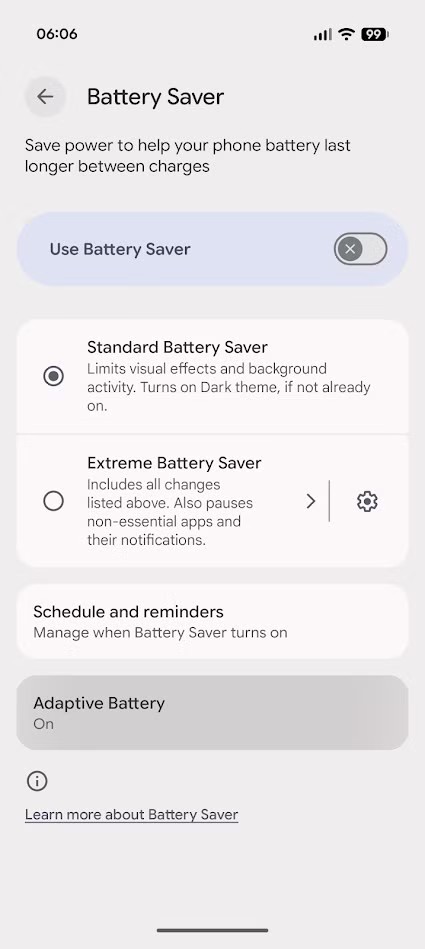
This is not a magic fix checklist copied from a support thread. The goal is to isolate the layer that is interfering with calls: first check whether the call arrives but stays silent, then whether Android is filtering it, and finally whether a smart feature has become a little too smart for its own good.
Before you start: requirements and limits
The guide is aimed at Google Pixel phones and partly applies to other Android devices using Google’s Phone app. Menu names can change depending on Android version, language, country and carrier. The most sensitive settings are Call Screen, caller ID and spam protection: they are not available everywhere and do not behave identically on every account.
There is also an important limitation: Google has not publicly acknowledged this specific issue as a confirmed bug at the time of writing. So treat the process as controlled troubleshooting. Do not disable half the phone and hope for the best; change one layer at a time and test the result.
1. Check ringtone, vibration and silent modes
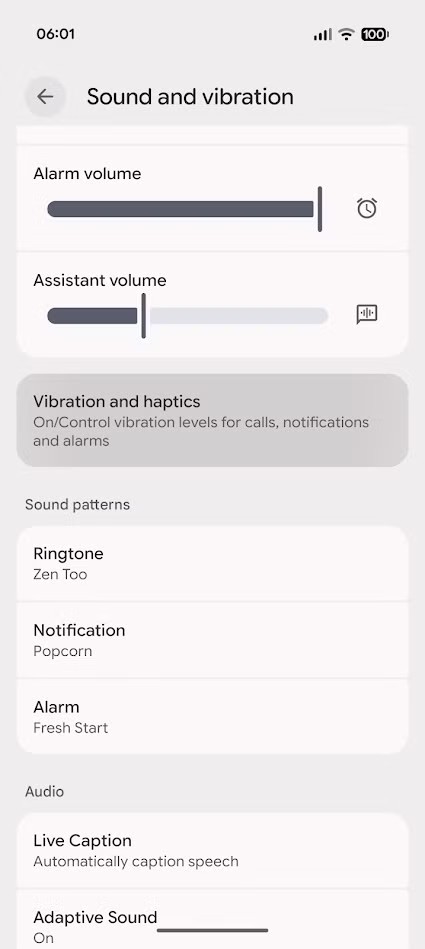
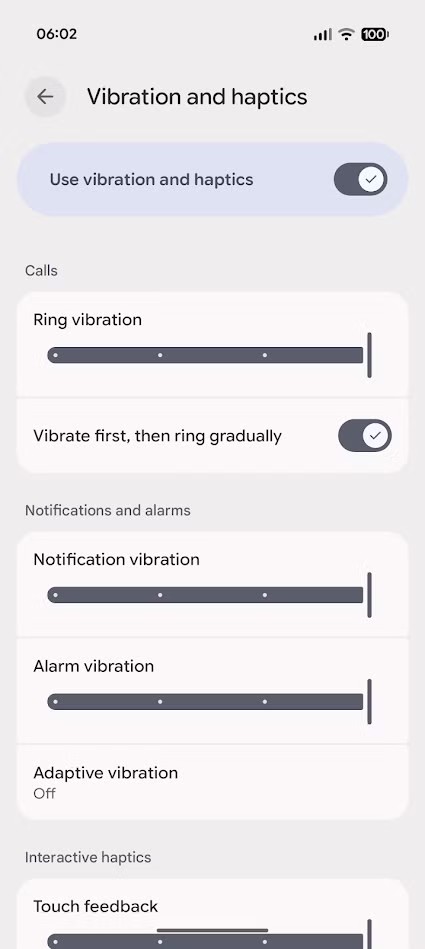
Start with the boring part, because Android can still trip over boring things. Open your Pixel sound settings and make sure ringtone volume is not set to zero, call vibration is enabled if you rely on it, and no automatic routine is putting the phone into silent mode during specific hours.
Then open Settings > Notifications and inspect the Phone app notification channel. If incoming calls are set to silent, the phone may technically receive the call while behaving nothing like a phone. The practical goal is simple: incoming calls should be treated as urgent, not as another low-priority app ping.
2. Review Do Not Disturb and exceptions
On Pixel phones, Do Not Disturb can be enabled manually, by a Mode, by a routine or by a calendar-based rule. In Do Not Disturb settings, check whether calls are allowed, which contacts can get through, and whether repeat callers can bypass the block. If you use automatic modes, review their schedules, triggers and app permissions too.
Android Police also points to the option that lets incoming call notifications override Do Not Disturb. It can help, but it is not a neutral switch: enabling it means calls can break through when you explicitly asked the phone to stay quiet. That may be exactly what you want, but it should be a deliberate choice.
3. Rule out Adaptive Battery and background limits
Adaptive Battery is meant to save power by learning how you use your phone. It is usually useful, but Google also warns that it can reduce activity and delay notifications for some apps. For a clean test, check the Phone app’s battery settings and make sure it is not being aggressively restricted.
You do not need to permanently turn off every battery optimization. Test it. Leave the phone idle, call it from a trusted number, then repeat with the screen on and off. If the behavior changes after removing a restriction, you have a real clue. If it does not, restore the previous setting and move on.
4. Lower Call Screen and spam protection carefully
Caller ID, spam protection and Call Screen are designed to stop real junk. The problem is that if they become too aggressive, or if an Android build introduces a regression, they may interfere with calls you actually want. Open the Phone app settings and check Caller ID and spam, Scam Detection and Call Screen where available.
The conservative test is to lower automatic protection, not to switch everything off forever. If automatic Call Screen is enabled, try a less strict level or disable it temporarily for 24 hours. If calls start behaving normally again, you have narrowed the suspect list. If nothing changes, restore the protection level. Smart filtering is great; eating an important call is not.
5. Update the Phone app, Google Play services and Android
When a problem sits between a Google app, Android and system services, the fix can arrive through more than one channel. Check the Play Store for the Phone app, then go to Settings > Security and privacy > System and updates and look for Android patches and Google Play system updates. If you are running an Android beta, remember that regressions are part of the deal: exciting in theory, less fun when the phone fails at phone things.
After updates, reboot and repeat a test call. It sounds primitive, but it helps separate a persistent bug from a service that was stuck in a bad state.
What actually changes
The practical point is that modern Pixels are no longer just phones with a dialer. They classify, filter, optimize and decide. When everything works, that is convenient. When a call disappears, you need to reason in layers: audio, notifications, modes, battery, spam filtering and updates. A useful guide does not tell you to turn everything off; it helps you find the layer that is getting in the way.
For a related Pixel workflow, AndroidLab also has a guide to Pixel and Home Assistant. The same rule applies there: sensors, notifications and automations need to be checked one by one, not treated as magic with a colorful icon.
Quick checklist
- Call the Pixel from a trusted number and check whether the call appears in the call log.
- Check ringtone volume, vibration and the Phone app notification channel.
- Review Do Not Disturb, automatic Modes and call exceptions.
- Make sure the Phone app is not heavily restricted by Adaptive Battery or app limits.
- Temporarily lower Call Screen, Scam Detection and spam protection only for testing.
- Update the Phone app, Android security patches and Google Play system updates.
In brief
- The fresh source is Android Police, published on July 12, 2026.
- The reported issue involves Pixel phones missing calls or not showing call notifications reliably.
- The key areas to check are notifications, Do Not Disturb, Adaptive Battery, Call Screen and spam protection.
- Google Help pages document how spam protection, Call Screen and Do Not Disturb work.
- The safest approach is short, reversible tests instead of disabling every protection blindly.