Samsung is preparing the move to One UI Watch 9, and in the meantime the Vascular Load feature on Galaxy Watch models is being discontinued in the United States and replaced by Blood Pressure Trend. It looks like a small change, but for anyone using a smartwatch as a health dashboard it is exactly the kind of detail worth checking before updating: a metric can disappear, be renamed, become region-limited, or require a specific Samsung Health version.
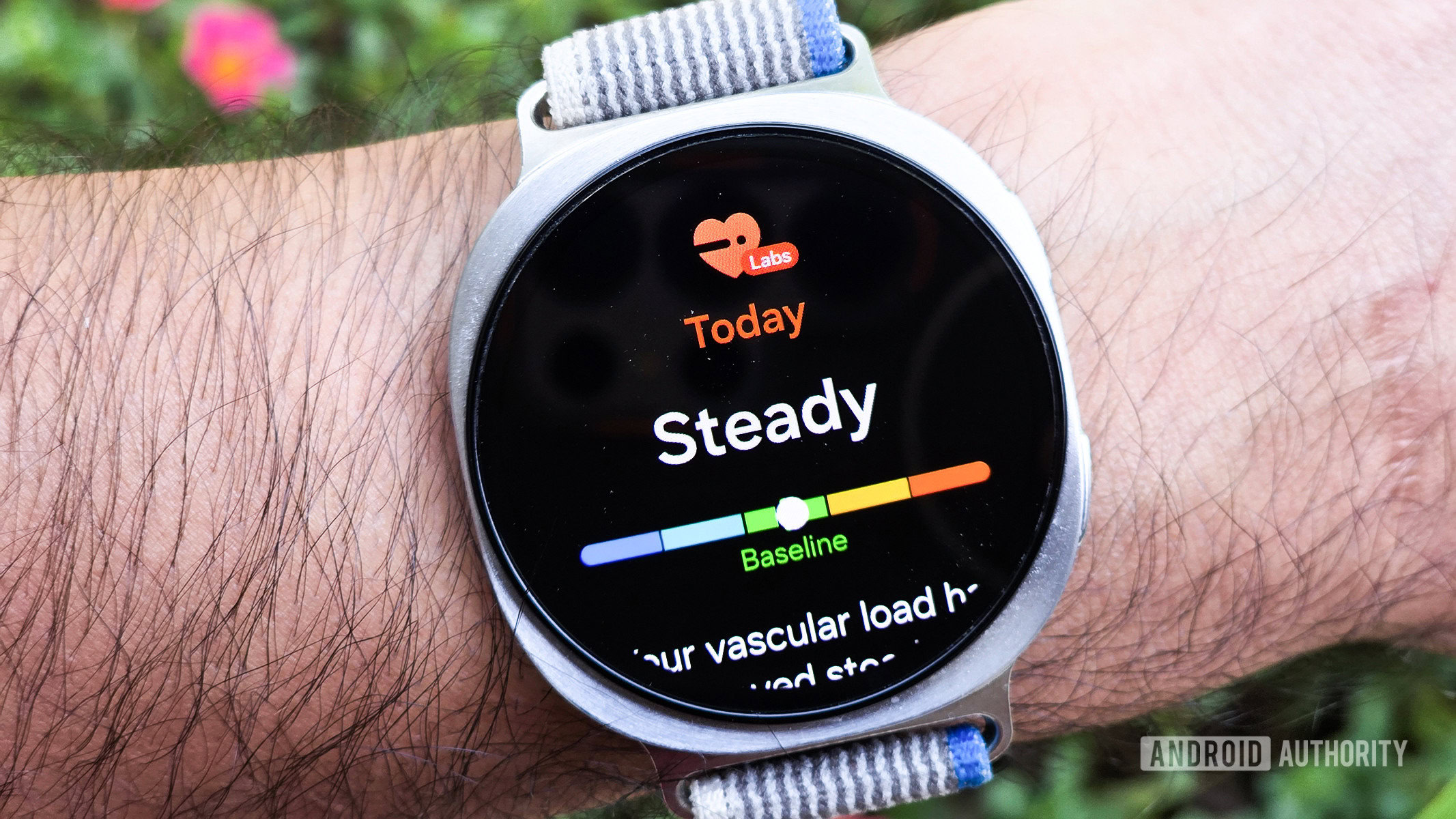
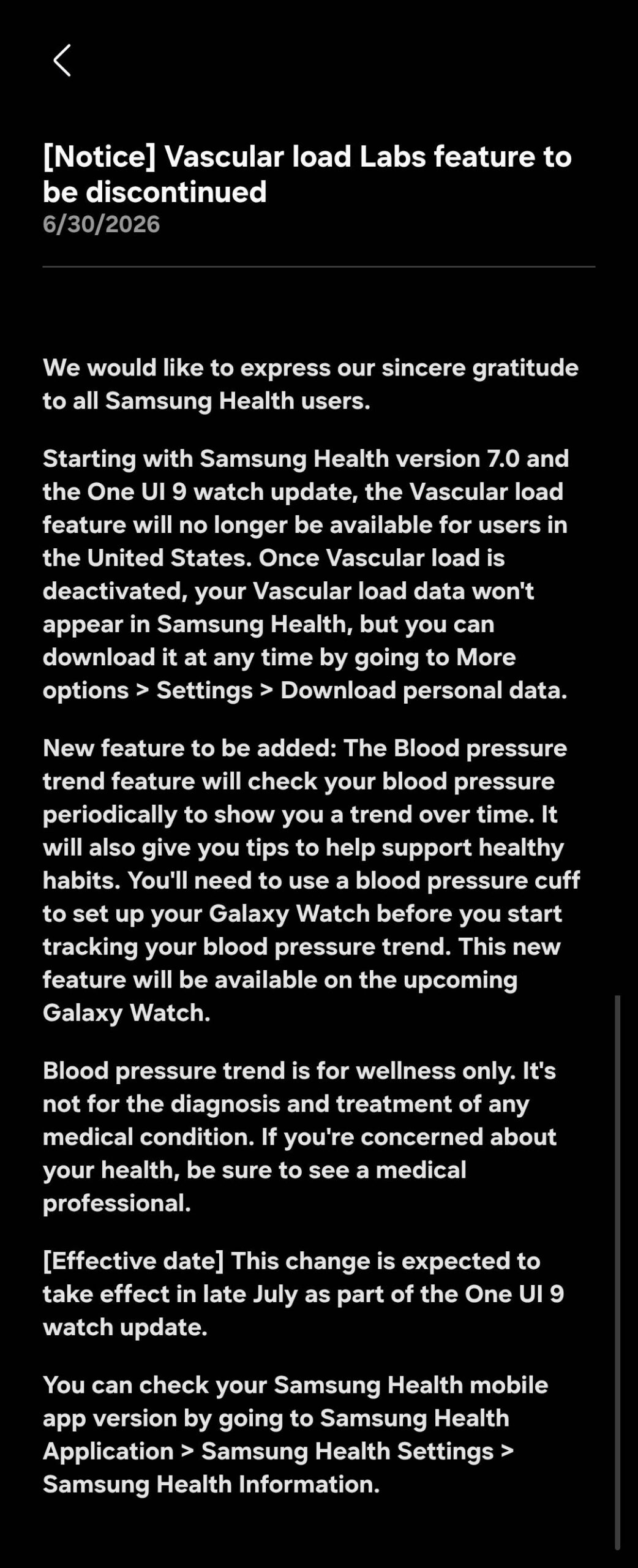
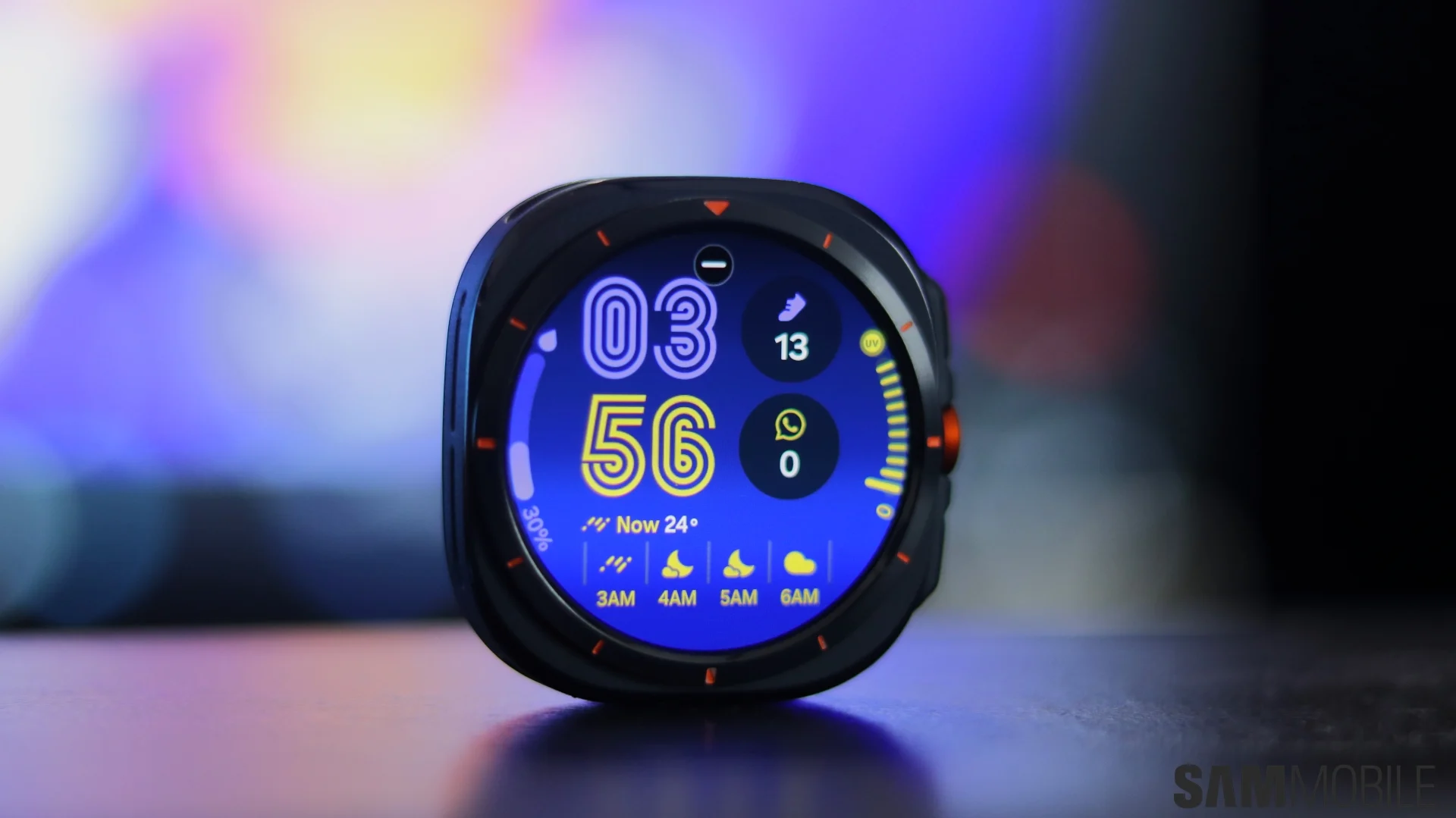
Android Authority reported the user notice in the US: Vascular Load will be removed in late July with One UI Watch 9 and Samsung Health 7.0, while Samsung is introducing Blood Pressure Trend on its next Galaxy Watches. SamMobile ties the same timing to the expected One UI Watch 9 rollout and its Wear OS 7 base. The lab translation is simple: before updating, know which data actually matters to you and where to find it if Samsung moves the dashboard around.
Related: if you are following the beta cycle, our One UI 9 Watch guide for Galaxy Watch covers backups, requirements and checks before joining the experimental channel.
Who should check now
The change is explicitly about users in the United States, but the check is still useful elsewhere if you rely on Samsung Health regularly. Health features on wearables are not just pretty toggles: they depend on model, country, firmware, companion app, permissions and, in some cases, local health rules. If you have a recent Galaxy Watch and follow Vascular Load, Heart Health, Daily Activity or similar metrics, treat the update as a small configuration change, not just a fresh coat of interface paint.
Before updating: practical checklist
- Open Samsung Health on your phone and update it from the Google Play Store or the Galaxy Store.
- Open Galaxy Wearable and check that the watch plugin for your model is up to date.
- Check the health sections you actually use on the watch and phone: not everything, just the metrics you look at every week.
- If Vascular Load is available, take screenshots of the main screens and note the last useful period.
- Sync Samsung Health before installing One UI Watch 9: phone on, Bluetooth stable, Samsung Account connected correctly.
- After the update, check whether Blood Pressure Trend appears, whether older data is still visible, and whether widgets or tiles changed.
This is not sysadmin paranoia with too many USB-C cables in the drawer. It is basic hygiene: when a metric is replaced, the issue is not only “where did the button go?”, but whether the history remains readable and whether the new indicator really measures the same thing. A polished health label is not enough; you need to understand what produces the data and what is being left out.
Compatibility and limits
For now, the sources point to recent Galaxy Watch models, new devices coming soon, and a One UI Watch 9 update based on Wear OS 7. That means not everyone will see the same behavior on the same day. Some users may receive the Samsung Health app update first, others the watch firmware, while others may wait because their model is not in the first rollout wave.
The practical point is simple: do not assume that Samsung Health 7.0, One UI Watch 9 and Blood Pressure Trend will land together. If a feature does not appear, check region, model, plugin and app version first. Only then does it make sense to call it a bug. The “they removed my feature” panic after the first reboot is understandable, but technically not very productive.
What actually changes
The Vascular Load replacement shows something AndroidLab keeps repeating: smartwatch health features are not “neutral” data carved into silicon. They are software products, with rollouts, regulatory limits, interface decisions and cloud dependencies. For a regular user, the panel changes; for a power user, the way to archive, compare and interpret metrics changes too.
If you use the Galaxy Watch casually, waiting for the OTA is fine. If you use Samsung Health to follow trends, workouts, sleep or blood pressure, do the boring checks first: app version, sync, screenshots and notes about which metrics were present. This obviously does not replace medical advice, but it prevents you from discovering later that a feature you relied on has turned into something else.
Common problems and fixes
If a tile disappears after the update, remove it and add it again from the watch face or tile manager. If Samsung Health does not show recent data, force a sync by keeping the phone and watch near each other for a few minutes. If the Galaxy Wearable plugin is old, update it before blaming the firmware. If Blood Pressure Trend does not appear, check country and model: it may be a rollout or availability limit, not a local error.
The practical verdict: One UI Watch 9 is an interesting update, but not an “next, next, finish” update. With health features and wearables, the best procedure is still the least glamorous one: backup, sync, version check, post-update verification. The lab beats the marketing line, even when the lab is just a Galaxy Watch on a nightstand.
In brief
- In the US, Vascular Load will be removed from Galaxy Watch models with One UI Watch 9 and Samsung Health 7.0.
- Samsung is preparing Blood Pressure Trend as a new feature tied to upcoming Galaxy Watch models.
- Before updating, sync Samsung Health, note the metrics you use, and update Galaxy Wearable.
- If a feature does not appear immediately, check model, country, firmware, plugin and app version before calling it a bug.