On this page
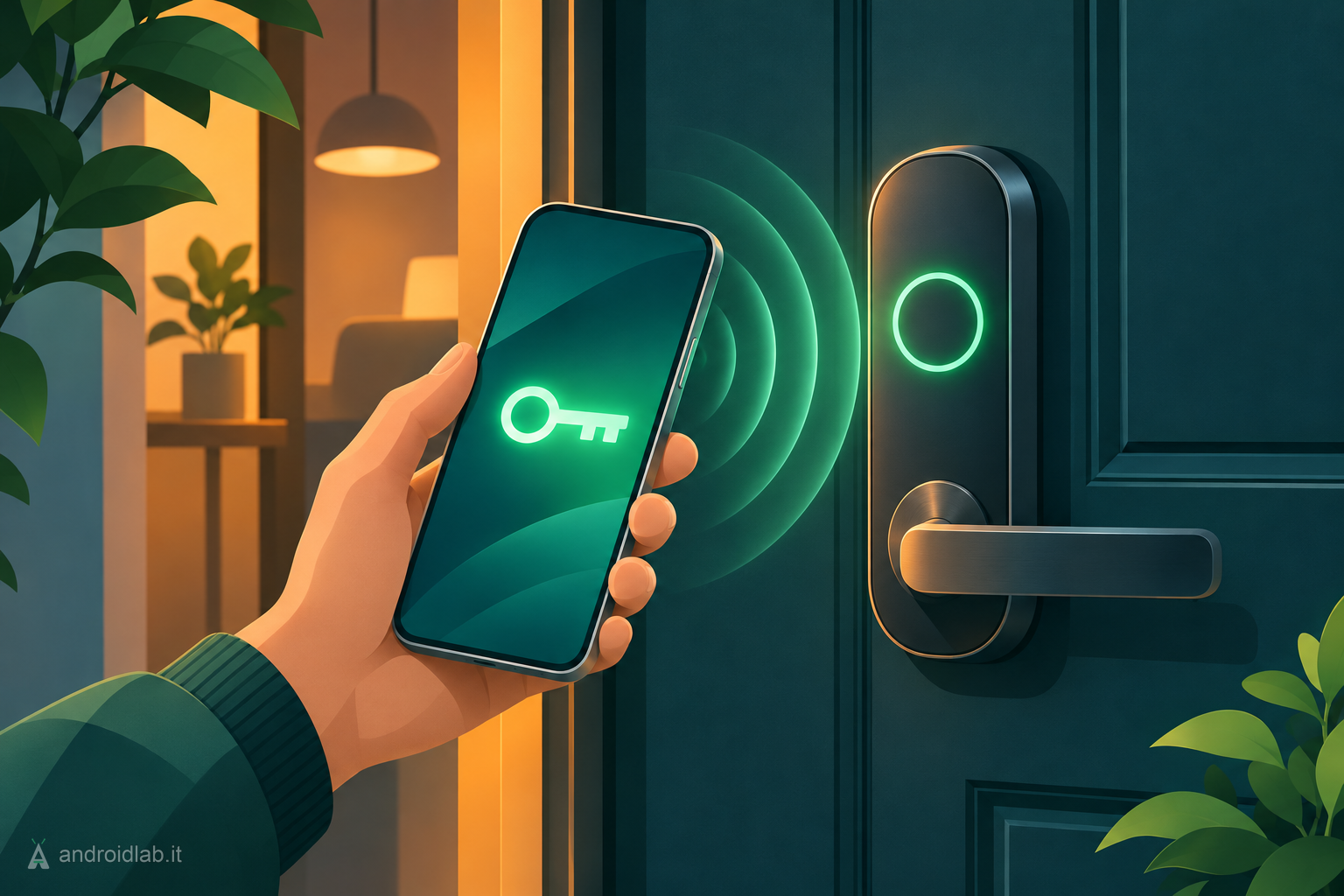
Google Wallet on Android can now hold a digital key for your front door. Google Home’s November 11 release notes list “Add home keys to Google Wallet” as a Public Preview feature for Aliro-compliant smart locks, and Google’s announcement post spells out the hardware you need. The short version: the phone side is easy, the lock and hub side is where most homes will fall short for now.
What you need before you start
Google names four requirements in its announcement FAQ:
- A compatible lock: Matter-certified and supporting the Aliro standard. At launch Google lists the Aqara U400 (UWB and NFC), the Schlage Sense Pro (NFC now, UWB to follow) and the Nuki Keypad 2 NFC, with more models promised.
- A Google hub with a Thread Border Router: Google’s examples are Nest Hub (2nd gen), Nest Hub Max, Nest Wifi Pro and Google TV Streamer.
- An NFC Android phone: tap to unlock works on Android 9 or later.
- Current apps: the latest Google Home and Google Wallet. The Wallet side arrives with Google Play services 26.44, according to heise online’s reading of Google’s system release notes.
The feature is rolling out to Google Home Public Preview first, and 9to5Google reports it will reach everyone else over the coming weeks. If you are not enrolled in the preview and the option is missing, that is the most likely reason.
How to add the key
If you are installing a new lock, follow the manufacturer’s instructions and open the Google Home app when prompted: Home offers to save the key to Wallet at the end of setup. For a lock that is already in Google Home, Google’s Wallet help page gives this path:
- Open the Google Home app on your Android phone.
- Open the lock’s tile, then tap Settings.
- Tap Google Wallet key, then Get Started.
- Create a passcode, continue through the prompts and tap Add to Wallet.
You can also start from Home settings, under Google Wallet key. The key belongs to the home, not to one lock: one key opens every compatible lock in that home, and if you manage several homes in the app you get one key per home. It is also added to every compatible Android phone signed in to the same Google account, so think about old phones that still have Wallet set up.
Tap to unlock or unlock on approach
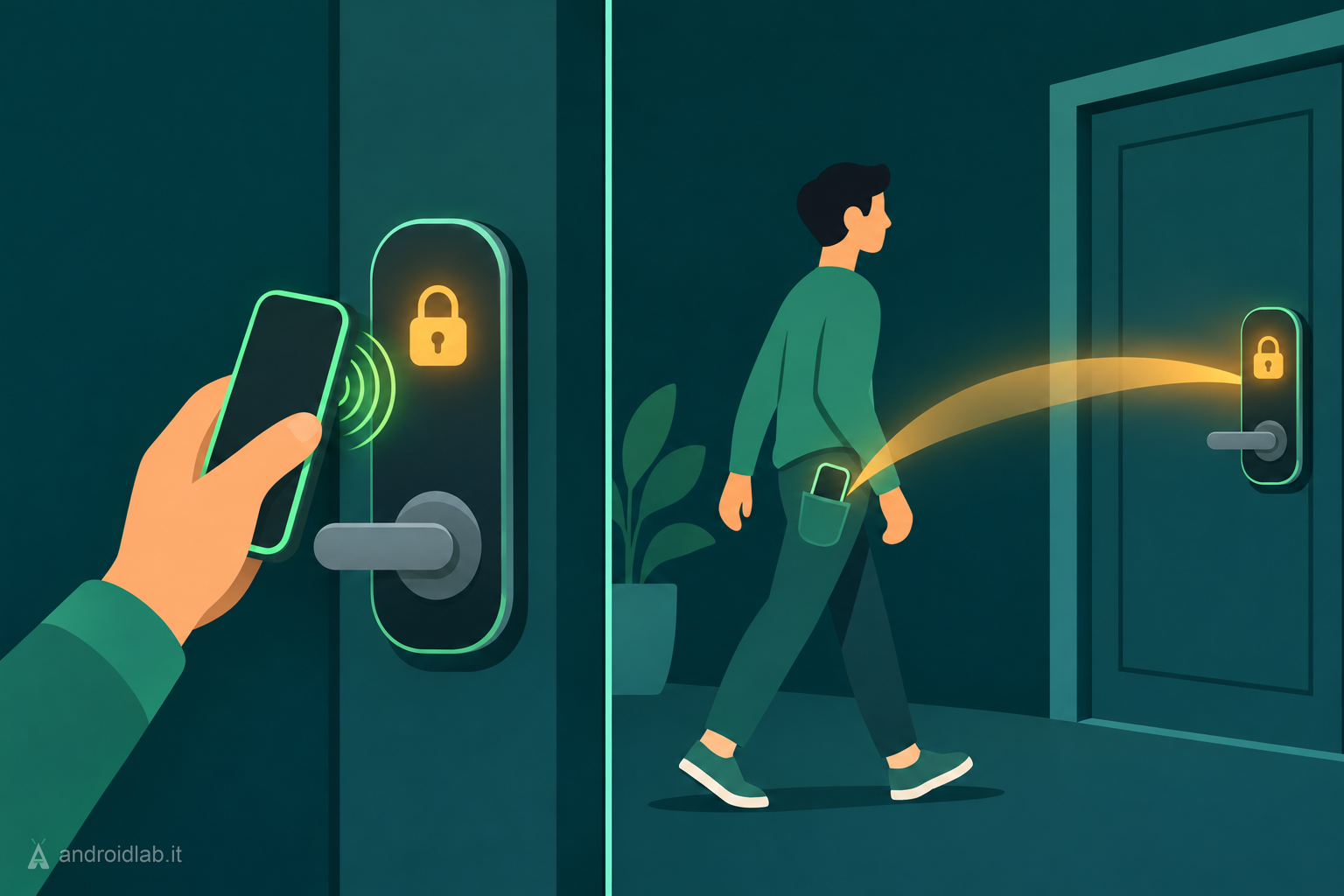
Tap to unlock uses NFC: hold the back of the phone near the lock. Unlock on approach is the hands-free version and needs Ultra-Wideband with Aliro on both the phone and the lock. Google lists the Pixel 10 Pro series and newer, including Fold and XL models, plus select UWB-enabled Samsung Galaxy phones; the Wallet help page adds that Pixel phones need Android 17 or later. It is off by default. To turn it on, open the key in Google Wallet and select Unlock on approach. You will only see the toggle if both devices support it, and Wallet actively connects to a maximum of four locks at once.
Of the three launch locks, only the Aqara U400 supports UWB today, so for most early adopters this is a tap-your-phone feature.
The setting to check first
Google’s announcement says that by default you can tap to unlock without waking or unlocking the phone, as long as the phone has been unlocked within the last few hours. That is convenient, and it also means a phone picked up shortly after you used it can open your door. If you would rather confirm with your screen lock or fingerprint every time, open the key in Google Wallet, tap the menu at the top right and turn on Require device unlock. Google’s own help page describes the flow slightly differently from the announcement, so look at the toggle on your phone instead of assuming which state it is in.
Sharing, removal and limits
- Household members: anyone added to your home in Google Home can add their own key to their own Wallet.
- Guests: Wallet does not support sharing a digital key. Google points to guest passcodes created in the Home app instead.
- Removal: open the key in Wallet, tap the menu and choose Remove. This removes it from all your phones on that account. The key is also deactivated if the lock is removed from the home or you leave the home.
- Watches: Wear OS is not supported at launch.
- Backup: Google says a digital key is not a replacement for a physical one. Keep a real key, or at least a working passcode, for the day the phone or the lock battery is flat.
What this means in practice
Aliro matters more than this one feature. It is the Connectivity Standards Alliance’s common language for phone-as-key, and it is why a single Wallet key can open locks from different brands without each vendor’s app in the middle. The catch is on the hardware side: three locks at launch, a Thread-capable Google hub at home, and UWB limited to recent Pro Pixels and some Galaxy models. If you are buying a lock now, check for Aliro and UWB support on the box. If your current lock is not on the list, there is nothing to enable on the phone that will change that.
Related AndroidLab coverage: the Gemini for Home update that fixed phantom replies on Nest speakers and displays.
In short
- Google Wallet can store a home key for Aliro locks set up in Google Home; rollout starts in Public Preview.
- Launch locks: Aqara U400, Schlage Sense Pro and Nuki Keypad 2 NFC. You also need a Google hub with Thread.
- Tap to unlock needs NFC and Android 9 or later; unlock on approach needs UWB on phone and lock.
- Turn on Require device unlock in Wallet if you want verification on every tap.
- No key sharing in Wallet and no Wear OS support yet; use guest passcodes and keep a physical key.
- Introducing home keys in Google Wallet for compatible smart locks in the Google Home app, Google Home and Nest Community, November 2026
- Google Home release notes, November 11th, Google, 2026-11-11
- Save and use digital residential keys in Google Wallet, Google Wallet Help
- Google Wallet rolling out digital Google Home keys with supported locks on Android, 9to5Google, 2026-11-11
- Google Play update adds Aliro door keys to Wallet, heise online, November 2026