Managing multiple Google accounts on the same Android phone sounds harmless until Gmail opens under the wrong identity, Drive edits land in the wrong workspace, or the Play Store follows the country settings of the account you did not mean to use. A fresh Android Authority guide highlights a small but useful trick: in many Google apps, you can switch accounts with a swipe on the profile picture, without opening the full account switcher every time.
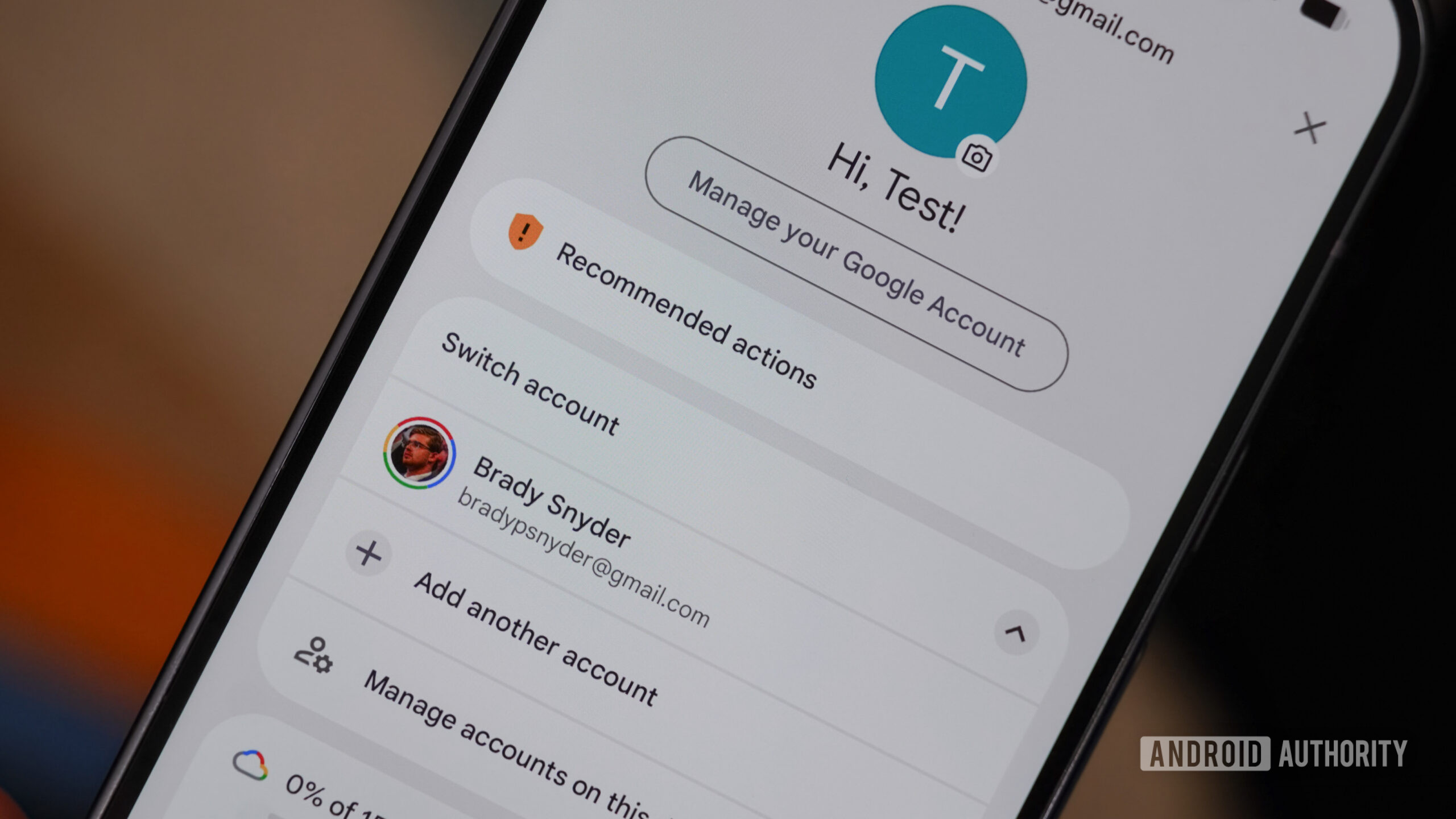
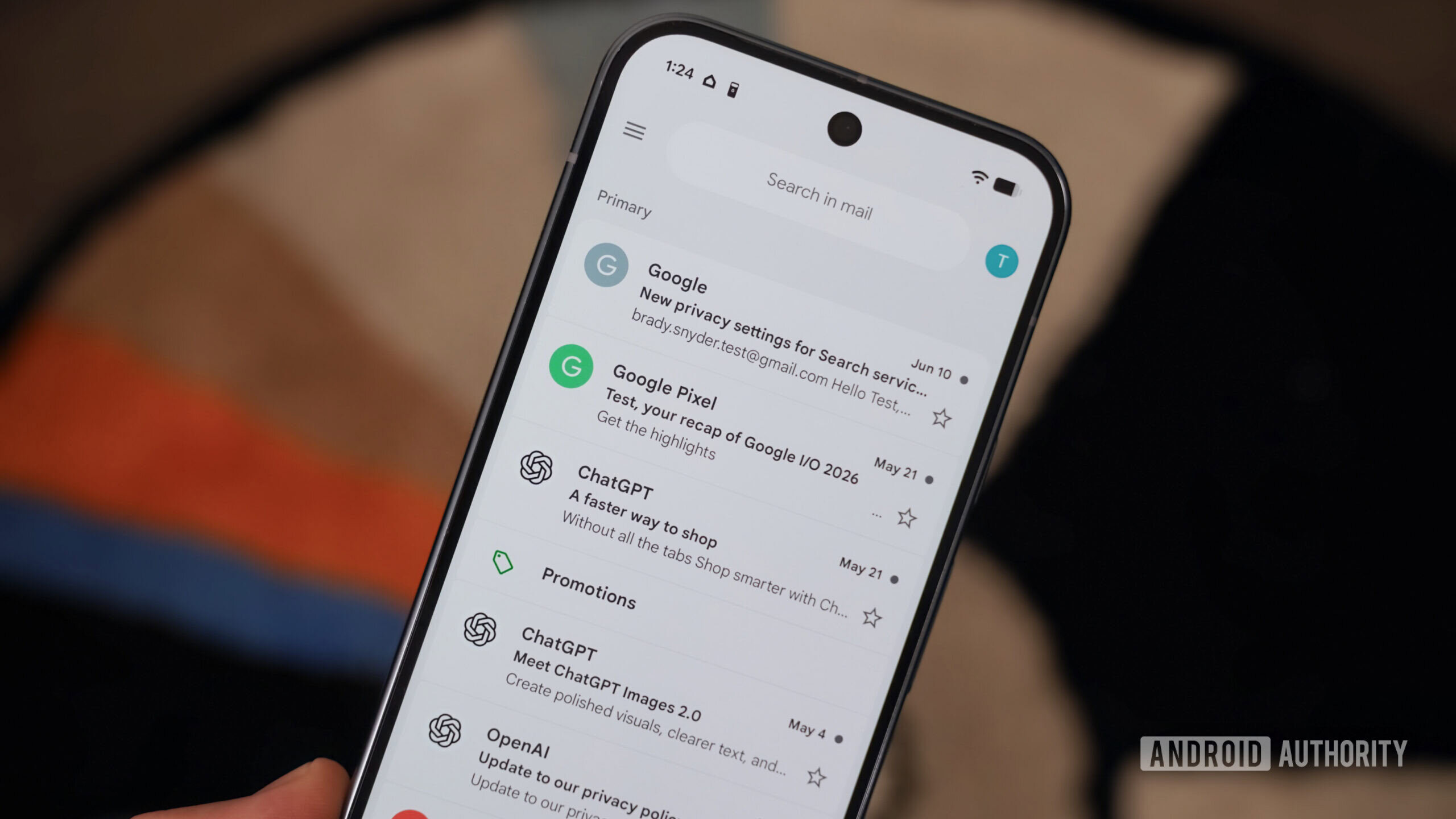
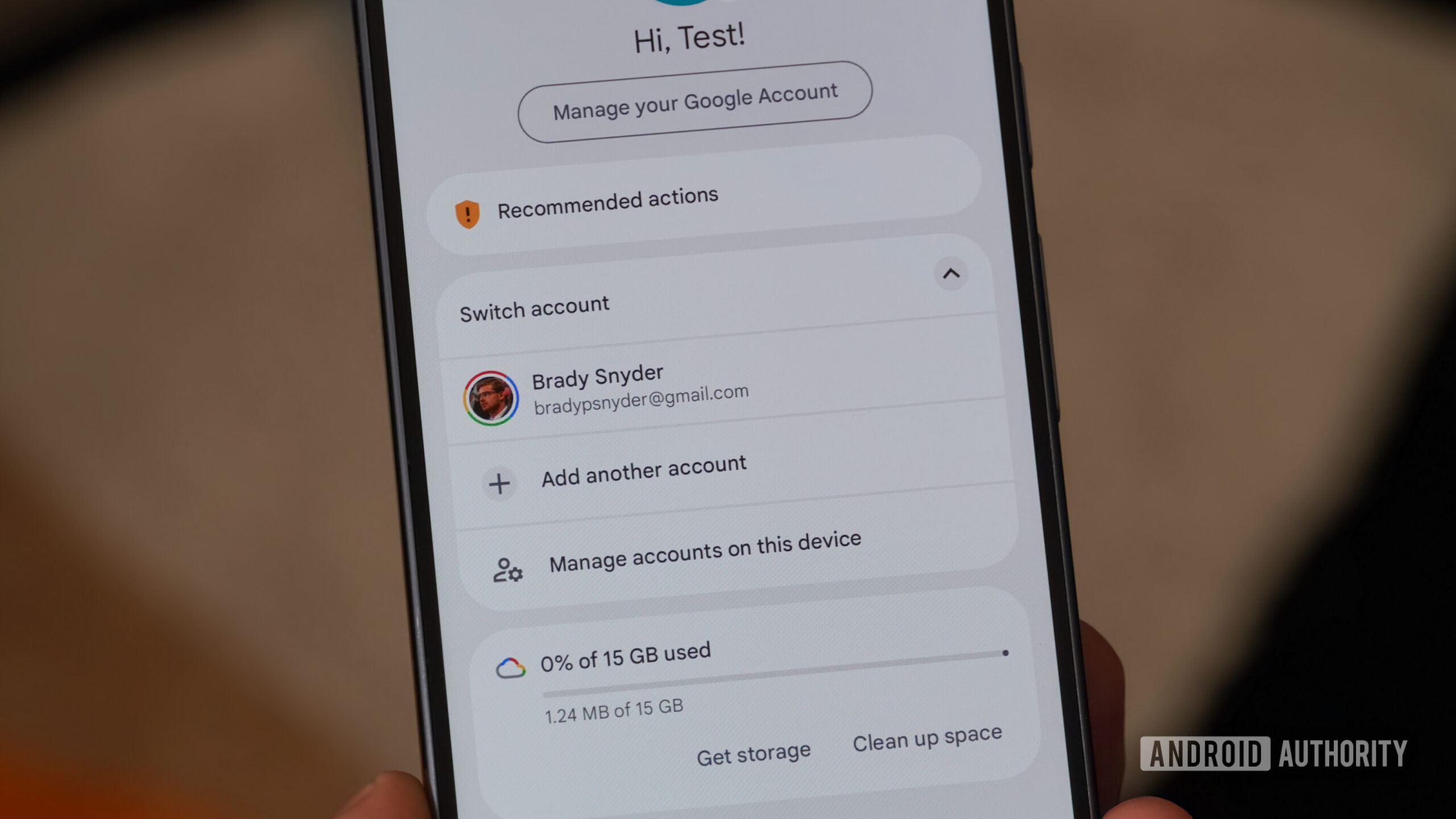
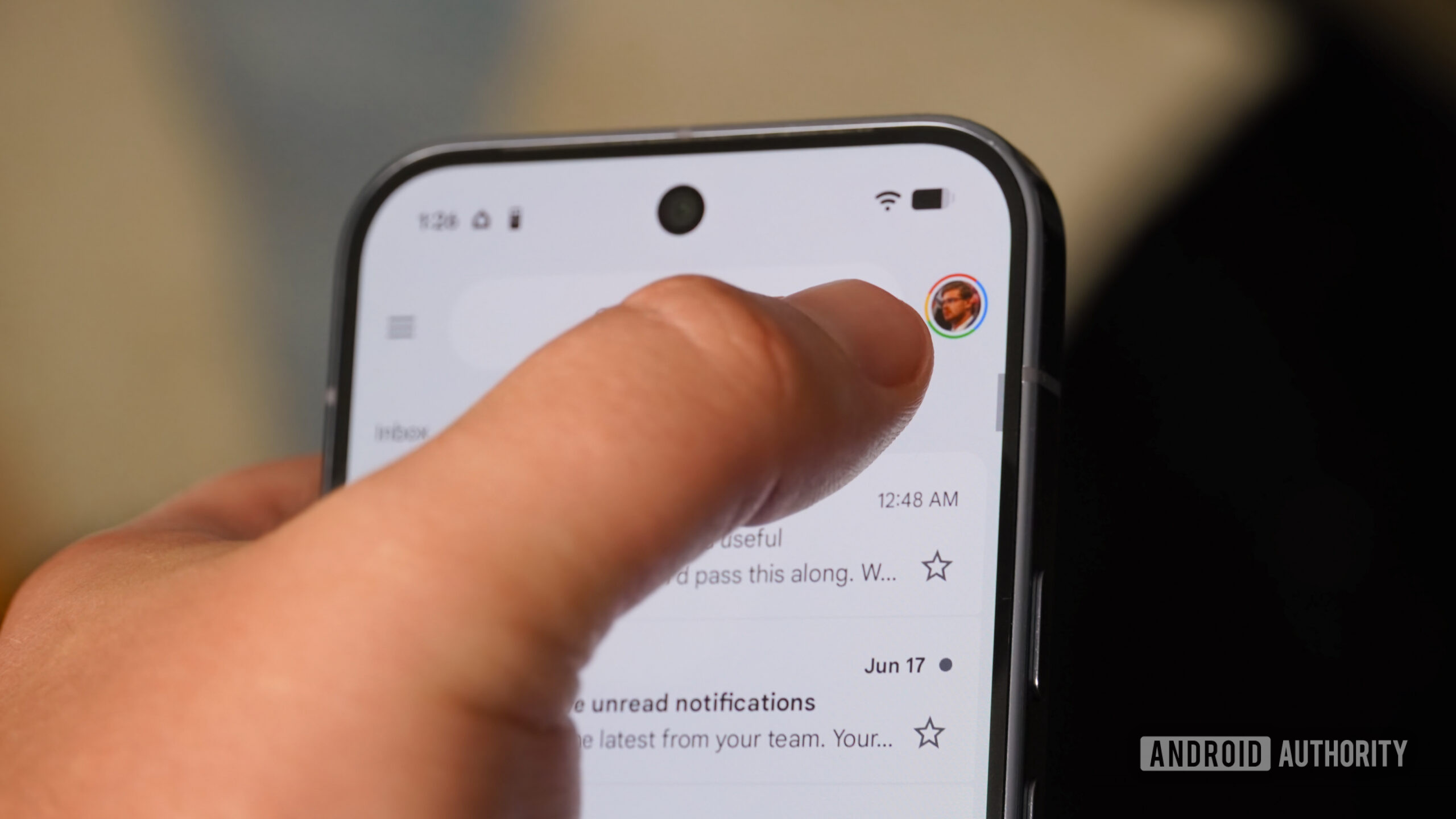
It is not a hidden power-user ritual, just an underexplained shortcut. Look for the profile photo or initial in the top-right corner of a Google app, then swipe up or down on it to cycle through the accounts already active on the device. The practical AndroidLab point is simple: the gesture fixes fast switching, but it does not replace clean account hygiene, sync checks, default account awareness, or a proper work profile when one is needed.
How to switch Google accounts with a swipe
When the app supports the gesture, the workflow is straightforward:
- Open a compatible Google app, such as Gmail, Drive, YouTube, or some Play Store screens.
- Find the profile picture or account initial in the top-right corner.
- Swipe vertically on the avatar to move to the next or previous account.
- Check the visible name, email address, or app theme before sending messages, editing files, or buying content.
The gesture is especially useful if you keep personal, work, school, or project accounts on one phone. If you need to add or remove an account from Android itself, use the system path instead: Settings > Passwords and accounts, then add or remove the account from there. Google notes that adding an account syncs associated data such as email, contacts, calendar events, and settings, while removing it deletes that local account data from the device.
Multiple accounts do not create order by themselves
The real risk is not losing two seconds inside a menu. It is losing track of boundaries. Google says account settings are generally separate, but the default account can still matter in some cases. That can affect web activity, ad personalization, country-specific services, and Google Play content. In plain terms: before installing an app, paying for a subscription, or changing a shared document, make sure the right identity is active.
A practical fix is to make accounts visually different: use distinct profile pictures, Gmail themes, and clear names. It sounds painfully basic, but this is exactly the kind of boring hygiene that prevents tiny, irritating mistakes. Digital chaos rarely announces itself dramatically; it usually arrives as two identical avatars and one rushed tap.
When Android Work Profile is the better answer
If the account is managed by an employer, do not treat it as “just another Gmail account.” Android Work Profile separates work apps and data from personal apps and data. Work apps can be marked with a briefcase icon, live under a Work tab, and be managed by the organization. Google also explains that deleting a work profile is only possible in specific ownership conditions and removes local data from that profile.
So the rule is simple: if you only handle two personal inboxes, quick switching is enough. If company policies, client data, managed apps, or professional calendars are involved, the Android Work Profile is the cleaner boundary. Throwing everything into the account switcher saves a minute today and costs time later when you need to understand where a file, event, or permission actually lives.
What actually changes
For most Android users, this is less about a new feature and more about a better habit. Swiping on the avatar makes identity switching faster, while Android settings keep the underlying account list under control. It is the same operational pattern we covered with Google Wallet and Gmail order tracking: the more Google connects services together, the more important it becomes to know which account is driving each action.
The AndroidLab checklist is short: use the swipe for quick switching, verify the active account before sensitive actions, separate personal and work data when a managed profile exists, remove accounts you no longer use, and do not trust memory as an account management strategy. Phones are excellent at remembering things; humans, under pressure, slightly less so.
In short
- Many Google apps let you switch accounts with a vertical swipe on the avatar.
- Use Android settings, not just app menus, to add or remove device accounts.
- The default account can affect services, Google Play country, and some settings.
- For managed work accounts, Work Profile is the cleaner separation.
- Distinct profile photos and themes reduce mistakes between similar accounts.