Waze is adding new Gemini-powered features and two very practical controls: a dedicated motorcycle mode and a “less chatty” navigation voice. The useful question is not whether this puts another AI label on navigation, but what Android users should enable, what depends on rollout timing, and which settings are worth checking before trusting the phone on the road.
TechCrunch reports Waze’s new AI-powered updates, while The Verge and 9to5Google detail the changes that matter most in everyday use: more conversational voice reporting, natural-language destination search, suggestions based on regular routes, motorcycle mode and less intrusive voice guidance. This is fresh news, but AndroidLab’s angle is a practical guide: in a car or on a bike, the point is not to experiment while moving. Configure first, drive later.
Start with the official app. Waze is available on the Google Play Store; avoid random APK downloads for an app that handles location, microphone access, notifications and route history. If the new settings do not appear immediately, that does not automatically mean your phone is broken. Features like these often roll out by account and server side, so updating the app is necessary but may not be enough on day one.
What Actually Changes
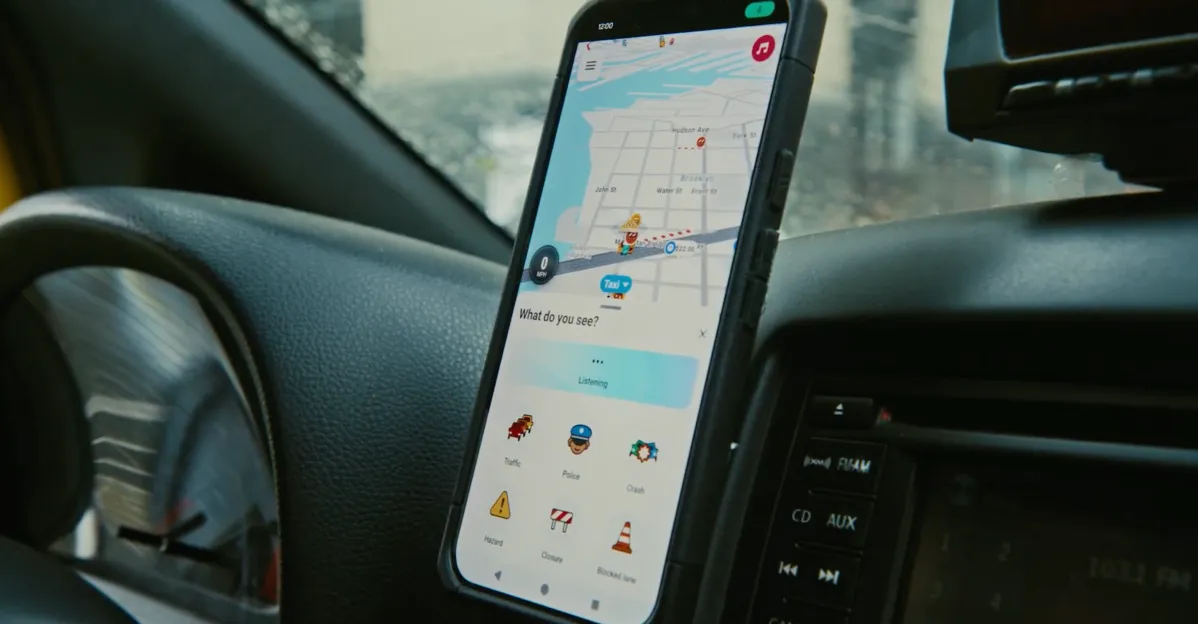
The AI part matters because it can move Waze away from exact button hunting and toward more natural interaction. Updated voice reporting should let drivers describe road situations without finding the perfect on-screen control. Gemini-powered destination search points in the same direction: instead of typing an exact place name, you should be able to ask for a nearby gas station, an open coffee shop or a more descriptive stop.
The limitation is obvious: navigation rewards precision, not demo energy. A misunderstood command can create the wrong destination, a useless report or one more distraction. The lab rule is simple: use AI when it reduces taps and screen time, not when it forces you to double-check everything it heard. If you have to debug the assistant while driving, the automation has already lost.
Requirements And Compatibility Checks
- Update Waze from the Play Store and restart the app before looking for the new options.
- In Android settings, make sure Waze has precise location, microphone access and notifications configured for your use case.
- If you use Android Auto, check the in-car interface separately: some features may appear on the phone before they reach the car display.
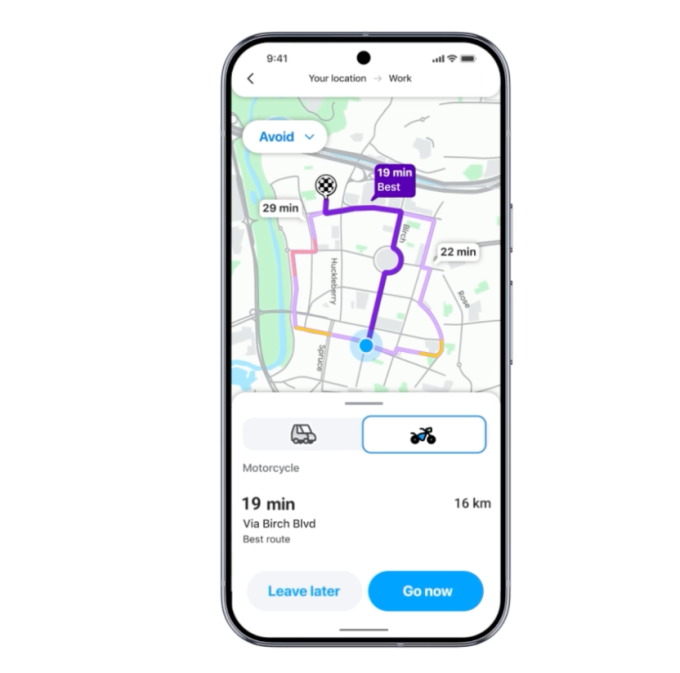
- For motorcycle mode, look for the vehicle profile or route settings: the real value is better ETAs and two-wheeler routing, not a different icon.
- For less intrusive voice guidance, check Waze audio settings and navigation volume, especially if you listen to music or podcasts while driving.
Quick Setup On Android
- Open the Play Store, search for Waze and install the latest available update.
- Go to Android Settings, Apps, Waze, Permissions: location, microphone and notifications should match how you plan to use the app.
- Open Waze before you leave and check the navigation or vehicle profile settings. If motorcycle mode is enabled for your account, select it and save.
- Open audio settings and try the shorter or less frequent voice mode: it should reduce interruptions without hiding important warnings.
- Test it on a short route first, preferably before mixing traffic, Bluetooth, helmet audio and the usual user-interface circus.
If you often use Waze through Android Auto, keep the troubleshooting sequence boring and methodical. If something does not appear on the car display, do not start with the ceremonial reinstall. Check the phone, cable or wireless link, permissions and app version first. Our related AndroidLab guide to wireless Android Auto instability is useful when the issue is not Waze itself but the infotainment connection.
Likely Problems And Fixes
If AI destination search or conversational reporting does not work, the likely causes are staged rollout, blocked microphone access, unsupported language or an account that has not received the feature yet. Check updates, permissions and language settings, then wait. Clearing cache may help if Waze behaves badly overall; it will not magically unlock a server-side feature that has not reached your account.
If the less chatty voice becomes too quiet, you have the opposite problem: less audio clutter, but less context. In cities, with close turns, hazard alerts and lane decisions, a voice mode that is too discreet can be less useful. The right setup is not the newest one. It is the one that makes you look at the screen less often.
AndroidLab’s reading is straightforward: Gemini in Waze makes sense only if it stays in service of driving. The best changes may be the least theatrical ones: less intrusive guidance, motorcycle routing and route suggestions based on habits. AI gets the headline; daily usefulness comes from fewer taps, fewer distractions and fewer moments where the navigation app behaves like a very enthusiastic passenger.
In Brief
- Waze is getting Gemini-powered features, conversational voice reporting and natural-language destination search.
- The update also includes motorcycle mode, less chatty voice guidance and route suggestions based on regular trips.
- On Android, check app updates, permissions, microphone access, language and rollout status before assuming the feature is broken.
- For Android Auto, verify connection and compatibility separately: not every feature appears everywhere at the same time.
- The best setup is the one that reduces distraction and screen taps, not the one with the most AI branding.