If wireless Android Auto connects whenever it feels like it, drops audio, or leaves Google Maps frozen just as you pull out of a parking lot, the first diagnosis should not be “the car is useless.” The practical question is whether the weak point is wireless negotiation, the phone, the USB port, Android Auto settings, or a mix of all four. XDA published a very concrete example today: switching back to a USB cable made disconnections and small glitches disappear. Android Police, also today, highlighted overlooked Android Auto features that save time before the drive even starts. Together, they make a simple troubleshooting guide: stability first, convenience second.
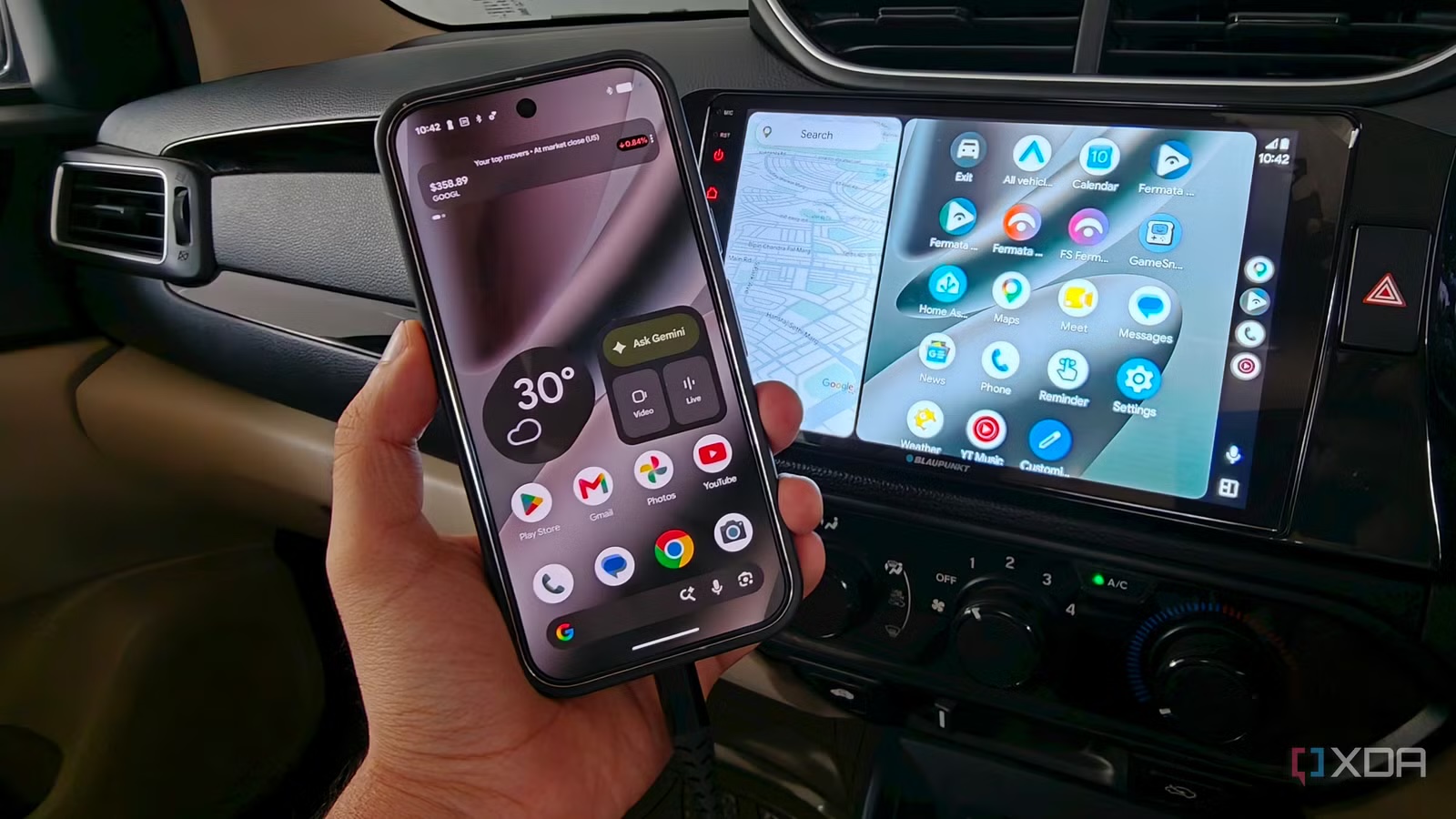
The tempting move is to buy another wireless adapter or blame the infotainment system immediately. Sometimes that is fair; some car systems do feel like they escaped from a firmware meeting nobody wanted to attend. But wireless Android Auto relies on Bluetooth and Wi-Fi Direct negotiation between phone and car. Interference, slow handshakes, heat, firmware quirks, and battery load can all turn a convenient feature into a tiny ritual. A cable is less elegant, but it removes several variables at once.
First test: separate wireless trouble from Android Auto trouble
The cleanest test takes two or three drives. Use Android Auto with a real data cable, not an ancient charge-only cable from the drawer. Pick a short USB-C or USB-A cable depending on your car, and use the port marked or documented for Android Auto. If Maps opens quickly, audio stops stuttering, and the phone runs cooler, you have a strong clue: the bottleneck is probably wireless Android Auto, not Android Auto itself.
If the same issues continue over cable, try another USB port if the car has one, test a second cable, and check whether the phone connector is loose or dirty. If the connection drops as soon as the cable moves, this is more hardware than software. Only after that does it make sense to clear caches, reinstall updates, or chase firmware fixes.
Android Auto settings worth checking
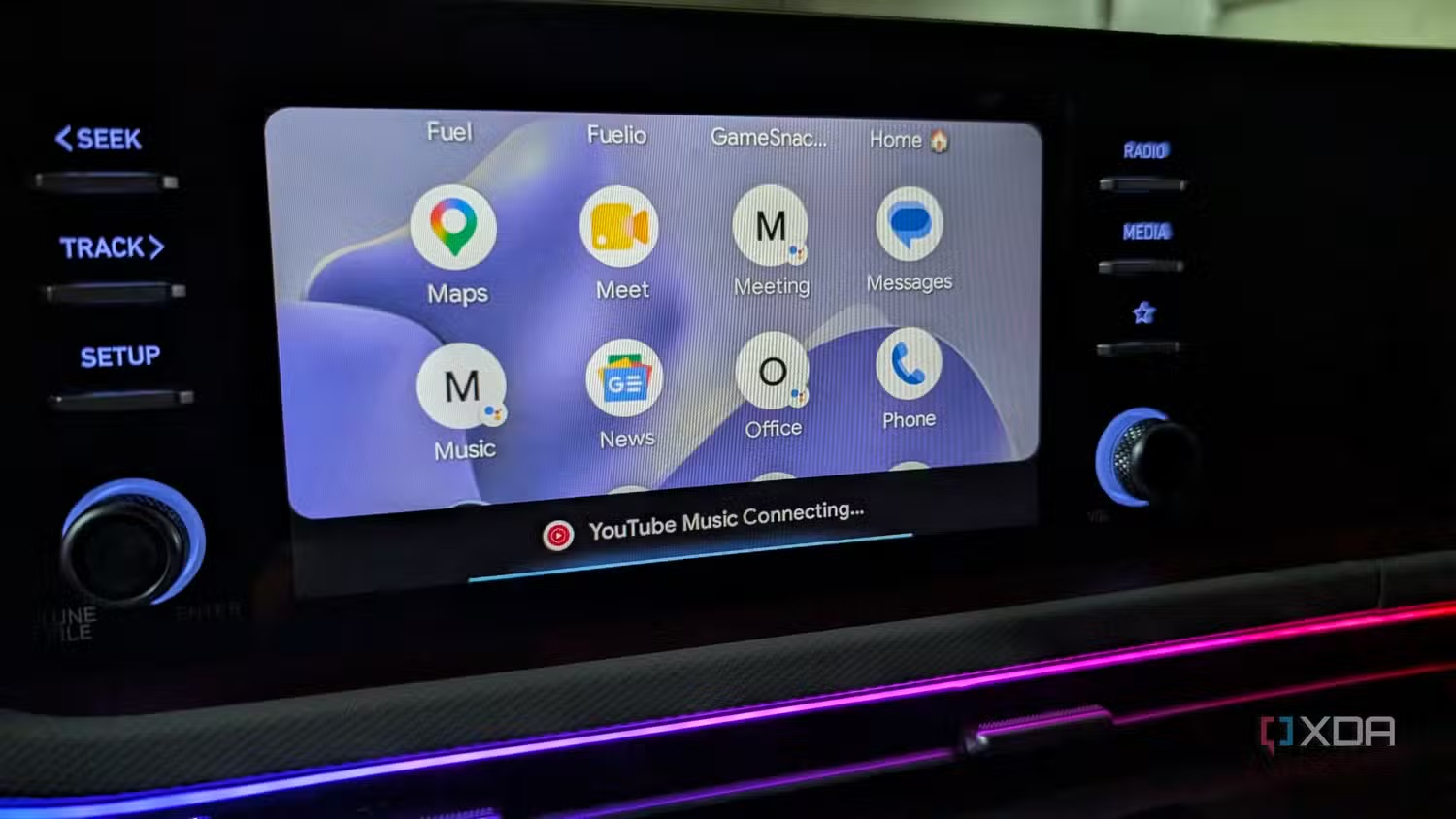
Open Android Settings and go to Connected devices > Connection preferences > Android Auto. The exact labels vary across Pixel, Samsung, Motorola, and other phones, but the route is broadly the same. Check automatic launch, connected cars, launcher customization, and message notifications. If you have paired many cars, rental vehicles, or adapters over time, removing old entries can prevent odd negotiation loops.
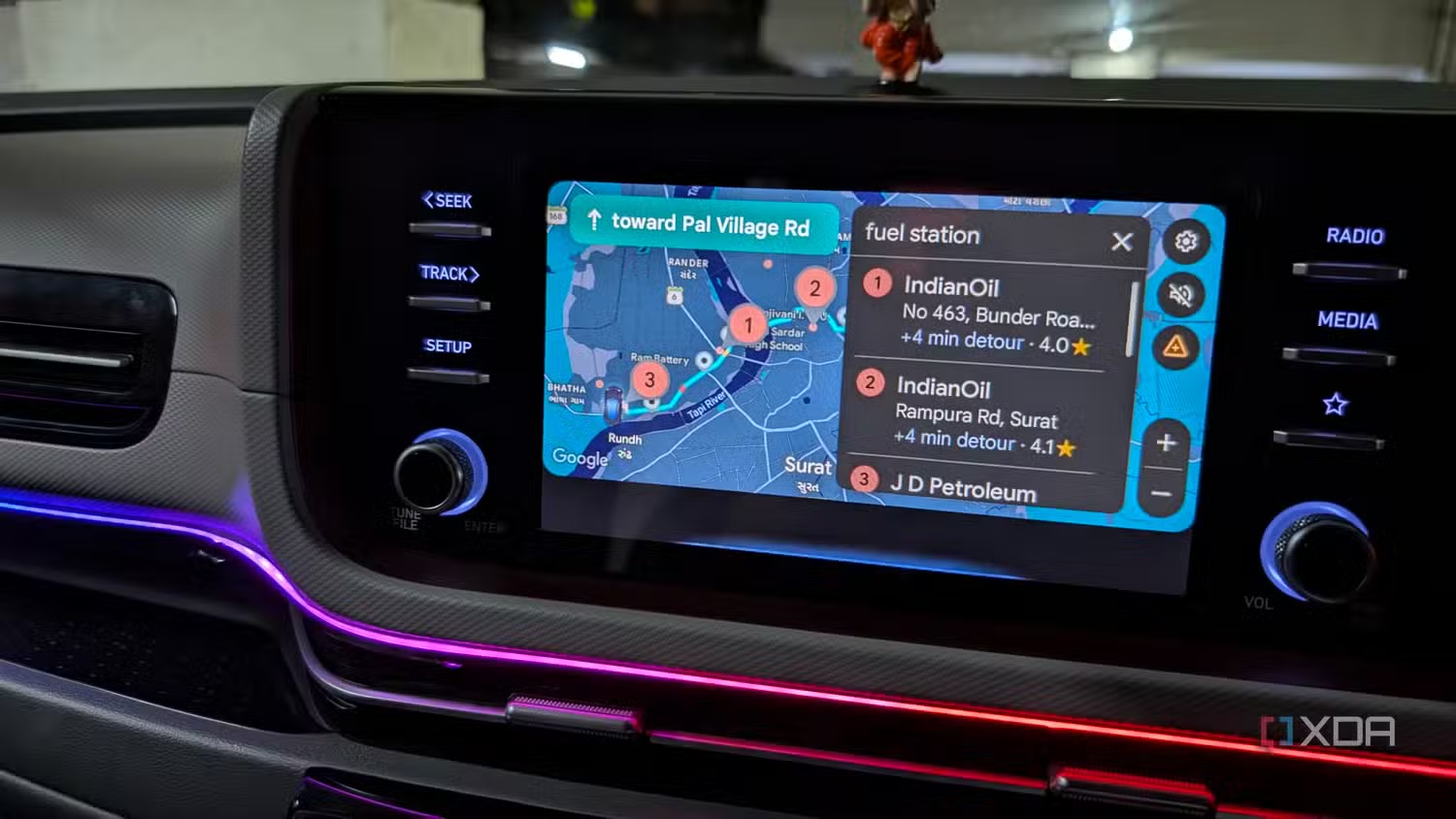
For faster starts, search for the destination in Google Maps before getting in the car. Android Police points out a small but useful advantage: recent searches and suggestions are already waiting on the car display, so you avoid typing on an awkward touchscreen. In the same Android Auto settings area, create launcher shortcuts for frequent contacts or Assistant commands. This is not AI magic; it is fewer taps while driving, which is the part that matters.
Also check Start music automatically if you want Spotify, YouTube Music, Audible, or another compatible app to resume the previous session. If that behavior annoys you, turn it off. The goal is not to worship automation; it is to know where the switch lives.
When wireless still makes sense
Wireless Android Auto is still convenient on short trips, especially when the phone stays in your pocket and the car connects within seconds. It also works well if your car has a decent charger and the cabin does not run hot. XDA’s point is practical, though: Android Auto can keep the phone busy with navigation, media, and calls; over wireless, that can mean more heat and less battery by the time you arrive. In summer, with a hot windshield and weak wireless charging, that is not a great thermal lab.
The AndroidLab rule is conservative: for long trips, continuous navigation, or recurring disconnects, a wired connection is usually the safer choice. For a short errand with a stable car system, enjoy the convenience. This is not a moral war between cable and Wi-Fi. It is about arriving without reaching for the phone.
Common problems and quick fixes
If Android Auto does not start, check Google’s official support page and your car’s compatibility first. Android Auto is listed on Google Play, although on many recent phones it is already integrated into the system. The official download link is the useful one; random APK mirrors are not the troubleshooting plan. Official download: Android Auto on Google Play.
If messages do not appear, enable message notifications in Android Auto and review the messaging app’s permissions. If music does not resume, confirm that the app supports Android Auto and that automatic playback is enabled. If taskbar widgets do not show up, update Android Auto and install official car firmware updates when your manufacturer provides them. If you have just changed phones, remove the old pairing from both the phone and the car, then pair again from scratch.
What actually changes
The useful lesson is not “wired beats wireless,” which would be pub-level tech analysis with a USB plug attached. The useful lesson is method: isolate variables. Start with cable and USB port, then phone settings, then old pairings, then car firmware. That avoids useless accessories and random resets. It also fits AndroidLab’s previous guide on making Gemini less chatty in Android Auto: fewer distractions, fewer noisy automations, more control.
Pre-drive checklist
- Test Android Auto over cable for at least two drives if wireless is unstable.
- Use a short, reliable data cable, not a charge-only cable.
- Remove old cars and adapters from Android Auto settings.
- Prepare your destination in Google Maps on the phone before you start.
- Configure shortcuts, message notifications, and automatic media resume only if they help.
- Avoid wireless charging plus wireless Android Auto if the phone gets too hot.
In brief
- XDA reports that switching to cable can fix disconnects, audio glitches, and phone heat.
- Android Police highlights useful features such as recent destinations, launcher shortcuts, read-aloud messages, and automatic media playback.
- Good troubleshooting starts with cable, USB port, and pairings, not random resets.
- Wireless is convenient, but cable is often more reliable for long drives and continuous navigation.
- XDA Developers – July 11, 2026, 15:00 UTC
- Android Police – July 11, 2026, 10:00 UTC
- Google Android Auto Help – checked July 11, 2026
- Google Play / Android Auto – checked July 11, 2026