The interesting part is not that Android has “one more hidden feature”. It is that the Android work profile, when it is configured properly, can become one of the few realistic tools for separating personal life, notifications and professional apps without turning the phone into an always-on work terminal.
Android Police brought the topic back with a very practical angle: the feature that creates a real boundary between work and the rest of the day is already inside Android, but many users still see it as something meant only for IT departments. Google’s official documentation is more direct: a Work Profile separates work apps and data from personal apps and data, requires Android 5 or later, and can be managed by an organization when the phone is enrolled through company policies or mobile device management.
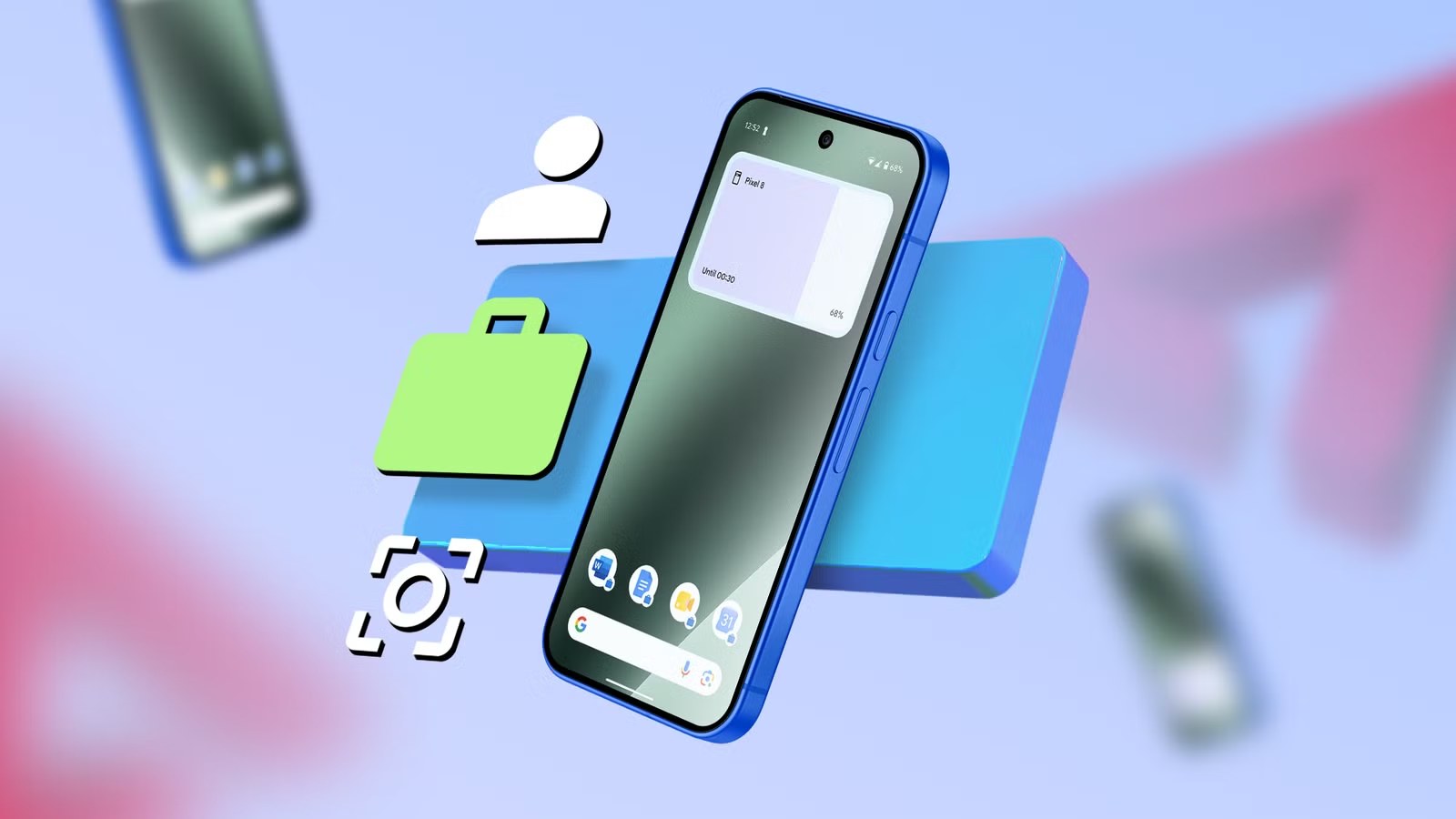
The AndroidLab reading is simple: this is not about having “two phones in one”. It is about knowing who controls what. The personal profile keeps the user’s own apps, photos and account. The work profile contains apps marked with the work badge, company policies and, most importantly, the option to pause work apps when they should no longer interrupt the day.
That matters culturally as well as technically. For years, smartphones have swallowed boundaries: email, chats, calendar, documents, two-factor authentication, everything in the same pocket and often on the same home screen. A work profile does not solve permanent availability by itself, but it makes the boundary visible. And when a boundary becomes visible, it can be discussed, configured and turned off. Less glamorous than an AI demo, much more useful than many feature-showcase tricks.
What to check before using it
Before hunting for the toggle, clarify the context. If the phone is personally owned and the company uses device management, the Work Profile should limit the organization’s control to the work area. If the device is fully company-owned, policies can be broader. That is not a cosmetic difference: it affects mandatory apps, remote wipe, copy-and-paste restrictions, screenshots, accounts and backups.
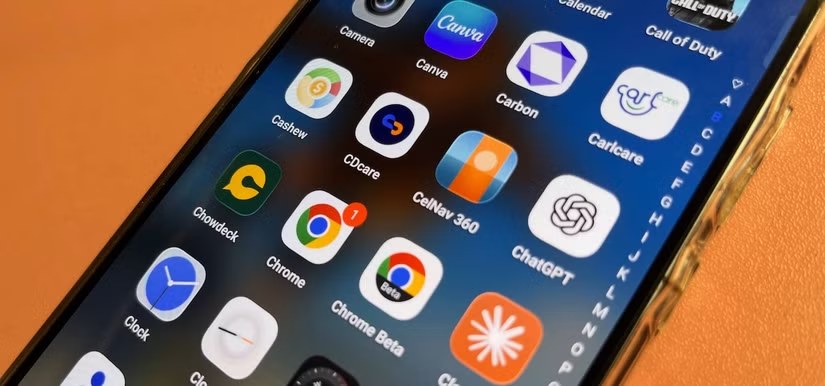
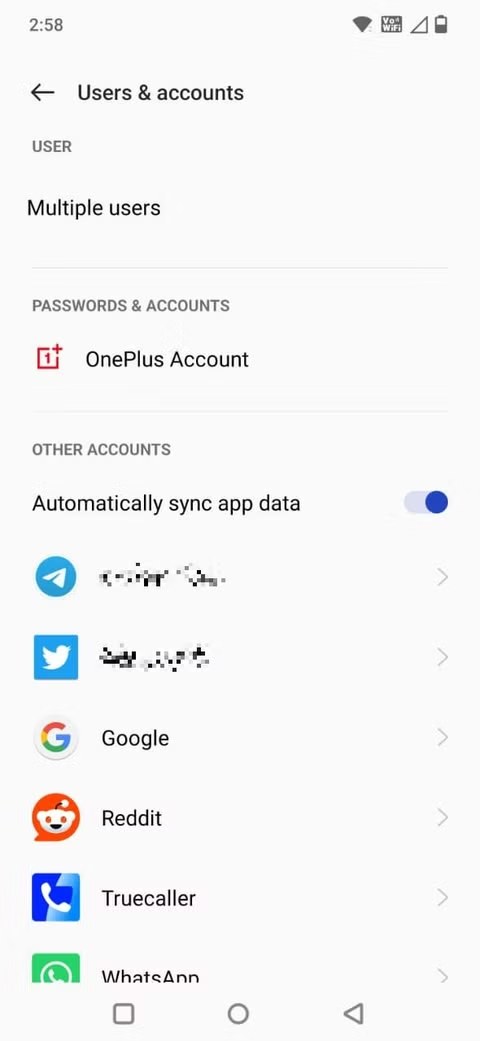
The practical check is this: open the app drawer and look for apps with a work badge, then check Android settings for a dedicated work profile section. On many Android phones, the profile can be paused from a quick toggle, the launcher or system settings. If you cannot find it, that does not automatically mean the phone is incompatible: it may depend on the launcher, Android version, company policy or whether the profile was ever configured in the first place.
For anyone using one phone as a mixed personal and professional device, the real value comes from combining three things: separate notifications, separate apps and a separate mental calendar. Work Gmail in the work profile, the company browser in the work profile, the company chat in the work profile. Everything else stays personal. It is not a magic wall, but it reduces operational noise.
What actually changes
The key change is that a work profile moves the question from “do I have to be always available?” to “which part of the phone is allowed to interrupt me?”. That is a practical difference. If you can pause the work profile in the evening, on weekends or during time off, notifications no longer depend only on willpower. They depend on a visible technical rule.
There are limits, of course. A Work Profile does not stop a colleague from messaging you on a personal app, it does not fix poor company habits, and it does not automatically make a messy organization respectful. Some details also vary between Pixel phones, Samsung Galaxy devices and vendor-managed Android builds. The boring but correct advice is to read the setup screens, understand who administers the profile and avoid accepting policies blindly just because “it is only a phone”.
Related: if you are reorganizing your Android phone to reduce friction and tracking, our guide to the default browser on Android between Chrome, Brave and Firefox is worth reading too.
AndroidLab mini-checklist
- Check whether the phone shows a work profile or apps with a work badge.
- Verify who administers the profile: you, your company or an MDM system.
- Keep genuinely work-related apps separate instead of duplicating everything by habit.
- Try pausing the profile and check what happens to notifications, calendar entries and widgets.
- Ask which data the organization can manage or erase, especially on personally owned devices.
In Brief
- The Work Profile separates work apps and data from personal ones on compatible Android devices.
- It is especially useful for notifications, availability and boundaries between private time and work.
- Before enabling it, understand whether the phone is personal, company-owned or MDM-managed.
- It does not solve the cultural problem of being “always online”, but it gives users a concrete technical switch.