Chrome can now move a tab between Android and a computer without dropping your place on the page or the text you have already entered. Google announced the upgraded handoff on September 24, 2026: the receiving device can preserve the tab’s scroll position and partially filled forms instead of merely reopening the same URL at the top.
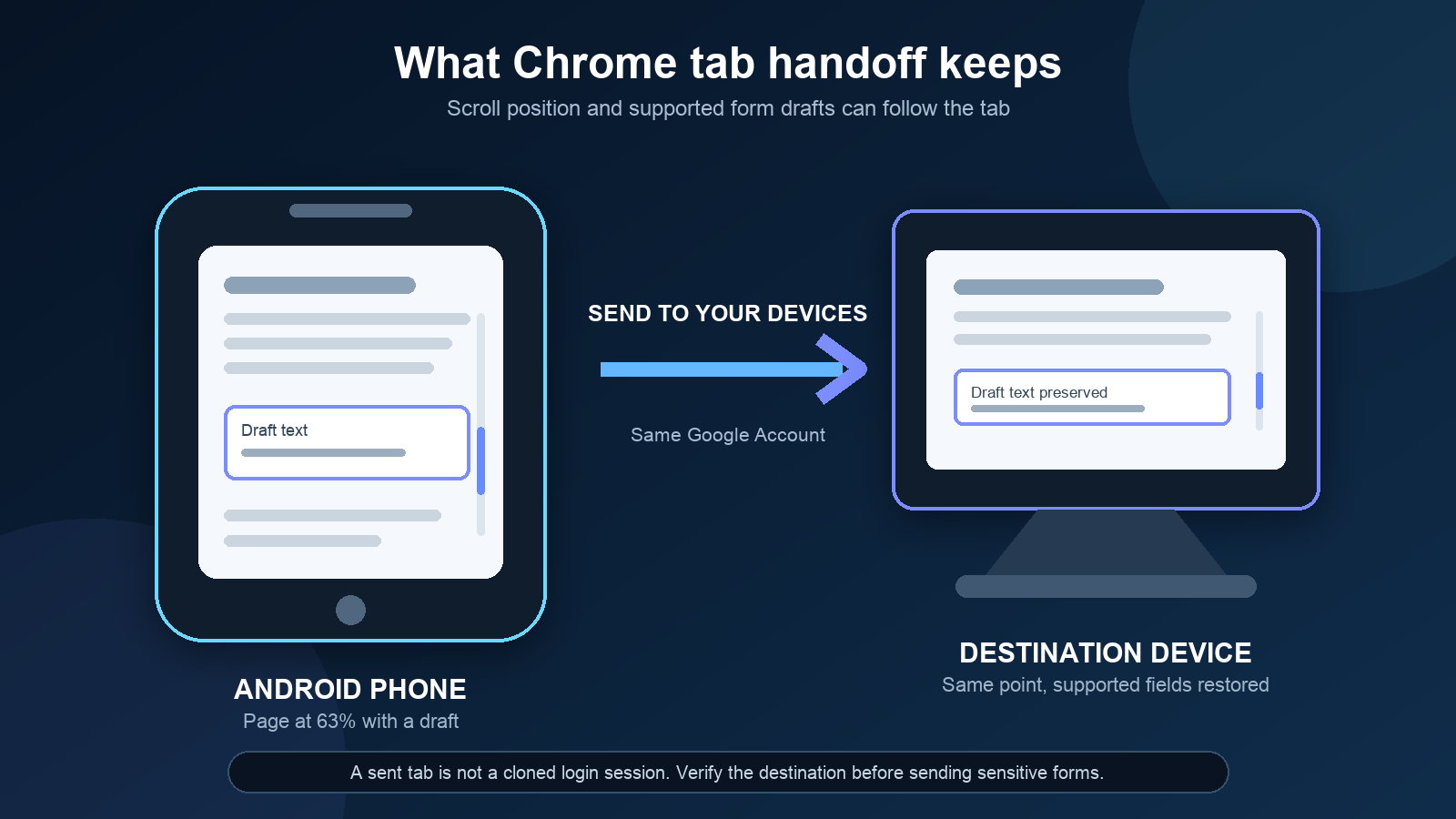
This is a small browser change with a clear practical use. A long document can continue at the same paragraph, while a draft form started on a phone can be finished with a physical keyboard. It also deserves one boring but important check: the destination is another device signed in to your Google Account, so make sure it is actually yours before sending unfinished form data.
What Chrome tab handoff now preserves
Google describes the new behavior as saving the “exact state” of a tab when it is sent to another device. The announcement explicitly names two elements:
- scroll position, so a long article, manual or research paper resumes where you stopped;
- partially filled forms, so text entered on one device can appear on the destination.
The feature builds on Chrome’s existing Send to your devices command. It is not the same as copying a link into a messaging app, because the handoff is tied to devices using the same Google Account. Google’s official Chrome Help page lists that shared account as the prerequisite.
Google does not say that handoff clones every part of a browser session. Do not assume it transfers site cookies, completed uploads, payment authorization, a web app’s internal state or every script-generated field. The confirmed improvement is narrower: Chrome carries the tab state Google names, and the destination still has to load and accept the page correctly.
How to send a Chrome tab from Android
- Update Google Chrome from the Play Store on the Android device.
- Confirm that Chrome on the phone and the receiving device use the same Google Account.
- Open the page you want to continue elsewhere.
- Tap the three-dot menu, choose Share, then Send to your devices.
- Select the destination device. Chrome should open the tab there automatically.
Google also documents two Android shortcuts: long-press the URL bar menu, or long-press a tab in the tab selector, then choose Send to your devices. Menu labels can move slightly as Chrome’s interface changes, but the command name is the useful anchor.
How to send a tab from desktop to Android
- Open the page in Chrome on the computer.
- Open the three-dot menu.
- Choose Cast, save and share, then Send to your devices.
- Select the Android phone or tablet.
You can also right-click the tab or page and use the same command. If Chrome notifications are enabled on the Android destination, Google says the phone receives a notification and the tab opens automatically. Notification permission is useful for visibility, but it is not the account requirement: both browsers still need the same Google Account.
Five checks if your device is missing
Do these in order. Reinstalling the browser first is the traditional way to turn one problem into three.
- Compare accounts. Open Chrome’s profile menu on both devices and verify the exact Google Account, especially if you keep separate personal and work profiles.
- Update both copies of Chrome. The basic send command may already exist while the new state-preserving behavior is still reaching devices.
- Bring the destination online. Open Chrome once on the receiving device and wait a moment before reopening the device list.
- Check managed-browser restrictions. A work or school administrator can limit account sync and sharing features. Do not try to bypass an organization policy.
- Test with a harmless page. Use a long article and a simple text field, not a banking, medical or identity-recovery form.
Google presents the upgraded handoff as available now, while independent reports describe it as a rollout. If the tab arrives but returns to the top or loses draft text, record the Chrome version on both devices and test again after the next update. Clearing all browser data is a poor first response because it can sign you out of sites and erase useful local state without forcing a server-side rollout.
Chrome is also moving to a faster release rhythm. Our Chrome update guide for Android explains how to check the installed version and separate a staged feature rollout from a failed Play Store update.
Be careful with unfinished forms
Preserving typed text is convenient precisely because that text may matter. Before sending a form, check the destination name and remove old devices you no longer control from your Google Account device activity. Avoid the feature on a shared computer, and do not use an unfinished payment, password-reset or identity-verification form as a handoff test.
Google’s announcement confirms that partially filled forms can move, but it does not provide a detailed description of how every form value is transported or retained. The sensible boundary is simple: use handoff for drafts and routine pages, then restart sensitive workflows directly on the trusted destination.
What actually changes
Sending a tab used to solve the address problem: the destination knew which page to open. The new behavior tries to solve the continuity problem: the destination also knows where you were and, for supported forms, what you had typed. That saves real friction on Android because a phone is often where a task starts, not where a long document or form is most comfortable to finish.
The improvement is useful without being magical. It does not turn two browsers into one continuous machine, and page behavior can still interfere. Treat the handoff as a resumable browser task, verify the result and keep sensitive data out of casual tests.
In brief
- Chrome tab handoff can now preserve scroll position and partially filled forms.
- Both devices must use the same Google Account.
- On Android, use Share, then Send to your devices.
- On desktop, use Cast, save and share, then Send to your devices.
- If only the link transfers, update Chrome and allow time for the staged rollout.
- Do not test unfinished payment, recovery or identity forms on a shared device.
Sources
- Google Chrome Blog: “5 ways to upgrade your study habits with Chrome”, primary announcement published September 24, 2026.
- Google Chrome Help: Share tabs in Chrome, official requirements and Android procedure checked September 24, 2026.
- The Verge: “Now Google Chrome shares tabs to new devices that save where you were”, published September 24, 2026.
- 9to5Google: “Chrome now saves scroll position, filled forms when sending tabs between devices”, published September 24, 2026.
- Google Chrome on Google Play, official Android download page checked September 24, 2026.