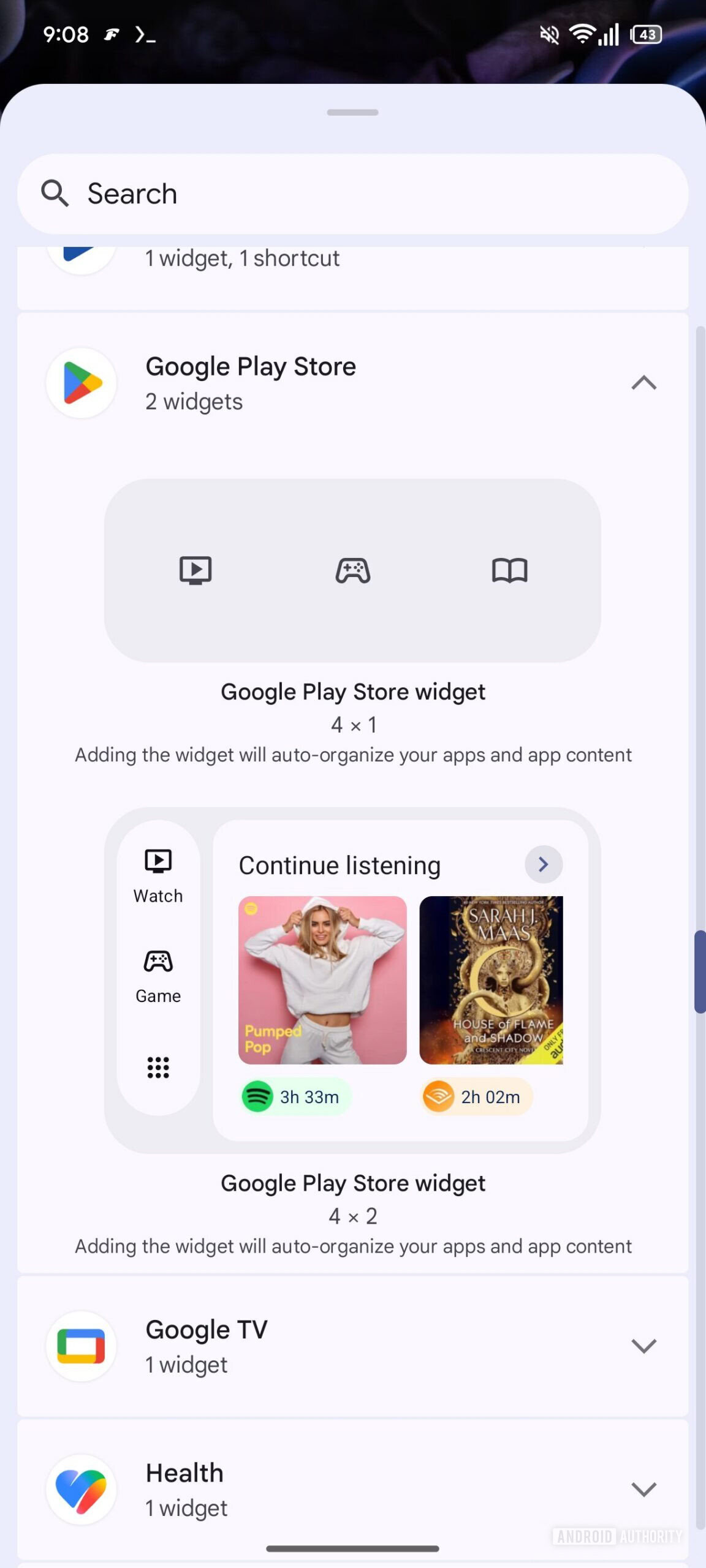
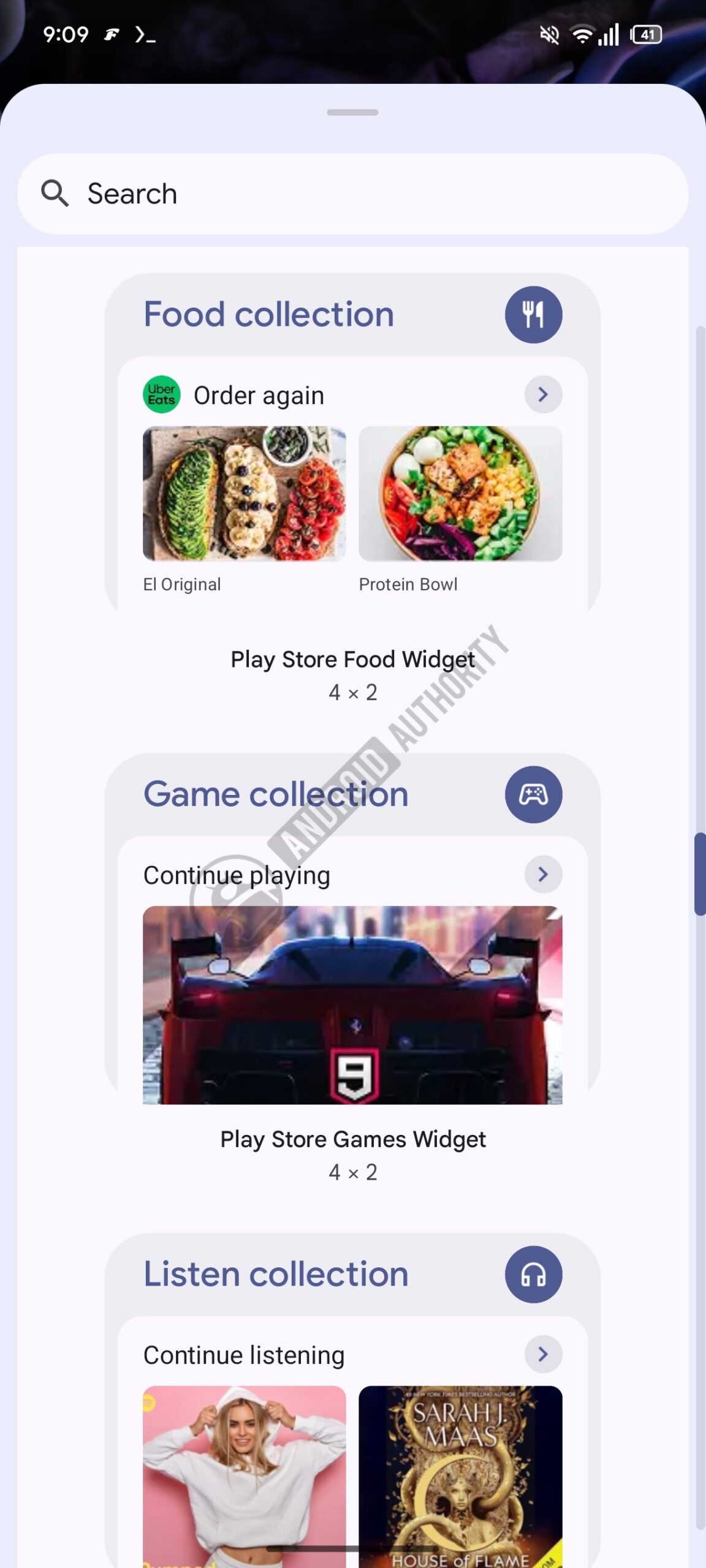
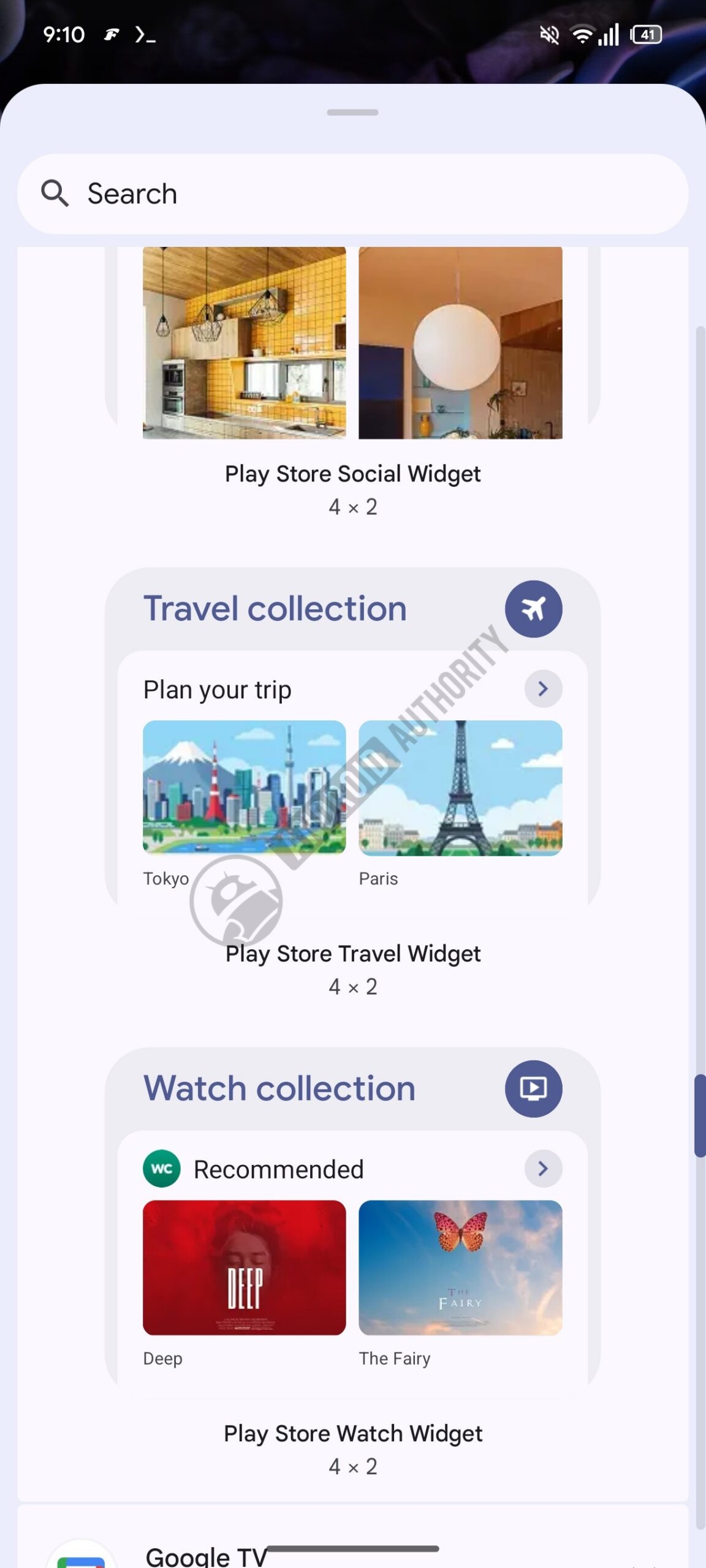
Google Play Collections is trying to become less of a store page and more of an operational panel on your home screen. The fresh bit is small but practical: according to Android Authority, the Play Store is preparing separate widgets for individual Collections, not just the single block that groups Watch, Game, Read, Listen, Food, Shop and Social. In plain terms, you may be able to place only the section you actually use on your launcher.
This is one of those Google updates that looks harmless until you read it like a systems person: the app store is also becoming a launcher surface, a recommendation layer, a content hub and a personalized shortcut. Useful, yes. But it needs a sane checklist, because staged rollouts, supported regions, launcher behavior and multiple Google accounts can turn a simple widget into the usual ghost hunt. If the widget is missing, your phone is not necessarily broken: it may just be a server-side rollout.
Requirements to check first
Before clearing cache, reinstalling random packages or performing small ceremonies in front of the Play Store icon, start with the boring checks. You need an Android phone with an updated Google Play Store, a Google account eligible for Collections and a region where the feature is available. Google’s support page describes Collections as a way to bring together content and activity from compatible apps, but availability can vary.
The practical rule is simple: if you cannot see Collections inside the Play Store, the widget is unlikely to appear in the home screen widget picker. Check the Play Store first, then the launcher. For related system-update behavior around Play Services and the Play Store, our Italian guide to Google Play System updates stuck on Galaxy uses a similar troubleshooting method.
How to check whether Collections widgets are available
- Update Google Play Store and Google Play services from Android settings or the Play Store.
- Long-press an empty area of your home screen and open the Widgets panel.
- Search for “Google Play Store” or “Play Store”.
- Check whether you only see the generic Collections widget or separate widgets for sections such as Watch, Game, Read or Listen.
- If they appear, place one on the home screen and verify that it opens the right Collection directly.
- If they do not appear, reboot once and check again later. With Google features like this, clearing cache every five minutes mostly debugs your patience.
Common problems and sensible fixes
If the widget is not listed, the most likely explanation is that your account has not been included in the rollout yet. In that case, the honest fix is to wait. Sideloading Play Store APKs from unofficial mirrors just to chase a widget is a bad trade: this is the app that handles installations, updates and payments. That is exactly where “I found an APK somewhere” becomes lab-alarm material.
If the widget appears but stays empty, check that the related apps are installed and updated. A widget built around content and activity cannot invent data if you do not use compatible services or if the selected account has no useful history. If you use multiple Google accounts, open the Play Store, tap your avatar and make sure you are on the right one: Collections suggestions may differ a lot between a personal account, a work profile and a secondary account.
If the widget works but you do not like it, removing it from the home screen does not uninstall anything and does not disable Google Play. It is just an advanced shortcut. That distinction matters: widgets, the Play Store app, Play Services and Play System Updates are different parts of the same ecosystem, not one magical switch.
What really changes
The interesting part is not the widget itself, but the changing role of the Play Store. Google is pushing Collections as a return surface for app activity: movies, music, games, books and other content are no longer treated only as things to install, but as activities to resume. For regular users this can be convenient; for people who keep a clean home screen, it is another surface to manage.
The AndroidLab recommendation is simple: use these widgets only when they shorten a real workflow. If you often resume podcasts, books or games, a dedicated widget may be worth the space. If your home screen is already full of shortcuts, notification badges and duplicates, another “smart” panel may just add noise. Useful technology removes steps; it does not turn your launcher into a shopping mall with icons.
In brief
- Google Play Collections is preparing separate widgets per Collection, according to Android Authority.
- Availability depends on rollout status, account, region and Play Store version.
- Before clearing cache, check whether Collections already appears inside the Play Store.
- Do not sideload unofficial Play Store APKs just to get the rollout early.
- The widgets are useful only if they shorten a real workflow; otherwise they are home screen noise.