LineageOS has just made an important change for custom ROM users: the project now offers browser-based flashing tools through its download portal, with support for fastboot, ADB and Samsung’s Odin protocol. The fresh news is useful, but it should not be oversold: this is not a magic “install everything” button. It reduces part of the mechanical friction while still keeping the device-specific installation guide in charge.
Android Authority covered the update on July 8, 2026, while LineageOS published the official details on July 7. The key line is simple: the web flasher is available from the LineageOS download portal, but users still need to follow the wiki instructions for their specific device. In lab terms: fewer commands to mistype, not less responsibility. If the wrong image goes to the wrong phone, the browser does not suddenly become a bootloader guardian angel.

Before you start: minimum requirements
The first check is obvious only in theory: your phone must be officially supported by LineageOS and listed in the wiki with its exact codename. A marketing name such as “Galaxy A52” or “Xiaomi 13” is not enough. Regional variants, modem layouts and partition schemes can differ enough to make shortcuts dangerous. When in doubt, the codename in the wiki matters more than the product name on the box.
The second check is the bootloader. Installing LineageOS normally requires an unlockable bootloader, with all the consequences that come with it: data wipe, boot warnings, banking or DRM checks after installation and warranty implications that vary by device and market. Some Samsung devices also need Odin-specific steps and download mode. The browser flasher can help with the transfer; it cannot erase manufacturer policy.
The third check is the computer. Web tools that speak to ADB or fastboot depend on USB access exposed through the browser and the operating system. In practice, start with a modern compatible browser, a reliable data cable, direct USB ports and correct drivers when using Windows. If the phone keeps appearing and disappearing, the usual suspects are cable, driver, USB permission or the wrong boot mode.
Quick checklist before flashing
- Open your device page in the LineageOS wiki and note the codename, version and warnings.
- Back up data outside the phone: photos, documents, chats, two-factor authentication and downloads.
- Check whether the guide requires updated stock firmware or a specific Android base version.
- Use at least 60% battery, a stable data cable and a reliable USB port.
- Download images and recovery files only from the official LineageOS portal or wiki-linked sources.
- Read the “Special boot modes” section: recovery, fastboot, fastbootd and download mode are not the same thing.
- Assume a wipe is part of the process. If you are “just trying to see what happens”, stop there.
How to use the new flasher safely
The sensible flow is straightforward. First open the device page in the wiki, then open the download/flashing portal, and only then connect the phone in the mode requested by the guide. When the browser asks for USB access, choose the correct device entry: not something that merely looks similar, but the expected device in the right mode. If the phone is in recovery while the guide asks for fastboot, pausing is better than improvising.
The real benefit of the web flasher is that it reduces mechanical mistakes: fewer mistyped commands, fewer files dragged into the wrong terminal, less dependency on a hastily configured platform-tools folder. The sequence still matters. If the wiki says to flash recovery, reboot into recovery and then apply the package, the browser does not authorize creative detours. LineageOS is explicit about this: the new tool does not replace the device guide.
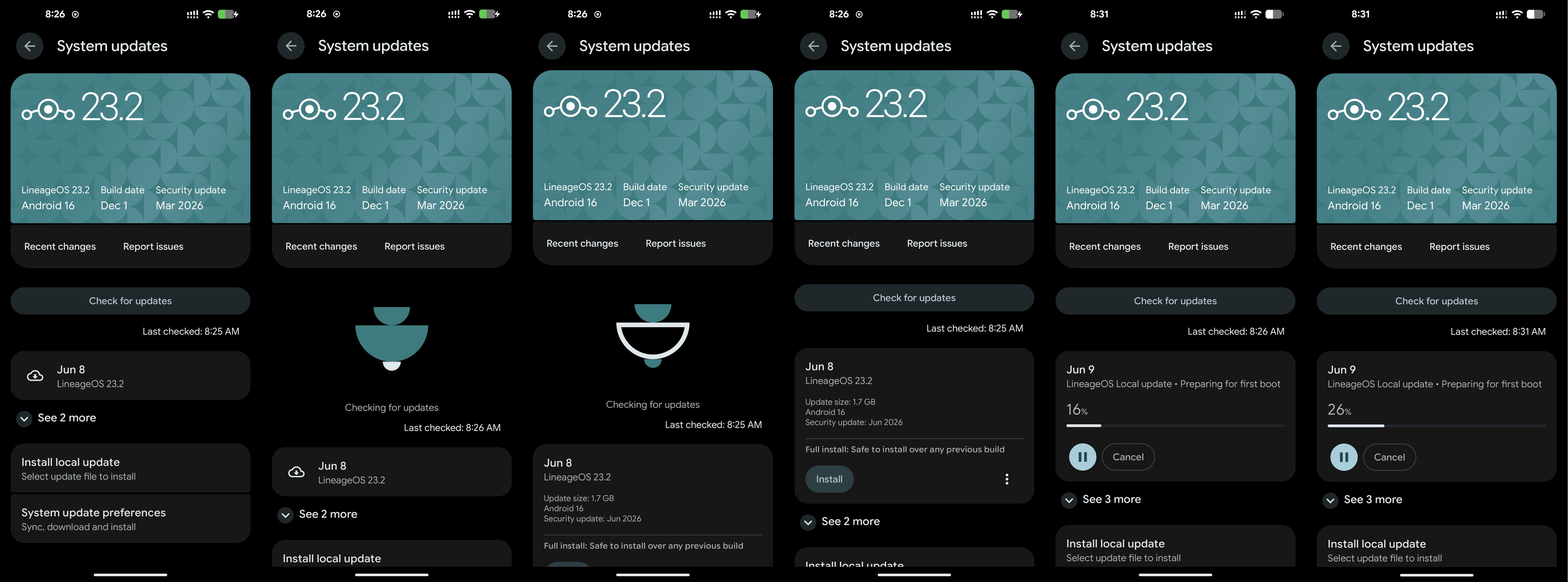
There is another useful part of the announcement: the Updater app. LineageOS says it has modernized the app, improved reliability and exposed clearer information about the security patch level included in each update. For existing LineageOS users, this may matter even more than the first-install flasher: seeing the SPL before installing reduces the recurring forum uncertainty about whether the monthly security bulletin has actually landed.
What actually changes
For technical users, this lowers the entry barrier without changing the nature of the operation. Installing a ROM remains invasive: you still need backups, compatibility checks and a real tolerance for device-specific risk. Browser flashing can make LineageOS more approachable for someone who can read a guide but does not want to fight drivers, terminals and commands copied from three different tabs. It does not turn modding into a Play Store-style flow.
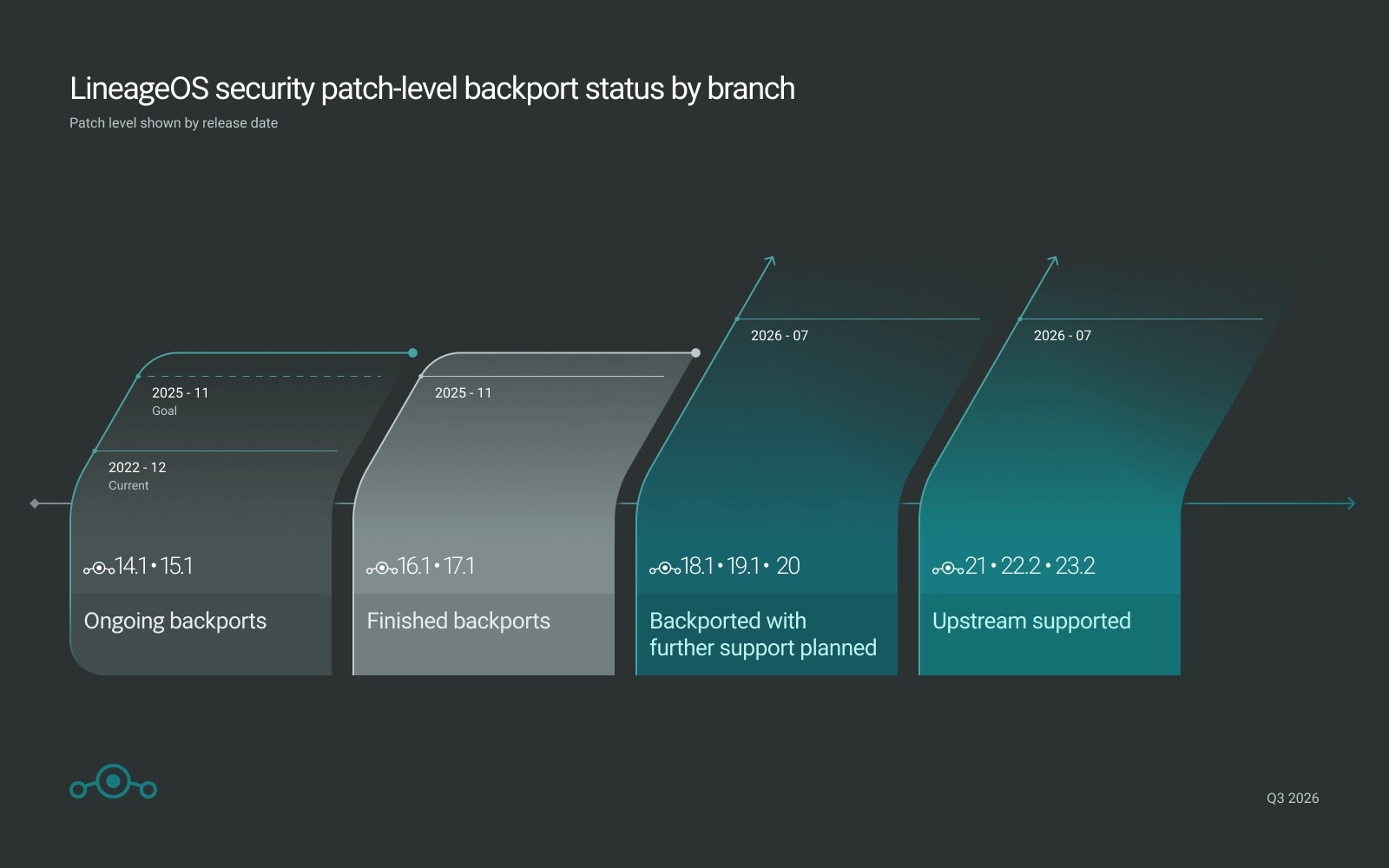
The broader signal is more interesting. LineageOS is cleaning up the experience without pretending to be something else: web flashing, dark mode for the wiki, an issue tracker moved to GitHub, a clearer updater, explicit security backport status by branch and LineageOS 24 work already underway after Android 17’s public release. That feels like mature infrastructure: less forum folklore, more verifiable tooling.
Common problems and quick fixes
If the browser does not see the phone, change cable and USB port before rebuilding your whole setup. On Windows, check drivers; on Linux, check USB permissions and user groups; on macOS, avoid cheap hubs if the connection keeps dropping. If the device appears with a generic name, go back to the mode required by the guide: ADB, fastboot and Odin are not interchangeable.
If the flasher stops, do not randomly unplug the phone. Read the current state, check whether the device is still in fastboot or download mode, and resume from the matching section of the wiki. If you have already written recovery or a critical partition, switching to a random comment from the web is the fastest way to turn a guide into electronic archaeology.
If you are updating an existing build, look at the new Updater flow as well: LineageOS says A/B OTA packages now stream by default, should require less temporary space and should show clearer patch information. For phones with tight internal storage, that is a practical improvement.
In brief
- LineageOS now offers web flashing tools from its official download portal.
- The flasher supports fastboot, ADB and Odin, but the wiki remains mandatory.
- Before flashing, check codename, bootloader, backups, drivers and USB mode.
- The update also includes a refreshed Updater app, clearer SPL details and ongoing LineageOS 24 work.
- Related AndroidLab coverage: Android sideloading, LineageOS and Developer Verification and ADB on Android without a PC with Shizuku.