The new vulnerabilities reported in Quick Share and AirDrop do not mean you should stop sharing files between phones, tablets and PCs. They do mean something more practical: when a nearby-sharing feature stays visible to devices around you, the default configuration matters. This is not a panic story. It is a reason to reduce your exposure when you are on a train, at an airport, in an office or anywhere else where unknown devices are part of the scenery.
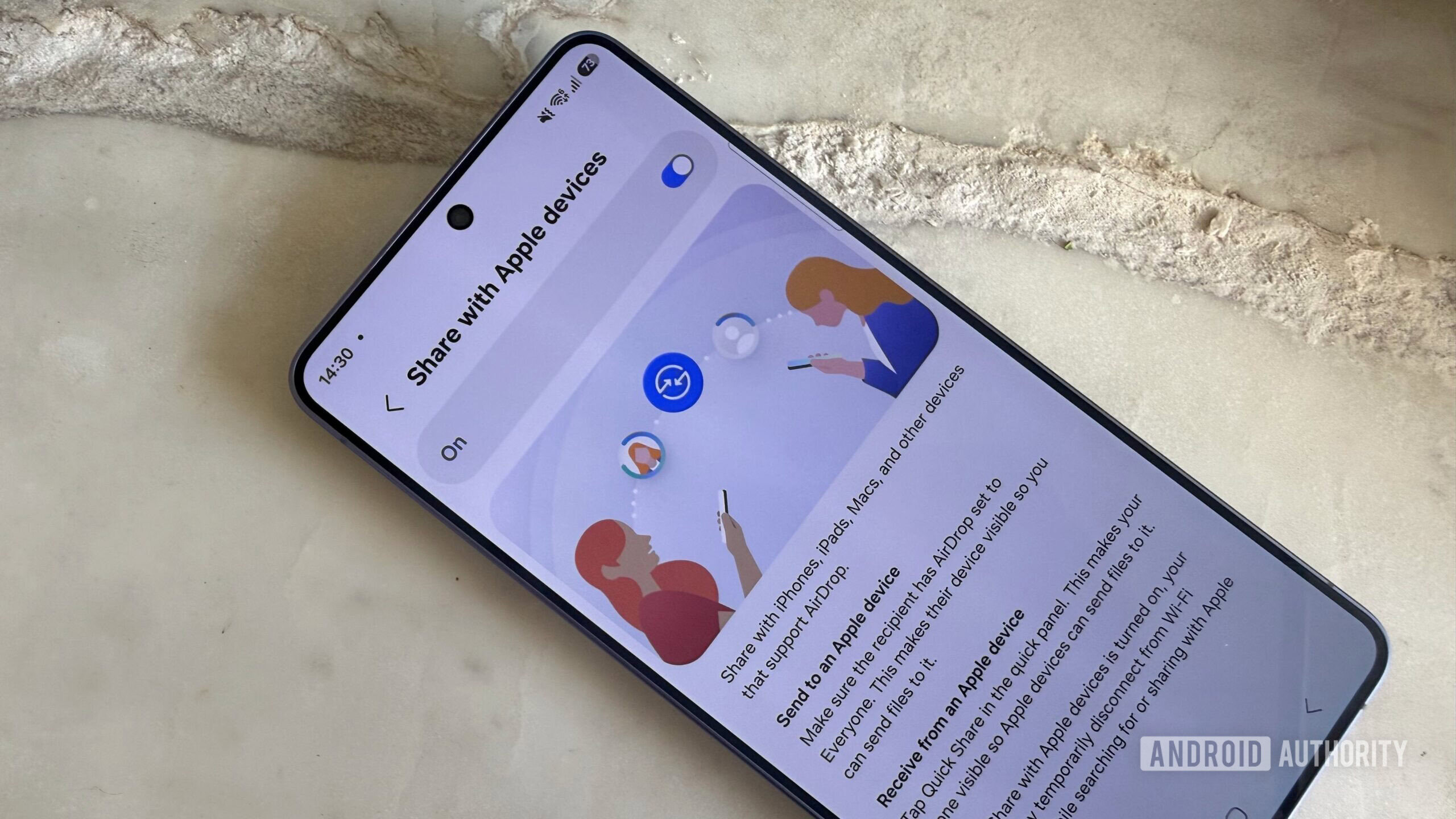
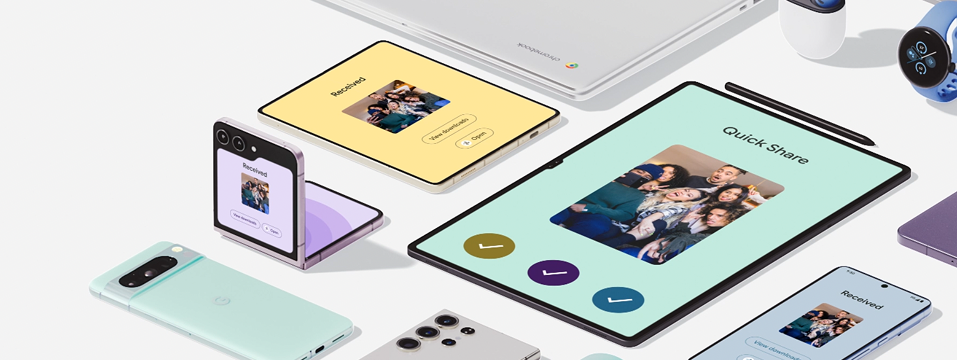
The report detailed by Help Net Security is based on CISPA research into proximity protocols used by Apple, Google and Samsung. The researchers found six vulnerabilities across macOS, iOS, Android and Windows. On the Quick Share side, their tests involved a Galaxy S23 Ultra and Google’s Windows client; on the AirDrop side, the most immediate issues involve crashes and denial-of-service behavior affecting services such as AirDrop, AirPlay, Handoff and Universal Clipboard. Android Authority covered the consumer angle: the risk is not “someone walks past you and steals everything,” but that extremely convenient services still have to process input from nearby, untrusted devices before the user has made a meaningful decision.
What to check first on Android
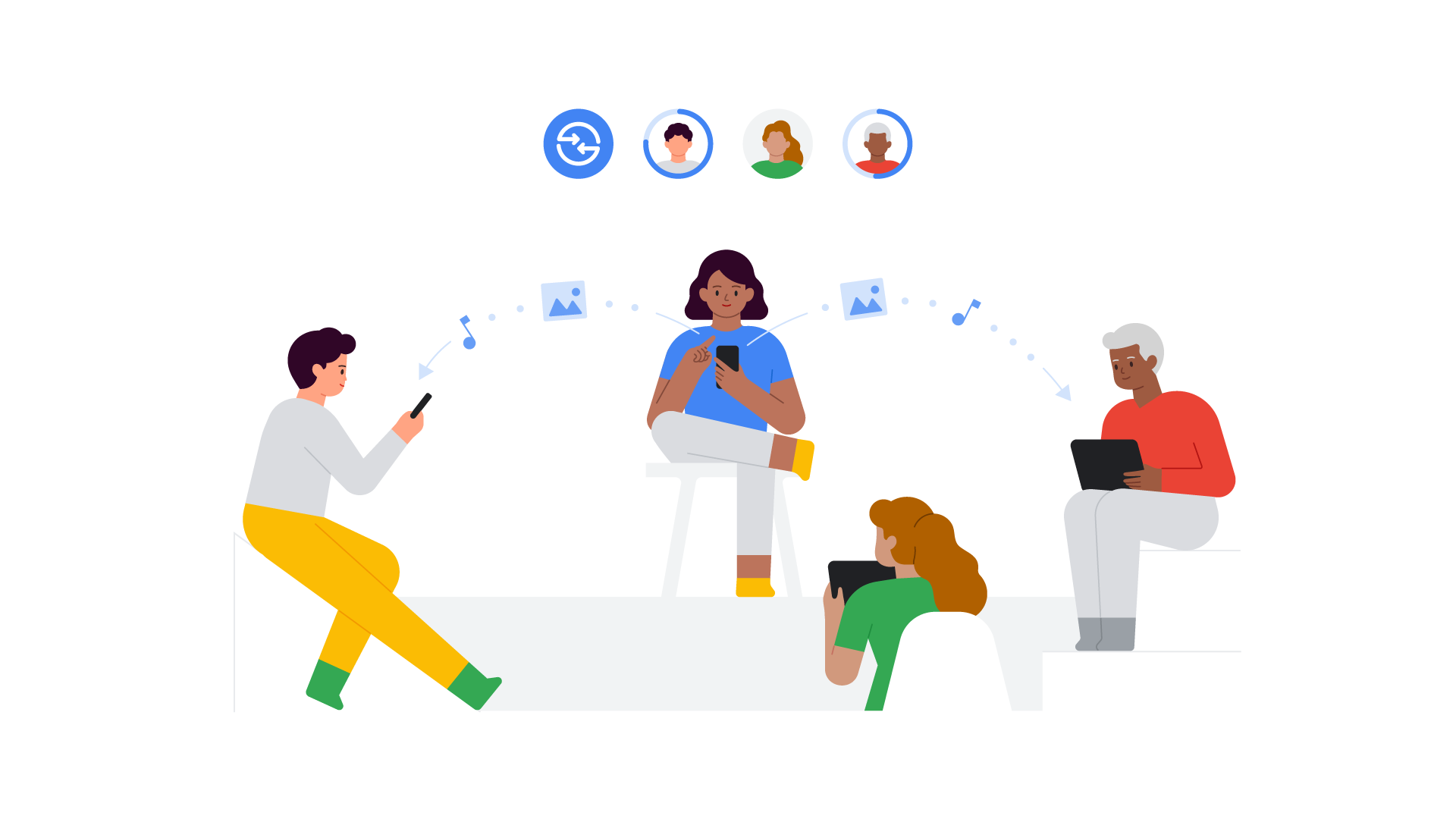
The first check is simple enough to be ignored: open Android Settings, search for Quick Share, and look for “Who can share with you” or the equivalent option on your device. Google’s documentation lists three main visibility modes: “Your devices,” “Contacts,” and “Everyone for 10 minutes.” If you are not actively waiting for a file from someone next to you, the safer default is “Your devices,” meaning devices signed in with the same Google Account. “Contacts” can make sense if you share often with known people, but it depends on your phone being on and unlocked. “Everyone for 10 minutes” should be treated as a temporary open door: useful, but only while you actually need it.
According to Google, when your phone is in Receive mode on the Quick Share page, it is visible to anyone nearby while you remain on that screen. To stop making it visible, you need to exit Receive mode. That is the important operational detail: do not leave the receive screen open after the transfer is done. It is a tiny habit, but it separates convenient use from careless exposure. Technology should be an assistant, not a sleeping doorman with a radio chip.
Recommended setup checklist
On stock Android or Pixel phones: go to Settings, search for “Quick Share,” open the feature page, enter “Who can share with you,” and set Your devices as the default. If you need to receive something from a known person, switch temporarily to “Contacts.” If you need to receive from a compatible iPhone, iPad or Mac through the newer cross-platform integration, use “Everyone for 10 minutes” only during the exchange, then return to your previous setting.
On Galaxy phones, the exact path can differ because Samsung integrates Quick Share into One UI with its own settings. Search for “Quick Share” anyway, check device visibility, and look for separate controls for personal devices, contacts or anyone nearby. If the phone is managed by an employer or has a work profile, also check the MDM policy: some organizations disable or restrict nearby sharing, and in that case the behavior may differ from Google’s generic documentation.
On Windows, if you use Google’s official Quick Share client, the logic is similar: download it from the official Android page, not from random mirrors, and check who can discover your PC in the app settings. Google lists the Windows app as available for 64-bit Windows 10 or newer, with ARM devices excluded. If you installed Quick Share months ago, this is a good moment to open it and check updates, permissions and visibility. The bug described by Help Net Security includes the Windows client, where Google has reportedly landed a code fix, although no public CVE was available at the time of publication.
When to use “Everyone for 10 minutes”
“Everyone for 10 minutes” is not evil. It is a sensible shortcut when you need to receive a file from someone who is not in your contacts, or from a compatible Apple device. The problem starts when it becomes the lazy default. The AndroidLab rule is simple: enable it only when the sending device is in front of you, verify the device name and content preview, accept only if the request makes sense, then leave Receive mode. In public places, avoiding permanent visibility is more useful than installing yet another “security booster” app with a dramatic icon and very little substance.
If sharing fails, do not start with a factory reset. Google’s own troubleshooting is much more grounded: make sure Bluetooth and Wi-Fi are enabled on both devices, keep the devices close, unlock the screen, open Quick Share in Receive mode, and check that there is enough storage for the incoming file. For transfers to compatible Apple or macOS devices, Google also lists practical limits: up to 10 GB every 24 hours and up to 1,000 files in a single sharing session. If you are above those numbers, the vulnerability is not your problem; you are trying to use Quick Share like rsync wearing sneakers.
What actually changes
The fresh news matters because it reminds us that nearby features are not harmless just because they work across a few meters. The researchers describe proximity attacks using a Wi-Fi laptop within roughly 10 to 30 meters, without pairing or a shared network. That does not turn every café into a red zone, but it supports a sensible rule: the more automatic a feature is, the more it should be limited when you are not using it. That applies to Quick Share, AirDrop, Bluetooth, hotspots and half of the modern conveniences sold as if “frictionless” always meant “safe.”
For Android users, the wider point is that Quick Share is becoming more cross-platform, including support for sharing with compatible Apple devices. That is good for users because it breaks down unnecessary walls. But more interoperability also means more parsers, more intermediate states and more combinations to test. AndroidLab’s related piece on Android openness in Europe and privacy checks points in the same direction: openness and control have to grow together, otherwise convenience becomes technical debt pushed onto users.
AndroidLab checklist
- Keep Quick Share set to Your devices when you are not receiving files from others.
- Use “Contacts” only when you frequently share with known people and can keep the screen under control.
- Enable Everyone for 10 minutes only during a real exchange, then leave Receive mode.
- On Windows, install or update Quick Share only from Google’s official Android page.
- In public places, do not leave the Receive screen open without a reason.
- If an unexpected request appears, check the device, sender and content before accepting.
In Brief
- The reported vulnerabilities affect proximity protocols used by AirDrop and Quick Share.
- At least one authoritative source was published on June 30, 2026, so the topic is fresh.
- The main practical mitigation is limiting Quick Share visibility when you do not need it.
- On Android, “Your devices” is the best default; “Everyone for 10 minutes” should be temporary.
- On Windows, use the official Quick Share client and keep it updated.