Samsung Gallery’s Delete duplicates tool is one of those small utilities that looks boring until your phone is full of repeated screenshots, saved chat images and doubled photo imports. Android Police highlighted it on July 2, 2026 for a very practical reason: Google Photos still does not offer the same direct, local duplicate-removal workflow.
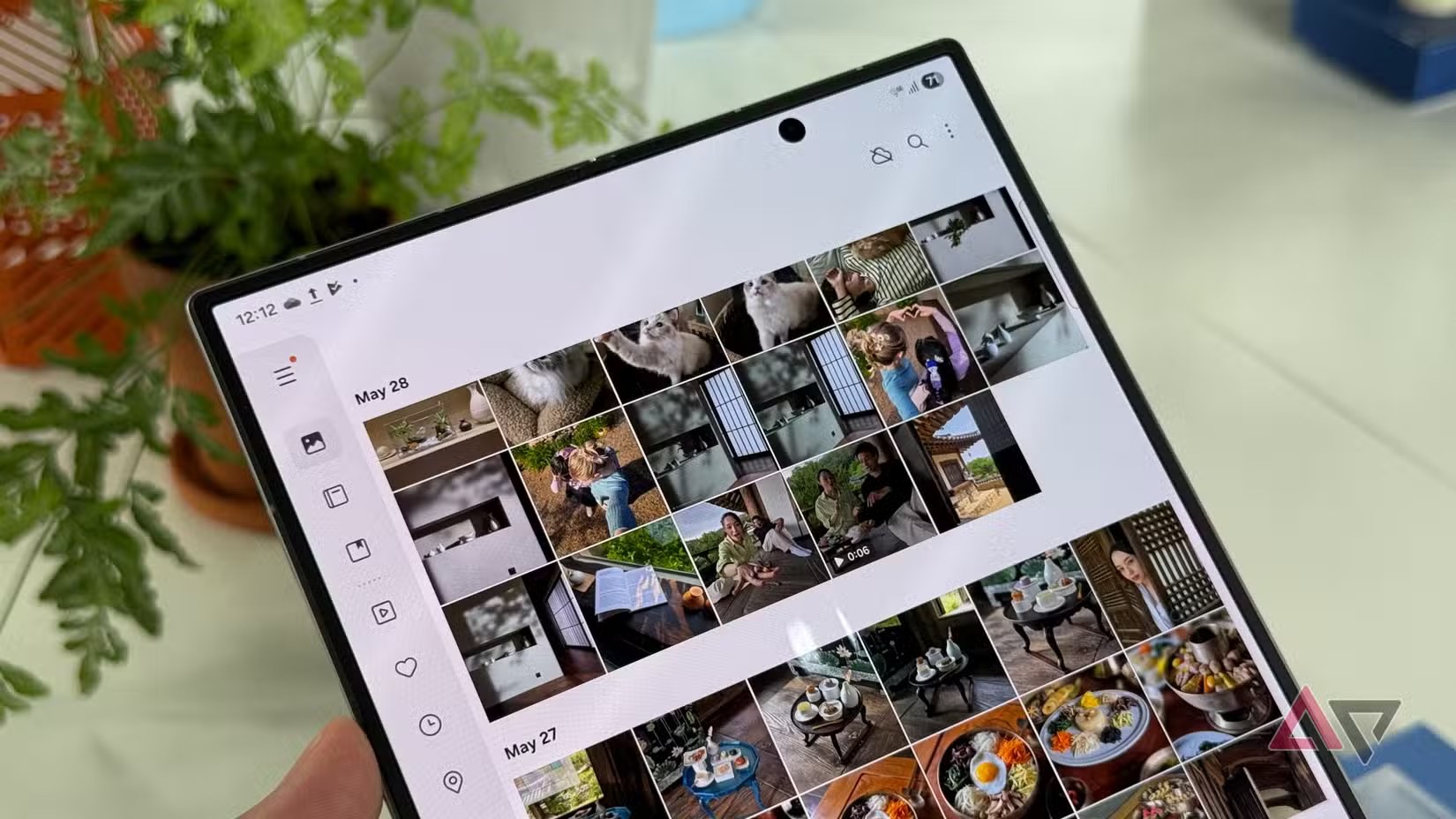
The useful angle is not “Samsung beats Google” as a fan-club slogan. The useful angle is maintenance. On a recent Galaxy phone, it is worth checking the built-in Gallery app before installing yet another cleaner app that wants permissions, notifications and possibly your patience in monthly installments.
Requirements and compatibility
This guide is mainly for Samsung Galaxy phones and tablets running a recent version of One UI and Samsung Gallery. If the duplicate tool does not appear, update Gallery from the Galaxy Store and check Settings > Software update. Menus can vary by model, region and language, so treat the exact wording as a hint rather than a sacred inscription.
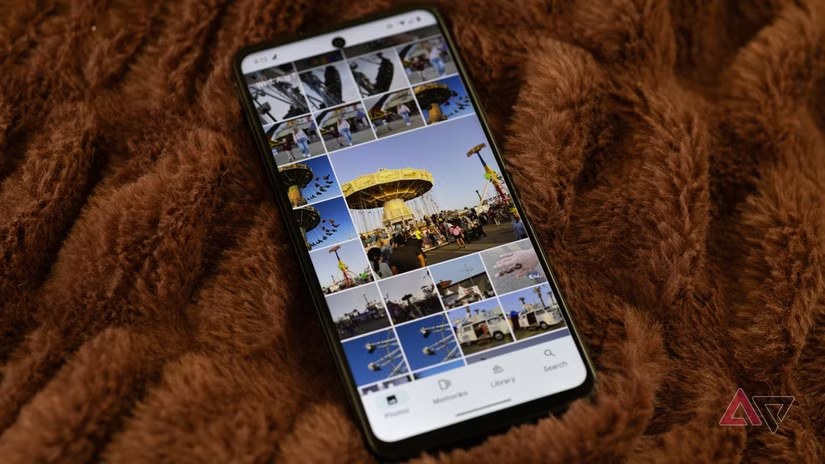
Google Photos is still useful for backup, search and cloud organization, but its “Free up space” feature works differently: it removes local copies that have already been backed up to the cloud. That is not the same as a local duplicate review inside the Galaxy gallery. Samsung’s tool is closer to the files you actually see on the phone.
How to check duplicate photos in Samsung Gallery
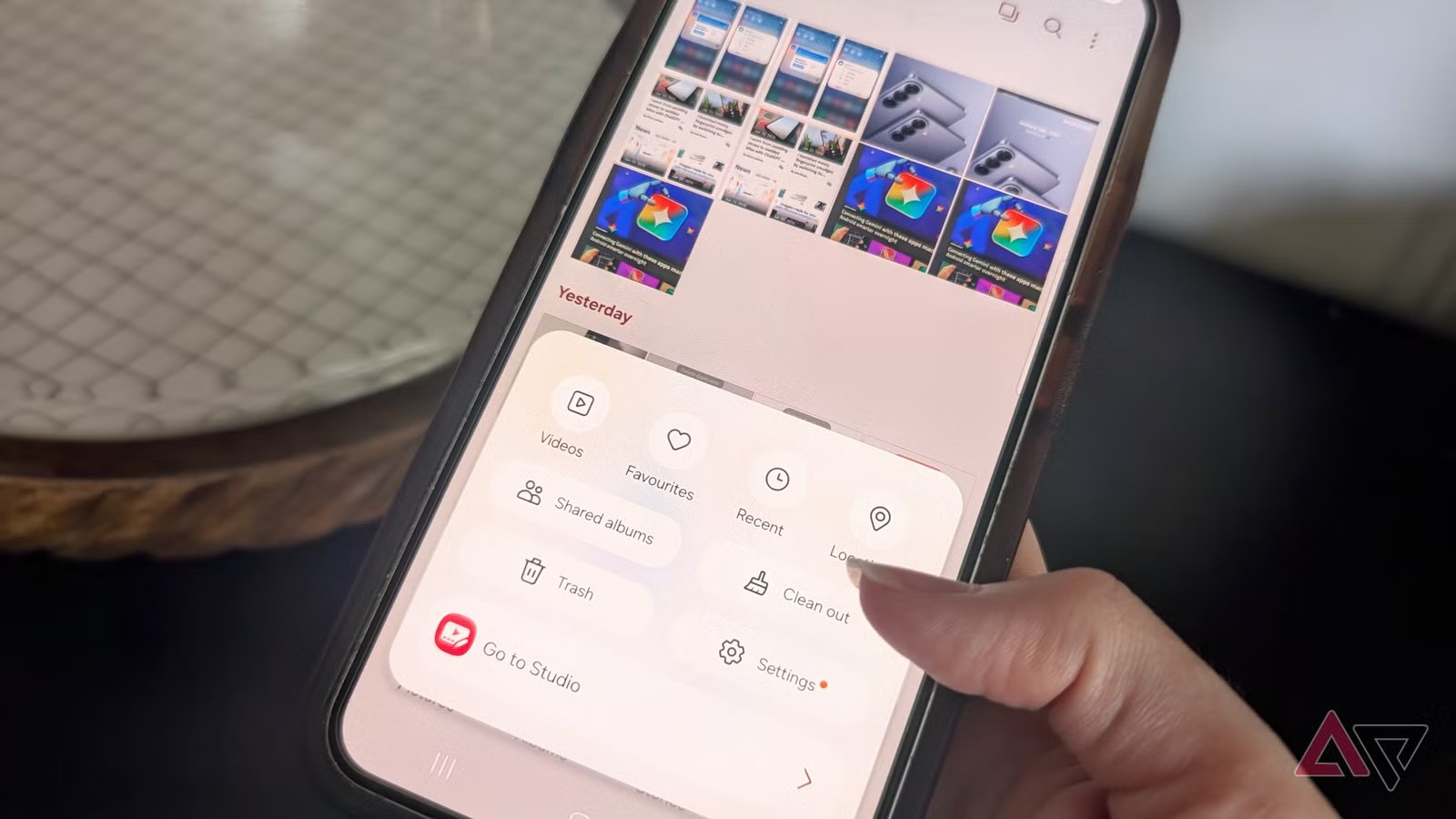
Open Samsung Gallery, then enter the menu from the three-line or three-dot button depending on your version. Look for tools, suggestions, image management or a delete duplicates entry. If the feature is available, Gallery will group photos it believes are identical or close enough to review together.
Do not confirm blindly. Open a few groups and compare the images. Check the date, resolution and file size when available. A lower-quality copy may be safe to remove; a burst shot, a sharper frame or a document photo with slightly different framing may not be a duplicate at all. Automation is helpful, but it still deserves adult supervision.
Recommended workflow
- Update Samsung Gallery from the Galaxy Store.
- Open Gallery and find the duplicate-photo tool in the menu or suggestions area.
- Review each group manually, especially receipts, documents and travel photos.
- Keep the highest-quality version when size or resolution differs.
- Leave deleted items in the trash for a few days before emptying it.
What really changes
The important change is not a headline feature; it is a better maintenance path. If you own a Galaxy device, Samsung Gallery can be the first pass for local cleanup, while Google Photos remains the better second pass for backup and cloud search. That order matters: clean the library you actually use, then check what has been backed up.
The limit is obvious but important: automatic duplicate detection is not judgment. Two images can look similar and still matter for different reasons. Use this as an assisted checklist, not as a shredder. If you have thousands of photos, clean in batches and keep the trash available until you are sure nothing important disappeared.
Related AndroidLab background, in Italian: our guide to preinstalled Samsung apps on One UI is useful if you want a broader view of what to keep, disable or leave alone on a Galaxy device.
In brief
- Samsung Gallery can review local duplicate photos on compatible Galaxy devices.
- Google Photos can free cloud-backed local storage, but that is not the same workflow.
- Check backups, resolution and the trash before deleting aggressively.
- A built-in Gallery tool is preferable to opaque third-party cleaner apps when it is enough.
- The safest cleanup is manual review in batches, not one giant delete button.