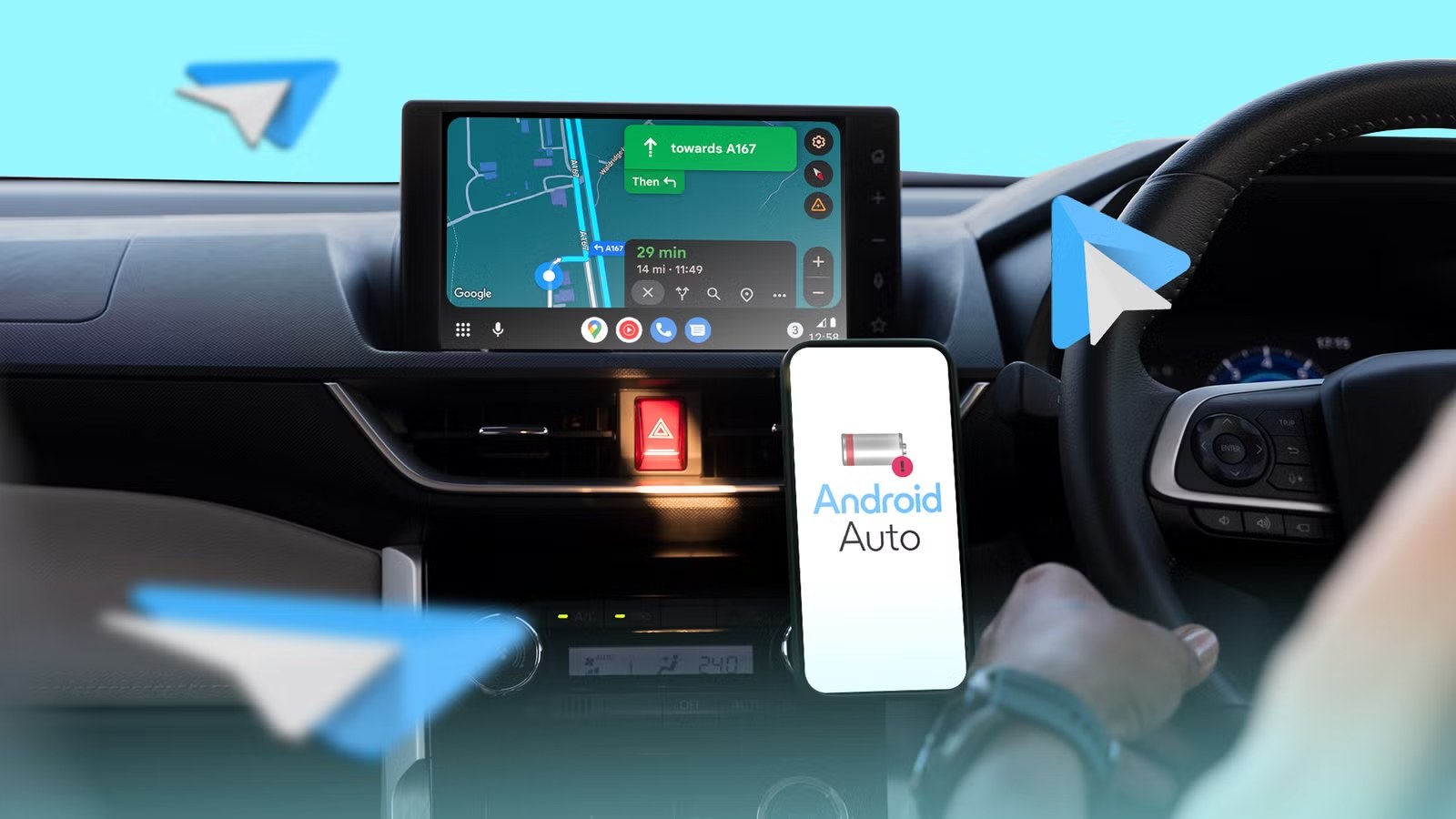
When a phone drains during a drive with wireless Android Auto, it is easy to blame the wireless link itself. That is not a crazy suspicion, but it is often too narrow: wireless projection does consume power, yet GPS navigation, mobile data, screen activity, streaming and always-online maps can do most of the damage while the car gets all the blame.
The Android Police case published on June 27, 2026 is useful because it starts from a very common assumption, “wireless Android Auto is killing my battery,” and turns it into a more practical troubleshooting path. Before buying adapters, replacing cables, blaming the infotainment system or performing dashboard rituals, check Google Maps offline, network coverage, charging power and app settings.
First check: wireless Android Auto is not free
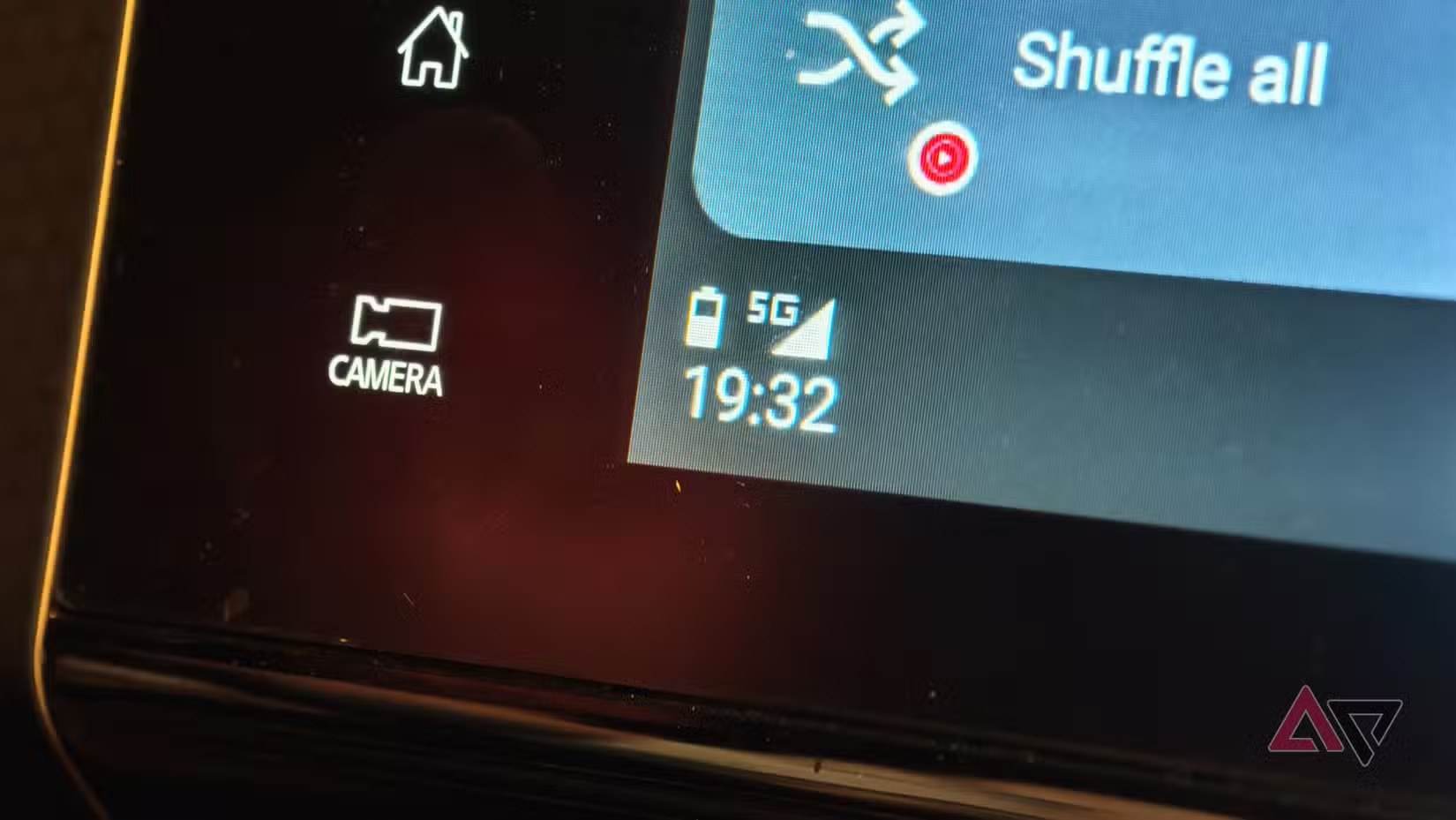
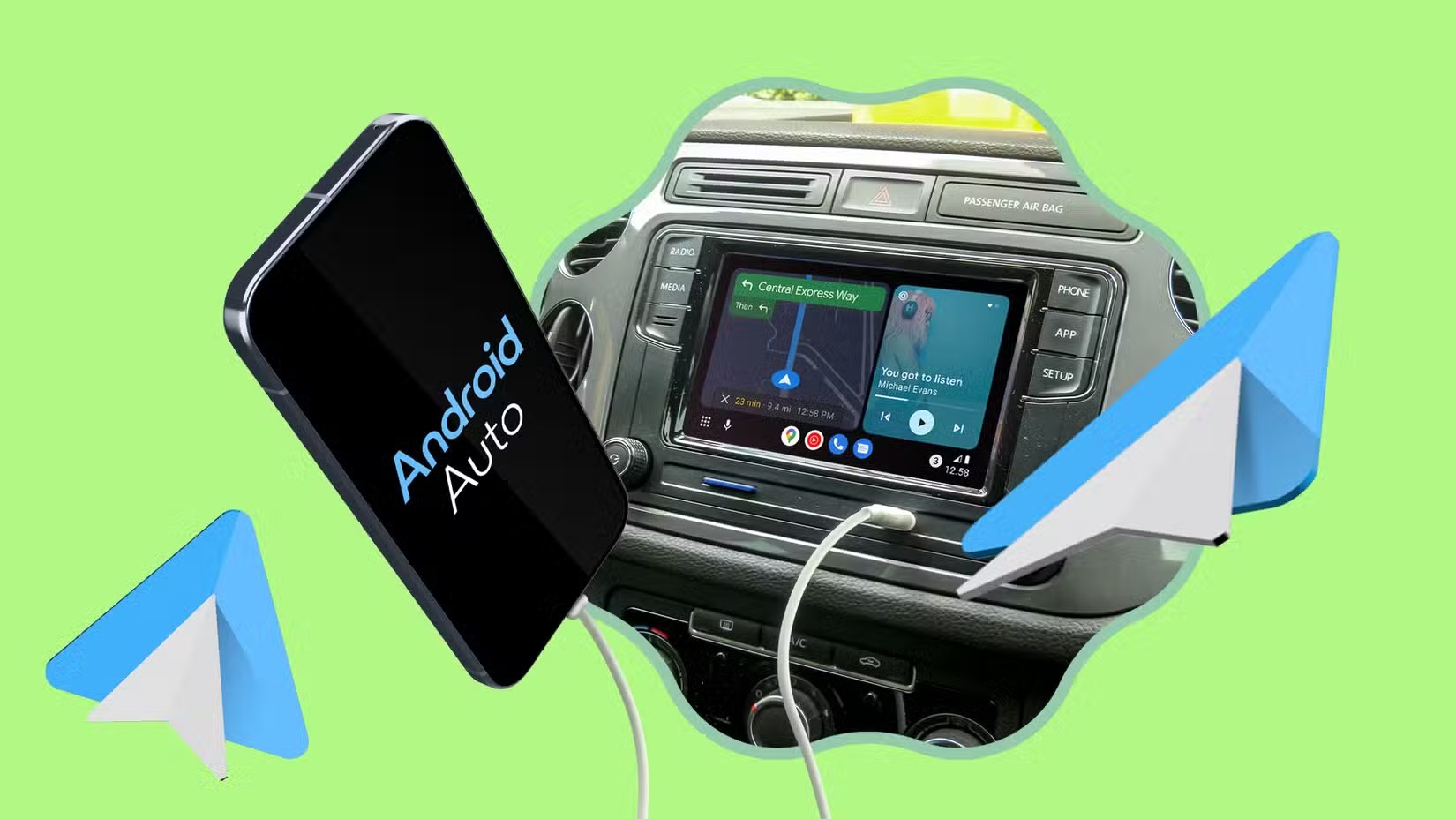
Google says wireless Android Auto needs a compatible Android phone, an active data plan, 5 GHz Wi-Fi support and a compatible car or stereo. In practice, your phone is not just “casting a screen”: it keeps a wireless session alive, uses GPS, mobile data and often handles audio, notifications and voice assistance at the same time. On long routes, especially with weak reception, battery use climbs.
The practical goal is to separate unavoidable drain from avoidable drain. Losing a few percentage points during an unplugged drive can be normal. If the phone gets hot, drops quickly even while parked, or keeps draining after you leave the car, that is no longer just wireless projection. It needs a proper check.
Quick checklist before you drive
- Open Google Maps in the Play Store and check that it is updated: the official listing shows an update on June 25, 2026.
- Download the trip area in Google Maps: profile picture, Offline maps, Select your own map, Download.
- Make sure the route sits inside the saved area, otherwise Maps will still use mobile data for key parts of the drive.
- In Offline maps, enable automatic updates over Wi-Fi so you do not leave with expired map data.
- If you use wireless Android Auto for more than 30-40 minutes, plug the phone into a solid USB-C charger or a wireless charger that can actually keep up.
Use offline maps without fooling yourself
Offline maps reduce mobile data use and network load, but they do not turn Google Maps into a fully isolated navigation system. Google notes that offline navigation works when the whole route is inside the downloaded map; traffic, alternate routes, transit, cycling and walking directions may be unavailable. In other words: useful, not magic.
For longer drives, download more than the final destination. Include highways, bypasses, arrival areas and likely detours. A tiny offline rectangle saves storage, but forces Maps back online as soon as you leave it. When reception is unstable, the phone modem works harder, retries connections and burns more energy than expected.
Diagnose after the drive
The serious check happens after a real trip. On Android, open Settings, Battery, Battery usage and see whether the main drain comes from Google Maps, Android Auto, Google Play services, hotspot, audio streaming or something else. If Maps dominates, repeat the route with offline maps already downloaded. If Android Auto dominates, try the same route over cable. If streaming dominates, lower quality or download playlists. Boring? Yes. Still better than debugging by superstition, which somehow remains legal in 2026.
Common problems and fixes
Hot phone: remove thick cases, avoid direct sunlight and use stable wired charging. Heat reduces efficiency and can slow charging.
Charger cannot keep up: many car USB ports deliver very little power. Wireless Android Auto often needs a proper USB-C PD car charger, not the prehistoric data port hidden under the armrest.
Maps keeps going online: download the area again, widen the saved zone and check that the offline maps have not expired.
Drain after disconnecting: close Maps, turn off unused Bluetooth or Wi-Fi connections, and restart the phone if Android Auto appears stuck in the background.
What actually changes
The useful lesson is not “wireless Android Auto uses battery” — we already knew that. The important part is reading the drain as a system: wireless radio, GPS, mobile network, cache, navigation app and car charging. For frequent Android Auto users, the best routine is simple: update Maps, download offline areas before long drives, check per-app battery use and use proper charging. Everything else is parking-lot folklore.
In short
- Wireless Android Auto requires 5 GHz Wi-Fi, active data and a compatible car or stereo.
- Updated Google Maps and offline maps can reduce data use and network stress.
- Offline maps have limits: traffic and alternate routes may not be available.
- For long drives, use a proper USB-C charger and check battery usage after the trip.
- Related: AndroidLab’s Italian guide to the Motorola MA2 wireless Android Auto adapter covers setup requirements and adapter limits.
- Google Maps is available on the Google Play Store; Android Auto is built into compatible Android phones and does not require a separate download.