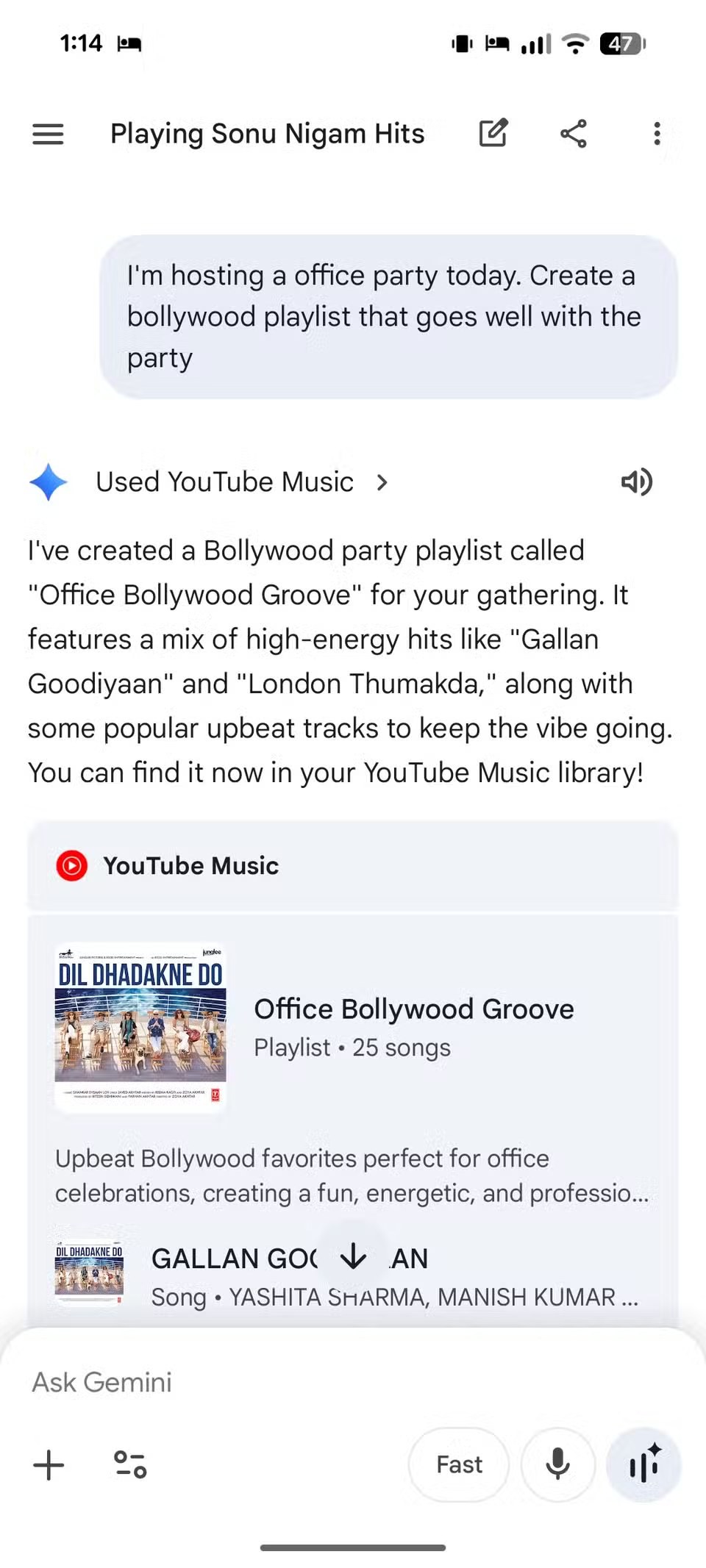
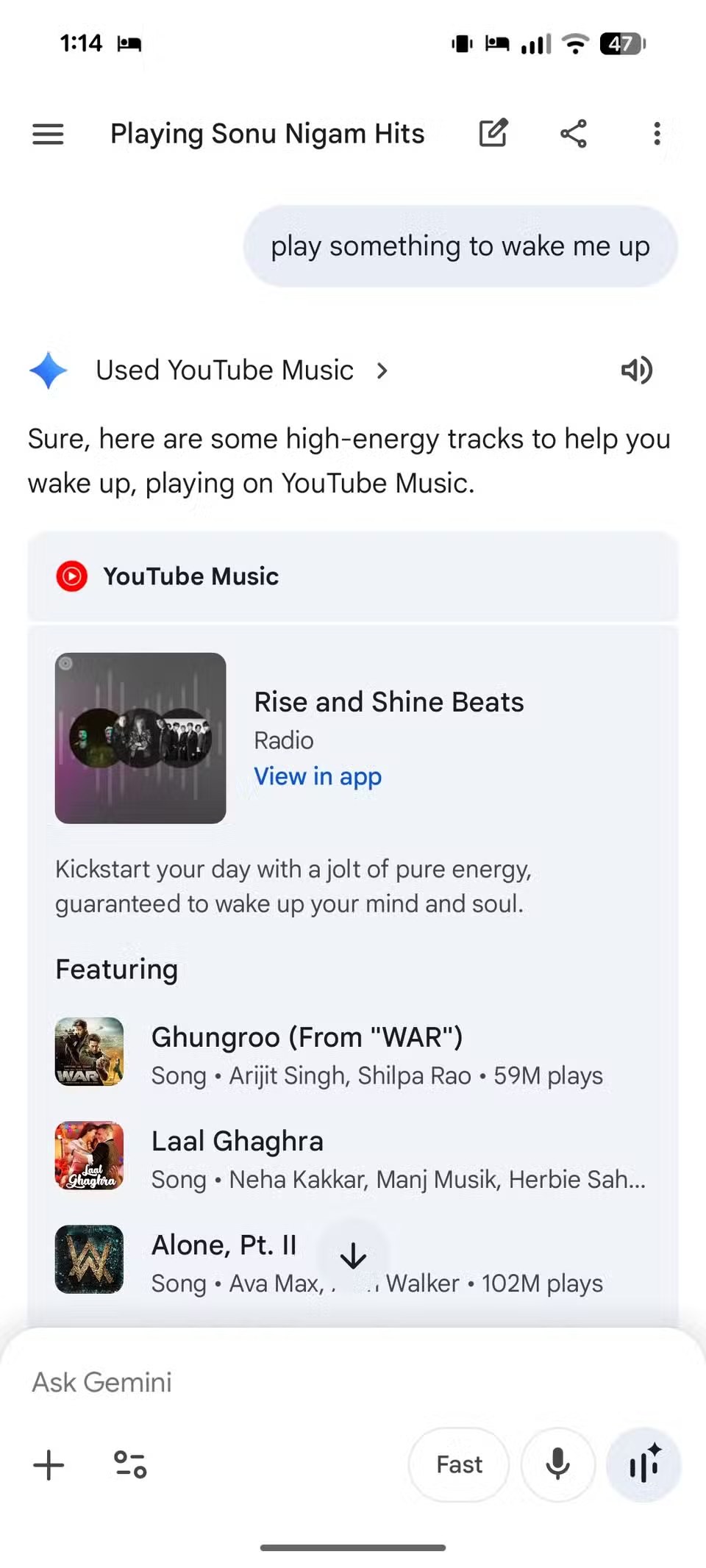
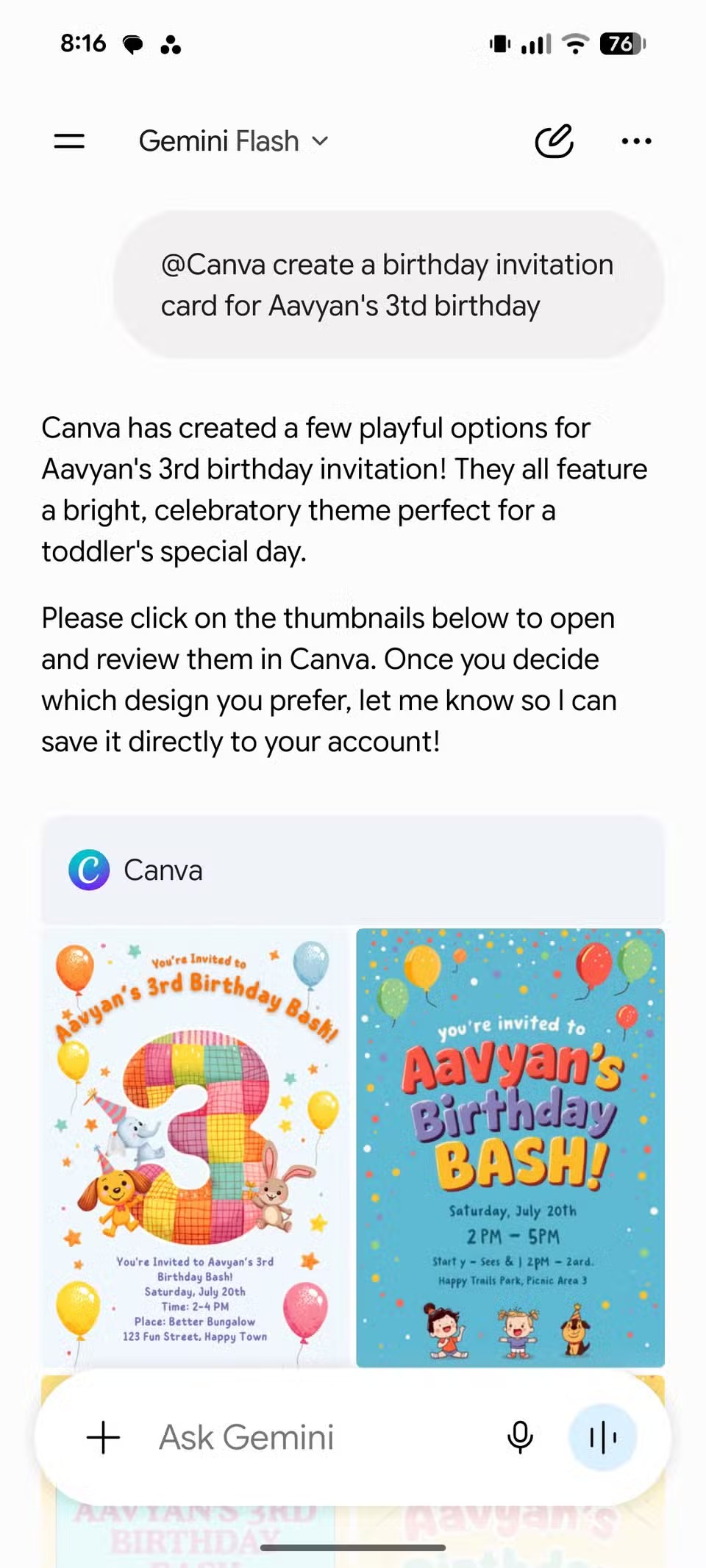
Gemini on Android is no longer just a chatbot you open when you need an answer. It is becoming a control layer above the apps on your phone. Android Police published a fresh hands-on look on June 29, 2026 at Gemini integrations with apps such as YouTube Music, WhatsApp, Keep, Docs and Canva; Google’s official Privacy Hub adds the practical warning: when Gemini works with connected apps, data, outside services and settings such as Keep Activity matter.
This guide is not about turning on every switch and hoping the assistant behaves. That is how a useful automation layer becomes a very confident mess. The practical approach is to choose the apps that actually help, leave the noisy ones off, check permissions and know how to roll back. The official Android download is Gemini on Google Play; random APK mirrors are not a troubleshooting strategy, even when the internet tries very hard to pretend otherwise.
Requirements: what to check first
Before hunting through menus, check four basics. You need to be signed in with a Google account. Google applies different rules to work and school accounts, so a personal account is the simplest baseline. You need an updated Gemini app on Android, and you need to accept that availability varies by country, language, device and app. If a Connected App is missing, it may simply not be available for your setup yet.
The important switch is Gemini Apps Activity, often referred to in Google’s documentation as Keep Activity. Google says Gemini can use information from Connected Apps and Google services to complete requests; limiting activity can also reduce personalization and automation. In plain terms: reducing activity history can improve control over your data, but it also limits some of the convenience.
How to enable or disable Gemini extensions
Open Gemini, go to Settings and help, then look for Connected Apps. From there, review the available services and use the switch next to each app. Gemini may also ask for permission when you request something that needs an app connection. Do not approve that blindly: if you will use the integration once, it may not deserve permanent access.
After enabling an app, test it with a low-risk command. Ask YouTube Music for a generic playlist. Create a disposable Calendar event and delete it. Prepare, but do not casually send, a WhatsApp message if the interface gives you a confirmation step. The point is to confirm that Gemini understands the right app, account and action before you give it a real workflow.
Which integrations are worth keeping
The safest starting set is made of integrations with obvious output and limited damage if something goes wrong: YouTube Music for playback, Utilities for alarms and device actions, Google Maps for public information, Keep for simple notes and Calendar for events you can verify. These are useful because they remove taps without handing over the most sensitive parts of your phone.
Be more careful with Gmail, Drive, Docs, WhatsApp, contacts and third-party productivity apps. These can be the most powerful Connected Apps, but they also touch personal content and communications. Before enabling them, know which account Gemini is using, whether the result is sent immediately or prepared first, and how to disconnect the app again.
Common problems and fixes
If an extension does not appear, check language, country, account type and app updates. If it appears but fails, disable and re-enable it from Gemini’s Connected Apps settings, then retry with an explicit prompt that names the app. Say “use Google Keep” or “send this with WhatsApp” instead of vague commands such as “save this” or “message her”.
If your concern is data exposure, start with activity history. Turning off Keep Activity can reduce what Connected Apps can do, but it is the blunt control when you want less service memory. For a more practical compromise, keep only the integrations you actively use and disconnect the rest. Less magic usually means less debugging.
What actually changes
The important shift is not that Gemini can “talk to apps”. A modern phone assistant should already do that. The real change is that Android workflows are moving from an app-by-app model to an intent model: you ask for an outcome, and Gemini decides which services to use. That is convenient, but it also means users should treat permissions and connected apps like notification settings, backups and payments: not scary, just worth checking.
A good starting rule is simple: enable three integrations first, not twenty. Pick one for media, one for lightweight productivity and one for device actions. Use them for a few days, then add more only when there is a concrete benefit. AndroidLab has also covered Gemini and Google Play on Android and a broader guide to Android AI assistants that can replace Gemini.
In brief
- Gemini Connected Apps vary by account, country, language, device and installed apps.
- Keep Activity affects how many integrations are available, especially outside Android.
- Start with a few useful extensions and test each one with a low-risk command.
- WhatsApp, Gmail, Drive and Docs are powerful, but they deserve extra attention because they touch personal content.
- If something fails, check updates, account type, Connected Apps settings and prompts that explicitly name the app.