Googlebook gives Android apps a laptop-sized test they can no longer avoid. Google’s new computers run Android apps in free-form desktop windows, with keyboards, trackpads and several apps visible at once. A phone interface may technically open there and still feel broken. The useful question for developers is not whether an APK installs, but whether the app can resize, reflow and accept desktop input without losing state.
Google’s developer announcement published on September 22, 2026 says teams do not need a separate Googlebook app. The intended route is the existing Android codebase, improved with adaptive layouts, window size classes and multi-input support. That sounds economical, but it also removes the excuse that a stretched phone layout is good enough.
The first Googlebook models come from Acer, Asus, Dell, HP and Lenovo. Independent launch coverage from The Verge and Ars Technica places the first systems in the premium laptop market rather than the low-cost Chromebook niche. Users paying laptop prices will expect laptop behavior from the apps they install.
1. Drive the layout from the window, not the screen
A desktop app window can be narrow on a large display or nearly fill it. Reading the physical screen size therefore tells you little about the space currently available to your activity. Google’s guidance is to make layout decisions from window size classes.
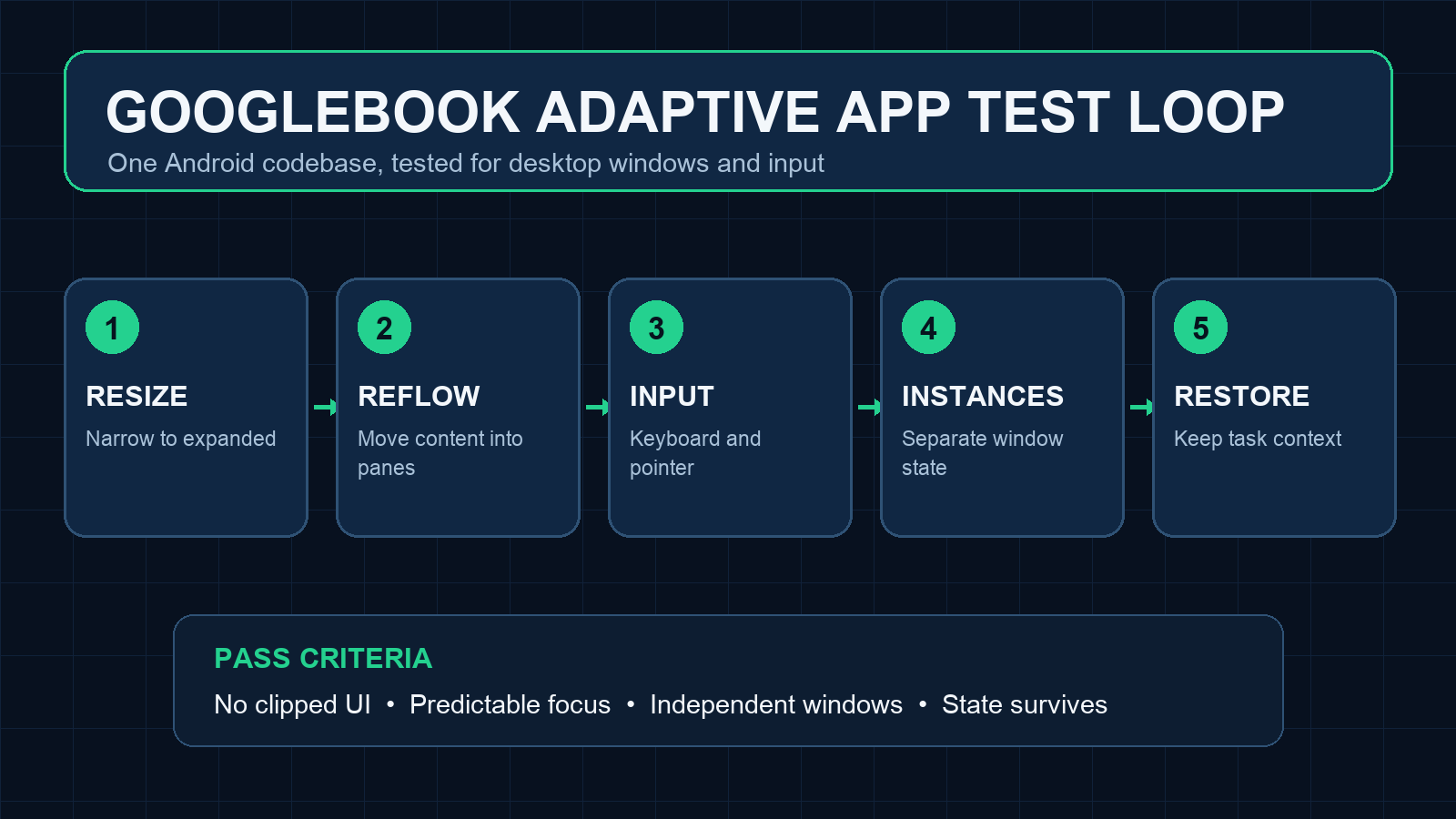
Test every important screen while continuously resizing the window. Navigation, search, forms and primary actions must remain reachable at each width. Do not treat compact, medium and expanded states as three static screenshots. The transitions between them are where duplicated controls, clipped text and empty columns usually appear.
2. Reflow content instead of stretching it
A single phone column widened across a laptop screen wastes space and makes reading harder. An adaptive layout should reorganize information. A mail or notes app can show a list beside the selected item; an editor can keep tools in a supporting pane; a dashboard can use a bounded grid instead of making every card enormous.
For Compose apps, Google points to Navigation 3 scene strategies such as ListDetailSceneStrategy and SupportingPaneSceneStrategy. These are implementation options, not a requirement to rewrite a stable app around a preview API. The non-negotiable part is the behavior: content must reflow coherently when more space becomes available.
3. Treat keyboard and pointer input as primary
Touch support alone does not make an app desktop-ready. Walk through the complete workflow with a keyboard and trackpad:
- Can focus move through controls in a predictable order?
- Are text fields, menus and dialogs fully usable without touching the display?
- Do hover states and pointer icons explain what can be clicked, selected or resized?
- Do right-click menus expose useful contextual actions without hiding the same actions from touch users?
- Are shortcuts discoverable through Android’s Keyboard Shortcuts Helper?
A shortcut list is not a substitute for sane focus navigation. Start with Tab, Shift+Tab, Enter, Escape and arrow-key behavior, then add accelerators for frequent operations.
4. Make resizing and recreation boring
Free-form windows turn configuration changes and size changes into normal use, not edge cases. Resize during data entry, media playback, a file transfer and a long-running operation. The app should preserve the selected item, scroll position, draft text and task progress whenever the underlying operation allows it.
This is also the point to find assumptions that only survive on a phone. A dialog with a fixed width, a camera preview locked to one orientation or an activity that restarts an expensive request after every change can become much more visible on a desktop.
5. Test more than one app instance
Googlebook supports multi-instance workflows, so users may open separate windows to compare documents, accounts or conversations. If your app enables multiple instances, confirm that each window has independent navigation and transient UI state.
Shared repositories and databases are normal. Accidentally sharing the currently selected document, an unsaved draft or a window-specific back stack is not. Open two instances, edit different items, close one, restore it and verify that neither window steals the other’s context.
6. Add drag and drop where it removes work
Cross-window drag and drop can make an Android app feel at home on a laptop, especially for text, images and files. It should remain an enhancement rather than the only route to an action. Copy and paste, a file picker or a clear import command must still exist.
Test both directions. Check what the app accepts, what it exports, which MIME types it declares and how it handles a rejected or partial drop. A visually polished target that silently discards an unsupported file is worse than a plain target with a useful error.
7. Build a repeatable desktop test pass
Google says the desktop emulator is available through Android Studio Canary. Use it as a dedicated compatibility pass, not as a quick launch check. AndroidLab’s earlier adaptive app testing guide covers emulator controls for posture, rotation and display resizing; the same discipline applies here, with extra attention to pointer, keyboard, multi-window and multi-instance behavior.
A practical smoke-test matrix should include:
- cold start in a narrow window;
- continuous resize from compact to expanded and back;
- keyboard-only navigation through one complete task;
- pointer selection, hover and contextual actions;
- two side-by-side app instances, if supported;
- drag and drop with valid and invalid content;
- process recreation followed by state restoration.
Canary software can change, so keep this test lane separate from the stable production toolchain. Record the Android Studio build, emulator image and app version with every defect. Without that information, a desktop-only regression becomes very easy to misclassify.
Optional features come after basic compatibility
Google also promotes custom caption bars, widgets and Continue On, a handoff mechanism that can preserve context between a phone and a Googlebook. These can differentiate a mature app, but they should not jump ahead of resizing, state restoration and input support. Handoff is impressive only if the destination window opens in the right document, tab or task and handles a missing or stale state safely.
The announcement also promises Google Play badging, dedicated collections and stronger visibility for optimized apps. Treat those as distribution incentives, not as proof that the experience is finished. Store placement may bring the first install; desktop behavior decides whether the app remains installed.
What actually changes
Googlebook makes large-screen quality a mainstream Android concern. The same work improves tablets, foldables, connected displays and desktop windowing, so this is not a one-device optimization. Teams that already use responsive containers and test window changes have a manageable extension of their current work. Teams built around fixed phone dimensions now have technical debt with a visible desktop frame around it.
The sensible order is compatibility first, productivity second and platform-specific polish last. Make every workflow survive resizing and desktop input, then add multi-instance, drag and drop or Continue On where each feature solves a real task.
In brief
- Google says existing Android codebases can target Googlebook without a separate app.
- Use window size classes and adaptive panes instead of stretching phone layouts.
- Test keyboard, pointer, resizing, state restoration and multiple windows explicitly.
- Keep drag and drop optional and provide a conventional import or copy-and-paste path.
- Use the desktop emulator in Android Studio Canary, but keep it outside the stable build lane.
- Add Continue On and other Googlebook-specific polish only after core desktop behavior is reliable.
Sources
- Android Developers Blog: Land your apps on Googlebook with adaptive development (published September 22, 2026)
- Android Developers: Get started with adaptive apps (checked September 23, 2026)
- Android Developers: Desktop app quality guidelines (checked September 23, 2026)
- The Verge: Googlebook hardware and Android desktop overview (published September 21, 2026)
- Ars Technica: Googlebook launch models, pricing and positioning (published September 21, 2026; updated September 22, 2026)