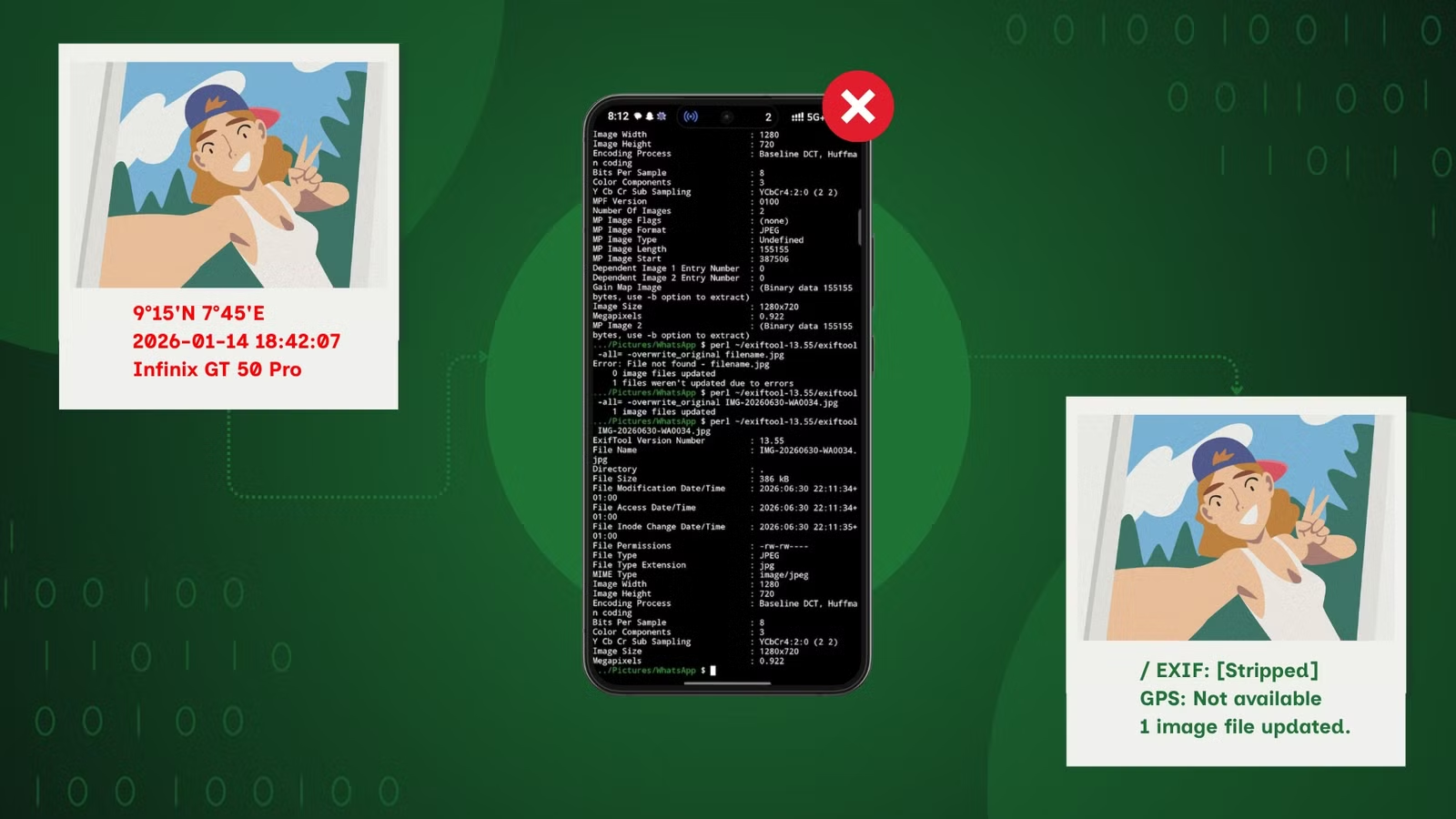
Android Police’s fresh Termux guide is a useful reminder of a very practical problem: an Android photo is not just pixels. It can still carry GPS coordinates, phone model, capture date, software tags, orientation data, thumbnails and other metadata that may reveal more than you intended. The lab answer is not another mystery “privacy cleaner” app. It is Termux plus ExifTool, with checks before and after the cleanup.
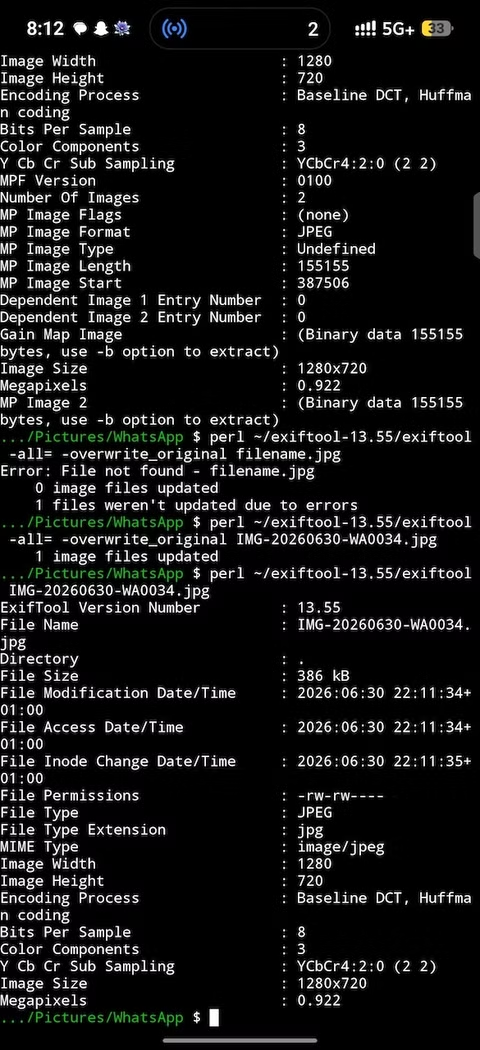
Termux gives Android a Linux-style terminal environment, officially distributed through F-Droid. ExifTool is a long-running utility for reading, writing and removing metadata from images and many other file types. Together they make the workflow repeatable: inspect, strip, verify. It is less glamorous than a big “protect me” button, but it tells you what actually changed.
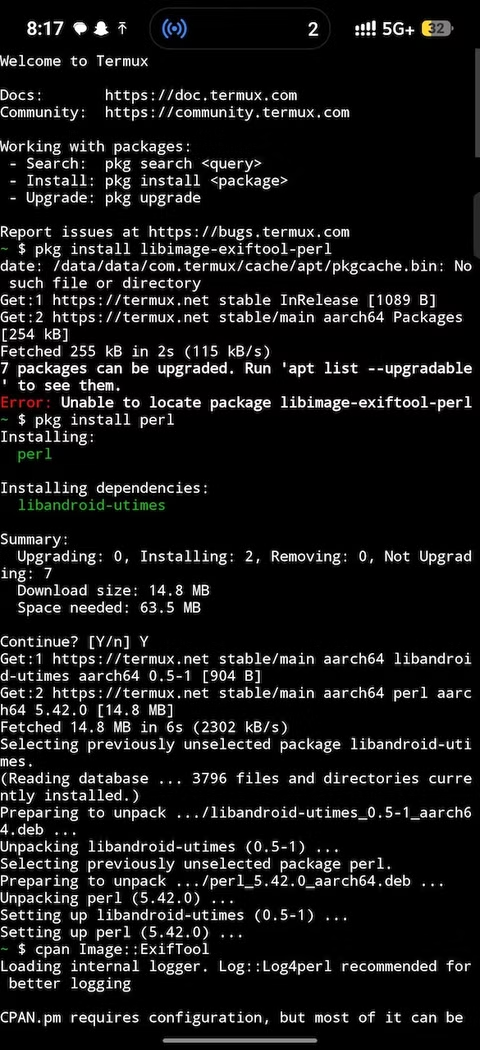
Start from the official download path: use Termux on F-Droid. Do not build a privacy workflow on random APK mirrors. You also need a data connection for packages, a file manager to place test photos somewhere convenient, and a little care: a terminal is powerful, but it is not designed to guess what you meant after a sloppy copy-paste.
Quick Procedure
- Open Termux and update the environment with
pkg update && pkg upgrade. - Install ExifTool with
pkg install exiftool. If the package is unavailable from your current mirror, runtermux-change-repoand try again. - Allow storage access with
termux-setup-storageand approve the Android permission prompt. - Copy a test photo to a simple path, for example
~/storage/downloads/test.jpg. - Inspect the file with
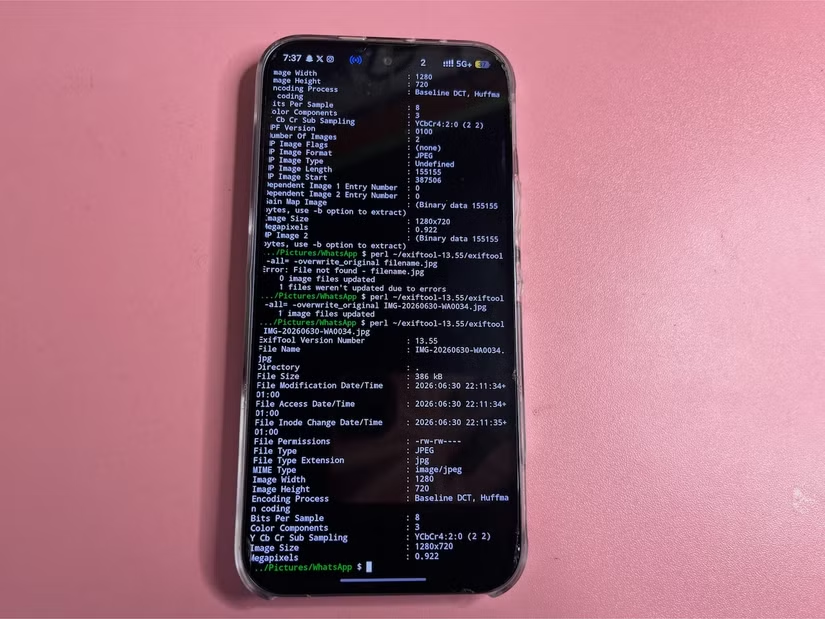
exiftool ~/storage/downloads/test.jpgand look for location, phone model, date or software fields. - Create a cleaned copy with
exiftool -all= -o ~/storage/downloads/test-clean.jpg ~/storage/downloads/test.jpg. - Verify the result with
exiftool ~/storage/downloads/test-clean.jpg.
The inspection step is the one people skip, which is exactly why it matters. Without the “before” output, you do not know whether the cleanup removed anything meaningful. For files you plan to publish, share the cleaned copy and keep the original in your archive if you still need its metadata for personal organization or backup.
What To Check
The sensitive fields are usually GPS Latitude, GPS Longitude, capture date/time and device identifiers. The phone model is not automatically catastrophic, but it can contribute to fingerprinting when combined with other information. Location data is different: if the photo leaves your private circle, removing it is usually the sensible default.
File formats matter too. JPEG and HEIC can behave differently, some apps write XMP data or MakerNotes, and online services may strip part of the metadata during upload. That does not mean you should trust the platform. It means you should verify the exact file you are about to share. If ExifTool still shows sensitive fields after cleanup, do not publish that copy until you understand why.
Common Problems
If Termux cannot see your Downloads folder, the usual cause is missing termux-setup-storage or a denied Android permission. If paths with spaces fail, wrap them in quotes. If ExifTool creates an _original file, that is its safety behavior when editing in place. This guide uses -o so you get a separate cleaned copy and avoid confusion.
Social apps add another wrinkle. After you clean a photo, WhatsApp, Instagram, Telegram or other services may recompress it, rename it or alter some technical fields again. Privacy is not one switch; it is a chain. Cleaning the local file reduces the risk at the source, but the upload platform is still part of the system.
What Actually Changes
For many Android users, this only matters when the photo is sensitive: home, work, school, children, documents, items for sale, or travel shots posted in real time. For anyone who publishes images regularly, a local and verifiable workflow is much better than outsourcing trust to a closed cleaner app. Termux and ExifTool are not the easiest path, but they provide something valuable: verifiable control.
A practical setup is simple: create a “to publish” folder, clean copies there, inspect them again, and share only those files. For a broader Android privacy routine, AndroidLab’s Italian guide to auditing app permissions on Android is a useful companion: metadata is only one part of the privacy puzzle.
In Brief
- Termux plus ExifTool can remove Android photo metadata without opaque cleaner apps.
- The correct workflow is inspect, create a cleaned copy, then verify again.
- The most sensitive fields are GPS location, capture time and device identifiers.
- Install Termux from F-Droid or official channels, not random APK mirrors.
- Cleaning the local file does not remove the platform’s control after upload.