If Android Auto or Google Maps starts picking a route that looks wrong before a long drive, the cause is not always a broken GPS lock. It is often a mix of route preferences, fuel-saving logic, toll avoidance, highway avoidance, ferry settings, or an alternate route selected on the car display. The fresh hook, reported by Android Police on June 27, 2026, is useful because it points back to a practical issue: before blaming Android Auto, check how Maps is actually building the route.
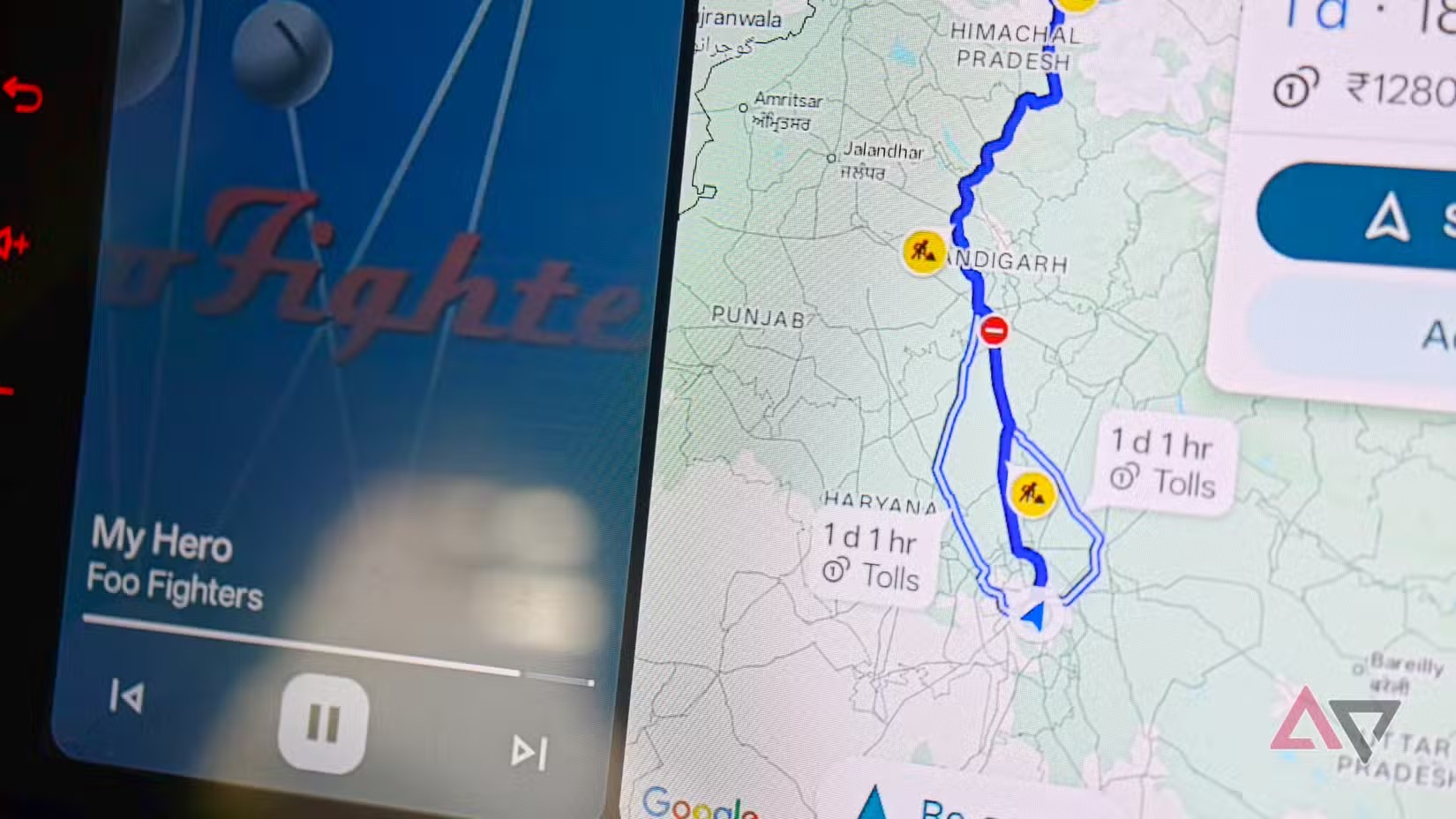
The technical point is simple but easy to miss: route options are not always absolute commands. Google’s own Maps Platform documentation explains that modifiers such as avoiding tolls or highways bias the route calculation, but they do not mathematically guarantee that every restricted road type disappears if the alternative is impossible or heavily penalized. For Android users, the practical takeaway is blunt: when a route looks odd, check the logic before switching apps, unplugging cables, or shouting at the dashboard. One of those is emotionally satisfying; the checklist is more useful.
Check 1: tolls, highways and ferries
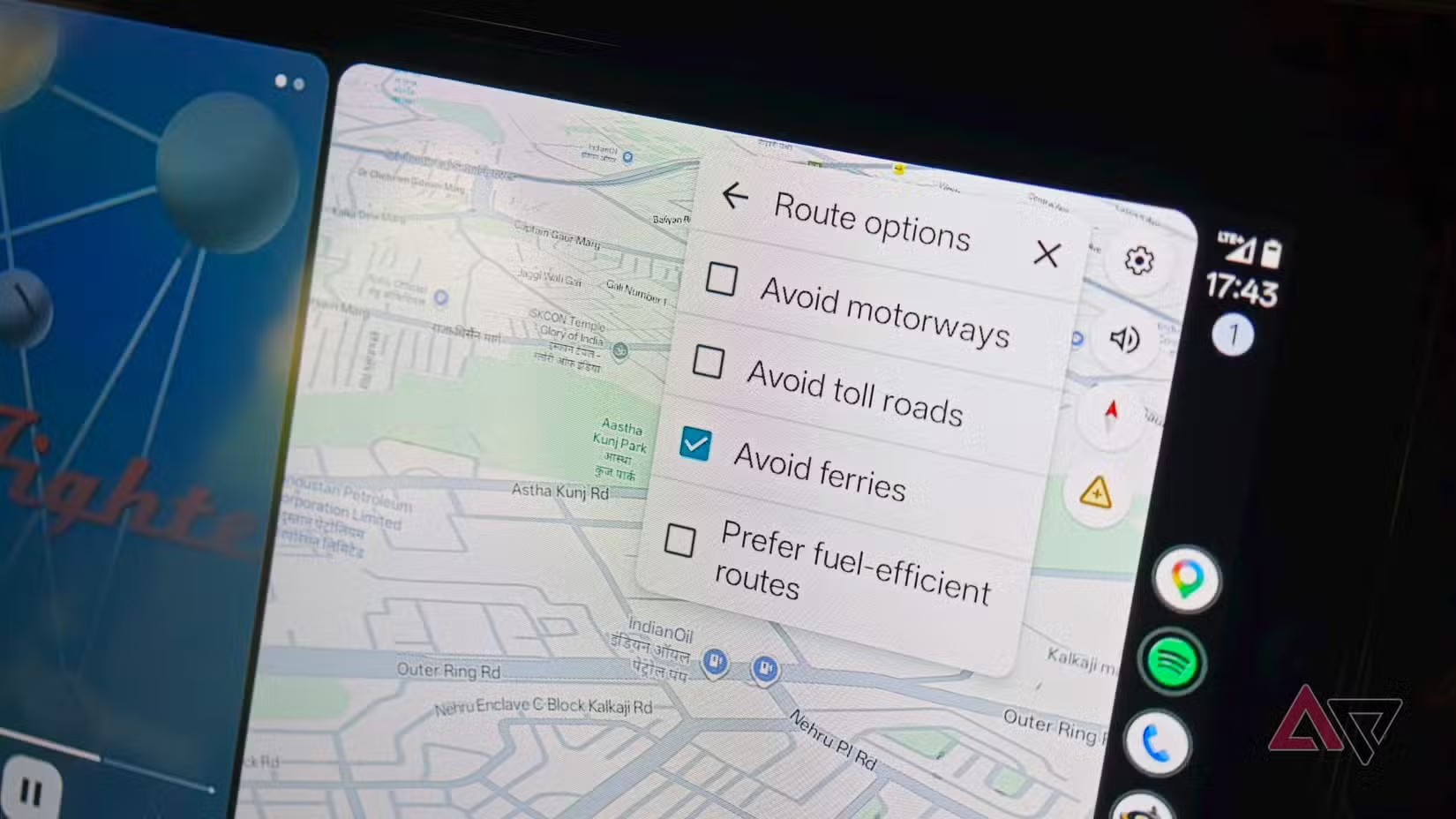
Open Google Maps on your Android phone, enter the destination, and inspect the route options before starting Android Auto. In the route menu, check whether avoid tolls, avoid highways, or avoid ferries is enabled. These settings are useful when you actually need them, but they become a quiet trap when they remain enabled from a previous trip.
Do this on the phone and, when available, on the car interface before you leave. Some preferences behave like broad route choices, while others are tied to the current trip. A real check is not “I looked once.” It is: create the route, open alternatives, inspect the options, and only then start driving with Android Auto.
Check 2: fuel-efficient routing
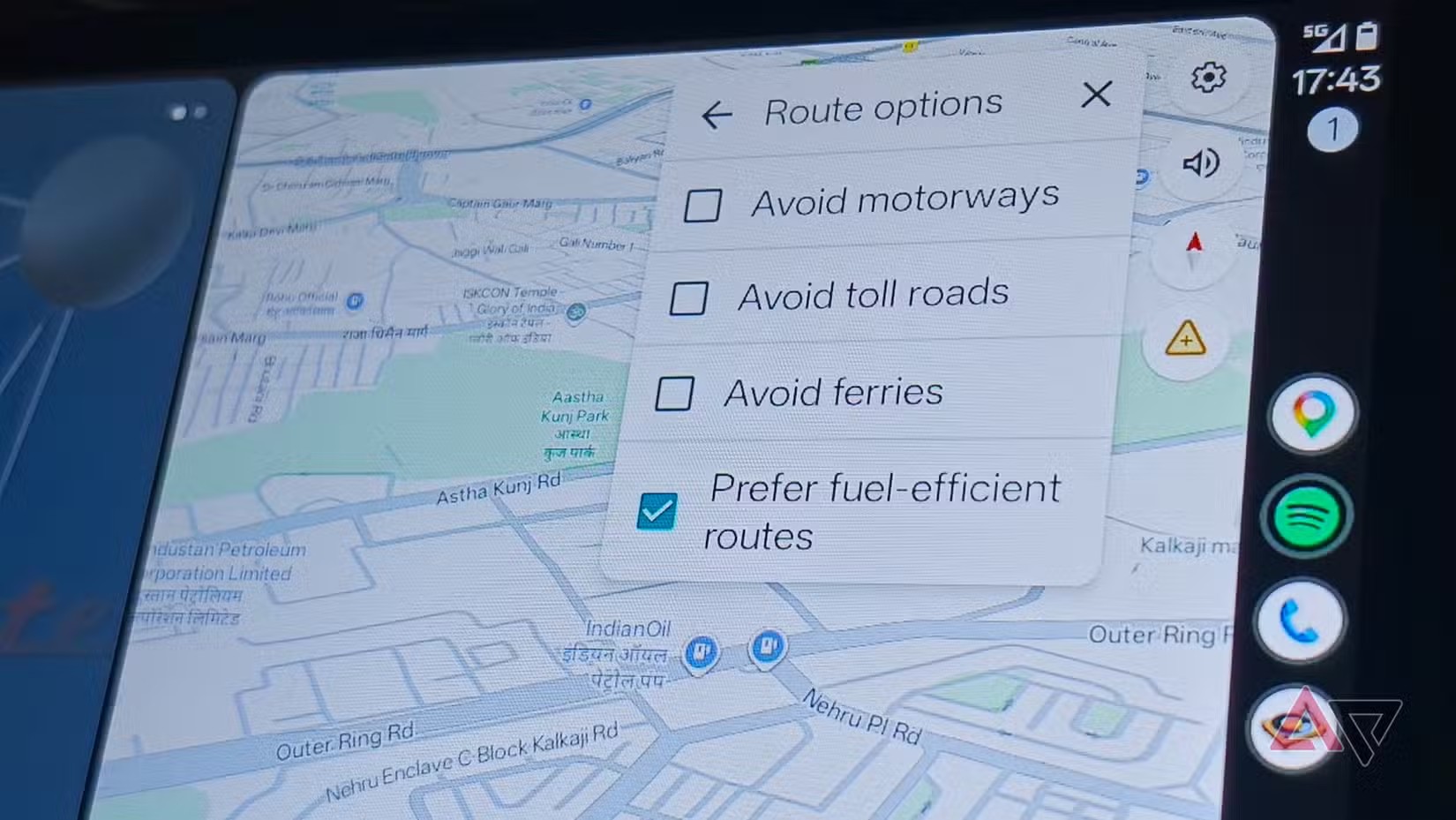
Google Maps can suggest more efficient routes for fuel or battery use. On paper, that is useful, especially on long trips. In practice, it can feel like a bug when Maps sends you onto slower roads to save energy. If your complaint is “it keeps leaving the highway for no reason,” review the fuel-efficient route preference and compare estimated time, distance, and road type.
For electric and hybrid vehicles, this matters even more. Routing may depend on vehicle profile, charging stops, and available chargers along the way. Before a serious trip, check the vehicle settings in Google Maps and make sure the engine or powertrain type is correct. Bad input makes bad route advice; it just arrives with cleaner UI.
Check 3: the selected route on the car display
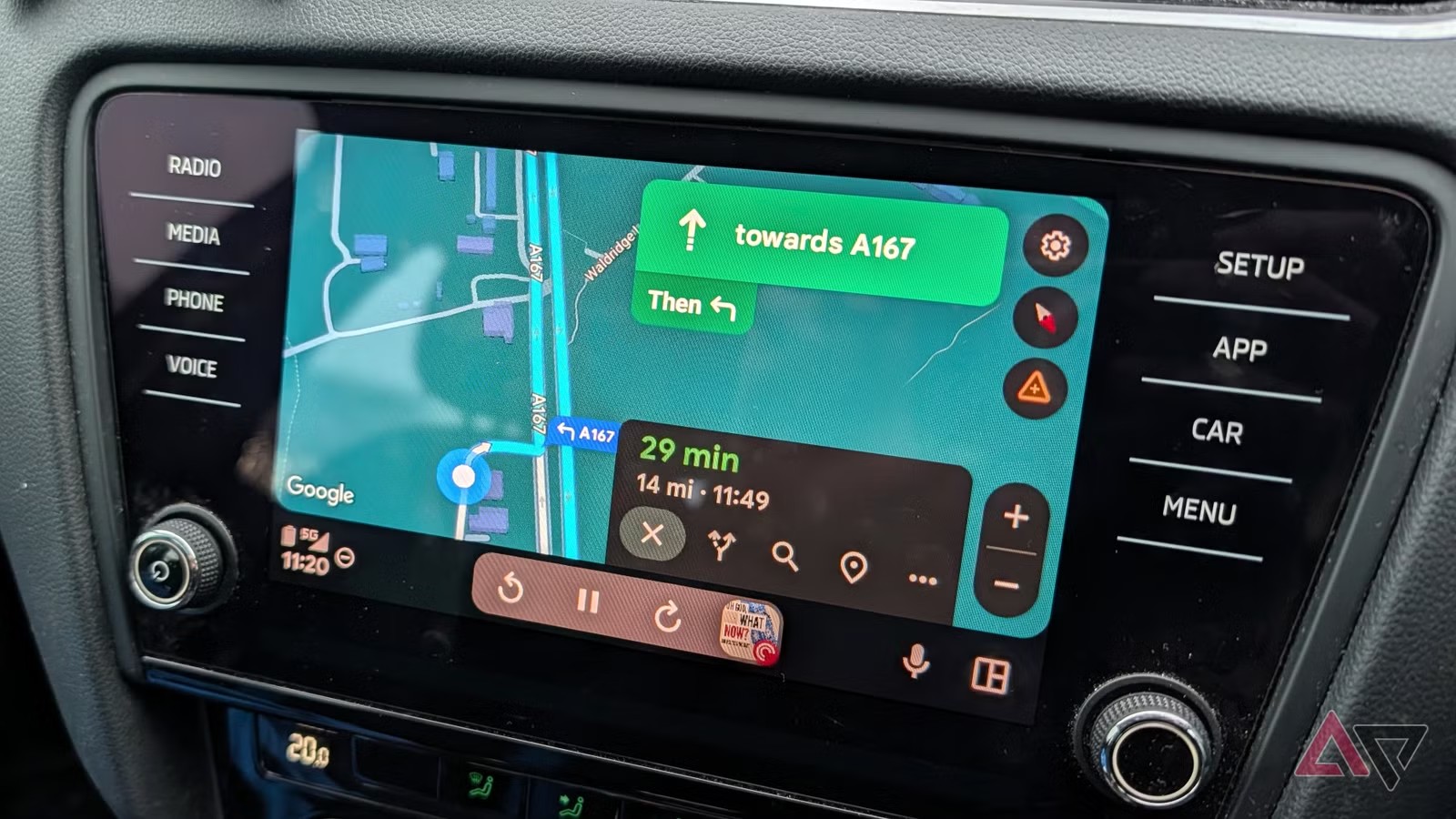
Android Auto can show multiple route options. If you tap an alternate route during setup or while parked, Maps may follow that one. Before leaving, look at the full route screen and confirm that the selected itinerary is actually the one you want. Pay attention to:
- estimated time and total distance;
- tolls, ferries, or unpaved roads;
- early highway exits;
- charging stops or automatic detours;
- traffic warnings that change which route is best.
Quick pre-trip procedure
- Update Google Maps from the Google Play Store.
- Open Maps on your phone, search for the destination, and generate the route.
- Check toll, highway, and ferry avoidance options.
- See whether fuel-efficient routing is active and compare it with the fastest route.
- Connect Android Auto and confirm that the route on the car display matches the one chosen on the phone.
- If you drive an EV, verify vehicle profile, range, and charging stops before confirming.
What actually changes
The practical benefit is avoiding the wrong diagnosis. A weird Android Auto route can be a bug, but very often it is a valid setting applied at the wrong time. Before reinstalling Maps, clearing every cache, replacing your USB cable, or blaming a wireless adapter, isolate the issue: same destination, same options, phone route versus car display route.
If Android Auto still produces a different route after these checks, then standard troubleshooting makes sense: update apps, restart the phone, clear cache for Maps and Android Auto, and test a wired connection if you normally use wireless. That is the difference between troubleshooting and dashboard superstition.
For wireless Android Auto users, this also connects to our previous guide on battery drain, Google Maps, and offline map checks: navigation, mobile data, charging, display behavior, and the car connection are one system. If one piece is misconfigured, the symptom may show up somewhere else.
In short
- Before a trip, check tolls, highways and ferries in Google Maps route options.
- Fuel-efficient routing may look odd if you care more about speed or highway driving.
- Confirm the selected route on the Android Auto display before driving.
- Avoidance options influence routing, but they do not always eliminate every road type.
- If phone and Android Auto still disagree, move on to cache, updates, and a wired test.