Android already has enough built-in pieces to create a useful commute automation without immediately installing Tasker or turning your phone into a pocket-sized operations center. The fresh hook comes from Android Police, which described a routine built around car Bluetooth, wireless Android Auto, Google Maps and Driving Mode. The useful part is not copying one exact setup; it is knowing what to check before you let the phone run a sequence every time you get into the car.
The AndroidLab angle is deliberately practical: a good automation should be boring. It should trigger the same way every time, avoid distraction while driving and have a clear fallback when Bluetooth pairing decides to act dramatic. This guide shows how to build a commuter or short-trip routine with built-in tools: Assistant Routines, Android Auto, Driving Mode and, on Galaxy phones, Modes and Routines. This is not an automation contest. It is a checklist for reducing friction without giving up control.
Related: if your real problem is battery drain rather than automation, AndroidLab has an English guide to wireless Android Auto, battery use and Google Maps offline checks. If Google Maps keeps choosing odd routes, there is also a guide to tolls, highways and fuel-saving route settings.
Requirements Before You Start
Check four things before building the routine. First, Android Auto should be updated and your phone should already have a stable Bluetooth connection with the car. Second, Google Maps, your music app and any podcast app need sensible permissions, especially location and notifications. Third, if you plan to use Google Assistant Routines, make sure the correct Google account is active and routines are available for your language and region. Fourth, if you use a Galaxy phone, consider Modes and Routines, because it often gives you more concrete local triggers, including Bluetooth device, location, time and phone state.
Compatibility is not identical on every Android phone. On Pixel, the natural path goes through Driving Mode and Google settings. On Samsung, many actions are easier inside Modes and Routines. On other brands, the menu names can change or some triggers may be missing. The practical rule is simple: if you cannot find a trigger such as “when connected to this car’s Bluetooth,” do not build the whole setup around fragile workarounds. A manual but reliable routine is better than an automation that collapses after the first update.
Basic Bluetooth And Android Auto Setup
- Pair the phone with the car’s Bluetooth and confirm Android Auto starts normally, wired or wireless.
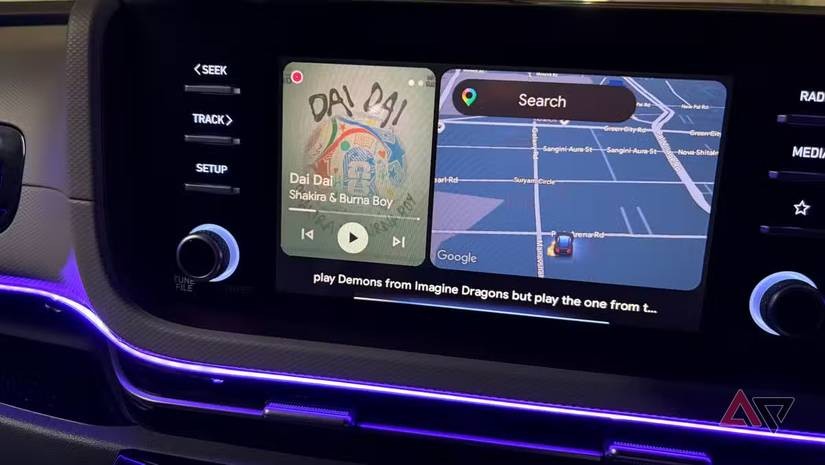
- Open Android Auto and check the available apps: Maps, phone, messages, music and podcasts should appear in the launcher.
- Set Google Maps as your preferred navigation app and download offline maps for areas you drive through often.
- Review notifications: while driving, only useful alerts should get through, not the whole digital circus.
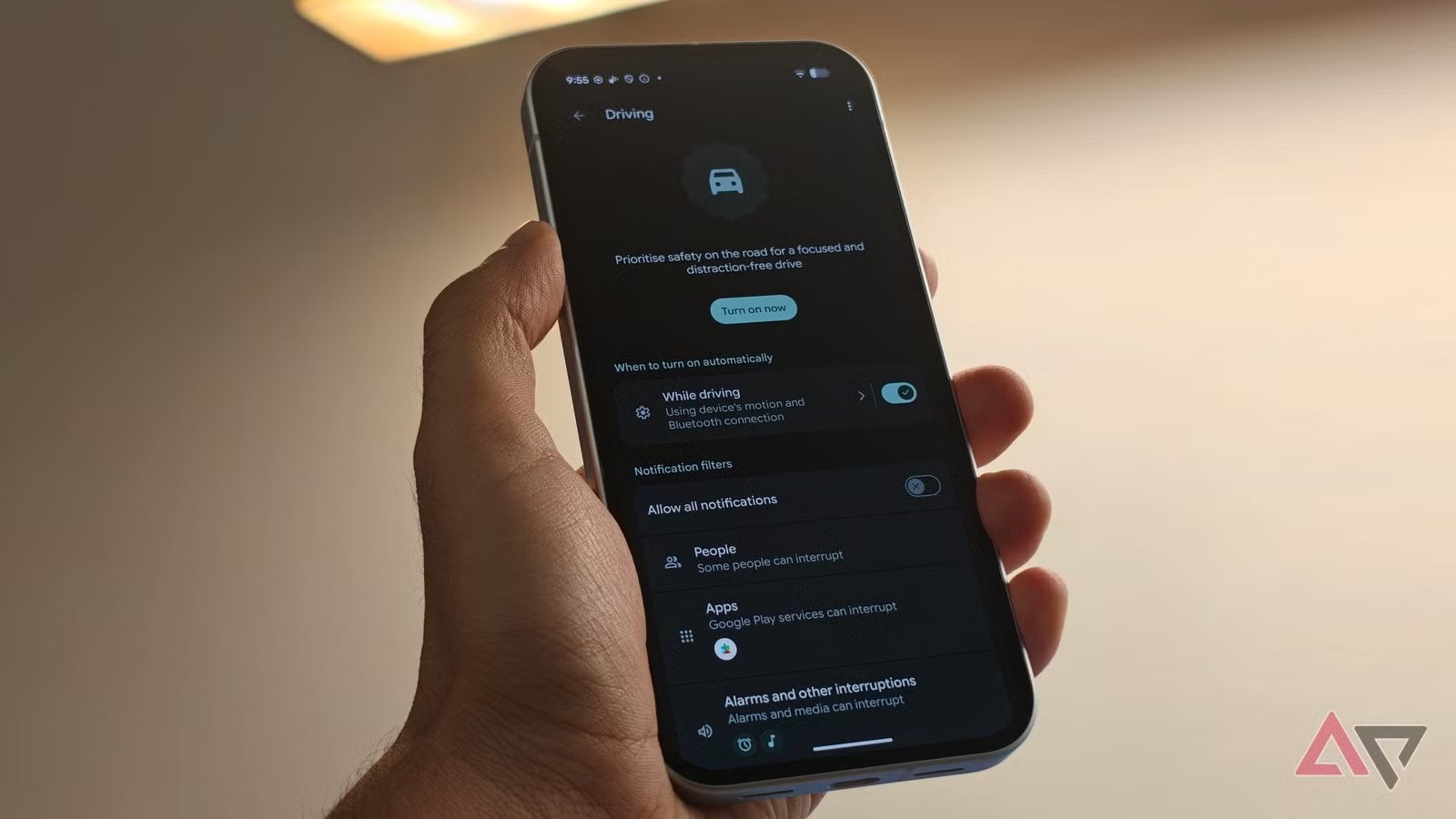
- On Pixel, check Driving Mode and Do Not Disturb behavior while driving.
- On Galaxy, create a routine with the trigger “Bluetooth device connected” and choose the car.
- Add only a few actions: open Maps, start a playlist or podcast, enable Do Not Disturb, adjust media volume.
- Save it, turn Bluetooth off and on again, and test the full sequence while parked before using it on the road.
Pixel And Google Phones
On Pixel, start with the driving-related settings. Driving Mode can enable specific behavior when the phone detects the car or a compatible Bluetooth connection. Use Driving Mode for the safety layer, meaning notifications and distractions, and leave Android Auto to handle the visual layer: navigation, calls, messages and media on the car display.
If you add an Assistant Routine, keep it narrow. A routine that opens too many apps, reads useless information and changes ten settings looks clever only until it fires at the wrong time. For a daily commute, three actions are usually enough: start navigation to work or home, set media volume to a predictable level, and open the audio app you actually use. Everything else is operational luxury, and operational luxury in a car tends to become maintenance.
Samsung Galaxy Setup
On Galaxy phones, the cleanest path is often Settings > Modes and Routines. Create a new routine, choose a specific Bluetooth device connection as the condition, and select the car. As actions, you can open Google Maps, enable Do Not Disturb, change media volume, allow compatible notification reading or adjust the home screen. The advantage is that the routine lives locally on the phone and does not always depend on a voice command.
This is where discipline matters. Do not use GPS location as the only trigger if you park close to home or walk through the same area often: false starts are easy. The car’s Bluetooth is more precise because it represents a real event: the phone has connected to that vehicle. If you use more than one car, create separate routines with clear names. Otherwise, six months from now you will find a mysterious automation and blame Android, which is a traditional but not always accurate sport.
Common Problems And Fixes
If the routine does not start, check Bluetooth pairing first. Remove the car from saved devices, restart both the phone and the infotainment system, then pair again. If Android Auto starts but Maps or Spotify does not open, check permissions, background battery settings and manufacturer restrictions. Some phones close apps aggressively: the automation is perfect on paper, then battery optimization arrives with a hammer.
If the routine starts at the wrong time, tighten the trigger. Use the specific car Bluetooth device, not “any Bluetooth device.” If notifications still interrupt you, review Do Not Disturb exceptions: favorite calls, urgent messages and navigation apps make sense; social alerts, promotions and noisy groups do not. If audio starts but stays silent, check media volume and the selected audio output. Often the phone is playing, just to the wrong device.
What Actually Changes
This is not a brand-new headline feature, but it is the kind of automation that can improve daily phone use more than many AI demos. The real benefit is removing three or four repetitive taps at a moment when attention should be on the road. The limit is just as clear: the more ambitious the routine becomes, the higher the chance of false positives, unopened apps, changed permissions and settings you forgot you touched.
The practical conclusion: start with the specific car Bluetooth trigger, add a few verifiable actions, test everything while parked and keep a manual fallback. If, after a week, you no longer think about it, the automation worked. If you spend your time fixing it, you have not automated your commute; you have created a second dashboard to administer.
In Brief
- The most reliable trigger is the connection to the car’s specific Bluetooth device.
- Android Auto should be configured and tested before the routine.
- On Pixel, Driving Mode is useful for reducing distractions and notifications.
- On Samsung, Modes and Routines is often the most practical path.
- The best actions are few: Maps, audio, volume and Do Not Disturb.
- Always test the routine while parked, with the car on and Bluetooth reconnecting.