Google is making some of its search history and AI-related data controls more visible, and TechCrunch has flagged the practical point users should not ignore: if you use Google services, some of your activity can help improve Google’s AI systems unless you change the relevant settings.
On Android this is not a tiny browser preference hidden in a corner. It is tied to the Google Account that connects Search, Maps, News, Translate, Gemini and much of the day-to-day phone experience. The useful check is not one generic “privacy” switch, but three separate areas: Search Services History, Web & App Activity and Gemini Apps Activity.

One lab note before you start: these are account-level controls. If your Android phone has multiple Google accounts, or if you use a separate work profile, make sure you are checking the right account. Changing your default browser or launcher will not manage these settings for you.
What you need before checking
- An Android phone with your main Google Account signed in.
- Access to Google Account settings from Android or a browser.
- Your credentials ready, because Google may ask you to confirm your identity.
- A few minutes to distinguish turning off, deleting and auto-deleting activity.
1. Check Search Services History
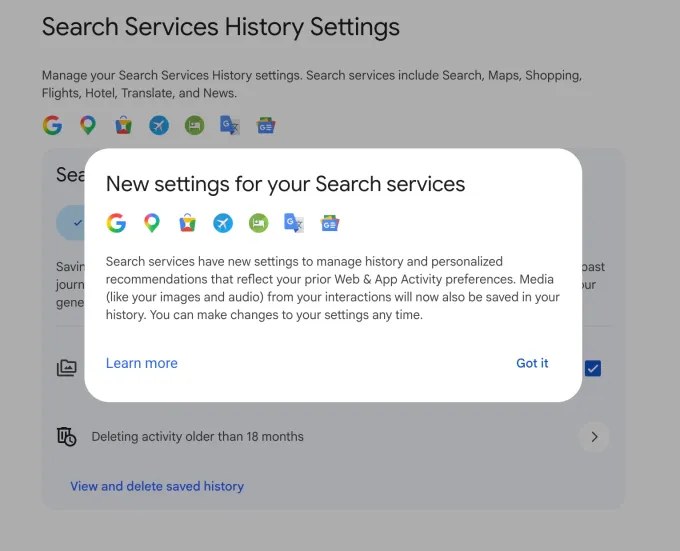
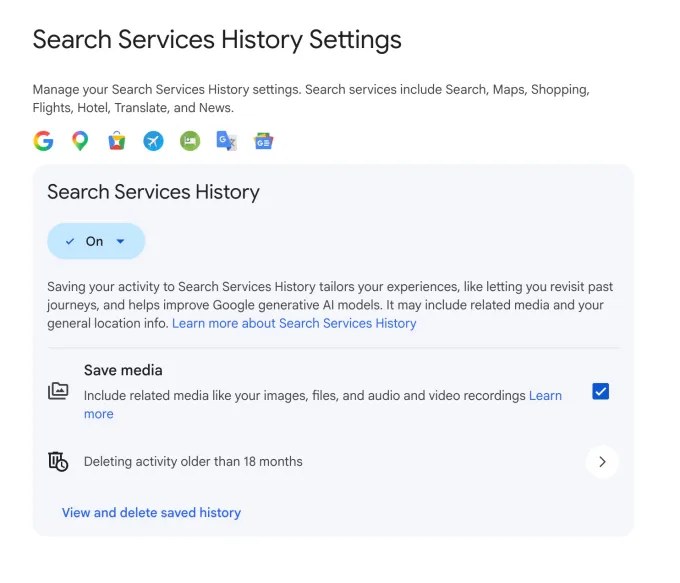
TechCrunch points to Google’s newer Search Services History controls, which cover activity and personalization for services such as Search, Maps, Shopping, Flights, Hotels, Translate and News. The setting to inspect carefully is Save media, which may include related media from your interactions, such as images, files, audio and video.
The practical route is to open Google’s activity controls, go to the search services section, check whether Search Services History is enabled, and then review Save media separately. If you want to reduce collection without wiping everything out blindly, start with media and then decide what to do with the main history setting.
2. Review Web & App Activity
Google’s official Web & App Activity help page says that, when enabled, this setting can save activity from sites, apps and devices that use Google services. Google says it can use this data for personalization, service improvement, outage tracking and abuse prevention. Your choices are to leave it on, turn it off, or use Turn off and delete activity to disable it and remove selected history.
On Android, the clean path is: Settings, Google, Manage your Google Account, Data & privacy, History settings. From there, check Web & App Activity and the auto-delete interval. If you still want useful personalization but less long-term accumulation, a shorter auto-delete window can be a reasonable compromise.
3. Manage Gemini Apps Activity
Gemini has its own activity controls. Google’s Gemini Help page says that, when you are signed in and Keep Activity is on, Google stores Gemini Apps activity in your Google Account. You can review prompts, delete activity and turn off Keep Activity from My Activity. This is the specific check to run if you use Gemini as an Android app or as your default digital assistant.
The trade-off is real: turning activity off may reduce memory, continuity and personalization. That does not make the setting bad; it just means you should treat it as an operational choice, not as a moral panic button. Keep what is useful, delete what should not become long-term account history.
What actually changes
The important change is not that Google collects data. The useful part is that these controls are becoming easier to find and more granular. For Android users, that means you can separate search history, media saving, app and web activity, and Gemini activity instead of treating everything as one vague privacy bucket.
Quick troubleshooting checks
- If a setting is missing, confirm that you are using the right Google Account.
- If you use a work or school account, some controls may be managed by an administrator.
- If Gemini becomes less helpful after you turn activity off, reduced personalization may be the reason.
- For related AndroidLab coverage, see our guide to Gemini on Android, Free, AI Plus and AI Pro.
- If your issue is links opening inside apps, read our guide to Android in-app browsers and privacy checks.
In short
- Check Search Services History, especially Save media.
- Review Web & App Activity in your Google Account privacy settings.
- Manage Gemini Apps Activity separately if you use Gemini on Android.
- Turning off and deleting are not the same operation, so read before confirming.
- The practical goal is control, not random switch-flipping.