An old Android phone can become a small Jellyfin media server, but only if you treat it as a useful lab project rather than a phone magically turning into a NAS. The fresh hook comes from XDA, which turned an old Android device into an always-on Jellyfin setup by using Termux and a lightweight Linux environment.
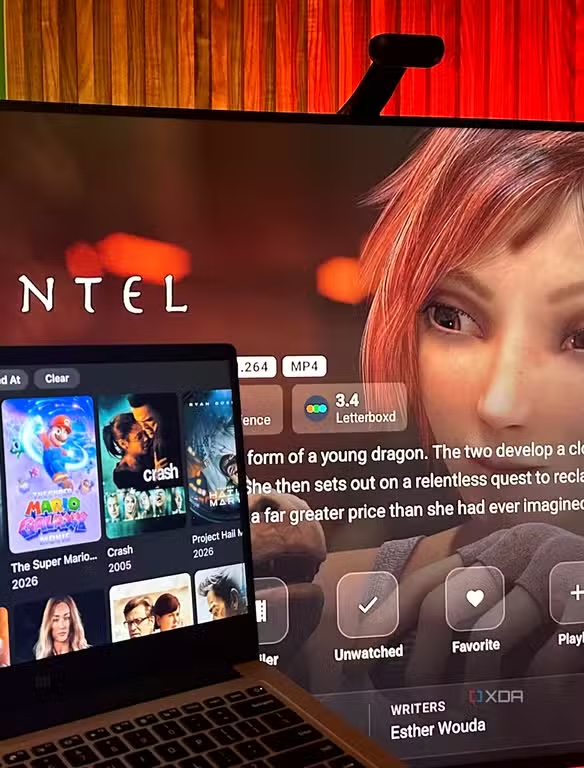
The practical angle is strong because many retired phones still have better CPUs, RAM, UFS storage, Wi-Fi and USB-C than cheap streaming sticks. The marketing-friendly part ends quickly, though: Jellyfin Server is not available as a normal official Android server app, so this setup relies on Termux, proot-distro and a few very real operational compromises.
Requirements before you start
You need a stable Android phone, preferably with at least 4GB of RAM, a reliable charger, decent Wi-Fi and enough storage for a small library. If you want movies and large TV libraries, plan for a USB-C SSD or flash drive through OTG. Before designing the home cinema of the century, check that the phone can actually mount that drive and keep it mounted under load.
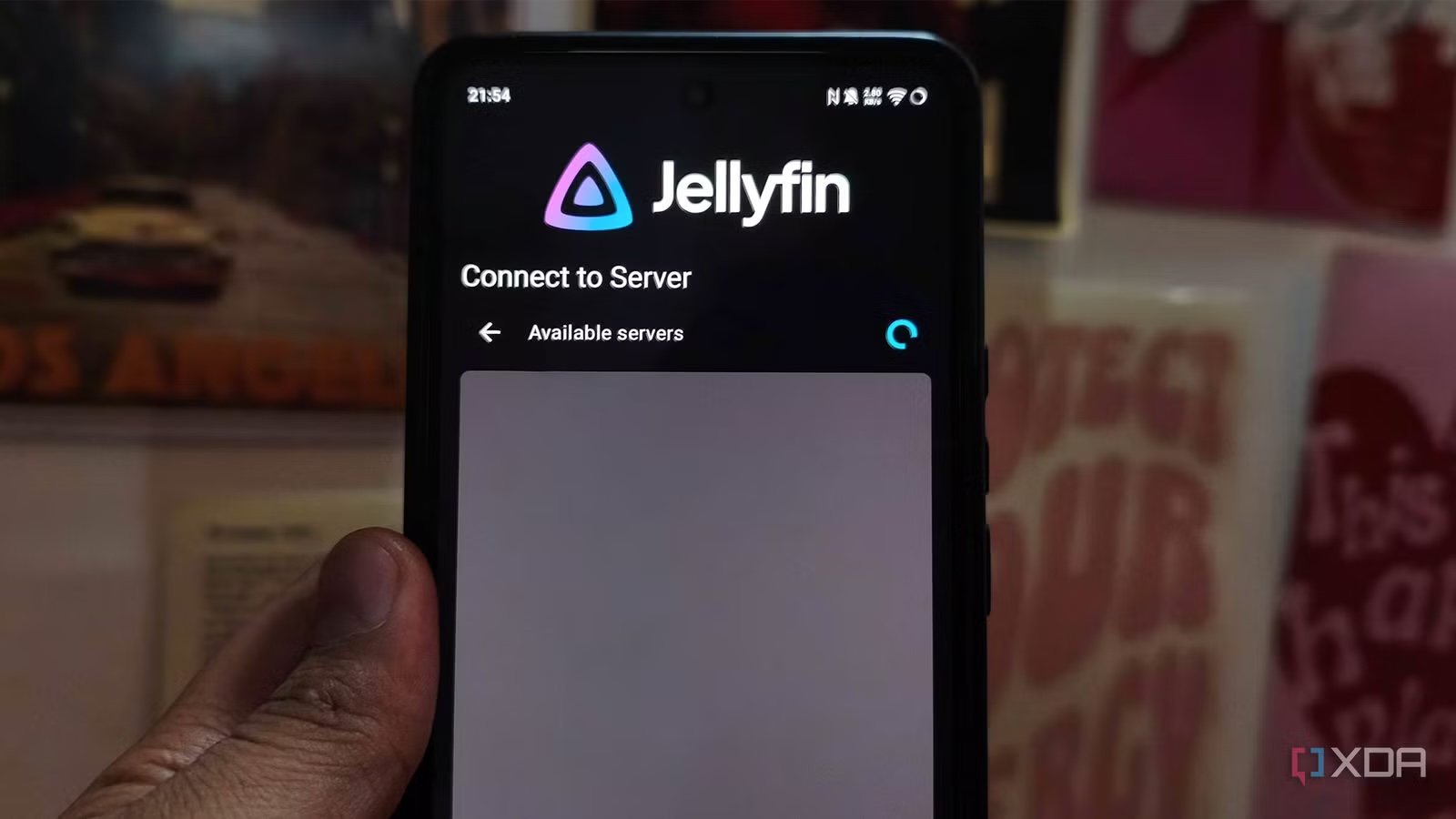
On the software side, you need Termux from an official source, a Debian or Ubuntu environment through proot-distro, Jellyfin installed inside that environment, and a client for playback. The official Jellyfin Android app is available on Google Play, but in this scenario it should be treated as a client. The server side is a Linux-on-Android build, not a polished tap-and-forget Android app.
Use official downloads: Termux on F-Droid, Termux documentation and Jellyfin for Android on Google Play. Avoid random APK mirrors. Leaving a server online is already enough responsibility without starting from a mystery package.
The practical Termux flow
Install Termux, open it and update the package repositories. Then grant storage access, because Jellyfin needs to read the folder where your media files live. The usual command is termux-setup-storage, followed by Android’s permission dialog. From there, install the required tools and create a Linux environment with proot-distro.
The conceptual flow is simple: update Termux, install proot-distro, create a Debian or Ubuntu environment, enter that Linux environment, add Jellyfin packages according to the official documentation and start the service. This should not be a blind copy-paste procedure because package names and repositories can change. Check the current Jellyfin and Termux instructions before running persistent server commands.
Once Jellyfin is running, open the phone’s network address from a browser on the same LAN, usually on port 8096. If nothing loads, check the IP address, Wi-Fi network, VPN state, Linux environment firewall and storage permissions first. A surprising number of home streaming problems come from the phone being on one network and the TV sitting on another.
Android checks: battery, wakelock and startup
Android will try to save power, which means it may kill the exact process you want to keep alive. Disable battery restrictions for Termux, avoid aggressive power-saving profiles and use a wakelock when the server has to remain available. Keep the phone powered, but watch temperatures: if it runs hot, reduce the workload, move it somewhere cooler and lower the media demands.
If you want a semi-permanent setup, you can look at starting services after reboot, but do not expect it to behave exactly like a normal Linux distribution. Android still controls permissions, memory pressure, background processes, external storage and sleep behavior. The right mindset is monitor before trusting.
The real limits: transcoding and Direct Play
The biggest technical limit is transcoding. On a normal Linux server, Jellyfin can often use hardware acceleration through Intel Quick Sync, Nvidia NVENC or other supported paths. On an Android phone running Jellyfin inside proot, that path is not guaranteed. When a client cannot play the original video codec, audio codec, container, subtitle format or bitrate, the server may fall back to software conversion. That is where CPU load, heat and battery drain show up quickly.
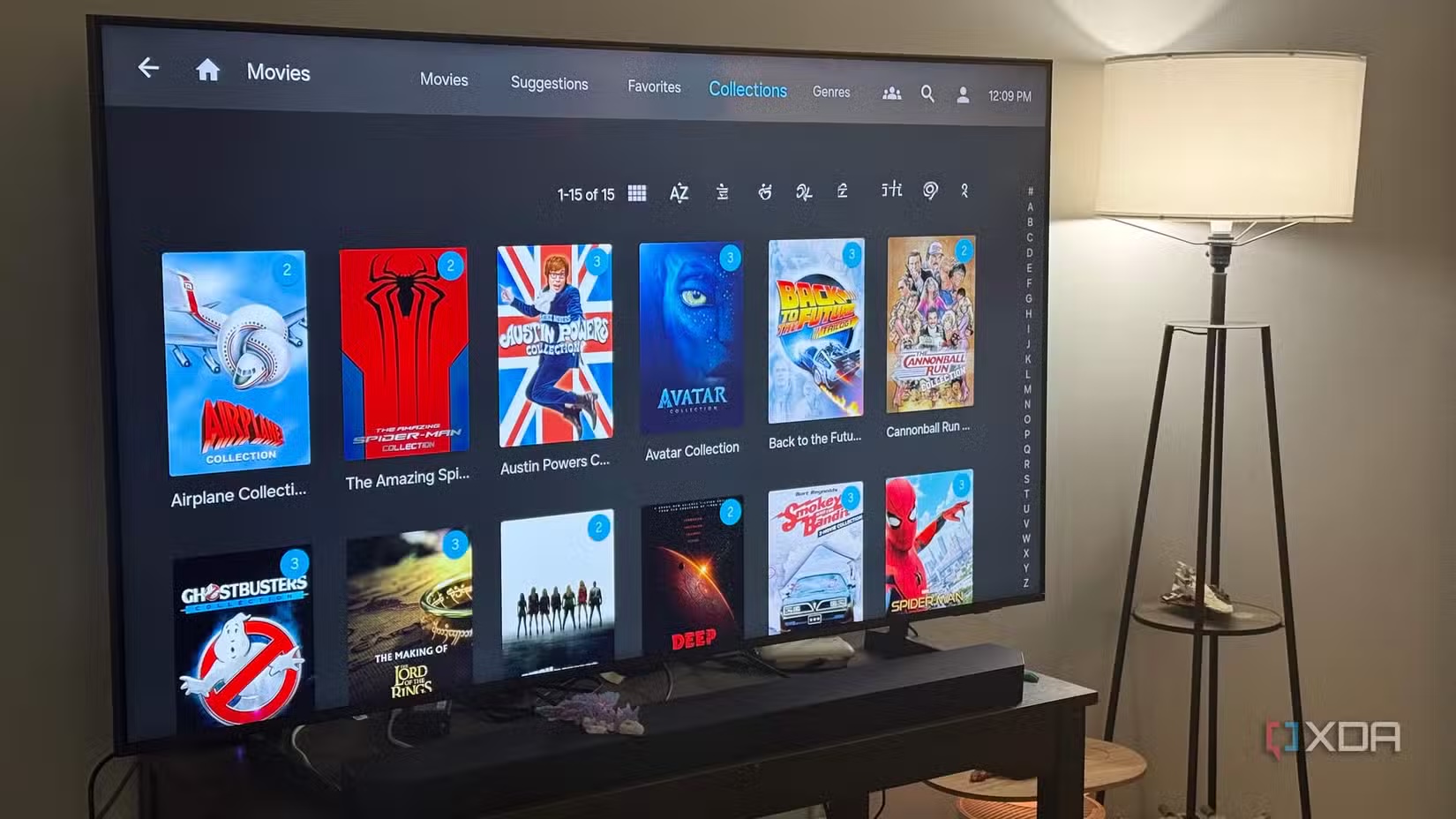
The right strategy is to aim for Direct Play. Use files already compatible with your TV, tablet or streaming box: supported H.264/H.265 profiles, readable audio, simple subtitles and a bitrate your network can handle. If the client plays the file directly, the phone mostly serves data. If it has to convert every file in real time, you are asking an old handset to do the job of a real server.
Network and storage checks
Place the phone near the router or use a strong Wi-Fi connection. An always-on media server on weak Wi-Fi is a buffering machine, not a solution. If you use USB-C storage, verify sustained reads, power stability and filesystem support. Some phones behave badly with large drives, cheap hubs or unstable OTG adapters.
Remote access needs even more caution: exposed ports, passwords, updates and upload bandwidth all matter. For a home lab test, keeping it on the local network is the sane default. For remote access, use a properly configured VPN or reverse proxy. Related AndroidLab reading: if you are repurposing old phones for network tasks, see our guide on using Android as a travel router. For the Termux side, the Italian guide on Termux and ExifTool for photo metadata removal is also relevant.
What actually changes
This is not the shortcut that replaces a Synology NAS, a Linux mini PC or a properly configured Jellyfin server. It is, however, a concrete way to reuse Android hardware that still has value, especially for light libraries, home tests, music, compatible video files and clients that can Direct Play. For AndroidLab, the useful distinction is exactly here: “possible” and “a good production setup” are not the same thing.
The practical conclusion is simple: start with a few files, check temperature, run it for 24 hours, watch storage stability and test every client you care about. If it holds, you have rescued a phone and learned something. If it fails, you found out before trusting it with movie night, which is already a better result than many glossy spec sheets provide.
In brief
- An old Android phone can host Jellyfin Server through Termux and proot-distro, but this is not an official one-tap setup.
- Use Termux from F-Droid or official sources, and treat Jellyfin from Google Play as the Android client.
- The setup works best with Direct Play files, stable Wi-Fi and reliable USB-C storage.
- Software transcoding is the main limit: it can overload CPU, battery and thermals.
- Before leaving it always on, run a 24-hour test with temperature, wakelock and storage checks.
Sources
- XDA Developers — I turned my old Android phone into an always-on Jellyfin player, and it beats every streaming stick I own (July 4, 2026)
- Jellyfin Docs — Clients (checked July 5, 2026)
- Jellyfin Docs — Transcoding (checked July 5, 2026)
- Termux — Official site and documentation (checked July 5, 2026)
- F-Droid — Termux package (checked July 5, 2026)
- Google Play — Jellyfin for Android (checked July 5, 2026)