Google’s new Tap to Share option turns a familiar gesture into a more deliberate part of Quick Share. On eligible Pixel phones, holding two devices close together can exchange contact details from the home screen; photos, videos and other items start from Android’s system Share sheet. It is useful precisely because it removes several taps, but it is not yet a universal Android feature.
Google announced the rollout on August 12 for Pixel 6 and newer. The practical question is not whether the animation looks like an old Android Beam revival; it is whether the feature is available on both phones and whether the item on screen is really the one you mean to send.
What Tap to Share does today
The first rollout is deliberately narrow. Google says Pixel 6 and newer devices are eligible, with wider Android support planned later in the year. It also says the feature is coming next to the Galaxy Z Fold8 Ultra, Fold8 and Flip8. That means a nearby Android phone is not, by itself, proof that a transfer can start: availability is tied to the staged rollout and the model in front of you.
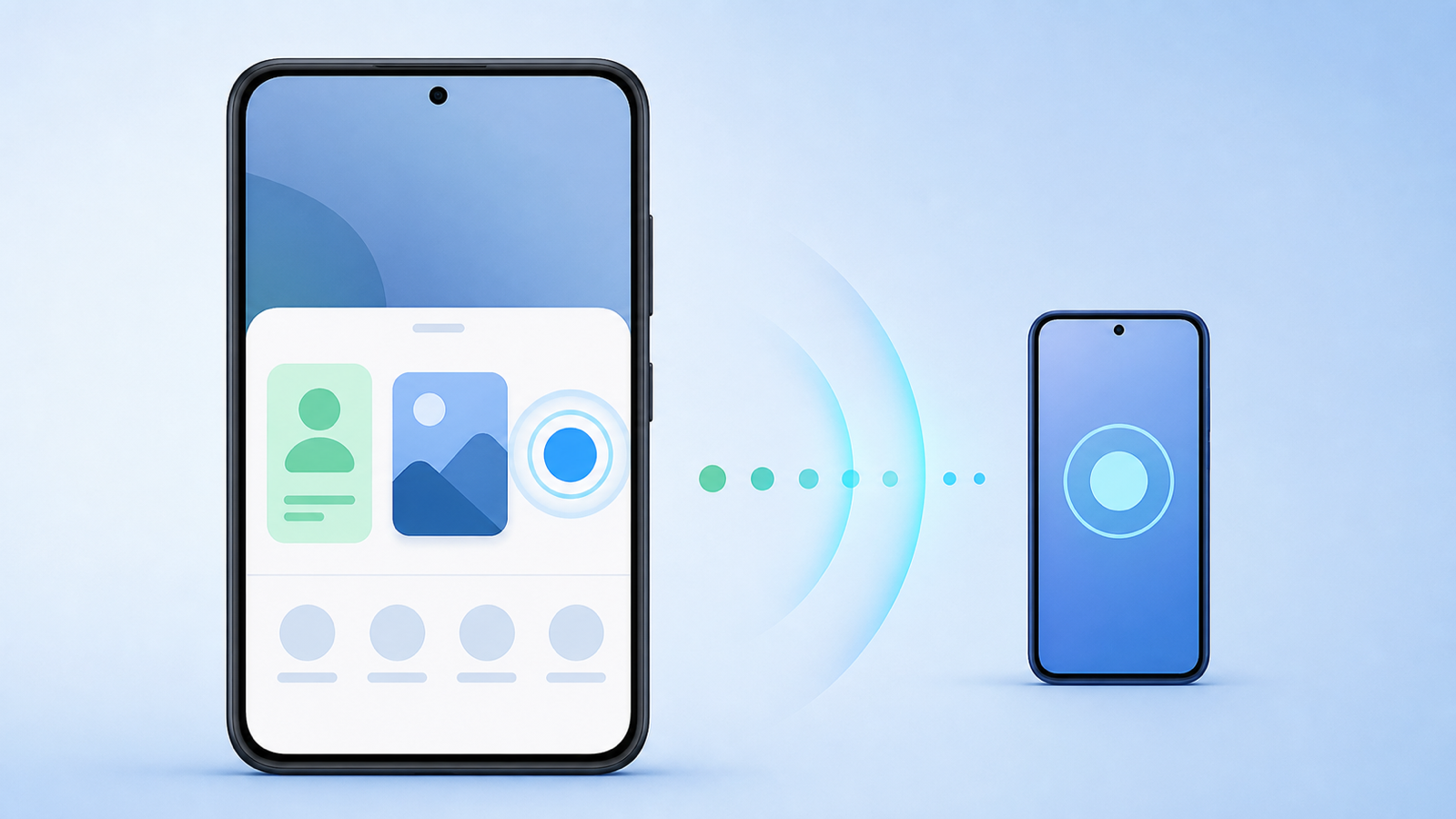
For contact details, begin at the home screen and bring compatible phones close together. Google describes this as a two-way exchange. For a photo, video, link, location or another shareable item, open it first, use the Android Share sheet, then bring the devices together. The distinction matters: touching phones together is not a shortcut that silently exports the file currently open in every app.
Five checks before you use it
- Confirm the device is in the first wave. Google names Pixel 6 and newer for the current rollout. If the option does not appear, do not assume that every Android handset has it already.
- Start from the right place. Use the home screen for contact sharing. For media or other content, select the item and open the system Share sheet first.
- Read the share target before moving the phones together. A fast gesture is not a reason to skip the normal pause before sharing a contact card, a photo or a location.
- Treat availability as a rollout question, not a hardware fault. Google calls this a rollout, and its stated expansion to more Android devices is still future-facing. A missing option can simply mean that the feature has not reached that device.
- Use the official help page for the exact flow. It documents the supported content types and is the right reference if the interface changes during the rollout.
What changes in practice
Quick Share already solved local sharing; Tap to Share changes the entry point. The contact-card exchange is the most interesting part because it works from the home screen rather than making two people hunt through menus. For photos and videos, the Share sheet requirement keeps the action explicit: choose the content first, then use the proximity gesture.
That is the sensible design choice. Proximity sharing should be fast, but it should not become opaque. The useful habit is simple: identify the item, look at the target and only then make the tap. The marketing version is a one-touch transfer; the operational version is a quicker transfer with the normal moment of human verification left intact.
If Tap to Share is missing
First check that the phone is a Pixel 6 or newer and that it has received the rollout. Then try the documented entry point: home screen for contacts, or the system Share sheet for other content. If the option is still absent, use ordinary Quick Share rather than treating a phased feature as a broken one. Google has not said that every Android device is supported today.
In brief
- Tap to Share is rolling out to Pixel 6 and newer phones.
- Contacts start from the home screen; photos, videos and more start from the Share sheet.
- The feature is not yet available across all Android phones.
- Check the item and target before using the proximity gesture.
Sources and verification
- Google: Share between Android devices with just a tap (primary announcement, August 12, 2026)
- Google Android Help: Tap to share content with others (official usage guidance, checked August 14, 2026)
- 9to5Google: rollout for Pixel 6 and newer (independent reporting, August 12, 2026)