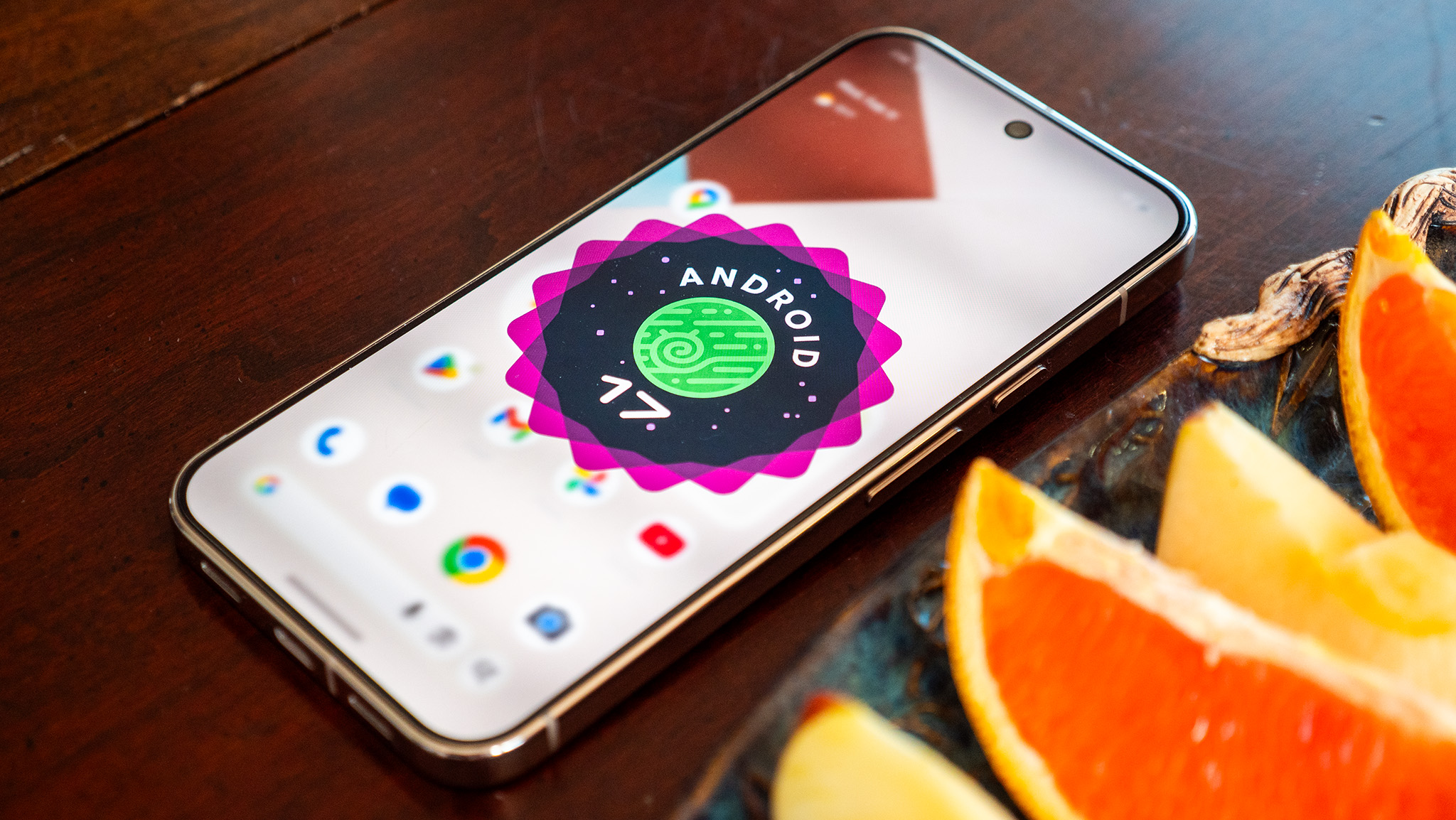
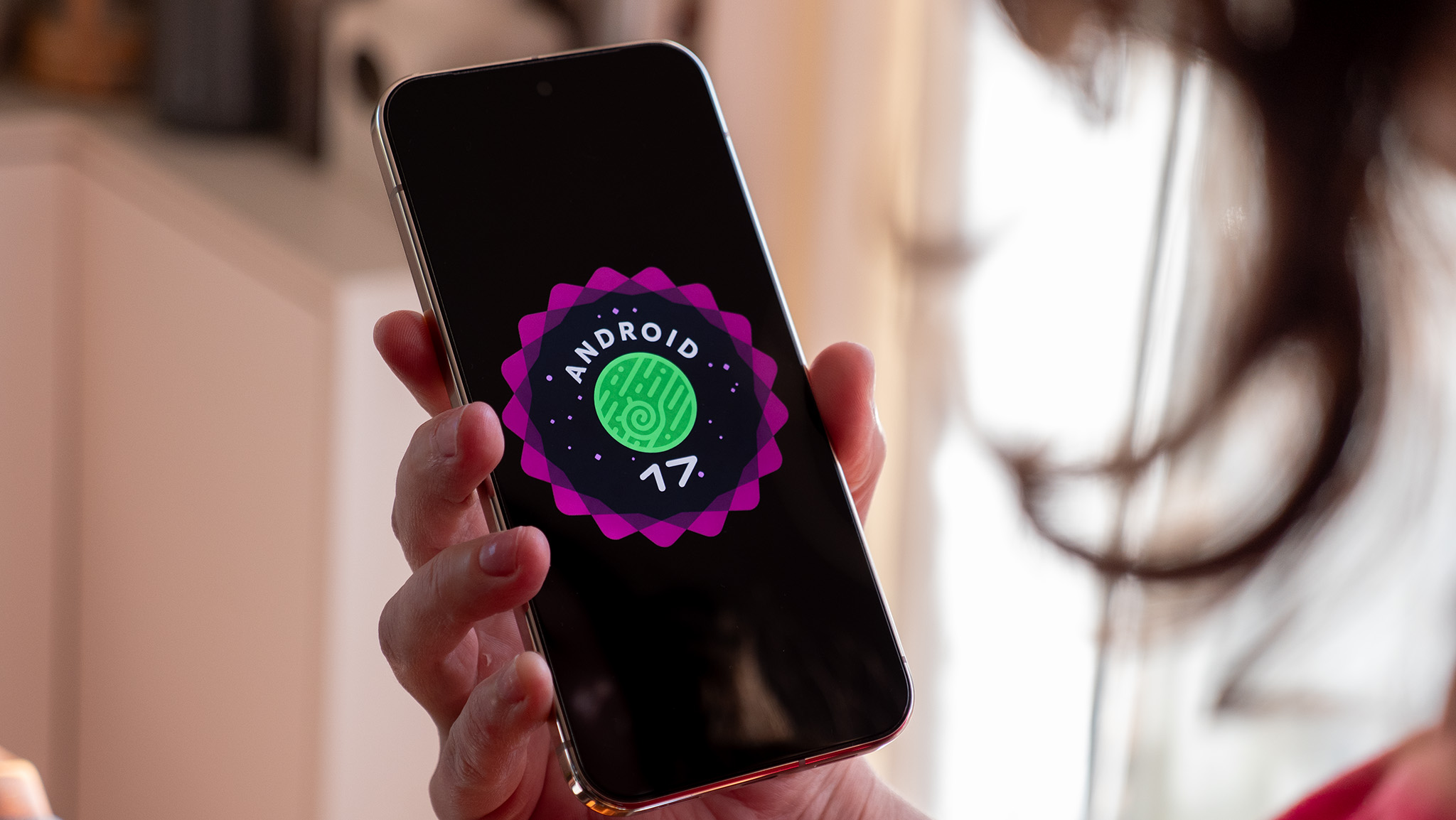
The fresh issue is not “Android 17 is scary,” which would be the laziest possible way to cover an update. It is more specific: some Pixel users are reporting missed incoming calls, Wi-Fi disconnects and unstable gaming performance after the update. Android Central covered the call issue on July 2, 2026, while 9to5Google reported the same day on Wi-Fi and gaming complaints. Before resetting everything with maximum dramatic energy, it is worth running a clean diagnosis.

The important part is to separate the symptoms. A call that never reaches the phone does not follow the same technical path as Wi-Fi dropping every few minutes or a game suddenly stuttering. Calls involve the Phone app, mobile network, forwarding rules and interruption settings; Wi-Fi involves radios, routers, saved profiles and power handling; gaming involves scheduling, heat, graphics drivers and app compatibility. Throwing everything into one “Pixel bug” bucket helps headlines, not users.
First check: is it a call problem or a notification problem?
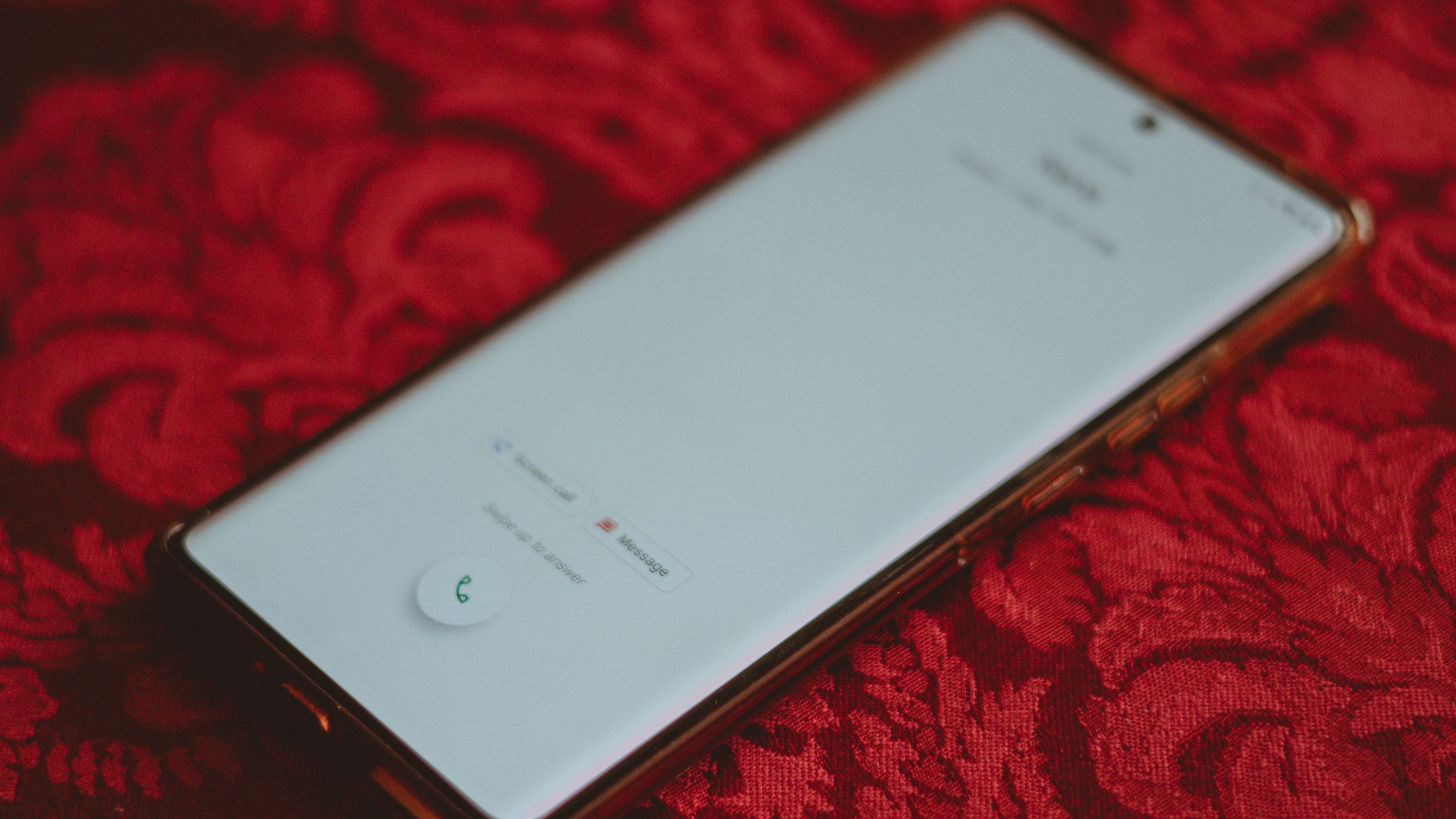
Call your Pixel from a second number and watch what actually happens. If the phone rings but does not vibrate, stays silent or fails to show the incoming-call screen, start with Settings > Sound & vibration, Do Not Disturb, automatic rules and ringtone volume. If the caller hears ringing, busy tone or forwarding while the Pixel shows nothing, move the investigation to mobile network behavior, the Phone app and carrier settings.
Open Phone by Google on the Play Store and check that it is up to date. Then go to Settings > Apps > Phone > Storage and clear only the cache as a first step, not the full app data. Also confirm that Phone is still the default calling app: after major updates, migrations or restores, it is rare but not impossible for defaults to get messy. If the problem only affects unknown numbers, check spam filtering, Call Screen and blocked contacts.
Unstable Wi-Fi: checks before resetting network settings
For Wi-Fi, do not jump straight to a full network reset. It can help, but it also removes saved networks, Bluetooth pairings and preferences. Try three cleaner tests first: reboot the phone and router, forget only the problematic network and reconnect, then test a different network or hotspot. If the disconnects happen everywhere, the Pixel becomes the likely suspect; if they happen only on one router, check channel, 2.4/5GHz behavior, mixed WPA3 mode and router firmware.
9to5Google points to users reporting intermittent disconnects and poor performance after Android 17. The practical checklist is: temporarily disable VPN and Private DNS, test without battery saver, check whether the problem appears only with the screen off, and install any available Google Play system update. These checks are boring, which is usually a good sign: they remove variables before blaming the whole operating system with a flashlight in hand.
Slow games: separate bugs, heat and compatibility
If the symptom is gaming lag, make the test repeatable. Use the same game, same scene, same brightness, battery above 40%, and a cool phone. Play for five minutes, then repeat after a reboot. If the first run after the update is rough but improves, caches, app optimization or background indexing may still be settling. If the problem remains, check the game update, Play Store, Play Services and device temperature.
The uncomfortable part is that some post-update problems do not have a magic fix. At that point, collect useful data: Pixel model, Android build, Phone app version, carrier, network type, router, affected game, time of the problem and reproduction steps. That is the minimum needed to tell a real bug from noisy coincidence.
What actually changes
For anyone using a Pixel as a primary phone, the serious risk is not a worse benchmark: it is missing calls or trusting an unstable network without noticing. After Android 17, a ten-minute check is sensible, especially if the phone handles work, banking, authentication or family availability. AndroidLab already published an Android 17 QPR1 Beta 6 install guide for Pixel; this guide is about the aftercare, meaning how not to turn an update into a ghost hunt.
The practical conclusion is simple: if symptoms are occasional, do not reset immediately. Update apps and the Play system update, test calls, Wi-Fi and games methodically, then write down what happens. If calls are repeatedly missed or Wi-Fi drops across multiple access points, consider resetting network settings and report the bug to Google. A factory reset should stay the last resort, not the “I ran out of ideas” button.
In short
- Fresh reports point to Pixel post Android 17 issues with calls, Wi-Fi and games.
- For calls, check the Phone app, Do Not Disturb, spam filtering and carrier behavior.
- For Wi-Fi, test one network first, then router, VPN, Private DNS and Play system updates.
- For games, check heat, app updates and whether the lag is reproducible.
- Network reset and factory reset make sense only after documented checks.